

If you have it at work but never stopped to ask what is Microsoft Teams used for, here is the honest answer. It is the one app where your company chats, meets, calls, and shares files. Instead of juggling email, a separate video tool, and a phone system, Teams pulls those jobs into a single place. This guide skips the feature dump and shows the real jobs people do with it — by team, by industry, and even at home.
We also cover what Teams is genuinely great at and where it falls short. Then we see how it stacks up against Slack, Zoom, and email. By the end you will know exactly where it fits, so you can decide what to actually use it for. No more guessing from a marketing page.
📋 Free: the M365 Audit Checklist (50 points)
Teams is only one part of your Microsoft 365. See where the rest of your tenant stands today.
🟣 What is Microsoft Teams used for? The short answer
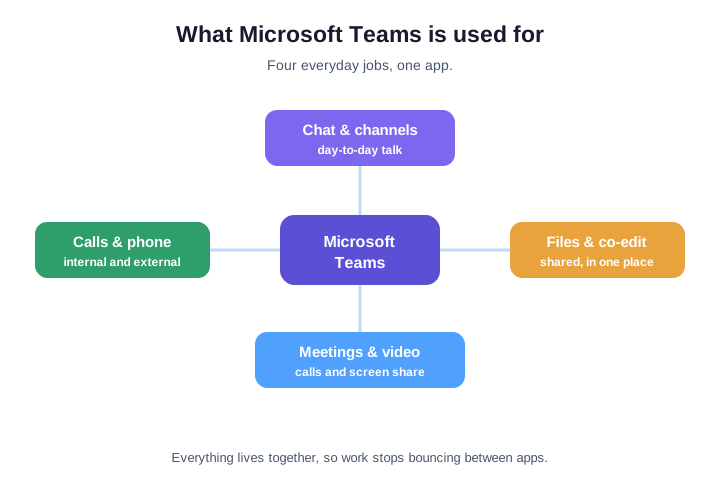
Microsoft Teams is the communication and collaboration hub inside Microsoft 365. At its core it does four everyday jobs: chat, meetings, calls, and shared files. Because those jobs sit in one app, a conversation can turn into a video call, then into a co-edited document. Nobody leaves the window or hunts for a link.
In short: Microsoft Teams handles team chat, video meetings, phone calls, and file sharing — all in one app. Companies use it to replace email threads, a separate video tool, and even their phone system. Beyond that, it runs built-in apps like Approvals, Shifts, and Bookings. It also hosts webinars and connects every Microsoft 365 tool, so most daily work happens inside it.
The reason it caught on is consolidation. Before Teams, a single task might bounce across email, a chat app, a meeting tool, and a file share. Now those live together, so context travels with the work. Microsoft frames it as the hub for teamwork in its own Teams adoption guide, and that is exactly how most organisations end up using it.
💬 Everyday communication: chat, calls and meetings
The job most people use Teams for is talking to each other. One-to-one and group chats stay persistent, so a thread you started last month is still there with its files and decisions attached. That alone replaces a huge share of internal email, because quick questions get a quick answer instead of a formal message.
Meetings are the next big use. You can start an instant call from a chat, schedule a full meeting from the calendar, or join from a phone on the train. Screen sharing, recording, live captions, and breakout rooms come built in. So a casual catch-up and a formal client review run on the same tool.
Calling rounds it out. Beyond internal calls, Teams can place and receive real phone calls when your company adds Teams Phone, which we cover further down. So the same app handles a two-second message, an all-hands meeting, and a customer phone call — a range no single tool used to offer.
Status, mentions and reactions
Small signals keep the noise down. Your status shows whether you are free, busy, or away, so colleagues pick the right moment. An @mention pulls one person into a busy channel, and a quick emoji reaction confirms a message without adding another alert. Together they keep a fast channel readable rather than overwhelming.
📁 Teamwork and files in shared channels
Channels are where Teams stops being a chat app and becomes a workspace. A team gets its own space, divided into channels by topic, project, or client. Each channel keeps its conversations, files, and tools together. So a new joiner can scroll back and understand a project without a single handover meeting.
Files are the quiet superpower here. Every channel has a Files tab backed by SharePoint, and a document opens right inside Teams. Two people can co-edit the same file at once, and it saves automatically. That kills the old habit of emailing “final-v3.docx” back and forth.
Standard, private and shared channels
Not every conversation suits the whole team. Standard channels are open to all members, private channels limit a topic to a few people. Shared channels invite outsiders into one channel without giving them the rest of the team. That mix lets one workspace cover open chat, sensitive work, and external partners at the same time.
🔗 A single hub for your apps and Microsoft 365
Teams also acts as a front door to the rest of Microsoft 365. Word, Excel, PowerPoint, OneNote, Planner, and SharePoint all open inside it, so you rarely switch apps to get work done. A spreadsheet pinned as a tab in a channel becomes the team’s single source of truth instead of a file lost in someone’s inbox.
It does not stop at Microsoft tools. Hundreds of third-party apps — from ServiceNow to Trello to Polly — plug in as tabs, bots, or meeting add-ins. So the tools a team already relies on show up where the conversation happens, rather than in yet another browser tab nobody checks.
Search ties the hub together. Because chats, files, and app data live in one place, a single search box finds a message, a document, and a person at once. So instead of remembering which tool held a detail, people search Teams once and trust it to surface the answer.
📱 Where you can use Microsoft Teams
Teams also goes wherever you are. It runs as a desktop app on Windows and Mac, in any modern web browser, and as a full mobile app on iPhone and Android. A meeting you join on a laptop can move to your phone as you walk to the car, without dropping the call.
It also reaches the meeting room. Teams Rooms turns a conference room’s screen, camera, and microphone into a one-touch join, so in-person and remote attendees share a single meeting. Between desktop, web, mobile, and room systems, there are very few places you cannot pick up where you left off.
🏢 What different teams use Microsoft Teams for
The same app does a very different job depending on who opens it. HR runs onboarding and policy Q&A in a channel, while sales spins up a deal room per prospect. IT fields tickets through a support channel with bots and alerts. Finance uses it for approvals and secure document review, while project teams give each project its own channel, files, and task board.
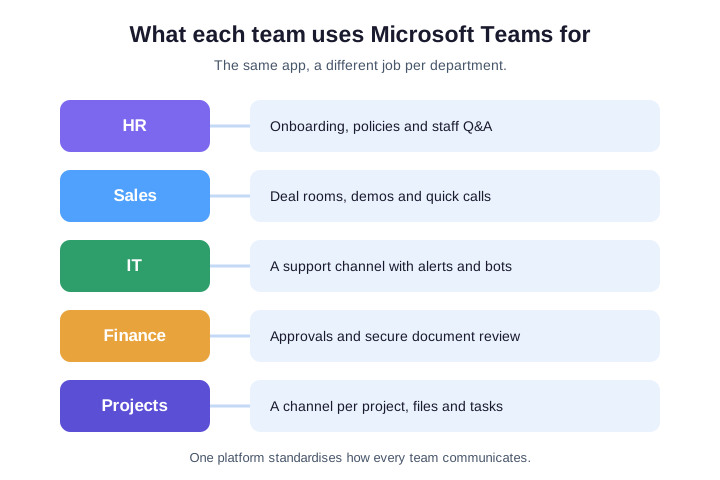
This flexibility is why Teams spreads across a whole company rather than sitting with one department. Once people see a neighbouring team running a tidy project channel, they copy the pattern. The table below sums up the most common departmental uses so you can spot your own.
| Team | What they mainly use Teams for |
|---|---|
| HR | Onboarding, policy Q&A, company announcements |
| Sales | Deal rooms, demos, fast internal approvals |
| IT & support | A help channel with bots, alerts and ticketing |
| Finance | Approvals, secure document review, month-end |
| Projects | A channel per project with files and a task board |
🏭 How different industries use Microsoft Teams
Whole industries shape Teams to their own work. Schools run classes, assignments, and parent meetings through Teams for Education. Healthcare uses it for secure video visits and staff coordination, with EHR connectors that keep patient calls compliant. Retail, manufacturing, and hospitality lean on it to reach the people who are never at a desk.
The most overlooked use of Teams is the frontline worker. Shift staff get a phone-first app with Shifts for rotas and Walkie Talkie for push-to-talk. Tasks adds store or floor checklists, and no desk or email is needed. For many of our clients this is where Teams pays off fastest, because it finally connects the people head office never could reach.
The pattern holds across sectors: Teams adapts to the workflow instead of forcing a new one. A clinic, a classroom, and a warehouse all run on the same platform, just with different apps switched on. That is a big reason it has become the default rather than one tool among many.
📞 Using Microsoft Teams as a phone system
One of the fastest-growing uses is replacing the office phone system entirely. With Teams Phone, your company gets real phone numbers. Staff make and take outside calls from the same app they already chat in. The desk handset, the separate PBX, and its maintenance bill can simply go away.
It carries the features a business expects: voicemail, call queues, auto attendants that route callers, and transfers between colleagues. Because the number follows the person, a call rings on their laptop and phone at once. So remote and hybrid staff stop missing customers. For many small companies this single shift justifies the whole platform.
Moving over is easier than most expect. You can port existing numbers so customers notice nothing, then add or remove lines yourself instead of waiting on a telecoms provider. That self-service control is a quiet reason companies fold their phones into Teams.
It scales down well for small teams too. You pay per user, add a number in minutes, and skip the upfront cost of phone hardware. A two-person shop and a 200-seat call centre run on the same system, just with different add-ons switched on.
🚀 What remote and hybrid teams use Microsoft Teams for
Remote and hybrid work is where Teams earns its keep. A distributed team uses it as the virtual office. Presence shows who is around, chat replaces the tap on the shoulder, and a quick call stands in for the corridor chat. Work does not stall just because nobody shares a building.
It also keeps everyone aligned across time zones. Channels hold the running history, so a colleague waking up hours later reads the thread instead of asking for a recap. Recorded meetings with transcripts mean a missed call is no longer a missed decision, which is exactly what scattered teams need.
Meetings also shrink, which scattered teams welcome. Because the history sits in the channel, many updates that once needed a call become a quick post. People dip in when it suits their hours, so the team moves forward around the clock without forcing everyone onto one call.
🎤 Webinars, town halls and live events
Teams also talks to a big audience, not just a small team. Webinars add registration pages, reporting, and a presenter-versus-attendee split, which suits training and lead-generation events. So marketing and learning teams run polished sessions without buying a separate webinar tool.
For the largest gatherings, town halls broadcast to thousands with a managed, one-to-many experience and live translation. A company all-hands, a product launch, or an investor update can run to a global audience. It uses the same app staff rely on for daily chat. That reach is something a basic meeting tool cannot match.
Both formats record automatically, so the value outlives the live event. A webinar becomes on-demand training, and a town hall becomes a reference anyone can replay. A single session keeps working long after it ends, which is why teams increasingly run events here rather than on a throwaway tool.
🧩 Teams as a no-code app platform
Beyond talking, Teams runs small business processes through built-in apps. Approvals handles sign-offs inside a chat, and Shifts manages rotas. Tasks blends personal to-dos with Planner boards, Bookings takes appointments, and Forms gathers polls and surveys. Each one removes a separate tool that a team would otherwise pay for and log into.
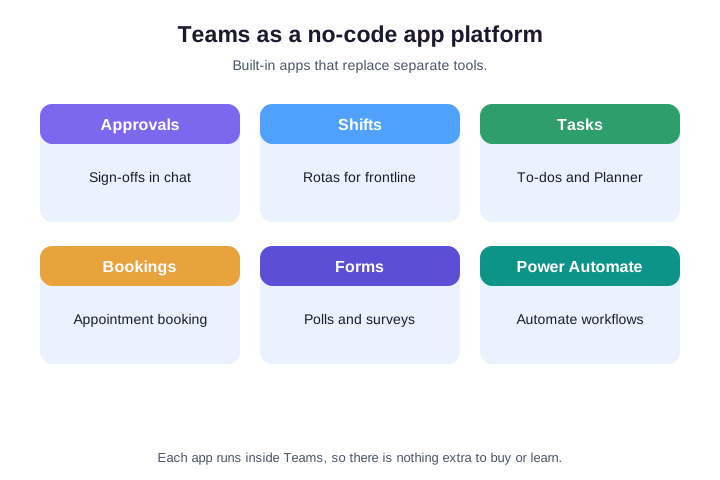
Power Automate ties them together. A form response can trigger an approval, post to a channel, and update a list without anyone writing code. So a non-technical team can automate the boring parts of its day, which is a use of Teams most people never realise they have.
Teams can even host custom apps a company builds itself. With the Power Platform, a team turns a spreadsheet process into a proper app that lives in a channel, used by everyone with no download. That is how Teams quietly becomes the place work happens, not just the place people discuss it.
🏠 What free Microsoft Teams covers
Teams is not only a work tool. The free, personal version comes with a Microsoft account and suits family and friends. Think group chats, video calls, shared photos, and simple plans for a trip or an event. It is a lighter cousin of the work app, aimed at home life rather than the office.
Small businesses sometimes start on free Teams too, then move to a paid Microsoft 365 plan as they grow. The free tier covers basic chat and meetings. The work version adds larger meetings, the phone system, admin controls, and the compliance features a company needs. Knowing which one you have explains a lot about what you can do with it.
The jump from free to paid is usually about scale and control. A growing business hits the free limits on meeting length, large events, and admin oversight, then moves to a Microsoft 365 plan. Knowing which version you run explains most of what you can and cannot do today.
🔐 Is Microsoft Teams secure enough for business?
Much of what Teams does depends on trust, and Microsoft built it for business security. Teams encrypts data in transit and at rest. Sign-in can require multi-factor authentication, and it meets standards such as ISO 27001, SOC 2, and HIPAA. For regulated work, that compliance is the reason IT teams allow it at all.
Admins also control how far it reaches. Admins can open guest and external access for partners or lock it down tightly. Meanwhile, eDiscovery and retention tools keep conversations available for legal or audit needs. So a company can roll Teams out widely yet keep a firm grip on who sees what.
⚖️ What Microsoft Teams is not the best tool for
An honest answer has to include where Teams falls short. It is a communication hub, not a full project manager, so complex plans with dependencies and Gantt charts outgrow it. It is also not a document management system on its own. Heavy file structures get confusing once a team has dozens of channels.
None of that makes Teams a poor choice; it just means you pair it with the right tool for the heavy lifting. The table below maps the jobs where a dedicated app earns its place alongside Teams, so you use each one for what it does best.
Cost and sprawl are the other honest caveats. The richest features sit in higher Microsoft 365 plans. The phone system, large webinars, and advanced compliance all cost more, so the full picture is not free. And without a little governance, a company can wake up to hundreds of half-used teams that nobody owns.
| The job | Use Teams for | Reach for a dedicated tool when |
|---|---|---|
| Project planning | Day-to-day tasks and updates | You need dependencies and Gantt charts |
| Document control | Sharing and co-editing files | You need strict versioning and records |
| External webinars | Most training and lead events | You run large, branded marketing events |
| Long-term storage | Active project files | You need a structured archive or DMS |
🆚 Teams versus Slack, Zoom and email
People often ask what they would use Teams for instead of the tools they already know. Against Slack, the draw is the deep Microsoft 365 tie-in: files, meetings, and apps in one place rather than chat plus a pile of add-ons. Against Zoom, the meeting quality is comparable, but Teams keeps the chat, files, and follow-up in the same workspace afterward.
When it comes to email, Teams wins on speed and context for internal work. Email still rules for formal, external, and record-keeping messages. Most companies do not pick one; they use Teams for live collaboration and keep email for the formal trail. Seen that way, what you use Teams for is the fast, shared, day-to-day work that email handled badly.
The deciding factor is usually the ecosystem you already pay for. If your company runs on Microsoft 365, it already includes Teams, so adopting it costs nothing new. That bundled value, more than any single feature, is why so many businesses use Teams instead of stitching together separate chat, meeting, and phone tools.
🤝 Using Microsoft Teams with people outside your company
Companies increasingly use Teams to work with clients, partners, and contractors, not just colleagues. Guest access lets you add an outside email to a team, where they chat, join meetings, and share files under your rules. A project that spans two companies can then live in one space instead of a long email chain.
Shared channels go further by connecting whole organisations without guest accounts at all. A supplier sees only the one channel you share, never the rest of your workspace. For agencies and partner-heavy businesses, this is a core reason to use Teams: external work feels internal, while access stays controlled.
Access stays under your control throughout. You decide who can be a guest, what they see, and when their access ends, and you can review it at any time. So opening Teams to outsiders never means losing sight of your own data.
🛠️ For IT admins: see how your tenant uses Teams
If you run Microsoft 365, you do not have to guess how your team uses Teams — you can measure it. A few PowerShell commands list every team, pull a usage report, and show which apps you allow. Start by listing the teams that exist, which often surfaces forgotten or duplicate workspaces.
# List every team with its visibility (Teams PowerShell)
Get-Team | Select-Object DisplayName, Visibility, MailNickName |
  Sort-Object DisplayName
To see real activity — who actually chats, meets, and calls — pull a usage report from Microsoft Graph. It returns per-user activity over a period, which tells you whether Teams has landed or needs a push. Export it to CSV and you have evidence for an adoption review.
# Teams usage report for the last 30 days (Microsoft Graph PowerShell)
Connect-MgGraph -Scopes "Reports.Read.All"
Get-MgReportTeamsUserActivityUserDetail -Period D30 -OutFile teams-usage.csv
Finally, governance shapes what teams can do. App permission policies decide which apps users may add. So you can confirm the tools you expect appear and block the ones you do not want. Review the policy before you widen what teams can install.
# Review which apps users are allowed to add (Teams PowerShell)
Get-CsTeamsAppPermissionPolicy |
  Select-Object Identity, DefaultCatalogAppsType, GlobalCatalogAppsType
📚 More for IT Admins
🔍 Getting the most from Teams starts with a healthy tenant
The more your company runs on Teams, the more your Microsoft 365 settings matter. Our review checks 50 of them in minutes.
❓ What Microsoft Teams Is Used For: Frequently Asked Questions
Microsoft Teams handles team chat, video meetings, phone calls, and file sharing — all in one app. Companies also run built-in apps like Approvals and Shifts, host webinars, and replace their phone system with it, so most daily work happens inside it.
Its main purpose is to be the single hub for teamwork in Microsoft 365. Instead of juggling email, a chat app, a meeting tool, and a file share, Teams pulls those jobs together so context travels with the work.
For internal, day-to-day work, Teams chat replaces a large share of email because answers are faster and stay in context. Email still wins for formal, external, and record-keeping messages, so most companies use both side by side.
Yes. With Teams Phone, your company gets real phone numbers plus voicemail, call queues, and auto attendants, so staff make and take outside calls from the same app. Many businesses use it to retire a separate phone system entirely.
There is a free, personal version for chat and meetings, which suits home and very small use. The full business features — large meetings, the phone system, admin controls, and compliance — need a paid Microsoft 365 plan.
👥 More questions about Microsoft Teams uses
Free Teams comes with a personal Microsoft account for home use. Work or school Teams is part of a Microsoft 365 plan and adds larger meetings, the phone system, admin controls, and the compliance tools a business needs.
Teams is a communication hub, not a full project manager or document management system. Complex plans with dependencies, strict version control, and large branded webinars suit a dedicated tool used alongside Teams.
Almost every department uses it — HR, sales, IT, finance, and project teams — plus whole industries like education, healthcare, and retail. It is especially valuable for frontline and shift workers who have no desk or email.