

Microsoft Teams Shifts is the schedule app your frontline already has but rarely uses well. It puts the rota on every worker phone, handles swaps and time off, and clocks people in and out. However, most guides stop at the basics, so the real wins, automation and licensing, stay hidden.
This guide goes further. Wintive runs Microsoft 365 for 60+ tenants, therefore we cover the parts that decide a frontline rollout: licensing by plan, the time clock, the Graph API for automation, and connectors to a workforce-management system. Moreover, every section answers a real question, from “how do I set it up” to “can it talk to payroll”.
🛡️ Free: M365 Audit Checklist
19-page PDF with 50 hands-on checks across Entra ID, Exchange Online, SharePoint, Teams and Intune. Run it before you roll out Shifts, so you start from a clean tenant. PowerShell commands included. Built from 60+ real tenant audits at Wintive.
📅 What Microsoft Teams Shifts actually is
Quick answer. Microsoft Teams Shifts is a frontline scheduling app inside Teams. Workers see their rota on mobile, request swaps and time off, and clock in and out, optionally with location. Managers build and publish the schedule and approve requests. It is included in F1, F3, E3 and E5, and it can automate with the Graph API or sync from a workforce-management system.
Why the rota in a spreadsheet hurts
Most small frontline teams still run the rota in a spreadsheet. Consequently, swaps happen by text, no-shows surface too late, and payroll hours are guesswork. The chart below shows where a manager loses the week before a proper tool. None of that work creates value; it is pure coordination overhead. Therefore moving it into one app is the fastest productivity win a frontline manager gets all year.
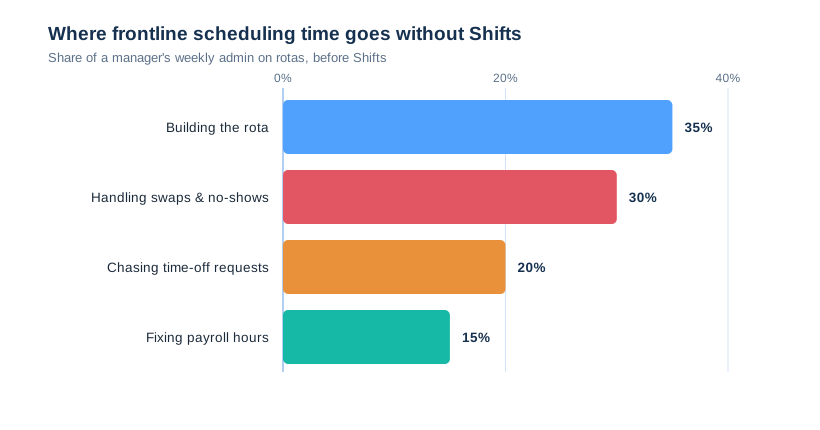
Notice that swaps and chasing eat as much time as building the rota itself. Therefore the win is not a prettier schedule; it is the requests and approvals handled in one place, on the phone people already carry. The mobile angle is the whole point for frontline staff. Specifically, most of them have no desk and no work email, so an app on a personal phone is the only channel that reaches them. That reach changes behaviour. Therefore a last-minute cover request actually gets seen and filled, instead of sitting in an inbox nobody checks. Language support helps on diverse floors. Specifically, Teams shows the app in the worker chosen language, so the rota is clear to everyone on shift.
⚖ Microsoft Teams Shifts vs a shared spreadsheet
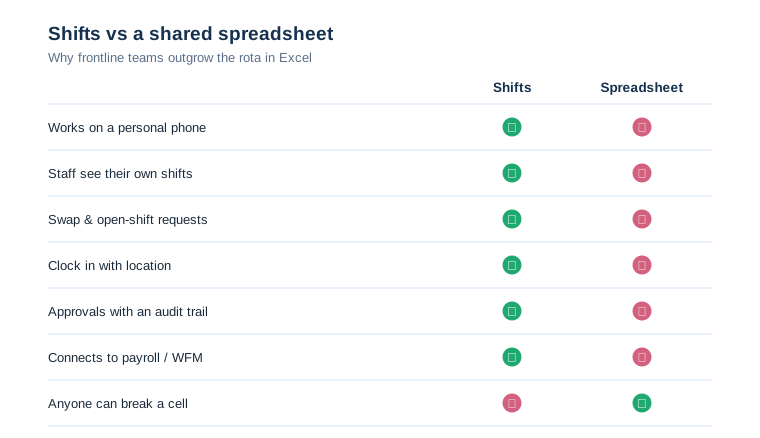
A spreadsheet looks free, yet it costs in errors and chasing. So the comparison below is the case we make to most frontline clients before any rollout. The point is not that spreadsheets are useless. Rather, they cannot reach a phone, enforce an approval, or record a clock-in, which is exactly what a frontline rota needs. Email has the same gap. Therefore a rota pasted into email still misses the staff who never check it, which is most of the floor.
What changes for the worker
With Shifts, a worker opens Teams and sees their next shift, requests a swap, or books time off in seconds. As a result, the manager stops fielding texts at 6am. Moreover, the worker clocks in from the app, so hours are accurate rather than remembered. Notifications keep everyone honest. As a result, a published shift, an approved swap or a cancelled slot pings the right person, so nobody works off a stale rota.
What changes for the manager
The manager builds the schedule once, then publishes it to everyone at once. Therefore changes reach staff instantly, and every swap or time-off request carries an approval and an audit trail. In practice, that single change removes most of the weekly scheduling friction. It also creates a record. Therefore, when a dispute over hours or a missed shift comes up, the manager has the history rather than a memory. Fairness improves too. Specifically, open shifts are offered to everyone at once, so the same favourite does not quietly get all the overtime. That openness also fills gaps faster. As a result, an unfilled slot reaches the whole eligible team in seconds, rather than the manager phoning down a list. Speed is the quiet win here. Therefore a sick call at 7am is often covered before the shift even starts.
That single capability often sells the whole project, because every frontline manager has lived the 7am scramble and wants it gone for good.
🧾 Microsoft Teams Shifts licensing by plan
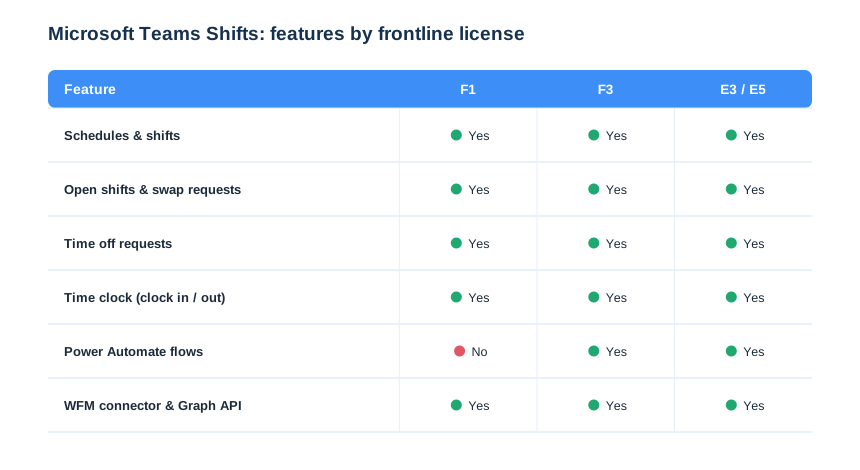
Licensing is simpler than people fear, but the edges matter. Every frontline and enterprise plan includes core Shifts; the differences sit in automation. So the matrix below settles who can do what before you buy. Keep one rule in mind as you read it. Specifically, the everyday rota features are everywhere, so the only real decision is where you need premium automation.
Frontline F1 and F3
Shifts is included in Microsoft 365 F1 and F3, the frontline plans. Therefore your shop-floor, ward or warehouse staff already have schedules, swaps, time off and the time clock. However, advanced custom automation through premium Power Automate connectors needs F3 or higher. That nuance rarely blocks a small team. Notably, the core rota, swaps, time off and the clock are all there on F1, which covers most shop floors.
Information-worker E3 and E5
E3 and E5 include Shifts too, so a mixed workforce works fine. Specifically, managers on E3 build schedules while frontline staff sit on F1, and everyone shares one system. As a result, you license each role for what it does, not for the whole estate. Mixed estates are the norm, not the exception. For example, a clinic runs nurses on F3 and the practice manager on E3, and they share one schedule without friction. The lesson is to map licenses to roles up front. As a result, you avoid both over-licensing the floor and under-licensing the managers who build the rota. A quick license map settles it on day one. Therefore we tag every role, match the plan, and the bill mirrors the org chart instead of a blanket guess.
⚙ How to set up Microsoft Teams Shifts
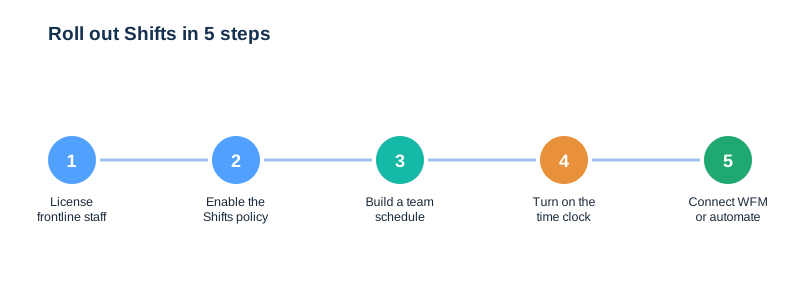
Setting Shifts up is an admin job, then a manager job. First you make sure Shifts is available and pinned for frontline staff, then a manager builds the first schedule. The five steps below map to the work that follows. None of the steps is hard on its own. However, doing them in order matters, because a schedule with no pinned app or no licensed staff simply will not appear on a phone. So we run them as a short checklist. As a result, the first site is live in a morning, not a week. From there, each extra site reuses the same checklist, so the rollout only gets faster.
Pin Shifts for frontline staff
Frontline staff should land on Shifts, not hunt for it. Therefore you pin the app with an app setup policy and assign it to the frontline group. Microsoft documents the controls in its manage Shifts guide.
# Pin Shifts to the frontline app bar (Teams PowerShell)
# Connect-MicrosoftTeams

New-CsTeamsAppSetupPolicy -Identity "Frontline"
Set-CsTeamsAppSetupPolicy -Identity "Frontline" `
  -PinnedAppBarApps @(@{Id="6c4d33eb-...-shifts"; Order=1})

# Assign the policy to the frontline group
New-CsGroupPolicyAssignment -GroupId "frontline@contoso.com" `
  -PolicyType TeamsAppSetupPolicy -PolicyName "Frontline"
Build and publish the first schedule
A manager creates a schedule on the team, sets the time zone, then adds shifts and groups. Finally, they publish, and every worker gets the rota on their phone. Consequently, the team is live without anyone touching a spreadsheet again. Templates make the next team faster. Specifically, once you have one good schedule, you copy its structure to the next site rather than starting from a blank grid. Groups keep a big schedule readable. Therefore we split the rota into clear sections, such as front of house and kitchen, so each worker sees the part that matters to them. Colour and notes add the last bit of clarity. Specifically, a shift colour for a role and a short note for a task mean a worker reads the rota at a glance.
⏱ The time clock and location
The time clock is where Shifts earns its keep for hourly teams. Workers clock in and out from the app, and you can require it to happen at the worksite. So the hours that reach payroll are the hours actually worked. That accuracy pays for the whole project. Therefore even a small cut in over-reported hours often covers the licensing many times over.
Turn on the time clock with location
You enable the time clock in the Shifts settings and, where policy allows, switch on location detection. Therefore a clock-in away from the site is flagged for the manager. However, treat location as sensitive data, so you tell staff clearly and keep it proportionate. The conversation is as important as the setting. Therefore we draft a short, plain notice that explains what is recorded and why, which heads off most concerns before they start. Break tracking rounds it out. Specifically, the clock can record breaks too, so the hours that reach payroll already account for unpaid time. Rounding rules deserve a quick decision. Therefore agree up front how clock-ins round, so the policy is consistent and fair across every site. Export closes the payroll loop. Therefore the recorded hours flow to your payroll process cleanly, rather than being retyped from a paper sheet.
# Configure the Shifts policy (time clock + access delay)
Set-CsTeamsShiftsPolicy -Identity Global `
  -ShiftNoticeFrequency "Always" `
  -AccessType "UnrestrictedAccess_TeamMember" `
  -AccessGracePeriodMinutes 15

Get-CsTeamsShiftsPolicy -Identity Global |
  Select ShiftNoticeFrequency, AccessType, AccessGracePeriodMinutes
🤖 Automate Microsoft Teams Shifts with the Graph API
This is the part the docs bury and competitors skip. The Microsoft Graph Shifts API lets you create schedules, shifts and time-off programmatically. Therefore a busy chain can generate next week rota from its own data instead of clicking it in by hand. This is the depth most guides never reach. Consequently, it is also where an MSP earns its place, because few in-house frontline teams have time to script it. We keep the scripts in source control too. Therefore a rota generator is versioned, reviewed and reusable, rather than a one-off someone wrote and forgot.
Microsoft describes the objects in its Graph Shifts reference. In practice, we use it to seed schedules in bulk and to push approved changes back. As a result, a multi-site rollout that would take days of clicking takes a single run. The API also keeps systems in step. Specifically, when a change happens upstream, a scheduled run pushes it into Shifts, so the rota never drifts from the plan. Read access is just as useful as write. Therefore a nightly pull of the published schedule can feed reporting, so leaders see coverage and cost without opening Teams.
# Create a shift via Microsoft Graph (Graph PowerShell)
# Connect-MgGraph -Scopes "Schedule.ReadWrite.All"

$teamId = "<team-guid>"
$body = @{
  userId        = "<user-guid>"
  sharedShift   = @{
    startDateTime = "2026-07-01T09:00:00Z"
    endDateTime   = "2026-07-01T17:00:00Z"
    displayName   = "Floor - Day"
  }
}
New-MgTeamScheduleShift -TeamId $teamId -BodyParameter $body
Read schedules back with Graph
Reading data back is just as valuable as creating it. So a scheduled job can pull open shifts or pending time-off and surface them in a report, which gives leaders coverage and cost without opening Teams.
# Read open shifts and pending time-off for a team (Graph PowerShell)
# Connect-MgGraph -Scopes "Schedule.Read.All"

$teamId = "<team-guid>"
Get-MgTeamScheduleOpenShift -TeamId $teamId |
  Select Id, @{N="Start";E={$_.SharedOpenShift.StartDateTime}}, @{N="Slots";E={$_.SharedOpenShift.OpenSlotCount}}

Get-MgTeamScheduleTimeOffRequest -TeamId $teamId -Filter "state eq 'pending'" |
  Select Id, SenderUserId, StartDateTime, EndDateTime
From there, a weekly export keeps managers honest on cost. Therefore overtime and uncovered slots show up early, while there is still time to fix them. Trends matter more than any single week. Consequently, a month of data shows which sites are chronically short-staffed, which is a hiring signal, not a scheduling one. Reporting also feeds the business review. As a result, we bring coverage and cost trends to the quarterly call, so the client sees the value in numbers, not anecdotes.
Pair the API with Power Automate
You do not always need code. Specifically, Power Automate has Shifts triggers and actions, so an approved time-off request can update a tracker or notify payroll automatically. Consequently, the schedule stops being an island and starts feeding the systems around it. Approvals are the obvious first flow. As a result, an approved time-off request can update a tracker, notify a supervisor and adjust the rota without anyone re-keying it. Start small with one flow that hurts. Consequently, you prove the value on a single painful task before you automate the whole process. Build from there once it sticks. As a result, each new flow removes another manual step, and over a quarter the schedule quietly runs itself. Keep the flows documented like any other automation. Specifically, a short note on what each flow does means the next engineer can support it without reverse-engineering it.
🔌 Connect a workforce-management system
Larger frontline teams already run a workforce-management system. So rather than duplicate it, Shifts connectors sync that schedule into Teams. Duplication is the trap to avoid. Specifically, two systems holding the same rota drift apart within a week, so one must be the source and the other a view. As a result, planners keep their tool while staff get the rota on their phone.
When a connector beats native scheduling
If you run Blue Yonder, UKG or a similar platform, the connector is usually the right call. Therefore the system of record stays authoritative, and Shifts becomes the friendly front end. That split keeps planners happy. Consequently, the people who own the complex roster keep their tool, while the floor gets a simple phone view. However, for a single-site SMB, native Shifts alone is simpler and cheaper. So the decision is really about scale. Therefore one site stays native, while a chain with an existing planning tool keeps it and connects Shifts on top. Migration is rarely all-or-nothing. Specifically, we often start a chain on native Shifts at one pilot site, then layer the connector once the planners are happy. The pilot also de-risks the rollout. Therefore the kinks surface at one site, not across fifty, which keeps a bad week from becoming a bad quarter.
| WFM system | Sync via | Best for |
|---|---|---|
| Blue Yonder | Shifts connector | Retail and large rosters |
| UKG / Kronos | Shifts connector | Healthcare and shift-heavy |
| Zucchetti | Shifts connector | EU workforce compliance |
| Native Shifts only | Built in | Single-site SMB teams |
👥 Who does what in Microsoft Teams Shifts
Clear roles keep a rollout calm. Specifically, frontline workers self-serve, managers own the schedule, and admins set policy and integrations. The table maps each role to what it does and the license it needs.
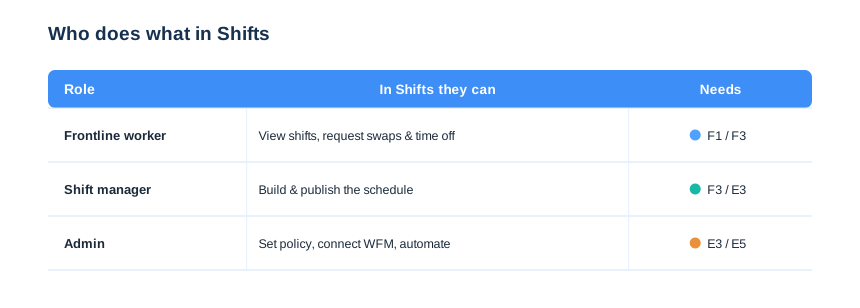
Notice that most people are workers who only self-serve. Therefore the training burden is tiny, because the manager learns the build once and everyone else just taps their phone. Adoption follows simplicity here. Consequently, frontline tools succeed when they are one tap away, and Shifts wins precisely because it lives in an app staff already open. That is also why we resist bolt-on apps. Therefore, when Teams already covers the job, adding another login usually loses the frontline rather than helping them. Single sign-on seals it. Consequently, a worker who already opens Teams for chat gets the rota in the same place, with no second password to forget.
📈 The Wintive baseline across 60+ tenants
Patterns repeat across our frontline clients. Most already own Shifts through F1 or F3 and never switched it on. So our first move is enablement, not a new purchase. That framing changes the finance conversation. Therefore the project is about using what you already pay for, which is an easy yes rather than a new line item. Specifically, we pin the app, build a template schedule, and turn on the time clock with a clear consent notice.
Wintive insight
Across 60+ Microsoft 365 tenants, the costliest mistake with Microsoft Teams Shifts is leaving it off while paying for it. In several frontline audits, staff still ran the rota in spreadsheets and group chats, even though every F3 license already included Shifts and the time clock. Therefore our baseline switches it on, pins it for the frontline, sets a proportionate location-consent notice, and where a workforce-management tool exists, connects it rather than duplicating it. Critically, we automate the repetitive schedules with the Graph API, because clicking next week rota by hand is exactly the toil software should remove.
We also write the boring parts down. Specifically, we template the app setup policy, the Shifts policy and the schedule structure, so every new site starts from a known-good baseline rather than a blank rota.
| What we standardise | Default we use | Why it matters |
|---|---|---|
| App availability | Shifts pinned for frontline | Staff land on it, not hunt for it |
| Time clock | On, with consent notice | Accurate hours, fair to staff |
| Automation | Graph API for bulk rotas | Removes weekly clicking toil |
| WFM system | Connector when one exists | One source of truth, not two |
🚨 Common Microsoft Teams Shifts mistakes
Paying for it and leaving it off
Shifts ships with F1, F3, E3 and E5, so a dormant app is wasted money. Therefore audit your licenses and switch it on for the frontline. The cost of doing nothing is real. Specifically, every week on spreadsheets is a week of avoidable admin you already paid Microsoft to remove. A short enablement sprint usually pays back fast. As a result, the manager hours saved in the first month tend to dwarf the effort of turning Shifts on.
Ignoring the location-consent conversation
The time clock can record location, which is sensitive. So tell staff plainly, keep it proportionate, and document the policy before you enable it. Local law sets the floor here. Specifically, some regions restrict location tracking, so we check the rules per site rather than assuming one policy fits all. Consent is also a trust exercise. Therefore, when staff understand the clock is about fair pay and not surveillance, adoption climbs instead of stalling.
Hand-building schedules that never change
A repeating rota does not need manual clicking each week. Consequently, automate the steady parts with the Graph API and save the manager time for the exceptions. The steady rota is most of the work. As a result, automating it frees the manager to handle the human cases, which is where their judgement actually matters.
📚 More for Growing Businesses
🔍 Rolling out Shifts and want the tenant checked first?
The M365 Instant Audit scans your tenant in under 10 minutes: license waste, plan right-sizing, MFA coverage, security posture and compliance gaps. As a result, you get a full PDF report with prioritized fixes, delivered instantly.
❓ Microsoft Teams Shifts: Frequently Asked Questions
It is a frontline scheduling app inside Teams. Workers see their rota on mobile, request swaps and time off, and clock in and out, while managers build and publish the schedule and approve requests.
It is included at no extra cost in Microsoft 365 F1, F3, E3 and E5, and the Business plans. So most frontline teams already own it; the only task is to switch it on and pin it for staff. Therefore the first step is an audit, not a purchase.
An admin makes Shifts available and pins it with an app setup policy, then a manager builds a schedule on the team and publishes it. In PowerShell, Set-CsTeamsAppSetupPolicy and Set-CsTeamsShiftsPolicy handle the admin side. After that, staff just open Teams and tap Shifts.
It can. You enable the time clock in Shifts settings and optionally require clock-in at the worksite. Because location is sensitive, tell staff clearly and keep the policy proportionate.
Yes. Shifts connectors sync schedules from a workforce-management system such as Blue Yonder or UKG, and the Graph API or Power Automate can push approved changes toward payroll. So your planning tool stays the source of truth while staff get the rota on their phone.
Yes. The Microsoft Graph Shifts API creates schedules, shifts and time-off programmatically, and Power Automate adds no-code flows. So a repeating rota can be generated rather than clicked each week, and approved changes can flow on to payroll automatically.