

A SharePoint calendar is the easiest way to put a shared team schedule where everyone already works. The twist in 2026 is that the old Calendar app is gone, so you no longer add a “calendar” the way the old guides describe. Instead, a modern SharePoint calendar is simply a list shown in a calendar view. So once you understand that, building one takes minutes and never breaks.
Most people searching for this still expect the classic app and get confused when it is missing. So this guide clears that up first, then shows the modern way end to end. You will create a SharePoint calendar from a list, colour-code it, overlay several calendars, add it to Outlook, and lock down permissions. We set these up for small businesses, so every step is the one that actually works today.
🛡️ Free: M365 Audit Checklist
19-page PDF with 50 hands-on checks covering Entra ID, Exchange Online, SharePoint, Teams, Intune, license waste, and audit logging. PowerShell commands included. Built from 60+ real tenant audits at Wintive.
🧭 What a SharePoint calendar is in 2026
A SharePoint calendar is a list of events displayed in a calendar view on a SharePoint site. In short, you make a list with a date column, switch it to a calendar view, and you get a month grid your whole team can see and edit. The classic standalone Calendar app is retired, so this list-based approach is the modern, supported way. You can colour events, overlay calendars, and even add a SharePoint calendar to Outlook.
The chart below shows the idea in one picture. A list holds the events, with columns for the title and the dates. A calendar view then plots those events on a month grid. So the data and the display are two halves of the same thing.
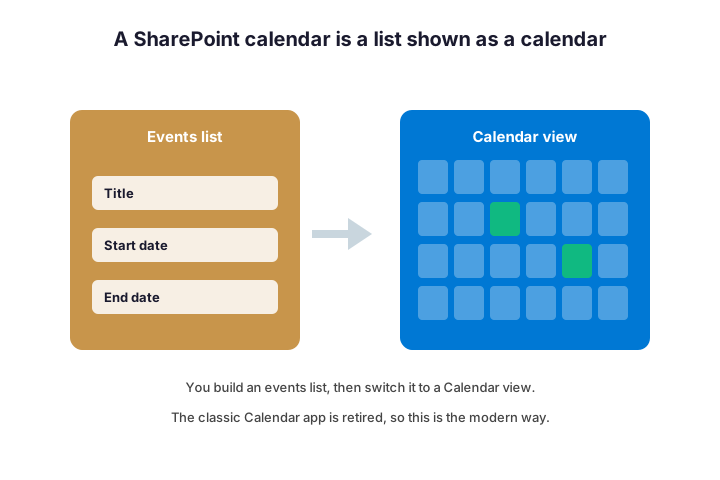
Because the events are really list items, they carry everything a list can. Each event can hold a location, an owner, a category, and notes, not just a title and a date. So a SharePoint calendar is far richer than a wall planner; it is structured data you happen to view as a calendar.
This matters because it changes what you look for. There is no “add a calendar” button hiding somewhere. Instead, you add a list and give it a calendar view. So the rest of this guide is really about lists, dates, and views working together.
It also explains a quirk people hit early. The same list can show as a grid one moment and a calendar the next, just by switching views. So your events never move; only the way you look at them changes.
⚰️ The classic SharePoint calendar app is gone
For years, a SharePoint calendar was its own app you added to a site. It looked like a wall calendar and lived separately from lists. So a generation of admins learned to “add a Calendar app”, and countless old guides still say so.
That classic app has been retired from modern SharePoint, however. New sites no longer offer it, and the modern experience expects a list with a calendar view instead. So if a tutorial tells you to add a Calendar app and you cannot find it, the tutorial is simply out of date.
The good news is that the modern way is better. A list-based SharePoint calendar gets columns, colours, overlays, and proper permissions, none of which the old app did well. So you are not losing a feature; you are gaining a far more capable one.
If you still run an old classic calendar somewhere, plan a gentle move. You export its events, create a fresh list with date columns, and import them in. So nothing is lost, and the new calendar gains everything the classic one lacked. Because classic sites are fading, doing this now avoids a scramble when one finally disappears.
Set the right expectation with your team while you are at it. Tell them the calendar now lives as a list view, so they stop hunting for the old app. A one-line note saves a flurry of “where did the calendar go” questions. So the move is as much about communication as configuration.
🛠️ How to create a SharePoint calendar from a list
Creating one is quick once you know the trick. You make a list, add a date column, and switch the view to Calendar. Then events appear on a month grid that the whole team can use.
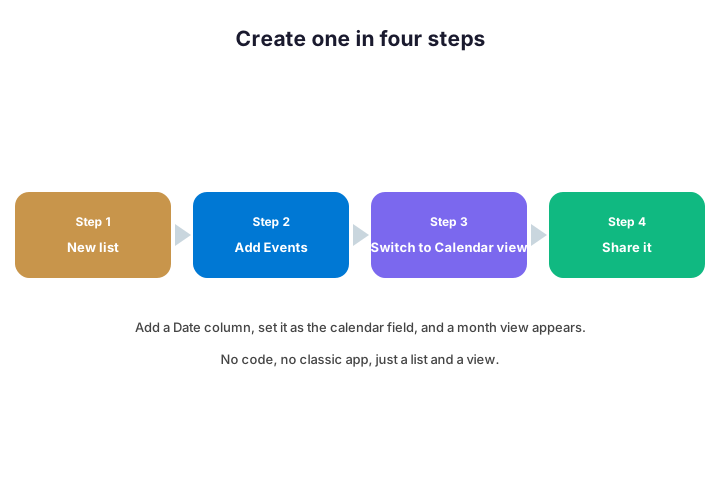
- On the site, click “+ New” and choose “List”.
- Add a “Start” date column, and an “End” date column if events span time.
- Open the view menu (top right) and choose “Calendar”.
- Pick the date field the calendar should plot on, then save the view.
- Add a few events to confirm they land on the right days.
Two details smooth out the setup. An “all-day event” toggle keeps single-day items tidy, while an End column lets multi-day events span correctly. So add both early, before people start entering events. Getting the date columns right first saves re-editing every entry later.
Recurring events deserve a quick caveat. A list-based calendar does not handle true recurrence as elegantly as Outlook does, so a weekly stand-up is fussy to model. For heavily recurring schedules, a Microsoft 365 group calendar or Outlook itself fits better. So match the tool to how repetitive the events really are.
Admins who set up many sites often script it for consistency. The PnP PowerShell below creates the list, adds a date column, and builds the calendar view in one pass.
# Build an events list and a calendar view with PnP PowerShell
Connect-PnPOnline -Url "https://contoso.sharepoint.com/sites/Team" -Interactive
New-PnPList -Title "Team Events" -Template GenericList
Add-PnPField -List "Team Events" -DisplayName "Start" -InternalName Start -Type DateTime
Add-PnPView -List "Team Events" -Title "Calendar" -ViewType Calendar -Fields "Title","Start"
🎨 Colour-code your SharePoint calendar
A plain calendar is fine, but colour makes it instantly readable. You add a Category column, then format it so each category shows in its own colour. So holidays, deadlines, and meetings stand apart at a glance.
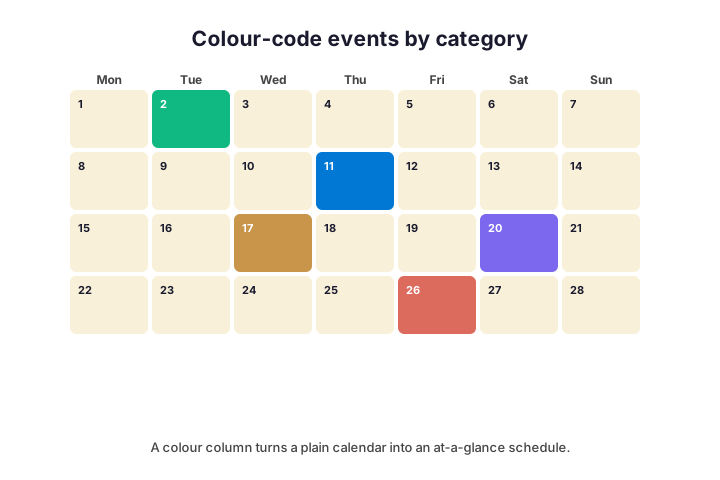
The right columns are what make this work, so choose them deliberately. The table below lists the ones a useful SharePoint calendar needs.
| Column | Why it matters | Example |
|---|---|---|
| Start date and time | The field the calendar plots on | Event start |
| End date and time | Sets the event length | Event end |
| Category (Choice) | Drives colour and filtering | Meeting / Holiday / Deadline |
| Location | Shown on the event card | Room 2 or Teams link |
| Owner (Person) | Who is responsible | Organiser |
Colour comes from column formatting, a small piece of JSON on the view. The snippet below paints holidays red and everything else green, which you adapt to your own categories.
{ "$schema": "https://developer.microsoft.com/json-schemas/sp/column-formatting.schema.json",
  "elmType": "div",
  "style": { "background-color": "=if(@currentField == 'Holiday', '#DC6B5E', '#10B981')" } }
Filtering and grouping go hand in hand with colour. You can save a view that shows only one category, or group events by team, so people open straight to what matters to them. Because each view is independent, the same SharePoint calendar can serve very different audiences. So build a couple of focused views rather than asking everyone to squint at everything.
Keep the palette small and meaningful. Three or four colours that map to real categories beat a rainbow nobody can decode. So agree what each colour means, then stick to it across views. A consistent scheme turns colour from decoration into genuine information.
🔗 Calendar overlays: combine several calendars
Often a team wants one view that merges several schedules. Overlays do exactly that, layering multiple calendars into a single month grid. So you see the whole department without flipping between pages.
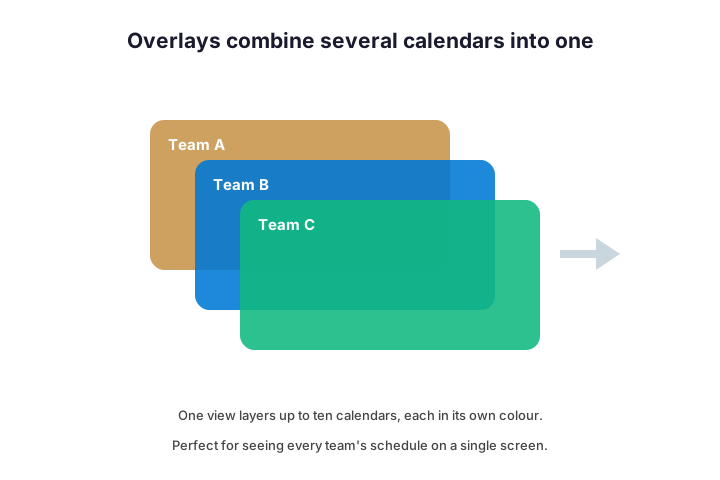
Each overlaid calendar keeps its own colour, so you can tell them apart at a glance. You add overlays from the calendar view settings, pointing at other lists or calendars. Because a single view can layer up to ten, even a busy organisation fits on one screen.
Pick the overlay colours deliberately, or readability suffers. If two teams both default to blue, the merged view turns into a blur. So assign each calendar a distinct, high-contrast colour up front. A minute on the palette makes the difference between a useful overview and a muddle.
Overlays read from the source calendars live, which is their real strength. When Team A adds an event, it appears in the combined view automatically, with no copying. So a manager keeps one overlay open and sees every team in real time. Because nothing is duplicated, there is nothing to keep in sync by hand.
Keep overlays focused rather than piling on all ten at once. A view that layers three or four related calendars stays readable; one that crams in everything becomes noise. So group overlays by purpose, such as “all client-facing teams”, and make a second view for another grouping. A focused overlay answers a real question at a glance.
📅 Add a SharePoint calendar to Outlook
People live in Outlook, so showing the schedule there boosts adoption. A modern SharePoint calendar can surface in Outlook through an iCalendar feed, which appears as a read-only calendar alongside a user’s own. So nobody has to remember to open the site.
# Get the iCalendar feed so the calendar shows inside Outlook
# In the list: Integrate > Power Apps is NOT it - use the modern
# "Add to Outlook" / "Open in Outlook" option, or publish an .ics feed.
# The feed URL ends in /calendar.ics and is read-only in Outlook.
Set expectations on the sync, though. The Outlook copy is read-only and refreshes on a schedule, not instantly. So treat it as a convenient mirror for viewing, while edits happen back in SharePoint. For a true two-way team calendar, a Microsoft 365 group calendar is the better fit.
Mobile is worth a thought too. The same iCalendar feed can subscribe on a phone, so field staff carry the schedule with them. Because it is read-only, nobody edits on the move, which is usually fine for a shared roster. So one feed serves the desktop, the web, and the pocket without extra work.
Watch the refresh interval before you promise live updates. Subscribed calendars in Outlook can take a while to pull new events, sometimes hours. So for time-critical changes, tell people to check the SharePoint calendar directly. The feed is a convenience layer, not the source of truth.
👥 A team or group calendar
Not every calendar should be a list. When a whole team needs a shared, two-way calendar, a Microsoft 365 group calendar is purpose-built for it. Every member can add events, and it shows in both Outlook and Teams.
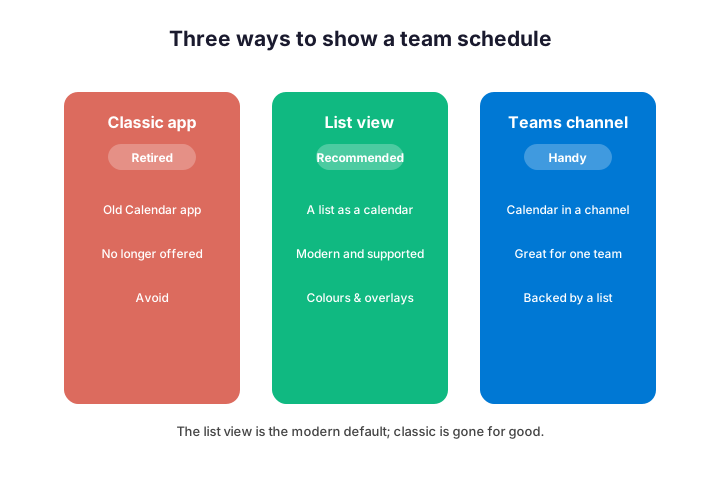
Teams adds another handy option, the channel calendar. You pin a calendar tab to a channel, and behind the scenes it is backed by a list, just like the modern web part. So for a single channel’s events, it is the quickest route. The table above shows when each option fits.
Choose between them by who owns the events. A group calendar suits a whole department with shared ownership and real two-way editing. A list-based SharePoint calendar suits a curated schedule that a few people maintain for everyone to read. So decide whether you want open collaboration or controlled publishing, and the right option follows.
You can also combine the two without conflict. Many teams keep a tight, published SharePoint calendar for company-wide dates, plus a looser group calendar for day-to-day team events. So the two play different roles rather than competing. Pointing people to the right one for the right purpose avoids the usual “which calendar is correct” confusion.
Whichever you pick, surface it inside Teams where the work happens. A pinned tab or a channel calendar puts the schedule a click from the chat, so people actually see it. Because adoption follows convenience, a calendar nobody opens is worse than no calendar at all. So meet people where they already are, rather than hoping they visit a site.
🧩 Embed a SharePoint calendar on a page
A calendar is most useful where people already look, such as the team home page. You add the Events web part, or embed your list’s calendar view, right on the site’s front page. So the schedule greets everyone the moment they arrive.
The Events web part is the simplest path on a modern page. You drop it in, point it at your events list, and it renders a tidy calendar inline. Meanwhile a List web part can show the same data as a calendar view if you prefer. Either way, no code is needed.
If you want the official reference for the formatting and views behind all this, Microsoft keeps it current. Its guide to view formatting documents the colour and layout JSON, and it is the page to keep open beside this article. So use their reference for the exact syntax, and use this guide for the design decisions around it.
Tune the web part so it shows the right slice. You can set a date range, a category filter, and how many events appear, then add a “see all” link to the full calendar. So the home page stays clean while the detail is one click away. A focused web part beats a giant embedded grid that nobody scrolls.
🔐 Permissions for a SharePoint calendar
Because a SharePoint calendar is a list, it follows list permissions. By default it inherits from the site, so everyone with site access can see and add events. For most teams, that default is exactly right.
When you need tighter control, you can break inheritance on the list and set who edits versus who only reads. Use this sparingly, since unique permissions get hard to audit. So prefer a separate site or list for a calendar that truly needs different access.
Think about who should add events versus who should only view. A common pattern gives a few coordinators edit rights and everyone else read access. So the calendar stays accurate, and casual viewers cannot accidentally move an event.
Versioning helps here in a way the old app never could. Because the list keeps a history, an accidental change is easy to undo, and you can see who edited what. So even with broad edit rights, mistakes are recoverable. Turn versioning on when you create the list, and the calendar gains a quiet safety net.
External sharing is the one to handle with care. If a calendar is meant for staff only, confirm it is not shared beyond the organisation. So check the sharing setting on the site, and keep guest access deliberate rather than accidental. A schedule can reveal more about a business than people expect, so treat its audience as a security decision.
🪤 Common SharePoint calendar mistakes
The same handful of mistakes trips up most teams. None are hard to avoid once you know them, so scan this list before you build. Each one wastes time that a minute of planning would save.
- Hunting for the retired Calendar app instead of using a list view.
- Forgetting the date column, so the calendar view has nothing to plot.
- Skipping a Category column, then wondering why everything looks the same.
- Giving everyone edit rights, so events get moved by accident.
- Expecting the Outlook copy to be live and two-way; it is read-only.
One subtler mistake is over-engineering the very first calendar. Teams add ten columns and five views before a single event exists, then abandon it. So start small: a title, two dates, and a category. You can always add more once people actually use it, and a simple calendar that gets used beats a clever one that does not.
Wintive insight. In the tenants we set up, the calendar is rarely the problem; the expectation is. For example, a team spends an hour looking for the old Calendar app that no longer exists. As a result, we start every calendar request the same way: make a list, add a date, switch the view. So the modern SharePoint calendar is less a feature to find and more a recipe to follow.
✅ SharePoint calendar best practices
A few habits keep a calendar tidy, fast, and trusted. None take long, yet together they prevent most of the confusion. So build them in from the first event.
- Start from a list with clear Start, End, and Category columns.
- Colour-code by category so the view reads at a glance.
- Use overlays to combine team calendars, not many separate pages.
- Limit edit rights to a few coordinators; give everyone else read access.
- Embed the calendar on the team home page where people already look.
- Name the list and view clearly, for whoever maintains it next.
Decide one home for each calendar, just as our SharePoint vs OneDrive guide does for files. When the same schedule is duplicated across three sites, they drift apart and nobody trusts any of them. So keep a single source and surface it through web parts and overlays. One authoritative SharePoint calendar beats three half-maintained copies every time.
Review the calendar every term, because schedules drift. Old events pile up, categories multiply, and a colour scheme that made sense a year ago turns noisy. So a short tidy-up each quarter keeps it readable. A calendar people trust is one that always reflects reality, not last spring’s plans.
Because a calendar is just a specialised list, the wider list skills carry straight over. Our guide to the SharePoint list covers columns and views in depth, and the SharePoint document library guide shows the same ideas for files. So the whole site hangs together.
📚 More for SharePoint admins
These published Wintive guides go deeper on the pieces around a calendar. Each one tackles a single area, so you can read only what you need. Therefore bookmark the ones that fit your setup.
🔍 Want a complete audit of your Microsoft 365 tenant?
The M365 Instant Audit scans your environment in under 10 minutes: license waste, security posture, MFA coverage, compliance gaps, and rightsizing. A full PDF report with prioritized fixes arrives instantly.
❓ Frequently Asked Questions
Make a list, add a date column, then switch the view to Calendar and choose the date field to plot on. The classic Calendar app is retired, so this list-based view is the modern way.
Microsoft retired the classic Calendar app from modern SharePoint. You now build a calendar as a calendar view of a list, which is more flexible.
Yes, through an iCalendar feed. It appears in Outlook as a read-only calendar that refreshes on a schedule, while edits happen back in SharePoint.
Add a Category choice column, then apply column formatting (a small JSON snippet) on the view so each category shows in its own colour.
Yes. Calendar overlays layer multiple calendars into a single view, each in its own colour, with up to ten on one screen.
It follows list permissions. By default everyone with site access can edit, but you can break inheritance to let only a few coordinators add events.
🧭 Your next step
Start by creating one list with Start, End, and Category columns, then switch it to a calendar view. Because a SharePoint calendar is just a list with a view, that single setup gives you a colourful, shareable team schedule in minutes. Once it works, overlay your other calendars and embed it on the home page. When you want a hand designing it cleanly, we are happy to help.
If you remember only three things, make them these. First, the classic Calendar app is gone, so build a calendar view of a list instead. Second, add a date column and a category, then colour the categories. Third, keep edit rights tight and embed the calendar where people already look. Follow that, and a SharePoint calendar becomes the schedule your whole team actually uses.
Above all, do not over-think the first build. A list, a date, and a calendar view will have a working schedule live within the hour. So start there, get a few real events in, and let the team’s feedback shape the columns and views from there. Because a simple calendar that people use beats an elaborate one that sits empty, momentum matters more than polish on day one.
Related Wintive guides: create a SharePoint site, SharePoint templates, and the SharePoint API.