

A SharePoint list is the most useful tool most teams never learn properly. It looks like a simple table, yet it quietly runs trackers, registers, requests and small apps across Microsoft 365. So learning it well pays off fast. This guide covers what a list is, how to build one, the limits that trip people up, and the PowerShell to automate it.
We wrote this for the person who actually manages Microsoft 365, so it stays practical. Specifically, it goes past the basics into column design, the 5,000-item threshold, permissions and migration. We also flag where a list beats Dataverse, and where it does not. As a result, you will use lists with confidence instead of guesswork.
🛡 Free: M365 Audit Checklist
A 19-page PDF with 50 hands-on checks across Entra ID, Exchange, SharePoint, Teams and Intune. PowerShell commands are included. Specifically, we built it from 60+ real tenant audits at Wintive.
🔎 What is a SharePoint list?
A SharePoint list is a collection of structured data, organized into rows and columns. Think of it as a smart, shared spreadsheet that lives on a SharePoint site. Each row is an item, and each column holds one typed field. Unlike a spreadsheet, though, a list adds types, validation, views and permissions on top of the data.
Quick answer. A SharePoint list stores structured rows and columns of data, like a smart shared spreadsheet on a SharePoint site. Use it to track tasks, assets, requests and registers. A document library, by contrast, stores files, as our SharePoint vs OneDrive guide explains. Notably, lists power views, forms, Excel exports and Power Automate flows. Therefore reach for a list whenever you track data rather than store files.
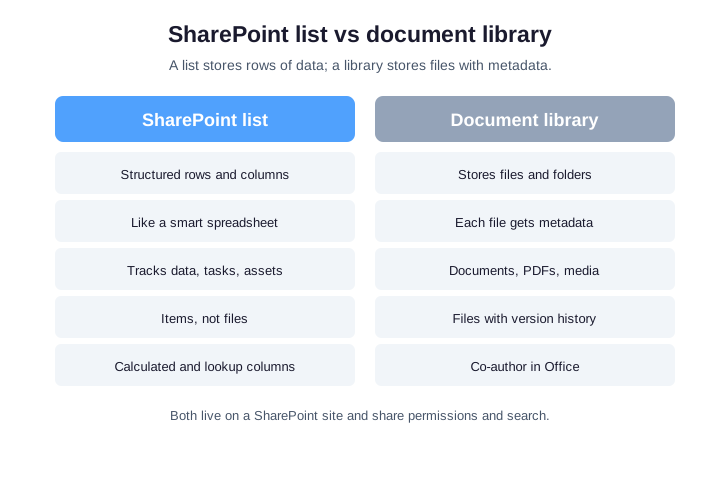
That data focus is the whole point. A library is built around files, while a list is built around records. So the moment you find yourself typing data into a document, a list is probably the better home. We compare the two properly next.
📋 SharePoint list vs document library
People mix these up constantly, yet the SharePoint list vs library choice is simple. A list holds data; a library holds files. Both sit on the same site, share the same permissions model, and appear in the same search. However, they solve different problems.
| Aspect | SharePoint list | Document library |
|---|---|---|
| Holds | Rows of data | Files and folders |
| A single item is | A record with fields | A file plus metadata |
| Best for | Trackers, registers, tasks | Documents, PDFs, media |
| Editing | Inline, like a grid | Open in Office to co-author |
| Extra power | Calculated and lookup columns | Version history and check-out |
Choose by the unit of work. If the thing you manage is a record, use a list. If it is a file, use a library. So a project tracker is a list, while the contracts it links to belong in a library.
One more clue helps. A list shows its data right on the page, as a grid you scan and edit in place. A library shows file names and opens each one in Office. So if you spend more time reading the page than opening files, you almost certainly want a list.
➕ How to create a SharePoint list
Creating a SharePoint list takes under a minute in the browser. On your site, choose New, then List. From there, you start from blank, from Excel, from an existing list, or from a ready-made template. After all, templates for issue tracking and asset management save real setup time.
Then add your columns and pick a type for each one. Name the list clearly, because that name becomes part of the URL. Microsoft walks through the same steps in its introduction to lists. So you can build a working list before lunch and refine it later.
Starting from Excel is the quiet shortcut here. When you import a spreadsheet, SharePoint reads the headers and guesses each column type for you. Then you fix the few it gets wrong and you are done. As a result, an existing tracker becomes a governed list in minutes, not hours.
Plan the structure before you import, though. Decide which columns matter, drop the throwaway ones, and agree on the choice values up front. So the new list starts clean rather than inheriting a messy spreadsheet. In practice, ten minutes of planning saves a week of cleanup later.
🧩 SharePoint list column types
Columns are where a SharePoint list earns its keep, so choose types deliberately. A Choice column keeps status values consistent, while a Person column links to real users. Number, Currency and Date types enable sorting and math. In short, the right type today prevents messy data tomorrow.
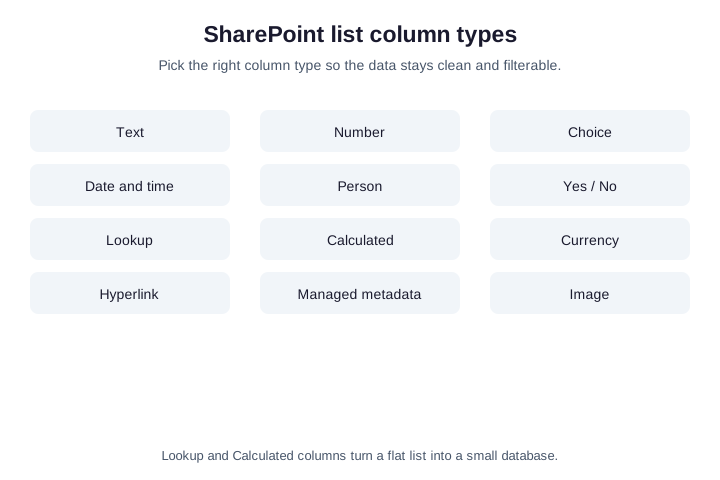
Avoid the lazy habit of making everything a text column. For example, a status stored as free text cannot be filtered or grouped cleanly. Therefore pick Choice, Date or Person whenever the data fits, and reserve text for genuinely free-form notes.
Column settings matter as much as the type. You can mark a column required, set a sensible default, and enforce simple validation rules. For example, a rule can reject a due date in the past. Therefore the list cleans the data at entry, instead of leaving you to fix it later.
🧮 Calculated and lookup columns
Two column types turn a flat list into a small database. A Calculated column derives a value from other columns, such as a due-date warning or a total. A Lookup column pulls live values from another list, so you never retype shared data. Together, they remove duplication and keep records in sync.
Use them with restraint, though. For example, a Lookup that points at a huge list can slow views down. So keep lookups to reference lists, and test calculated formulas on a few rows first. As a result, you get the power without the performance cost.
| Column type | What it is for |
|---|---|
| Calculated | A value derived from other columns, like a total or a flag |
| Lookup | Live values pulled from another list, with no retyping |
| Choice | A fixed set of options that keeps status values consistent |
| Person | A real user, for owners, approvers and assignees |
👁️ Views: shaping how a list looks
A view is a saved way of looking at the same data. You filter, sort, group and choose columns, then save it for everyone or just yourself. So one list can serve many audiences at once. For example, a task list shows “my open tasks” to staff and “everything overdue” to a manager.
Views also unlock calendar, board and gallery layouts. Therefore the same records appear as a Kanban board for the team and a calendar for planning. Meanwhile, the underlying data stays single and clean. In practice, good views replace half the spreadsheets a team keeps on the side.
Formatting takes views further. You can color a row red when an item is overdue, or show a status as a colored pill. So a manager spots problems at a glance, without reading every cell. Meanwhile, the formatting lives on the view, so it never changes the underlying data.
📝 Forms and Power Apps for your data
Every SharePoint list has a built-in form for adding and editing items. You can reorder fields, hide some, and show or hide others by condition. So a clean form keeps data entry consistent without any code. For most teams, that built-in form is enough.
When you need more, Power Apps takes over the form entirely. It adds branching, validation and a polished mobile layout on top of the same list. Therefore the list stays your data store, while Power Apps becomes the front end. So you scale from a simple form to a real app without moving the data.
This staged path is the real strength. You start with the built-in form, add a few conditional fields, and only reach for Power Apps when a process genuinely needs it. Therefore you avoid building an app too early. In short, let the requirement, not the hype, decide when to upgrade the form.
🔐 Permissions on a SharePoint list
A SharePoint list inherits permissions from its site by default, which is usually what you want. The site owners, members and visitors groups map cleanly to edit and read access. However, sensitive lists sometimes need their own permissions. In that case, you break inheritance and grant access directly.
| Permission level | What a user can do |
|---|---|
| Read | View items and views, export to Excel |
| Contribute | Add, edit and delete their own items |
| Edit | Manage items, columns and views |
| Full Control | Everything, including permissions |
Break inheritance only when you must, because unique permissions are hard to audit at scale. For example, item-level permissions can hide rows per user, yet they quickly become a maze. So prefer separate lists over complex per-item rules whenever you can.
Sharing links deserve the same care as permissions. A list item can be shared by link, just like a file, and those links bypass the tidy group model. So an over-shared item quietly widens access without anyone noticing. Therefore review shared links periodically, and lean on site groups as the real source of access.
Wintive insight. Across the small business tenants we audit, the most common list problem is silent sprawl. A team spins up a quick tracker, shares it by link, and forgets it. Then ten more appear, each with its own permissions. As a result, we routinely find sensitive data in lists nobody governs. So name lists by convention, store them on the right team site, and review access on a schedule.
⚠️ The 5,000-item list view threshold
The number that trips everyone is 5,000. A SharePoint list happily holds millions of items, yet a single view cannot scan more than 5,000 at once. So a large list throws a throttling error the moment a view tries to read past that limit. Fortunately, the fix is straightforward.
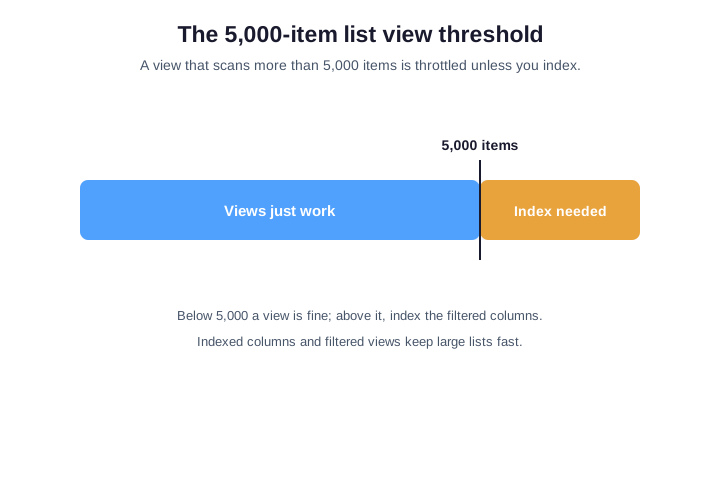
Index the columns your views filter on, and keep each view filtered below 5,000 results. For example, an indexed Status column lets a view show only active rows fast. Therefore the list can grow huge while every view stays quick. In short, plan indexes early, not after the error appears.
Large lists reward a little planning beyond indexes. Default views should filter to a small, recent slice, and folders or metadata can group older items out of the way. So the everyday view stays light while the archive sits quietly behind it. As a result, a list scales to hundreds of thousands of items without ever feeling slow.
There is a hard ceiling worth knowing too. A single list supports up to 30 million items, far beyond what any team will reach. So the threshold is about view design, not storage. Therefore the right question is never whether the list can hold the data, but whether your views read it efficiently.
📤 Export a SharePoint list to Excel
Exporting a SharePoint list to Excel takes two clicks from the command bar. Choose Export, then Export to Excel, and Excel opens with a live query. So the workbook refreshes against the list whenever you reopen it. That makes lists a clean source for quick reports and charts.
For a one-off snapshot, export to CSV instead. Meanwhile, for scheduled or scripted exports, PnP PowerShell pulls the data directly, as shown below. Therefore you have a path for every need, from a manual report to a nightly job.
| Export method | Best for |
|---|---|
| Export to Excel | A live, refreshable report against the list |
| Export to CSV | A quick one-off snapshot of the data |
| PnP PowerShell | Scheduled or scripted exports on a server |
| Power Automate | Sending data out on an event or a timer |
⌨️ Automate SharePoint lists with PnP PowerShell
Click-by-click is fine for one list, but PnP PowerShell scales to many. It creates lists, adds columns, sets indexes and moves data, all from a script. So you provision a standard tracker across ten sites in seconds. First, connect and build a list with typed columns:
# Create a list and add typed columns (PnP PowerShell)
Connect-PnPOnline -Url https://contoso.sharepoint.com/sites/Team -Interactive

New-PnPList -Title "Assets" -Template GenericList
Add-PnPField -List "Assets" -DisplayName "Owner"  -InternalName "Owner"  -Type User
Add-PnPField -List "Assets" -DisplayName "Status" -InternalName "Status" -Type Choice `
  -Choices "Active","In repair","Retired"
Indexing matters once a list grows, as the threshold section explained. Therefore set an index on the columns your views filter, in one line:
# Index a column so big-list views stay under the 5,000 threshold
Set-PnPField -List "Assets" -Identity "Status" -Values @{Indexed=$true}
Export items in a script
For scheduled reporting, pull items straight to CSV. The PageSize keeps large pulls efficient and avoids the threshold:
# Export all list items to CSV for a scheduled report
Get-PnPListItem -List "Assets" -PageSize 2000 |
  ForEach-Object { $_.FieldValues } |
  Export-Csv -Path "C:\reports\assets.csv" -NoTypeInformation
🚚 Move a SharePoint list to another site
Teams reorganize, and a list often needs a new home. The clean way keeps both the structure and the data. First, extract the list as a site template, which captures the columns and views. Then apply that template on the destination site, and copy the items across.
# Copy a list schema (and items) to another site with a template
Get-PnPSiteTemplate -Out template.xml -Handlers Lists -ListsToExtract "Assets"

Connect-PnPOnline -Url https://contoso.sharepoint.com/sites/Other -Interactive
Invoke-PnPSiteTemplate -Path template.xml
Re-check permissions after the move, because the new site has its own groups. Meanwhile, fix any lookups that pointed at lists on the old site. As a result, the list works exactly as before, just in the right place. So plan the lookups and access with the move, not after it.
Test the moved list before you point people at it. Add a single item, run the key views, and confirm a flow still fires. As a result, you catch a broken lookup in a sandbox rather than in front of the team. Then announce the new link and retire the old list, so there is one source of truth.
🆚 Dataverse vs SharePoint list
Once an app grows, people ask whether to graduate from a SharePoint list to Dataverse. The honest answer is that most teams should stay on the list. A list is included in Microsoft 365, simple to manage, and plenty for everyday data. Dataverse, by contrast, adds cost and complexity you may not need.
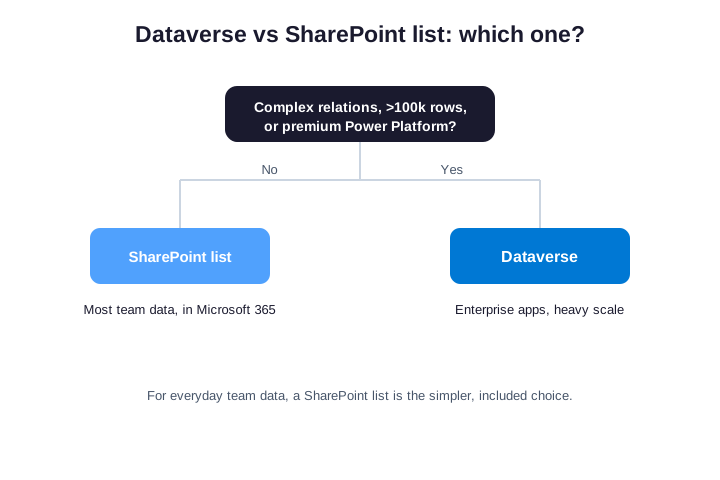
Move to Dataverse only when the data outgrows a list. For example, complex relationships, very high row counts, or premium Power Platform apps justify it. Otherwise, a well-designed list wins on cost and speed. Therefore start on a list, and switch only when a real limit forces it.
The cost gap is the deciding factor for most small businesses. A SharePoint list is included in every Microsoft 365 plan, while Dataverse needs premium Power Platform licensing per user. So the move adds a recurring bill on top of the build effort. Unless the scale truly demands it, that money is better spent elsewhere.
There is a middle path too. You can start on a list, then export the data into Dataverse later if the app outgrows it. The schema and history move across cleanly with the standard tools. So you are never trapped by the early choice. Therefore picking a list first carries almost no long-term risk.
🔵 Microsoft Lists vs SharePoint lists
Microsoft Lists confuses people, yet it is not a separate product. It is a friendlier front door to the same SharePoint lists. So a list you create in the Lists app is stored on a SharePoint site, exactly like any other list. The difference is the experience, not the engine.
| Question | SharePoint list | Microsoft Lists app |
|---|---|---|
| Where data lives | A SharePoint site | The same SharePoint site |
| Best entry point | Inside a team site | A standalone Lists home and Teams |
| Templates | Site list templates | Polished ready-made templates |
| Who it suits | Site and content admins | End users and Teams members |
So pick whichever entry point fits the user. Power users live in the site, while everyday staff prefer the Lists app or the Teams tab. Either way, the data and rules are identical underneath.
This matters for adoption across a mixed team. Power users keep working in the site, while less technical staff open the Lists app or a Teams tab and feel at home. So you roll out one data source with two comfortable doors. Therefore nobody has to learn an interface that does not suit them.
The Teams angle seals it for many teams. You add a list as a tab in a channel, and the data sits right beside the chat about it. So people update records without leaving the conversation. As a result, adoption climbs, because the list meets people where they already work.
🔀 What you can do with the data
A SharePoint list is a hub, not a dead end. The same records feed views, forms, Excel exports, Power Automate flows and scripts. So one tidy list replaces a pile of disconnected tools. In practice, this is why a list is worth designing well.
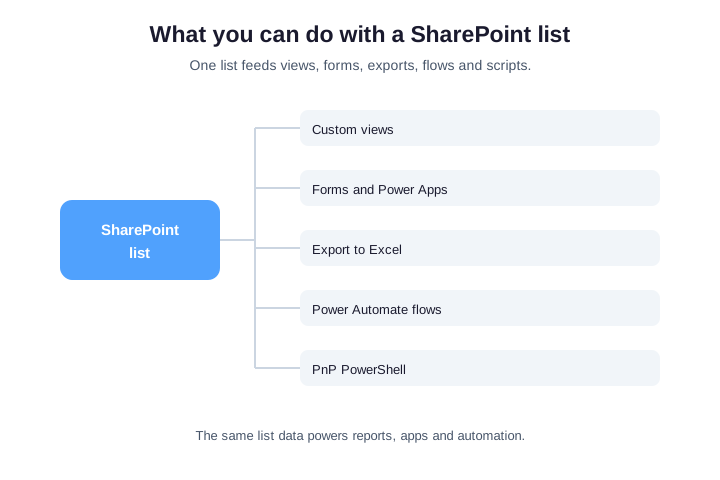
Connect a flow, and the list drives automation. For example, a new high-priority item can post to Teams or email an approver. Therefore the list stops being a passive table and becomes the engine behind a small process. So invest in the structure, and the integrations follow.
🚩 Common mistakes to avoid
A few avoidable mistakes show up in nearly every audit. Watch for these before they cost you data or speed:
- Everything as text. Untyped columns cannot be filtered or grouped, so pick real types early.
- Ignoring the 5,000 threshold. Plan indexes before the list gets big, not after the error.
- One giant list for everything. Split by purpose, so views and permissions stay clean.
- Per-item permissions everywhere. They become unauditable, so prefer separate lists.
- Unmanaged sprawl. Name by convention and review access, or sensitive data hides in plain sight.
Avoid those five, and a SharePoint list stays fast and safe. Specifically, type your columns, index early, split by purpose, and review who has access.
✅ The bottom line
Strip it back to one idea. A SharePoint list is for data, a library is for files, and the list is far more powerful than it looks. Type your columns, plan for the 5,000-item threshold, and let views and flows do the work. So a humble list can run a real business process.
For most small businesses, the win is consistency. Design lists deliberately, govern access, and automate the busywork. If you would rather not manage SharePoint by hand, our team runs the whole thing as a managed service.
Treat your most important lists like the small applications they are. Give each one an owner, a naming convention, and a quick quarterly review of access and size. So the data stays trustworthy as the team grows. In short, a little governance turns scattered trackers into a reliable backbone for the business. And that backbone runs on tools you already pay for, so it costs nothing extra beyond a few minutes of discipline each quarter.
📚 More for Growing Businesses
🔍 Lists sprawling across your tenant?
The M365 Instant Audit scans your tenant in under 10 minutes. It maps lists, libraries, permissions, sharing and security gaps. As a result, you get a full PDF report with prioritized fixes, delivered instantly.
❓ Frequently Asked Questions
A SharePoint list tracks structured data such as tasks, assets, requests and registers. It works like a smart shared spreadsheet on a SharePoint site, with typed columns, views and permissions. Use it whenever you track records rather than store files.
A list holds rows of data; a library holds files and folders. Both live on the same site and share permissions. So use a list for trackers and registers, and a library for documents and media.
A list can hold millions of items, but a single view cannot scan more than 5,000 at once. Index the columns your views filter on, and keep views filtered below 5,000 results. Then the list stays fast as it grows.
Open the list, choose Export on the command bar, then Export to Excel. Excel opens with a live query that refreshes against the list. For scripted exports, PnP PowerShell pulls items straight to CSV.
Yes. Microsoft Lists is a friendlier front end to the same SharePoint lists. A list you create in the Lists app is stored on a SharePoint site, exactly like any other list. The experience differs; the engine does not.