

SharePoint vs OneDrive confuses almost every small business on Microsoft 365, because both store files in the same cloud and sync with the same app. So the real question is not which is better. Instead, it is which one each file belongs in. OneDrive is your personal work drive, while SharePoint is the shared team and company drive. Get that split right, and collaboration, security and storage all fall into place.
This guide is written for the person who manages Microsoft 365, so it stays practical. Specifically, it covers the real differences, storage limits, sharing, Teams, governance and the PowerShell to audit it all. We also flag the security gap that catches small businesses, namely orphaned OneDrive accounts. As a result, you will know exactly where every file should live.
🛡 Free: M365 Audit Checklist
A 19-page PDF with 50 hands-on checks. It covers Entra ID, Exchange, SharePoint, OneDrive, Teams and Intune. PowerShell commands are included. Specifically, it was built from 60+ real tenant audits at Wintive.
🔑 SharePoint vs OneDrive: the one real difference
Strip away the jargon, and SharePoint vs OneDrive comes down to ownership. OneDrive holds your personal work files, and you own them by default. SharePoint holds team, project and company files, and the organization owns them. Everything else is shared: the same Microsoft 365 cloud, the same Office co-authoring, and the same sync client.
Quick answer. In SharePoint vs OneDrive, OneDrive is your personal drive (1 TB per user, you own the files), while SharePoint is the shared team drive (up to 25 TB per site, the organization owns the files). Both use the same sync client and Office apps. Notably, Microsoft Teams files are stored in SharePoint, not OneDrive. Therefore, save private drafts in OneDrive and move anything shared to SharePoint.
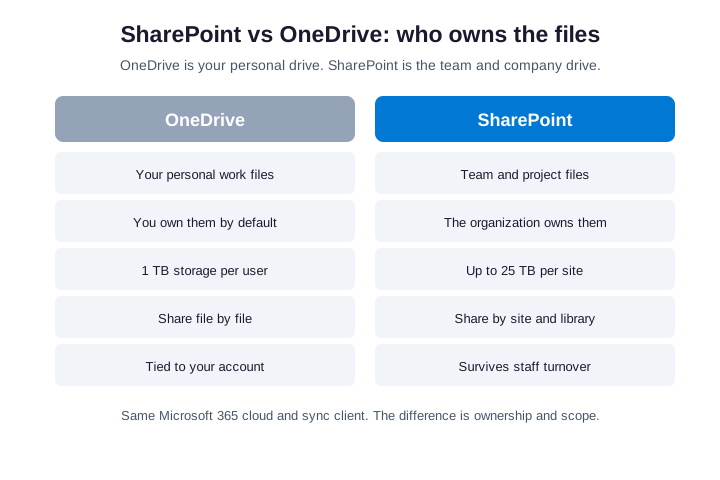
That ownership line matters more than it looks. For example, a file in your OneDrive disappears into a grace period when you leave the company. By contrast, a file in SharePoint stays with the team forever. So the test is simple: personal and private goes to OneDrive, while anything shared belongs in SharePoint.
📊 SharePoint vs OneDrive: feature comparison
The table below lines up SharePoint vs OneDrive on the points small businesses actually weigh. Read it as a split of purpose, not power. Specifically, both are built on SharePoint technology under the hood; OneDrive is simply your personal slice of it.
| Feature | OneDrive | SharePoint |
|---|---|---|
| Purpose | Personal work files | Team and company files |
| Who owns the files | You | The organization |
| Storage | 1 TB per user | 25 TB per site |
| Default sharing | Per file or folder | Per site and library |
| Permissions | You manage | Groups and admins |
| Survives staff turnover | No | Yes |
| Sync client | OneDrive app | OneDrive app |
| Best for | Drafts, private notes | Projects, Teams, departments |
Two rows do the heavy lifting. First, the ownership row decides who keeps the file long term. Second, the storage row decides how far each option scales. Notice that the sync client row is identical, so users never feel the difference day to day. We unpack the rest below.
💾 Storage limits: SharePoint vs OneDrive
Storage is where SharePoint vs OneDrive diverges fast. Each user gets 1 TB in OneDrive, which is plenty for personal work. Admins can raise that to 5 TB on request, but it stays a per-person limit. So OneDrive never becomes a shared team library, by design.
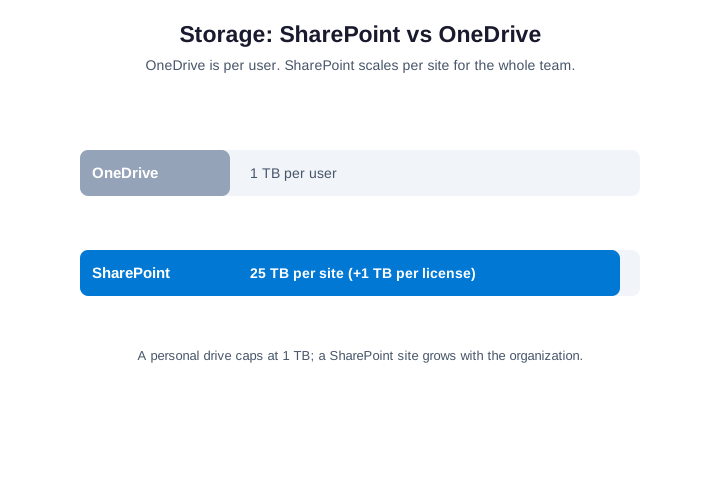
SharePoint scales differently. Each site starts with a large quota, and the tenant pool grows by 1 TB plus 10 GB per licensed user. As a result, a single SharePoint site can hold up to 25 TB. Therefore team and archive data belongs in SharePoint, not in someone’s personal OneDrive. In practice, a ten-person team that dumps shared projects into one person’s OneDrive will hit that 1 TB wall and lose the data when they leave. A SharePoint site sidesteps both problems at once.
🔐 File sharing and permissions in SharePoint vs OneDrive
Sharing is the second big split in SharePoint vs OneDrive. In OneDrive, you share a file or folder with a link, and you manage who has access. That is fast for one document. However, it scatters control across hundreds of personal links that no admin can easily see.
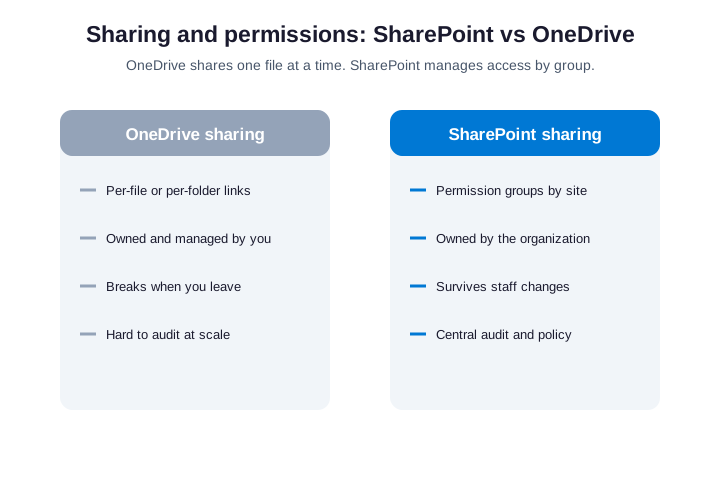
SharePoint works the other way. Access is granted by permission groups on a site or library, and the organization controls it centrally. So when a new hire joins a team, one group membership grants the right files. Meanwhile, audits and policies apply to the whole site at once. So an admin revokes access for a departing contractor in one step, instead of hunting down dozens of personal links. That single difference saves hours and closes real security holes.
🔄 Sync: one client for both
Here is a point that ends most SharePoint vs OneDrive debates: they use the same sync client. The OneDrive app on a laptop syncs your personal OneDrive and any SharePoint library you add. So your staff never install two tools. In fact, most users cannot tell which folder is which once it is synced.
That matters for adoption. Specifically, you can move a team folder from OneDrive to SharePoint, and people keep working in the same File Explorer view. Therefore the storage decision is invisible to end users, while the governance benefit is real for admins. For example, you can add the marketing SharePoint library to everyone’s sync client, and the files appear in File Explorer next to their personal OneDrive. So adoption costs nothing, and the team gains a shared, governed home for its work.
👥 Co-authoring and real-time collaboration
Real-time co-authoring works the same in SharePoint vs OneDrive, because both run on one engine. Two people open the same Word or Excel file and edit together, seeing each other’s cursors live. AutoSave writes every change to the cloud as it happens. So neither drive locks a file the way old network shares did.
The difference is reach, not mechanics. In OneDrive, co-authoring reaches only the people you shared the link with. In SharePoint, anyone with library access can join, so a whole team collaborates without you managing links. Therefore SharePoint suits ongoing teamwork, while OneDrive suits a quick one-off share.
Both also support check-out for files that need strict control. You check a document out, edit it alone, and check it back in when you finish. As a result, sensitive templates avoid clashing edits. So the collaboration toolkit stays identical; only the audience changes between the two drives.
| Collaboration | OneDrive | SharePoint |
|---|---|---|
| Real-time co-authoring | Yes | Yes |
| AutoSave to the cloud | Yes | Yes |
| Check-out for control | Yes | Yes |
| Who can join | People you share with | Anyone with library access |
🗄️ Versioning and file recovery
Both sides of SharePoint vs OneDrive keep a full version history, so a bad edit never costs you the file. OneDrive and SharePoint each store previous versions of every document. You open the version history and restore an earlier copy in two clicks. So accidental overwrites stay easy to undo on either drive.
Recovery goes deeper than versions. Each drive keeps a recycle bin for 93 days, and SharePoint adds a second-stage bin that admins control. As a result, even a hard delete has a safety net. For ransomware, OneDrive also offers Files Restore, which rolls a whole drive back to a point in time.
Which drive recovers shared files better?
These tools favor SharePoint for team data. Specifically, a SharePoint library keeps up to 500 versions by default, and admins tune retention centrally. Therefore critical shared files get stronger recovery in SharePoint than in a personal OneDrive. So move anything the team cannot afford to lose.
One caveat keeps versioning honest: it protects against edits, not against a missing drive. So pair version history with retention, so a deleted account does not erase the history with it. In short, versions cover mistakes, while retention covers people leaving.
💬 Where Teams fits with SharePoint vs OneDrive
Teams adds a third name, so it confuses the SharePoint vs OneDrive picture. The key fact is simple: Teams does not store files itself. Every team has a SharePoint site behind it, and channel files live there. Therefore a file you drop in a Teams channel is really a SharePoint file.
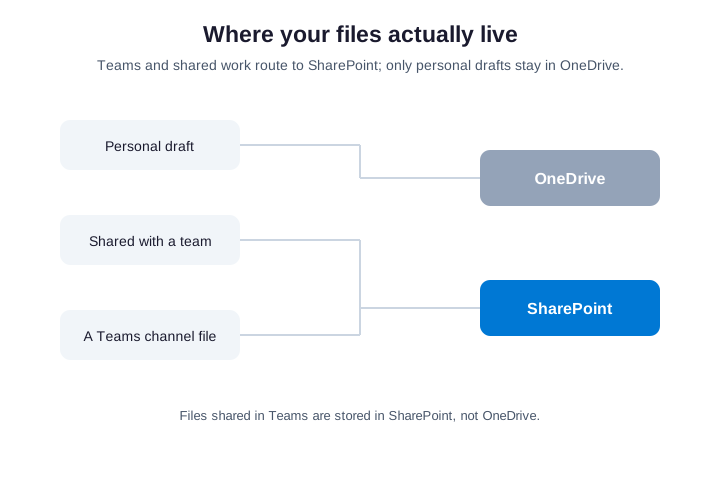
Private chat files are the exception. When you share a file in a one-to-one Teams chat, it lands in your OneDrive instead. So the rule still holds. Specifically, channel and team work is SharePoint, while private and personal work is OneDrive. This also explains a common surprise: deleting a file in Teams deletes it in SharePoint, because they are the same file. So treat the Teams Files tab as a friendly window onto SharePoint, not a separate drive.
🛡️ Security and governance: SharePoint vs OneDrive
Governance is where SharePoint vs OneDrive stops being a productivity question and becomes a security one. OneDrive spreads files across personal accounts, each with its own sharing links. As a result, sensitive data leaks through forgotten links and orphaned accounts. SharePoint, by contrast, centralizes control where an admin can actually govern it.
The biggest risk is the orphaned OneDrive. When an employee leaves, their OneDrive is retained for a set period and then deleted. So any shared work left there is on a timer. We wrap sharing policy, retention and access reviews into one managed service in our managed Microsoft 365 plans.
What to lock down first
Start with three controls. First, set external sharing to the minimum each site needs. Second, turn on retention so leavers’ files are not lost. Third, review external links regularly. For a full list, see our small business compliance checklist.
Wintive insight. Across the small business tenants we audit, the most common file mistake is not picking the wrong tool. Instead, it is shared work living in personal OneDrive accounts. For example, a key spreadsheet sits in one employee’s OneDrive, shared by link. Then that person leaves, and the file enters a deletion countdown. As a result, we routinely find business-critical data one resignation away from loss. Moving shared files to SharePoint fixes it permanently.
⌨️ Check sharing and storage with PowerShell
You cannot govern what you cannot see, so start with an inventory. The SharePoint Online Management Shell lists every OneDrive and SharePoint site in seconds. First, connect to your admin endpoint and pull OneDrive usage per user:
# SharePoint Online Management Shell — report OneDrive storage per user
Connect-SPOService -Url https://contoso-admin.sharepoint.com

Get-SPOSite -IncludePersonalSite $true -Limit All -Filter "Url -like '-my.sharepoint.com/personal/'" |
  Select-Object Owner, StorageUsageCurrent, StorageQuota |
  Sort-Object StorageUsageCurrent -Descending | Format-Table -AutoSize
That output shows which personal accounts hold the most data. Next, do the same for your SharePoint sites, and include the external-sharing setting so risky sites stand out:
# SharePoint site storage + external sharing setting, side by side
Get-SPOSite -Limit All |
  Select-Object Url, StorageUsageCurrent,
    @{N='SharingMode'; E={$_.SharingCapability}} |
  Sort-Object StorageUsageCurrent -Descending | Format-Table -AutoSize
Find orphaned OneDrive accounts
The highest-value query finds OneDrive sites whose owner no longer exists. Specifically, these are the accounts left behind when staff leave. Therefore review this list before files quietly expire:
# OneDrive sites whose owner is no longer a licensed user (orphaned)
Connect-MgGraph -Scopes "User.Read.All"
Get-SPOSite -IncludePersonalSite $true -Limit All -Filter "Url -like '/personal/'" |
  Where-Object { -not (Get-MgUser -UserId $_.Owner -ErrorAction SilentlyContinue) } |
  Select-Object Url, Owner, StorageUsageCurrent | Format-Table -AutoSize
📦 Move files from OneDrive to SharePoint
Once a personal file becomes team work, move it. This is a copy, not a migration, so links and version history stay intact. End users can do it from the web with the “Move to” button. Meanwhile, admins can script it in bulk with PnP PowerShell:
# Move a personal folder into a SharePoint library (PnP PowerShell)
Connect-PnPOnline -Url https://contoso.sharepoint.com/sites/Marketing -Interactive

Copy-PnPFile -SourceUrl "personal/jane_contoso_com/Documents/Campaign" `
  -TargetUrl "sites/Marketing/Shared Documents/Campaign" `
  -Overwrite -Force
Do the move early, while the folder is small. As a result, you avoid re-sharing dozens of links later. Then delete the OneDrive copy so there is one source of truth. So the team owns the file from that point on.
Communicate the move to the people who use the file. Send the new SharePoint link, and pin the library in their Teams or sync client. As a result, nobody keeps editing the old OneDrive copy by habit. So you avoid the classic split where two versions drift apart for weeks.
🚚 Migrating from OneDrive to SharePoint at scale
Small moves use the Move button, but a real cleanup needs a plan. When you find shared work scattered across personal accounts, batch it into SharePoint. First, design the site and library structure. Then map who needs access to each library before you move a single file.
Microsoft’s Migration Manager handles the bulk copy, and it carries files, version history and timestamps into the target library. For a handful of folders, PnP PowerShell runs faster, as the script above shows. Either way, copy first and verify the result, then remove the OneDrive originals. Microsoft documents the same split in its OneDrive or SharePoint guidance.
Permissions are the step teams skip. A file inherits the library’s permissions the moment it lands in SharePoint, so check the group membership first. As a result, the right people keep access and the wrong people lose it. Therefore plan permissions with the move, not after it.
| Migration step | What to do |
|---|---|
| 1. Plan structure | Design the SharePoint sites and libraries first |
| 2. Map access | List who needs each library |
| 3. Copy | Use Migration Manager or PnP, keeping version history |
| 4. Verify | Check files and permissions landed correctly |
| 5. Remove | Delete the OneDrive originals for one source of truth |
⚠️ Common file-storage mistakes to avoid
A few avoidable mistakes show up in nearly every audit. Watch for these before they cost you data or time:
- Storing shared work in personal OneDrive. The file dies when the owner leaves, so it belongs in SharePoint.
- Sharing by endless personal links. No admin can see or revoke them, so control drifts away fast.
- Treating Teams files as separate. They already live in SharePoint, so do not copy them elsewhere.
- Leaving external sharing wide open. Every site then invites accidental leaks.
- Ignoring orphaned OneDrives. Abandoned data piles up and quietly expires.
- Skipping permission planning on moves. The wrong people then keep access after a migration.
Avoid those six, and SharePoint vs OneDrive stops being a risk. Specifically, put shared work in SharePoint, control sharing centrally, and review access on a schedule.
🧭 When to use SharePoint vs OneDrive
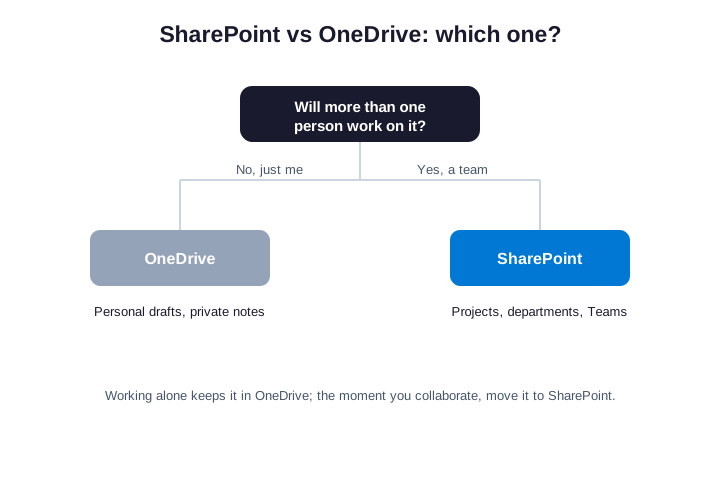
The decision in SharePoint vs OneDrive is easier than it sounds. Use one simple test: will more than one person work on this file? If the answer is no, OneDrive is the right home. If the answer is yes, it belongs in SharePoint from the start.
- Use OneDrive for: personal drafts, private notes, your own working copies, and files only you need.
- Use SharePoint for: team projects, department libraries, Teams channel files, and anything shared or long-lived.
When in doubt, default to SharePoint. After all, it is easy to keep a private copy in OneDrive, but it is painful to rescue shared work from a leaver’s account. Therefore err toward the shared drive for anything that touches the team. Microsoft gives the same advice in its own help docs, and our audits confirm it month after month. So when a draft becomes a shared project, move it to SharePoint that day, before the links multiply.
Two quick scenarios make the rule concrete. A consultant drafting a private proposal keeps it in OneDrive until it is ready. The moment two colleagues review it, that file moves to the project’s SharePoint library. So the trigger is collaboration, and the answer is always the shared drive.
| Scenario | Where it belongs |
|---|---|
| A private draft only you touch | OneDrive |
| A document two or more people edit | SharePoint |
| A file shared in a Teams channel | SharePoint, automatically |
| Your own working copy of a shared file | OneDrive |
| A department or project library | SharePoint |
💲 Costs and licensing for both
Cost rarely decides SharePoint vs OneDrive, because every Microsoft 365 business plan includes both. Business Basic, Standard and Premium all ship OneDrive and SharePoint at no extra charge. So you never choose one to save money; you already pay for both.
Storage is the only place cost shows up. Each license adds to the shared SharePoint pool, and extra SharePoint storage is a cheap add-on if you outgrow it. OneDrive stays at 1 TB per user unless an admin raises it. Therefore the smart move uses the storage you already own well, rather than buying more.
There is one more licensing nuance worth knowing. Frontline and kiosk plans cap OneDrive at a smaller size, so deskless staff get less personal storage. However, they still reach the shared SharePoint libraries their team owns. Therefore the shared drive carries the load no matter which plan a worker sits on.
🆚 SharePoint vs OneDrive vs Google Drive
Teams moving off Google Workspace often ask how SharePoint vs OneDrive maps to Google Drive. The parallel is close. Google’s My Drive matches OneDrive as personal storage, while a Google Shared Drive matches SharePoint as team storage. So the same rule carries straight over: personal work in the personal drive, shared work in the shared drive.
Integration is the real difference. Specifically, SharePoint ties directly into Teams, Office co-authoring and Microsoft 365 security, while Google keeps its own separate stack. Therefore a business already on Microsoft 365 gains little by parking files in Google Drive too. In fact, mixing the two scatters governance across two clouds and doubles the admin work. So pick one ecosystem, and keep files where the rest of your tools already live.
🧩 SharePoint vs OneDrive vs Teams
People often ask about SharePoint vs OneDrive vs Teams as if they were three rivals. In fact, they are one stack. Teams is the chat and meeting layer, SharePoint is the storage layer for shared files, and OneDrive is the storage layer for personal files. So they overlap by design, not by accident.
Think of it this way. You talk in Teams, you store team files in SharePoint, and you keep personal files in OneDrive. Notably, Teams simply puts a friendly front end on the SharePoint site underneath. Therefore mastering SharePoint vs OneDrive is what makes the whole stack click.
Where do the other Microsoft 365 file homes fit? A Teams private channel gets its own separate SharePoint site, and a personal Loop or Whiteboard file lands in OneDrive. So the same rule scales: shared things live in SharePoint, and personal things live in OneDrive. Once that clicks, the whole 365 file story stops being confusing.
| Capability | OneDrive | SharePoint | Teams |
|---|---|---|---|
| Stores files | Yes, personal | Yes, shared | No, uses SharePoint |
| Owner | You | The organization | The team site |
| Chat and meetings | No | No | Yes |
| Best for | Private work | Team files | Conversation |
🚀 Setting up file storage for a new team
Standing up SharePoint vs OneDrive for a new team takes three steps. First, create a team in Teams, which builds a SharePoint site automatically behind it. Second, point everyone’s sync client at the new library, so the files show up in File Explorer. Third, set the sharing and retention policy before anyone adds real data.
That order matters, because it builds governance in from day one. As a result, the team starts with a shared, controlled home instead of a pile of personal links. Meanwhile, each person still keeps OneDrive for private drafts. So you get collaboration and personal space at once, and you skip the painful cleanup later. For the exact settings to lock down first, our team handles it as part of an audit.
✅ The bottom line on SharePoint vs OneDrive
Strip SharePoint vs OneDrive back to one rule. Personal and private work lives in OneDrive, while shared and team work lives in SharePoint. Teams sits on top of SharePoint, and both drives run the same sync client. So the choice is about ownership, not features.
For most small businesses, the win is simple. Move shared files out of personal accounts, control sharing centrally, and review access regularly. If you would rather not audit storage and sharing by hand, our team runs the whole thing as a managed service.
📚 More for Growing Businesses
🔍 Not sure how your files are shared and stored?
The M365 Instant Audit scans your tenant in under 10 minutes. It maps OneDrive and SharePoint storage, external sharing, orphaned accounts and security gaps. As a result, you get a full PDF report with prioritized fixes, delivered instantly.
❓ Frequently Asked Questions
OneDrive is your personal work drive and you own the files; SharePoint is the shared team drive and the organization owns the files. Both use the same cloud and sync client. So the difference is ownership and scope, not technology.
Save it to OneDrive if only you need it, such as a draft or private note. Save it to SharePoint if anyone else works on it, or if it is a team or project file. When in doubt, choose SharePoint.
Yes. The OneDrive app syncs both your personal OneDrive and any SharePoint library you add. Therefore staff never install two tools, and moving a folder between them is invisible in File Explorer.
Channel files are stored in SharePoint, because every team has a SharePoint site behind it. Files shared in a private Teams chat go to your OneDrive instead. So most Teams files are really SharePoint files.
Their OneDrive is retained for a set period, then deleted. As a result, any shared work left there is on a timer. Therefore move team files to SharePoint before someone leaves, so nothing is lost.