

Knowing how to create a SharePoint site is the first real skill on Microsoft 365, because the site is where every team file, list and page lives. The good news is that it takes minutes in the browser. The trap is doing it without a plan, which leaves you with sprawl and broken permissions. So this guide to how to create a SharePoint site walks the steps and the decisions that keep a site clean for years.
We wrote it for the person who manages Microsoft 365, so it stays practical. Specifically, it covers the team versus communication choice, members, permissions, hubs, external sharing and PnP PowerShell. We also flag the governance that most guides skip. As a result, you create a SharePoint site that scales instead of one you later regret.
🛡 Free: M365 Audit Checklist
A 19-page PDF with 50 hands-on checks across Entra ID, Exchange, SharePoint, Teams and Intune. PowerShell commands are included. Specifically, we built it from 60+ real tenant audits at Wintive.
🔎 First, choose the type of site
Before you create anything, SharePoint asks one question that shapes everything after it. Do you want a team site or a communication site? A team site suits a group that works together and co-creates content. By contrast, a communication site suits a few authors broadcasting to many readers. So the answer flows from how people will actually use the space.
Quick answer. To create a SharePoint site, open the SharePoint start page, click Create site, then pick a team site or a communication site. Name it, set privacy, and add members. A team site is for collaboration; a communication site is for broadcasting. Notably, a team site also creates a Microsoft 365 group. Therefore choose the type first, then plan permissions and governance before the site fills up.
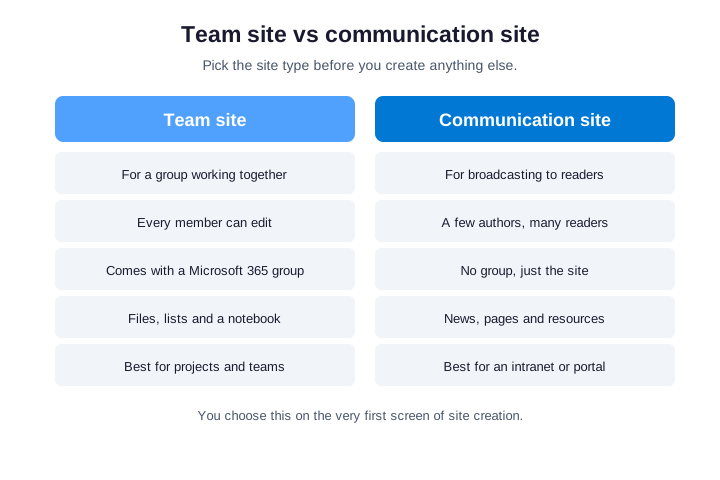
That single choice changes the defaults you inherit. A team site arrives with a group, a shared mailbox and edit-for-everyone. By contrast, a communication site arrives lean, with a few authors and many readers. So pick deliberately, because switching type later means rebuilding. We compare them properly next.
🏢 Team site vs communication site
The team site vs communication site choice is the one most people rush, yet it sets the tone. A team site is a shared workshop, while a communication site is a published magazine. Both live in SharePoint and share search. However, they assume very different audiences.
| Aspect | Team site | Communication site |
|---|---|---|
| Audience | A working group | Many readers, few authors |
| Editing | Everyone contributes | A small author team |
| Comes with | A Microsoft 365 group | Just the site |
| Built for | Projects and departments | Intranet, news and portals |
| Default access | Members can edit | Visitors read |
Match the type to the work. If a group co-creates, choose a team site. If you publish to an audience, choose a communication site. So a department workspace is a team site, while the company intranet is a communication site.
There is a subtle cost to choosing wrong. Specifically, a communication site cannot easily gain a Microsoft 365 group later, whereas a team site can still publish pages. So when the use is genuinely mixed, the team site is the safer bet. Therefore lean toward a team site unless the audience is clearly read-only.
🪜 How to create a SharePoint site, step by step
Here is how to create a SharePoint site in five clear steps. First, open the SharePoint start page from the Microsoft 365 app launcher. Then click Create site at the top left. After all, that single button starts the whole flow.
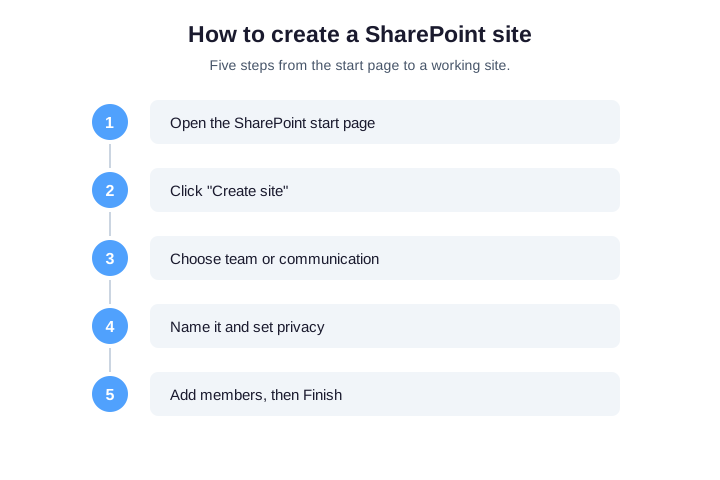
Next, choose your site type, then give the site a clear name. SharePoint suggests a matching address, which you can adjust. Then set the privacy and language, add a few members, and click Finish. As a result, your site is live in under two minutes, ready to fill with content.
Behind that simple flow, SharePoint provisions the storage, default lists and home page for you. Microsoft outlines the same steps in its create a site guide. A team site also builds the matching Microsoft 365 group and mailbox. So the space is ready for collaboration the moment it appears.
One detail trips newcomers up. The Create site button only appears if your admin allows self-service creation. So if you cannot see it, you either lack the permission or must use a request form. In that case, ask whoever runs Microsoft 365 to create the site or grant you access.
🔤 Naming and address settings
The name you type becomes part of the URL, so choose it carefully. Use a clear, human name, because that is what people search for and trust. Avoid dates and project codes that age badly. Specifically, “Marketing” beats “MKTG-2026-v2” every time.
Set a naming convention before the tenth site appears, not after. For example, prefix department sites or group them by team. Therefore sites stay findable as the tenant grows. Meanwhile, agree who can create sites, so the list does not balloon overnight.
Think about the address as much as the name. The URL is permanent, so a vague address haunts you for years. For example, a path like sites slash team1 tells nobody anything useful. Therefore set the address to match the clear name, and you will thank yourself at audit time.
Decide the language and time zone at creation as well. These default to the tenant settings, which may not suit a regional team. So set them now, because changing the site language later is messy. In practice, two minutes here prevents confusing dates and labels down the road.
👥 Add members and owners
Every site needs at least two owners, never just one. Owners control settings, members, and the site lifecycle, so a single owner is a real risk when they leave. Add a backup owner during creation. After all, recovering an ownerless site is painful.
Add members in groups rather than one by one. For a team site, the linked Microsoft 365 group is the cleanest way to manage who belongs. So adding someone to the group grants the right access everywhere. Therefore you avoid a tangle of individual invitations.
Guests deserve a moment of thought too. When you add an external collaborator, place them in a dedicated group, not the main members group. So their access stays easy to find and revoke later. As a result, a departing contractor never lingers with quiet access to everything.
🔐 Permissions on a new SharePoint site
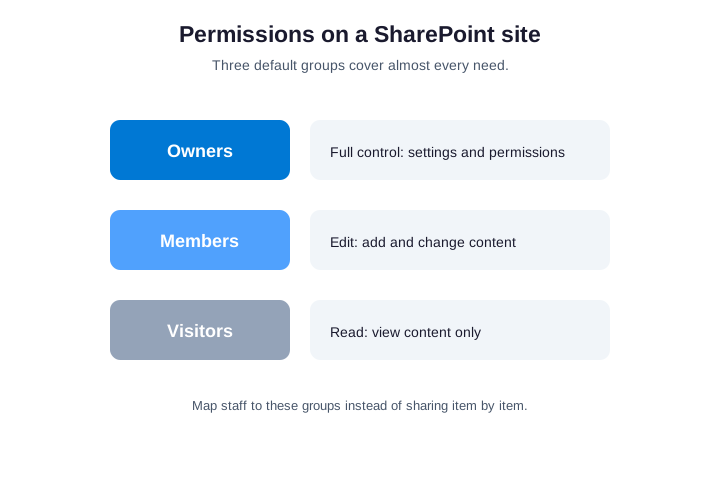
A new site ships with three permission groups, and they cover almost everything. Owners get full control, members can edit, and visitors can read. So your job is to put the right people in the right group, not to invent custom levels. In practice, that keeps access simple and auditable.
Resist the urge to break inheritance early. Unique permissions on a library or item feel precise, yet they quickly become a maze nobody can audit. For example, item-level rules scattered across a site hide who can see what. Therefore prefer a separate site over a web of exceptions whenever you can.
Audit the groups every quarter, because access quietly drifts. People change roles, projects end, and old members linger. For example, a finished project still lists ten editors who no longer need it. Therefore a short quarterly review keeps the site tight and safe.
Document who belongs in each group, too. A simple owner note on the site, listing the purpose and the contacts, saves the next admin hours. Otherwise the reasoning behind the access is lost the day you move on. In short, write down the why, not just the who.
Wintive insight. Across the small business tenants we audit, the biggest site problem is not creation, it is the absence of any rules around it. Anyone can spin up a site, so dozens appear with one owner and wide-open sharing. Then people leave, and nobody knows who owns what. As a result, we routinely find abandoned sites holding sensitive data. So decide who can create sites, set a naming convention, and review ownership every quarter.
🌐 Set up external sharing on a SharePoint site
Most sites need to share with someone outside the company at some point. SharePoint controls this per site, from no external sharing up to anyone-with-a-link. So set each site to the least access it actually needs. For example, a client portal allows guests, while an HR site stays internal only.
| Sharing setting | Who can access |
|---|---|
| Only people in your org | No external sharing at all |
| Existing guests | People already invited to the tenant |
| New and existing guests | Guests who sign in to view |
| Anyone | Public links, no sign-in needed |
Start strict, then loosen only where the work demands it. As a result, a forgotten link never becomes a data leak. Meanwhile, review external access on a schedule, because guests rarely clean up after themselves.
Sensitive sites deserve the strictest setting by default. An HR or finance site should never allow anonymous links, full stop. By contrast, a client collaboration site can allow guests who sign in. So match the setting to the data, not to convenience.
Turn on expiring access for guest links where you can. A link that dies after thirty days cannot leak forever. Meanwhile, a periodic review surfaces guests who should have left long ago. As a result, external collaboration stays useful without becoming a liability.
🔗 Connect sites with a hub
Once you have several sites, a hub ties them together. A hub site shares navigation, branding and search across the sites you associate with it. So a visitor moves between Marketing, Sales and HR without losing their bearings. In short, a hub turns scattered sites into one coherent intranet.
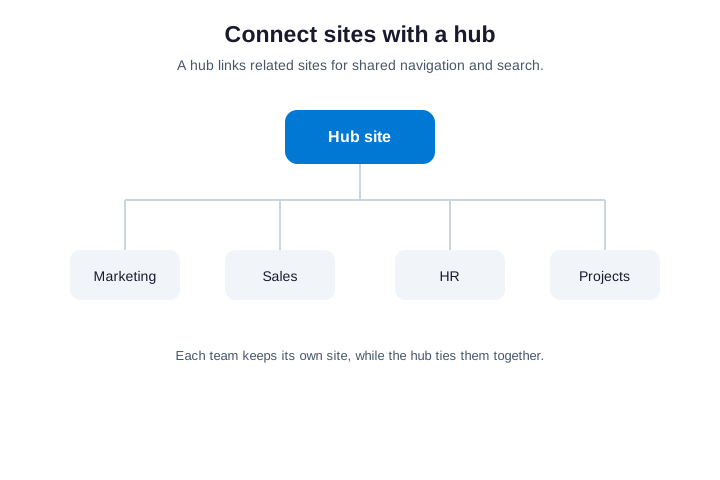
Plan the hub structure before sites multiply. For example, group team sites under a department hub, and roll departments up to a company hub. Therefore navigation stays logical as you grow. Meanwhile, each team keeps its own site and its own permissions underneath the hub.
A hub also gives you tenant-wide consistency for free. Apply a theme and a navigation menu to the hub, and every associated site inherits them. So your intranet looks coherent without editing each site by hand. Therefore branding stays uniform as the family of sites grows.
💬 Create a SharePoint site from Teams
Here is a shortcut many people miss. Every time you create a team in Microsoft Teams, SharePoint quietly creates a matching team site behind it. So if your group already lives in Teams, the site already exists. You reach it from the Files tab, which opens the site library.
This matters for tidiness. Specifically, you should not create a separate SharePoint site for a group that already has a Team. Instead, use the site Teams made for you. Therefore you avoid two homes for the same group, and the files stay in one place.
This connection runs deeper than files. A Team, its SharePoint site and its Microsoft 365 group are three views of one object. So deleting the Team deletes the site, and the reverse holds as well. Therefore treat them as a single unit, never as separate things to manage.
🧱 Site templates and reuse
Templates save you from building the same site twice. SharePoint ships ready-made templates for projects, events, crisis management and more. So a new project site arrives with sensible lists and pages already in place. After all, a good template is a head start, not a cage.
For a repeatable standard, save your own site as a template with a site script. Then every new site of that kind starts identical, with the same columns, views and branding. As a result, your tenant stays consistent. Therefore onboarding a new team takes minutes, not a morning.
| Template type | What it sets up |
|---|---|
| Team collaboration | Lists, a notebook and a shared library |
| Project management | Task tracking, milestones and a calendar |
| Communication, topic | News, hero pages and resource links |
| Custom site script | Your own columns, views and branding |
Plan the template around the work, not the tool. List the columns, pages and permissions a typical site of that kind needs. Then capture them once and reuse them forever. As a result, every project starts from the same proven baseline.
⌨️ Create a SharePoint site with PnP PowerShell
Clicking is fine for one site, but PnP PowerShell scales to many. It creates sites, sets owners and applies sharing rules from a script. So you provision ten identical project sites in seconds. First, connect to your admin endpoint and create the site:
# Create a team site or a communication site (PnP PowerShell)
Connect-PnPOnline -Url https://contoso-admin.sharepoint.com -Interactive

# Team site (creates a Microsoft 365 group):
New-PnPSite -Type TeamSite -Title "Marketing" -Alias "marketing" -IsPublic:$false

# Communication site:
New-PnPSite -Type CommunicationSite -Title "Company Portal" `
  -Url https://contoso.sharepoint.com/sites/portal
Then set a second owner and lock the sharing level in one command. This is exactly the governance the portal makes you click through site by site:
# Add a second owner and set external sharing to the minimum needed
Set-PnPTenantSite -Url https://contoso.sharepoint.com/sites/marketing `
  -Owners "jane@contoso.com" -SharingCapability ExternalUserSharingOnly
Wrap these calls in a loop over a CSV, and a new department spins up in moments. As a result, every site starts consistent and governed. Therefore scripting is the difference between ten tidy sites and ten random ones.
You can also provision many sites at once from a simple CSV. So a whole department spins up in one run, every site identical:
# Provision many sites at once from a CSV (Title, Alias)
Import-Csv .\sites.csv | ForEach-Object {
  New-PnPSite -Type TeamSite -Title $_.Title -Alias $_.Alias -IsPublic:$false
}
🛡️ Governance: naming, lifecycle and retention
Governance is the part of how to create a SharePoint site that separates a clean tenant from a junk drawer. Decide who can create sites, how they are named, and what happens when a project ends. So a site has a clear owner, a clear purpose and a clear end date. In short, govern sites like the assets they are.
| Governance control | What to set |
|---|---|
| Who can create sites | Limit creation to admins or a request form |
| Naming convention | A prefix or pattern everyone follows |
| Ownership | At least two owners per site |
| Lifecycle | An expiry and review for inactive sites |
| Retention | A policy so leavers’ data is not lost |
Set these once and most sprawl never starts. For example, a simple expiry policy archives sites nobody has touched in a year. Therefore the tenant stays lean on its own. Meanwhile, a retention policy keeps important data safe when staff move on.
Assign an owner to governance itself, not only to sites. Someone must own the naming policy, the review schedule and the retention rules. Without that, the policy drifts and the tenant slowly fills with clutter. So name a responsible person, and the rest holds together.
Tie governance to a light request process as well. When someone wants a new site, a short form captures the purpose, the owners and the lifespan up front. As a result, every site arrives with a reason to exist. Then retiring it later is an easy, evidence-based call.
📁 A SharePoint site for file sharing
Learning how to create a SharePoint site for file sharing is the most common reason of all. A team site is the right home, because its document library handles versions, co-authoring and search. So a team stops emailing attachments and works on one shared copy. In practice, this alone justifies the site.
Keep personal drafts out of it, though. Specifically, shared work belongs on the site, while private files stay in OneDrive. We unpack that split in our SharePoint vs OneDrive guide. Therefore the team gets a clean, shared, governed home for its files.
Set the document library up thoughtfully from day one. Add a few metadata columns, agree a folder convention, and turn on versioning. So the team finds files by filtering instead of digging. Therefore the site stays usable long after the first hundred files land.
🧩 Which site type? A quick decision
When you are unsure how to create a SharePoint site of the right kind, one question settles it. Will the group co-create content together, or will a few people broadcast to many? Co-creation points to a team site, while broadcasting points to a communication site. So you rarely need to overthink the choice.
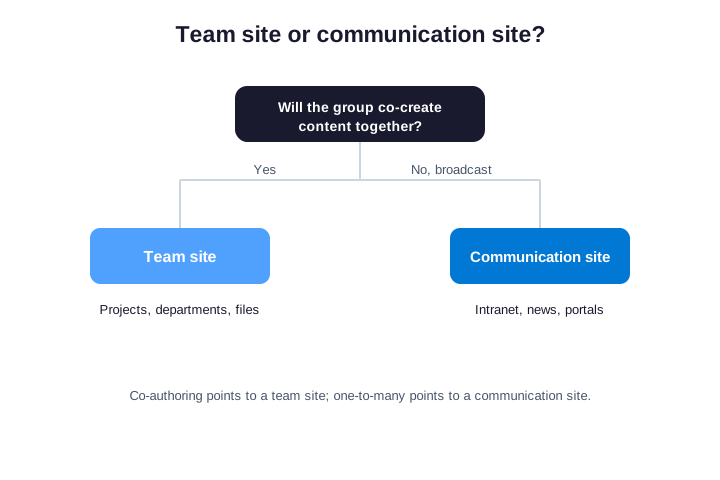
When it is genuinely mixed, default to a team site. After all, you can publish pages from a team site, but you cannot easily add a group to a communication site later. Therefore the team site is the safer, more flexible starting point for most small businesses.
One more tip saves regret later. If you truly need both a private workspace and a public face, build a team site and connect a separate communication site through a hub. So each audience gets the right tool. As a result, you never force one site to do two jobs badly.
Remember that the choice is not permanent for content. You can move pages, lists and files between sites if you guess wrong. Only the site type and the linked group are hard to change after the fact. So decide the type carefully, and treat everything else as movable.
🚩 Common mistakes when you create a SharePoint site
A few avoidable mistakes show up in nearly every audit. Watch for these before they cost you order or security:
- One owner only. Always add a backup, or the site is stranded when they leave.
- A second site for a Team. Teams already made one, so use it instead of duplicating.
- Wide-open external sharing. Start strict, then loosen only where the work needs it.
- Breaking permission inheritance. Prefer a separate site over a maze of exceptions.
- No naming or lifecycle rules. Without them, sites sprawl and sensitive data hides.
Avoid those five, and a SharePoint site stays tidy and safe. Specifically, name sites by convention, add two owners, share narrowly, and review them on a schedule.
✅ The bottom line
That is the whole of how to create a SharePoint site: strip it back to the essentials. Choose the right site type, create it in a few clicks, and add a second owner straight away. Then set sharing narrowly, connect related sites with a hub, and agree the governance up front. So a new site starts clean and stays that way.
For most small businesses, the win is discipline, not effort. Pick conventions, govern access, and script the repeatable parts. If you would rather not manage SharePoint by hand, our team runs the whole thing as a managed service.
Treat your sites like the small platforms they are. Give each a clear owner, a naming pattern, and a quick yearly review. Then the structure stays trustworthy as the company grows. And because it all runs on tools you already pay for, the only real cost is a little discipline. That discipline compounds, because every well-named, well-owned site makes the next one easier to find, secure and trust as the company grows and the number of sites quietly multiplies over the years.
📚 More for Growing Businesses
🔍 Sites multiplying without any governance?
The M365 Instant Audit scans your tenant in under 10 minutes. It maps sites, permissions, external sharing and security gaps. As a result, you get a full PDF report with prioritized fixes, delivered instantly.
❓ Frequently Asked Questions
Open the SharePoint start page, click Create site, and choose a team site or a communication site. Name it, set the privacy, and add members. The site is live in under two minutes, ready for files, lists and pages.
A team site is for a group that works together, and every member can edit. By contrast, a communication site is for a few authors broadcasting to many readers. The team site also creates a Microsoft 365 group, which a communication site does not.
It depends on the tenant settings. By default, users can create sites, but many admins restrict creation to control sprawl. So if you cannot see the Create site button, ask your administrator or use a site request process.
Yes. Every team in Microsoft Teams gets a matching SharePoint team site automatically. Its files live in that site library, reached from the Files tab. So you should not create a separate site for a group that already has a Team.
Use PnP PowerShell. Connect to your admin endpoint, then run New-PnPSite with the type, title and alias. You can also set owners and sharing in the same script. This is the fast way to provision many sites consistently.