

SharePoint templates are the fastest way to stop building the same site, page and list twice. Yet the word hides real confusion, because five different things all answer to the name. So people apply the wrong one, or skip templates entirely and let every site drift. This guide clears that up and shows you exactly which SharePoint template to use, and when.
We wrote it for the person who runs Microsoft 365 for a small business, so it stays practical. Specifically, it covers the built-in galleries, how to apply a template, and how to build your own with site designs and PnP PowerShell. We also weigh free templates against paid packs honestly. As a result, you standardise your tenant instead of fighting it.
🛡 Free: M365 Audit Checklist
A 19-page PDF with 50 hands-on checks across Entra ID, Exchange, SharePoint, Teams and Intune. PowerShell commands are included. Specifically, we built it from 60+ real tenant audits at Wintive.
🧩 What SharePoint templates actually are
A SharePoint template is a saved starting point you can reuse. Instead of building a site, page or list by hand each time, you apply a template and inherit its structure in one click. So a new project space arrives with the right lists, columns and layout already in place. In short, templates trade repetitive setup for a consistent head start.
Quick answer. SharePoint templates are reusable starting points for sites, pages, lists, libraries and columns. Microsoft ships ready-made templates in built-in galleries, and you can build your own with site designs and PnP PowerShell. To use one, open the gallery for that layer and apply it. Notably, applying a template adds structure without deleting your existing content. So pick the template type that matches the layer you repeat most.
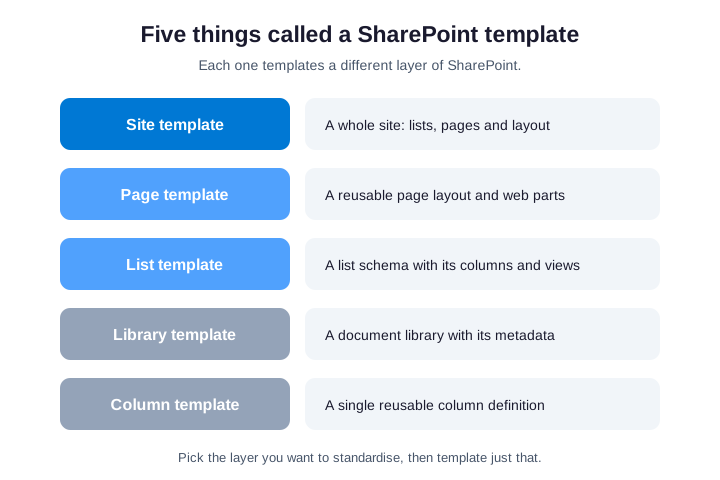
The trick is knowing which layer you mean. Some people want a whole site standardised, while others only want one page or one list. So SharePoint templates come in five flavours, and each targets a different layer. We break them down next, because choosing the right one saves hours later.
📊 The five types of SharePoint templates
Most confusion around SharePoint templates comes from treating them as one thing. They are not. There are five distinct types, and each templates a different layer of SharePoint. So before you copy anything, decide which layer you actually want to repeat.
| Template type | What it captures | Best for |
|---|---|---|
| Site template | A whole site: lists, pages, layout | Standardising new workspaces |
| Page template | One page layout and its web parts | Repeatable news or landing pages |
| List template | A list schema, columns and views | Reusing a tracker across sites |
| Library template | A document library and its metadata | A consistent document set |
| Column template | A single reusable column | One field used everywhere |
Read the table top to bottom as a scale of scope. A site template is the broadest, since it captures everything at once. By contrast, a column template is the narrowest, because it captures a single field. So the more you want to standardise, the higher up the list you reach.
Pick deliberately, because the wrong layer wastes effort. If you only repeat one tracker, a list template is enough, while a full site template would be overkill. Conversely, if every project needs the same five lists and pages, a site template captures them in one go. So match the template to the pattern you keep rebuilding.
🏢 Site templates: team, communication and custom
Site templates are the ones most people mean first, and our SharePoint vs OneDrive guide maps their storage. When you create a site, SharePoint already offers built-in templates for both team and communication sites. So a project space, an event hub or a help desk arrives with sensible lists and pages from the start. After all, a good starting layout beats a blank site every time.
Microsoft groups these built-in options by purpose. A team collaboration template suits a working group, while a communication template suits a published intranet or portal. So you choose the closest match, then adjust it. Meanwhile, each built-in template stays editable, so nothing locks you in.
Beyond the built-ins, you can define a custom site template of your own. This is where site designs and site scripts come in, which we cover in detail below. So if your projects all need an identical baseline, you capture it once and reuse it forever. As a result, every new site starts from the same proven standard.
📄 Page templates and the page gallery
A page template saves the layout and web parts of a single page. So when your team publishes the same kind of news post or landing page often, you build it once and reuse it. In practice, this keeps every announcement on-brand without rebuilding the layout each time.
Modern SharePoint stores these in a page template gallery on each site. To save one, you create the page, then choose Save as template from the page menu. So the next author picks it from the gallery and starts with the structure ready. Microsoft has expanded this gallery recently, which makes page reuse far easier than it used to be.
Keep the gallery tidy, though. A page template is only useful if authors can find the right one fast. So name templates clearly, and retire the ones nobody uses. Otherwise the gallery fills with near-duplicates and the time saving evaporates.
One habit helps here. So pin the page templates your team uses most to the top of the gallery, and authors reach for them by default. As a result, the right layout wins without anyone having to police it.
📋 List templates explained
A list template captures a list’s columns, views and formatting, so you can recreate the same tracker anywhere. Microsoft ships a gallery of ready-made list templates, from issue tracking to asset management. So a new list arrives structured, not empty. We dig deeper into lists in our SharePoint list guide.
You can also save your own list as a template, or provision it with PnP PowerShell. So a finance tracker built once on a model site can land identically on ten others. As a result, every team reports against the same columns, which makes roll-up reporting painless.
Watch one limit, though. A saved list template captures the schema, but you decide whether it carries the existing items too. So for a clean reusable shell, leave the data behind. Meanwhile, for a true copy, include the content, but keep an eye on size.
🗂️ Document library and column templates
Two narrower templates round out the set. A document library template captures a library along with its metadata columns and views, so document sets stay consistent across sites. So a contracts library on one site can be recreated, columns and all, on another. In practice, this keeps file metadata uniform, which makes search and filtering reliable.
A column template, often called a column type, is the narrowest unit of reuse. It saves a single column definition, such as a formatted status field, so you add the same field anywhere without rebuilding it. So a tenant-wide priority column behaves identically on every list. As a result, your data stays comparable across the whole estate.
These two are easy to overlook, yet they pay off at scale. When dozens of lists share the same handful of fields, column templates keep them in lockstep. So invest a little in defining shared columns early, because retrofitting consistency later is painful.
🎨 Where to find built-in SharePoint templates
You do not have to build anything to get value here. Microsoft ships built-in SharePoint templates in galleries you reach right from the product. So most teams find a close-enough starting point without writing a line of code. After all, the fastest template is the one that already exists.
| Gallery | Where you find it | What it offers |
|---|---|---|
| Site templates | Create site, or Settings, Apply a template | Team and communication site layouts |
| Page templates | Pages library, Save and use as template | Reusable page layouts and web parts |
| List templates | New, List, From template | Ready-made trackers and registers |
| Look book | adoption.microsoft.com look book | Designed, full-site inspiration |
Start in the right gallery for the layer you want. So if you need a whole site, browse the site templates, while a single page points you to the page gallery. Meanwhile, the look book showcases polished, designed sites you can request as a starting point. Therefore you rarely begin from a truly blank slate.
🛠️ How to apply SharePoint templates
Applying a built-in site template takes only a few clicks. First, open the site, then go to Settings and choose Apply a site template. So you browse the gallery, preview a template, and apply the one that fits. Here are the four steps in order:
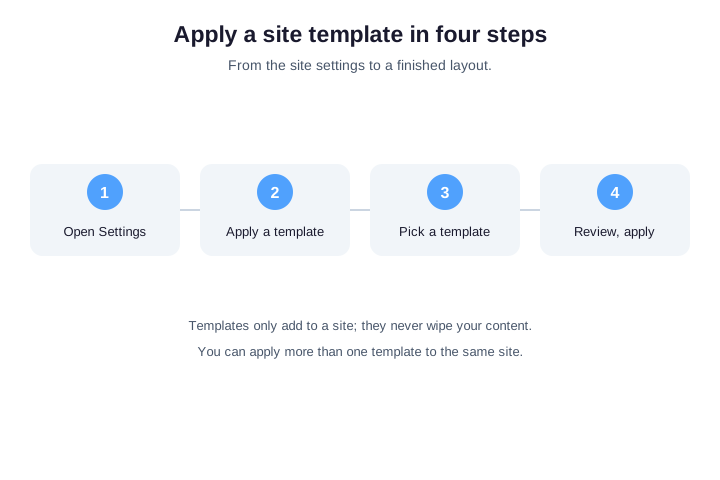
The key thing to know is what applying does. A template adds lists, pages and layout to your site, but it never deletes your existing content. So you can apply a template to a live site safely, and you can even apply more than one. As a result, you layer structure onto a site without starting over.
Microsoft documents the same flow in its apply and customise site templates guide. So if a button is missing, your admin may have restricted who can apply templates. In that case, ask whoever runs Microsoft 365 to apply it or grant you the right.
🧱 How to create your own SharePoint templates
When the built-ins do not fit, you build your own. For sites, the modern way is a site design backed by one or more site scripts. A site script is a small block of JSON that lists actions, such as creating lists or applying a theme. So a site design wraps those scripts and appears in the template gallery for everyone.
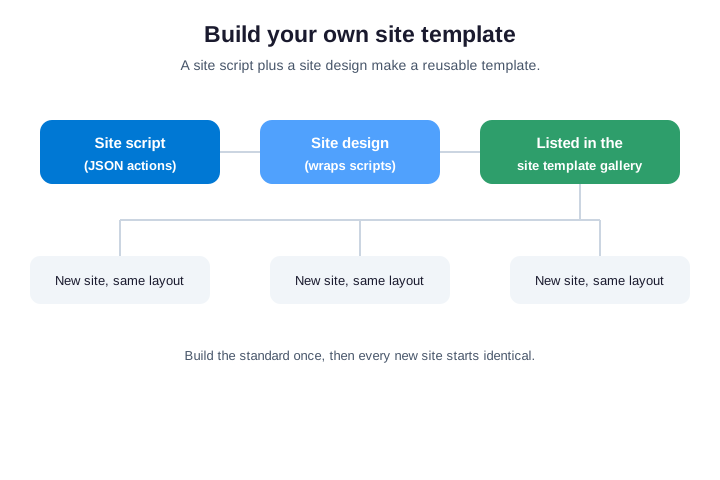
PnP PowerShell makes this repeatable. So you register the script, wrap it in a design, and from then on every new site of that kind starts identical. Here is the core of it:
# Build your own site template (PnP PowerShell)
Connect-PnPOnline -Url https://contoso-admin.sharepoint.com -Interactive

# 1. Register a site script: JSON actions run when the template is applied
$json = Get-Content .\project-baseline.json -Raw
$script = Add-PnPSiteScript -Title "Project baseline" -Content $json

# 2. Wrap the script in a site design shown in the template gallery
Add-PnPSiteDesign -Title "Project site" -SiteScriptIds $script.Id `
  -WebTemplate TeamSite -Description "Standard project workspace"
Once the design exists, it shows up when people create a site. So your standard spreads on its own, without anyone copying steps by hand. As a result, ten project sites share one baseline instead of drifting into ten variations.
Wintive insight. Across the small business tenants we audit, the problem is rarely a missing template. It is the opposite: nobody agreed on one, so every team improvised. As a result, we find five near-identical project sites with different columns, and reporting across them is impossible. So define one site template per common pattern, publish it in the gallery, and make it the default. That single decision does more for tidiness than any cleanup later.
💾 Save a list or page as a template
You do not always need a full site design. For a single list or page, the quickest reuse is to capture just that. So a tracker you perfected on one site can be recreated on another in seconds. In practice, PnP PowerShell extracts the piece you want and applies it where you need it.
The same Get and Invoke commands work at any scope. So you can extract a whole site, or narrow the extraction to a single list. Here is the broad version that captures an entire site as a template:
# Capture a whole site as a reusable template, then apply it elsewhere
Connect-PnPOnline -Url https://contoso.sharepoint.com/sites/model -Interactive

# Extract lists, fields, pages and navigation to a template file
Get-PnPSiteTemplate -Out project-template.xml -IncludeAllPages

# Apply that template to a brand-new site
Connect-PnPOnline -Url https://contoso.sharepoint.com/sites/project-x -Interactive
Invoke-PnPSiteTemplate -Path project-template.xml
To capture only one list, add the Lists handler and name the list you want. So you get a tidy, reusable shell without dragging the rest of the site along. As a result, you reuse exactly the layer you mean, and nothing more.
Keep the exported template files in source control, too. So a tracked history shows what changed and lets you roll back a bad edit later. In practice, this turns your templates into versioned assets rather than loose files on someone’s laptop.
💰 Free built-in vs third-party SharePoint templates
At some point you will meet vendors selling SharePoint templates and intranet packs. They are not a scam, but they are not always necessary either. So it helps to weigh the free built-ins against a paid pack with clear eyes. The honest answer is that most small businesses start fine with what Microsoft ships.
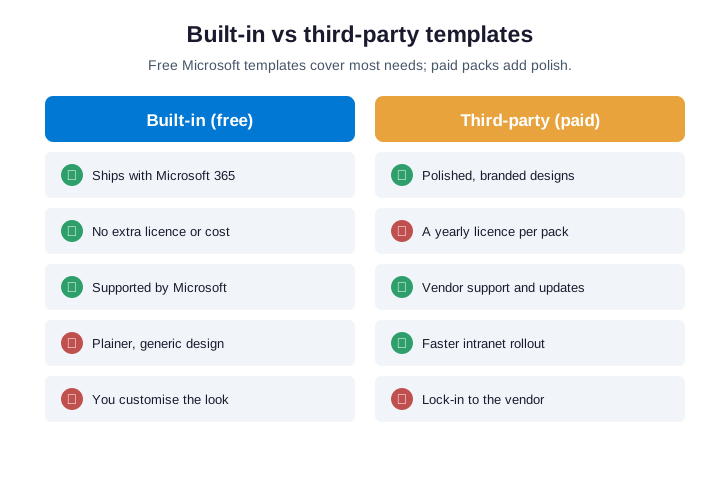
Paid packs buy you polish and speed. A vendor design lands a branded, ready intranet faster than building one yourself, and you get support with it. So if design time is scarce and budget is not, a pack can be worth it. Meanwhile, you do take on a yearly licence and some lock-in to that vendor.
Free built-in templates win on cost and support. They ship with your licence, Microsoft maintains them, and they never expire. So they are plainer, but you can brand and extend them yourself. Therefore start with the built-ins, and only buy a pack once you have hit a real limit you cannot close.
🌐 Intranet templates and the look book
Intranet templates deserve a special mention, because they are the most searched-for kind. People want a whole company portal, not just one page. So Microsoft offers the SharePoint look book, a showcase of designed, full-site examples you can apply to your own tenant. In short, it is inspiration you can actually deploy.
The look book templates are communication sites at heart. So they suit news, resources and company-wide pages, rather than day-to-day team collaboration. You browse a design, then provision it to a site you own. As a result, you get a professional starting point without hiring a designer.
Treat a look book design as a base, not a finished product. So apply it, then adjust the navigation, branding and content to fit your business. Meanwhile, plan who maintains the intranet, because a portal nobody owns goes stale fast. Therefore pair the template with a clear owner from day one.
Budget for content, not only design. So a polished portal still fails if the news and resources behind it go stale within weeks. Therefore assign someone to keep the intranet current, because the template is only ever the shell.
🛡️ Governance: standardising SharePoint templates
Templates only pay off if people actually use the right ones. So governance is what turns a pile of SharePoint templates into a real standard. Decide which template is the default for each pattern, publish it, and retire the rest. After all, ten competing templates are barely better than none.
| Governance control | What to set |
|---|---|
| One default per pattern | A single approved template for each common need |
| Naming convention | Clear template names everyone recognises |
| Ownership | A named owner for each template |
| Review cycle | A check that retires unused templates |
| Provisioning | Script bulk rollout with PnP PowerShell |
Scripting is how governance scales. So when a new department needs ten standard sites, you apply the approved template to all of them in one run, rather than clicking through each. Here is the pattern, driven by a simple CSV:
# Standardise many sites from one template (PnP PowerShell)
Connect-PnPOnline -Url https://contoso-admin.sharepoint.com -Interactive

# Apply the same captured template to every site listed in a CSV
Import-Csv .\sites.csv | ForEach-Object {
  Connect-PnPOnline -Url $_.Url -Interactive
  Invoke-PnPSiteTemplate -Path project-template.xml
}
Set this up once and consistency holds on its own. So new sites inherit the standard, and old ones can be brought back in line with a re-run. As a result, the tenant stays coherent as it grows, instead of fragmenting site by site.
⚠️ The deprecated classic site templates
If you find old advice about saving a site as a template, be careful. The classic Save site as template feature, and the old STP file format, belong to legacy SharePoint. So they are deprecated and hidden in modern sites, because they did not handle modern pages and web parts reliably. In short, do not build new standards on them.
The modern replacements are site designs, site scripts and PnP provisioning. So instead of an STP file, you capture a site with Get-PnPSiteTemplate and apply it with Invoke-PnPSiteTemplate. These handle modern pages properly and stay supported. Therefore reach for the PnP approach whenever you see the classic route suggested.
This matters most during a migration or a cleanup. So if you inherit a tenant full of classic templates, plan to rebuild them the modern way rather than carrying them forward. Meanwhile, document what each old template did, so nothing is lost in translation.
Audit for legacy templates before they bite. So search the tenant for old STP files and classic site definitions, then schedule each one for a modern rebuild. As a result, nothing brittle survives quietly into your new structure.
🧭 Which SharePoint templates should you use?
When you are unsure, one question settles it: what do you actually want to standardise? If it is a whole workspace, reach for a site template. If it is a single page, use a page template, while a repeatable tracker calls for a list template. So the layer you repeat decides the template you need.
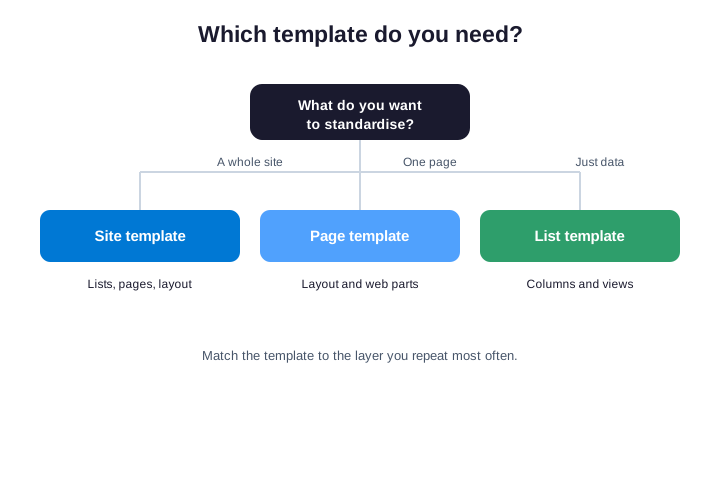
Start as narrow as the problem allows. So if one list is the only thing you keep rebuilding, do not wrap a whole site design around it. Conversely, when every project needs the same lists, pages and branding, a site template captures them together. Therefore size the template to the pattern, not to your ambition.
Remember you can combine them, too. So a custom site template can itself include list and page templates inside it. As a result, the broad and narrow types are not rivals, they stack. In practice, most mature tenants use a few site templates built from shared list and column templates underneath.
✅ The bottom line
SharePoint templates turn repetitive setup into a consistent standard, once you know which type you mean. So start by naming the layer you keep rebuilding, then reach for the matching template. Use the built-in galleries first, because they cover most needs at no extra cost. Then build your own site designs only where a real pattern demands it.
For most small businesses, the win is agreeing on one good template and actually using it. So publish a default per pattern, give each template an owner, and script the rollout with PnP PowerShell. If you would rather not manage any of this by hand, our team runs SharePoint as a managed service. That way your templates stay consistent and your sites stay tidy as the company grows.
📚 More for Growing Businesses
🔍 Template sprawl across your sites?
The M365 Instant Audit scans your tenant in under 10 minutes. It maps sites, templates, permissions and external sharing. As a result, you get a full PDF report with prioritized fixes, delivered instantly.
❓ Frequently Asked Questions
SharePoint templates are reusable starting points for sites, pages, lists, libraries and columns. You apply one to inherit its structure in a click, instead of building from scratch. Microsoft ships built-in templates, and you can also create your own with site designs.
The built-in SharePoint templates are free and ship with your Microsoft 365 licence. Third-party vendors also sell paid template and intranet packs that add polished designs and support. Most small businesses start fine with the free built-ins and customise from there.
Open the site, go to Settings, and choose Apply a site template. Browse the gallery, preview a template, and apply the one that fits. Applying a template adds lists and pages but never deletes your existing content, so it is safe on a live site.
For sites, build a site design backed by site scripts, then it appears in the template gallery. PnP PowerShell makes this repeatable with Add-PnPSiteScript and Add-PnPSiteDesign. You can also capture a whole site with Get-PnPSiteTemplate and apply it with Invoke-PnPSiteTemplate.
Yes. The classic Save site as template feature and the STP file format are deprecated and hidden in modern SharePoint. Use site designs, site scripts and PnP provisioning instead, because they handle modern pages and web parts reliably.