

The SharePoint API lets your code read and write the sites, lists and files your business already keeps in Microsoft 365. So instead of clicking through the browser, an app can pull a list, upload a document or sync data on a schedule. The catch is that there is not one API, there are two, and the authentication trips most people up. This guide untangles all of it.
We wrote it for the person who has to make an integration work and keep it secure. Specifically, it covers the REST API, Microsoft Graph, app registration, tokens and the least-privilege permissions that protect your tenant. We also show real calls in HTTP, Python and PowerShell. As a result, you ship an integration that works and does not over-expose your data.
🛡 Free: M365 Audit Checklist
A 19-page PDF with 50 hands-on checks across Entra ID, Exchange, SharePoint, Teams and Intune. PowerShell commands are included. Specifically, we built it from 60+ real tenant audits at Wintive.
🔌 What the SharePoint API is
A SharePoint API is simply a web endpoint your code calls to work with SharePoint data. You send an HTTP request with an access token, and SharePoint returns JSON or accepts your change. So any language that can make a web request can talk to it. In short, it turns your sites, lists and files into something software can drive.
Quick answer. There are two SharePoint APIs: the older SharePoint REST API at /_api, and the modern Microsoft Graph API at graph.microsoft.com. Both use OAuth, so there is no API key. You register an app in Entra ID, grant it least-privilege permissions such as Sites.Selected, and call the API with a bearer token. For new projects, start with Microsoft Graph and fall back to REST only for features it does not yet cover.
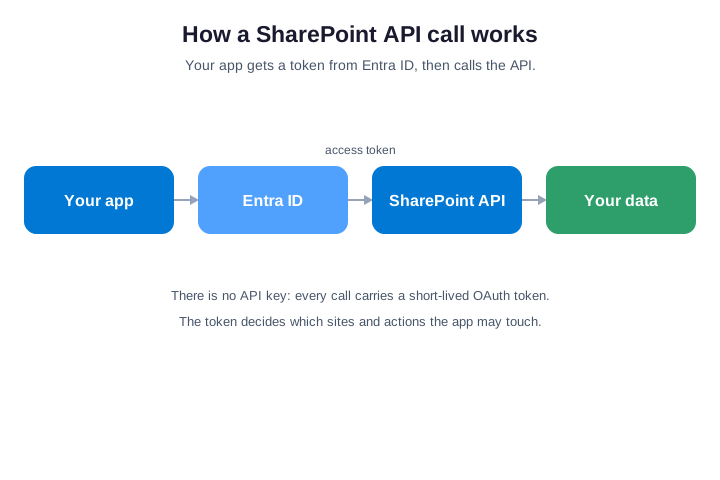
Notice what the flow does not include: a password or a static key. Instead, your app proves who it is to Entra ID, gets a short-lived token, and sends that token with every call. So the token, not a secret in your code, is what grants access. We unpack each piece of that below, starting with the two APIs themselves.
🧭 The two SharePoint APIs you can use
The single biggest source of confusion is that the SharePoint API is really two APIs. They overlap, but they are not the same, and choosing wrongly costs you time. So it helps to see them side by side before you write any code.
| API | Endpoint | Use it when |
|---|---|---|
| SharePoint REST | /_api/web/… | You need deep SharePoint features or build SPFx |
| Microsoft Graph | graph.microsoft.com | You start fresh and want one API for Microsoft 365 |
| PnP wrappers | PowerShell or .NET | You automate admin tasks and prefer commands |
Both the REST and Graph endpoints reach the same underlying data. So a list you read through REST is the same list you read through Graph. The difference is the shape of the request, the syntax, and how actively Microsoft invests in each. Therefore the practical question is which one fits your project, which we settle next.
PnP sits on top of both and deserves a mention here. The PnP PowerShell module and PnP Core wrap the raw APIs in friendly commands, so you skip a lot of plumbing. So for admin automation, PnP is often the fastest path. Meanwhile, for a custom app, you usually call REST or Graph directly.
📊 SharePoint REST API vs Microsoft Graph
The SharePoint REST API is the veteran. It has existed for years, it reaches almost every corner of SharePoint, and a huge amount of code already uses it. So it is powerful, but its syntax is verbose and full of quirks. That frustration is exactly what fuels the threads calling SharePoint hard to work with.
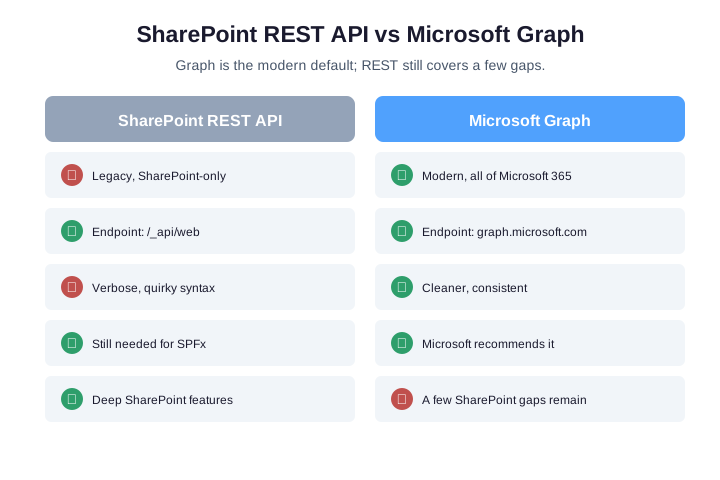
Microsoft Graph is the modern answer. It is one consistent API across all of Microsoft 365, so the same patterns work for SharePoint, Teams and Outlook. So Microsoft now recommends Graph for new development, and most new features land there first. As a result, your skills carry across products instead of being SharePoint-only.
Graph is not yet a total replacement, though. A few deep SharePoint operations still live only in the REST API, so mature projects often use both. So the honest rule is simple: reach for Graph first, and drop to REST only where Graph cannot yet go. Therefore you get the modern path without losing the edge cases.
🔑 Is there a SharePoint API key?
Many people search for a SharePoint API key, expecting a single secret string to paste in. There is no such key. SharePoint uses OAuth, so access is granted by short-lived tokens issued to a registered app, not by a static key. So if a tutorial tells you to find an API key, it is using the wrong mental model.
This matters for security, not just vocabulary. A static key, once leaked, works forever, while an OAuth token expires in about an hour and is scoped to specific permissions. So the OAuth model limits the damage if something leaks. As a result, the slightly harder setup buys you far safer access.
What you do create is an app registration with a client secret or, better, a certificate. So the secret authenticates your app to Entra ID, which then issues the real tokens. Therefore treat that secret like a password, store it in a vault, and never commit it to source control.
🛡️ How SharePoint API authentication works
Authentication is where most SharePoint API projects stall, so it is worth getting right once. The model is OAuth 2.0 through Entra ID, the identity service behind Microsoft 365. So your app registers there, gets credentials, and exchanges them for tokens. Here is the shape of it in plain steps.
- Register an app in Entra ID to get a client ID.
- Add a credential, a client secret or, preferably, a certificate.
- Grant API permissions for SharePoint or Graph, then have an admin consent.
- Request a token from Entra ID using those credentials.
- Call the API, sending the token as a bearer header.
Each call repeats the last two steps. So your code caches a token, reuses it until it expires, then quietly fetches a new one. Microsoft documents the registration flow in its app registration guide. Therefore once the app exists, the day-to-day pattern is just request a token, then call.
🎫 Getting an access token
A token request is a single HTTP POST to Entra ID. You send your app credentials and the scope you want, and you get back a bearer token. So this one call sits in front of every integration you build. Here is the app-only version, the one most server jobs use:
# Get an app-only access token (client credentials, Entra ID)
POST https://login.microsoftonline.com/{tenant-id}/oauth2/v2.0/token
Content-Type: application/x-www-form-urlencoded

client_id={app-id}
&client_secret={secret}
&scope=https://graph.microsoft.com/.default
&grant_type=client_credentials
The .default scope tells Entra ID to issue a token with whatever permissions an admin already consented to. So you do not list scopes per call, you set them once on the app registration. As a result, the request stays simple, and the permissions stay centrally controlled where you can audit them.
🎯 Permissions: Sites.Selected and least privilege
This is the step that protects your whole tenant, so do not rush it. When you grant API permissions, choose the narrowest scope that does the job. So an app that reads one team site should never get read access to every site you own. That principle, least privilege, is the difference between a safe integration and a breach waiting to happen.
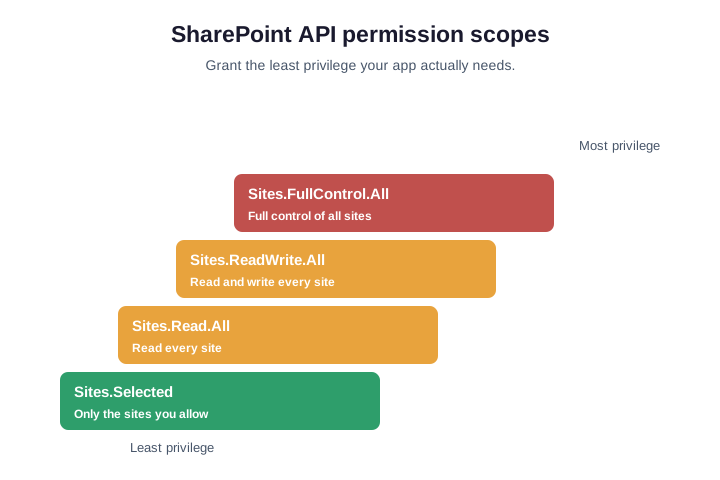
The key tool here is Sites.Selected. It grants an app access only to the specific sites you approve, instead of the whole tenant. So you register the app with Sites.Selected, then add it to just the one or two sites it needs. As a result, a leaked secret exposes those sites alone, not your entire SharePoint estate.
Avoid the broad scopes unless you truly must. Sites.Read.All, Sites.ReadWrite.All and Sites.FullControl.All all span every site, so they are tempting and dangerous. So in our audits, over-broad API permissions are one of the most common findings. Therefore default to Sites.Selected, and treat tenant-wide access as a deliberate, documented exception.
⚙️ Delegated vs app-only access
There are two ways your app can act, and the difference matters. With delegated access, the app acts as a signed-in user, so it can only do what that user can. By contrast, app-only access lets the app act on its own, with no user present. So one suits interactive tools, while the other suits background jobs.
Choose delegated for apps a person uses directly. So a dashboard a user logs into should respect that user’s own permissions, no more. As a result, the app cannot quietly reach data the person could not see anyway, which keeps access honest.
Choose app-only for scheduled, unattended work. So a nightly sync or a webhook handler runs without anyone logged in, using its own identity. Then pair it with Sites.Selected so its reach stays tight. Therefore background automation gets exactly the access it needs, and nothing more.
📥 Calling the SharePoint REST API
A REST call is just an HTTP request to a /_api URL with your token attached. So you point at the web, a list or an item, and SharePoint returns JSON. The endpoints read almost like a path through the site. Here is a common read against a list:
# Read items from a SharePoint list via the REST API (HTTP)
GET https://contoso.sharepoint.com/sites/team/_api/web/lists/getbytitle('Tasks')/items
Authorization: Bearer <access-token>
Accept: application/json;odata=nometadata

# Narrow the response with OData query options
GET .../items?$select=Title,Status&$filter=Status eq 'Open'&$top=50
OData query options are where REST earns its keep. So you add select, filter, top and expand to fetch exactly the rows and columns you need. As a result, you avoid pulling a whole list when you only want ten open tasks. Therefore learning a little OData saves a lot of bandwidth and time.
🌐 Using Microsoft Graph for SharePoint
Graph reaches the same sites and lists through cleaner, predictable URLs. So you first resolve a site to its ID, then walk to its drives, lists or items. The patterns mirror every other Graph resource, which is the whole point. Here is the equivalent of the REST call above:
# The same data through Microsoft Graph
GET https://graph.microsoft.com/v1.0/sites/contoso.sharepoint.com:/sites/team
Authorization: Bearer <access-token>

# List the document libraries on that site
GET https://graph.microsoft.com/v1.0/sites/{site-id}/drives

# Read items from a list, expanding the column values
GET https://graph.microsoft.com/v1.0/sites/{site-id}/lists/Tasks/items?expand=fields
The big win is consistency across Microsoft 365. So once you know how Graph paging, filtering and expansion work for SharePoint, the same knowledge applies to Teams and users. Microsoft details the SharePoint resources in its Graph SharePoint reference. Therefore Graph is the skill that keeps paying off well beyond SharePoint.
Wintive insight. When we audit small business tenants, the SharePoint API is rarely the problem. The app registrations around it are. We routinely find an old integration with Sites.FullControl.All, a client secret that never expires, and no record of who built it. So one forgotten app holds the keys to every site. The fix is dull but decisive: inventory your app registrations, downgrade each to Sites.Selected, rotate secrets to certificates, and delete anything nobody can explain.
🐍 The SharePoint API in Python
Python is one of the most popular ways to drive the SharePoint API, usually through the Office365-REST-Python-Client library. It wraps the REST endpoints so you work with objects instead of raw URLs. So you connect with your app credentials, then read a list in a few lines. Here is a working example:
# Read a SharePoint list with Python (Office365-REST-Python-Client)
from office365.sharepoint.client_context import ClientContext

site = "https://contoso.sharepoint.com/sites/team"
ctx = ClientContext(site).with_client_credentials(client_id, client_secret)

items = ctx.web.lists.get_by_title("Tasks").items.get().execute_query()
for item in items:
    print(item.properties["Title"], item.properties["Status"])
For Graph from Python, the pattern is similar but uses MSAL to fetch the token. So you acquire a token with the msal library, then call Graph with the requests library. As a result, you pick the library that matches the API you chose. Either way, keep the client secret in an environment variable or a vault, never in the script.
⌨️ The SharePoint API in PowerShell and PnP
For admin work, PnP PowerShell is usually the fastest route to the SharePoint API. It turns common operations into single commands, and it handles tokens for you. So you connect once with a certificate, then read or write with friendly cmdlets. Here is the same list read, the PnP way:
# The same job in PnP PowerShell, with certificate auth
Connect-PnPOnline -Url https://contoso.sharepoint.com/sites/team `
  -ClientId $appId -Tenant "contoso.onmicrosoft.com" -CertificatePath .\app.pfx

# Read list items the easy way
Get-PnPListItem -List "Tasks" -PageSize 500

# Or call any REST endpoint directly when you need to
Invoke-PnPSPRestMethod -Url "/_api/web/lists/getbytitle('Tasks')/items?\$top=5"
When a cmdlet does not exist for what you need, you can still reach the raw API. So Invoke-PnPSPRestMethod lets you call any REST endpoint while PnP handles the auth. As a result, you get the convenience of commands without losing the full reach of REST. Therefore PnP is both a shortcut and an escape hatch.
🧰 Common SharePoint API operations
Most integrations come down to a handful of operations, whichever API you pick. So once you can authenticate, the rest is variations on read and write. The same token reaches sites, lists, files, search and permissions, within the scope you granted.
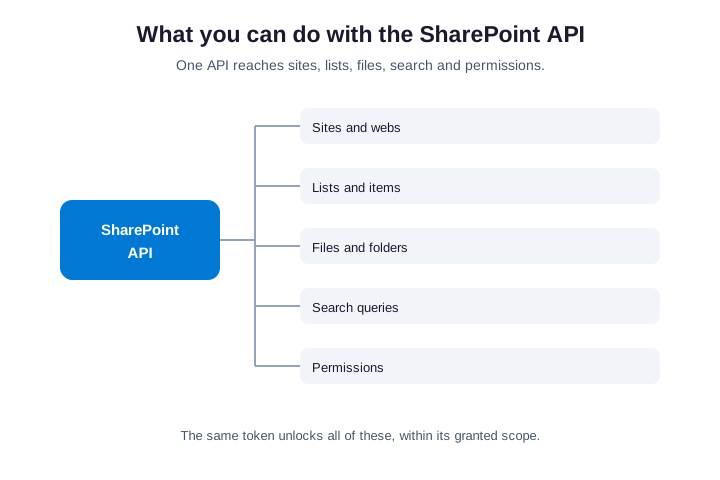
Files are the operation people reach for most, and our SharePoint vs OneDrive guide shows where they live. So uploading a document, downloading one, or listing a library are all a single call each. Meanwhile, list items cover structured data, from tasks to assets. Therefore between files and list items, you can automate the bulk of everyday SharePoint work.
Search and permissions round out the set. So a search query lets you find content across sites in one call, and the permissions endpoints let you read or set who has access. As a result, even governance tasks can be scripted. In practice, that is how reporting and clean-up jobs are built.
🧪 Testing your calls in Postman
Before you write a line of application code, test your calls in Postman. It lets you send requests by hand, so you confirm the endpoint, token and response without a build step. So you catch a permissions or URL mistake in seconds, not after deployment. In short, Postman is the fastest feedback loop for API work.
Set it up once and reuse it. So you create an environment with your tenant, client ID and secret, then let Postman fetch the OAuth token for you. As a result, every request you try carries a valid token automatically. Microsoft and the community even publish ready-made collections to start from.
Treat Postman as documentation, too. So a saved collection of working calls becomes a reference your whole team can reuse. Then onboarding a new developer is a matter of sharing it. Therefore the time you spend testing pays back as a living set of examples.
One habit saves grief later. So name and version each saved request clearly, because an unlabelled call is as confusing as undocumented code. As a result, the collection stays useful as your integration grows instead of rotting into guesswork.
🚦 Rate limits and throttling
SharePoint and Graph both throttle heavy traffic, so plan for it from day one. When you send too many requests too fast, the API replies with a 429 status and a Retry-After header. So a naive loop that ignores this will fail under load. Therefore your code must back off and retry politely.
The fix is straightforward but essential. So honour the Retry-After value, add exponential backoff, and batch requests where the API allows it. As a result, a sync that touches thousands of items still completes without getting blocked. Meanwhile, fetching only the fields you need keeps your call count down in the first place.
Identify your app clearly as well. So set a descriptive user-agent on every request, because Microsoft uses it to apply fairer limits and to help when you raise a support case. Therefore good API manners are not just polite, they keep your integration running.
Test your limits before production does. So run a load test that mirrors your busiest job, then watch for the first 429 response. Therefore you tune the backoff and batch size while it is cheap, rather than during an outage.
🧮 Which SharePoint API should you use?
When you are unsure, one rule cuts through it: start with Microsoft Graph. It is the modern, supported path, and it covers the large majority of SharePoint scenarios. So unless you have a specific reason to do otherwise, Graph is the right default for anything new.
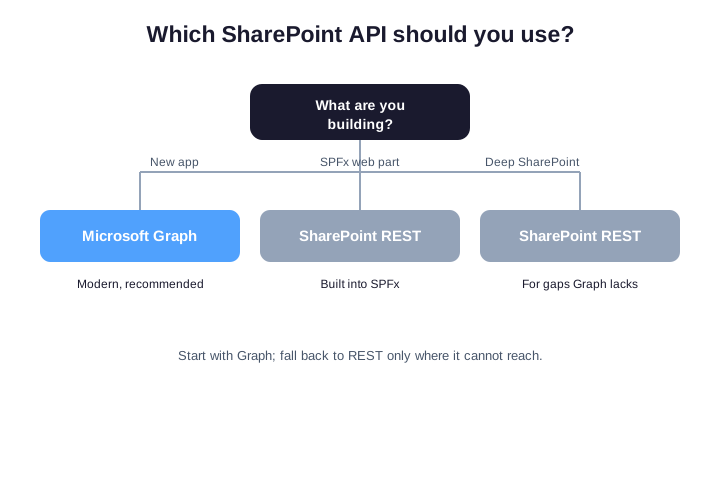
Fall back to the REST API for two cases. So if you build an SPFx web part, REST is already wired in and natural to use. Likewise, if you hit a deep SharePoint feature Graph has not reached yet, REST still has it. Therefore REST remains the specialist tool, not the everyday one.
For pure administration, prefer PnP over either raw API. So bulk site changes, permission clean-ups and reporting are all faster as PnP commands. As a result, you match the tool to the task: Graph for apps, REST for gaps, and PnP for admin. In practice, many teams use all three.
✅ The bottom line
The SharePoint API is far less daunting once you see the shape of it. So remember there are two APIs, that both use OAuth rather than a key, and that Graph is the modern default. Register an app, grant it Sites.Selected, request a token, and call. That single path covers almost everything most businesses need.
Above all, treat access as a security decision, not just a coding one. So grant the least privilege that works, store secrets in a vault, and review your app registrations regularly. If you would rather not manage any of this yourself, our team runs Microsoft 365 and its integrations as a managed service. That way your data stays reachable for the apps that should touch it, and closed to everything else.
📚 More for Growing Businesses
🔍 Unsure which apps can reach your SharePoint data?
The M365 Instant Audit scans your tenant in under 10 minutes. It maps app registrations, API permissions, over-privileged access and external sharing. As a result, you get a full PDF report with prioritized fixes, delivered instantly.
❓ Frequently Asked Questions
The SharePoint API is a set of web endpoints your code calls to read and write SharePoint sites, lists and files. You send an HTTP request with an OAuth token, and SharePoint returns JSON or accepts your change. There are two: the SharePoint REST API and Microsoft Graph.
No. SharePoint uses OAuth, so there is no static API key. You register an app in Entra ID, give it a client secret or certificate, and your app exchanges those for short-lived access tokens. Each token is scoped to specific permissions and expires in about an hour.
Start with Microsoft Graph for new projects, because it is the modern, supported API across Microsoft 365. Fall back to the SharePoint REST API for SPFx web parts or for deep features Graph does not yet cover. Many mature projects use both.
Register an app in Entra ID, add a client secret or certificate, and grant least-privilege permissions such as Sites.Selected. Then request a bearer token from Entra ID and send it with every call. Cache the token and refresh it when it expires.
Yes. The Office365-REST-Python-Client library wraps the REST API, so you connect with app credentials and work with objects. For Microsoft Graph, use the msal library to get a token and the requests library to call it. Keep secrets in a vault or environment variable.