

Microsoft Teams security is where most small-business breaches now begin, because Teams is where the work lives: the chats, the files, the external guests, the meetings anyone can join. Yet most tenants run Teams on its open defaults, which were built for adoption, not protection. The gap between “it works” and “it is safe” is exactly what attackers exploit.
This guide closes that gap with what you already own, once your team knows how to use Microsoft Teams. Wintive runs Microsoft 365 for 60+ tenants, therefore we cover the controls that actually matter, in order, and the PowerShell to set them. Moreover, we show that for most businesses you do not need a third-party product to secure Teams; you need the native controls switched on and configured properly.
🛡️ Free: M365 Audit Checklist
19-page PDF with 50 hands-on checks across Entra ID, Exchange Online, SharePoint, Teams and Intune. Run it before you harden Teams, so you start from a clean tenant. PowerShell commands included. Built from 60+ real tenant audits at Wintive.
🛡️ What Microsoft Teams security means
Quick answer. Microsoft Teams security is the set of native Microsoft 365 controls that protect Teams chats, files, meetings, guests and apps: Conditional Access and MFA for identity, external and guest access policies, meeting controls, DLP and sensitivity labels for data, app permission policies, Defender threat protection, and audit logging. Configured well, they secure Teams without a third-party product for most businesses.
Teams is not a single app to secure; it is a front end over the rest of Microsoft 365. Therefore a message lives in Exchange, a file lives in SharePoint, and identity sits in Entra ID, so securing Teams means configuring the services beneath it. Consequently the best Teams security is layered, not bolted on. That layered model is the whole reason the native controls are enough for most businesses.
It helps to see Microsoft Teams security as a posture, not a product. Specifically, the same tenant can be wide open or tightly governed with no new purchase, because the difference is entirely in the configuration. Therefore the question is never which tool to buy first, but which setting to fix first. As a result, an honest audit, not a sales call, is where good Teams security starts.
Why defaults are not enough
Out of the box, Teams optimises for collaboration, so anyone can present, guests are easy to add, and apps install freely. However, those same defaults are exactly what an attacker or a careless user abuses. Therefore the job is not to install something new; it is to tighten what is already there. As a result, a few configuration changes move a tenant from open to genuinely defended.
🛡️ The six pillars of Microsoft Teams security
A scattered checklist is hard to act on, so we organise Microsoft Teams security into six pillars. Each pillar maps to a native control and a real risk if you ignore it, as the matrix below shows. Therefore you can audit your own tenant pillar by pillar, rather than guessing where the holes are.
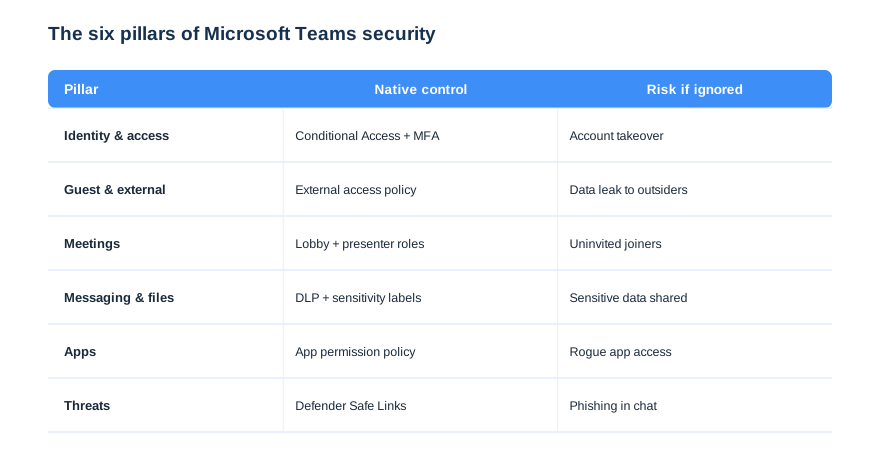
The pillars are deliberately ordered by impact. Specifically, identity and guest access stop the most common attacks, so they come first, while app and threat controls harden the edges. Therefore a business with limited time fixes the top pillars and already removes most of its risk. As a result, even a half-day of work delivers a disproportionate security gain.
Working pillar by pillar also makes the project measurable. Specifically, you can score each pillar red, amber or green, then track the tenant moving toward green over a few sessions. Therefore Microsoft Teams security becomes a checklist with progress, not a vague worry. As a result, leadership sees concrete improvement instead of an open-ended spend.
⚖️ The shared responsibility model
Before changing settings, it helps to know who secures what. Microsoft secures the platform, the data centres and the service itself, while you secure your configuration, your identities and your data. Therefore a breach caused by an open guest policy is your responsibility, not Microsoft’s. So the controls in this guide are the half of the deal that you own.
| Layer | Microsoft secures | You secure |
|---|---|---|
| Infrastructure | Data centres, uptime | Nothing |
| Platform | The Teams service | Your policies |
| Identity | Entra ID service | MFA, Conditional Access |
| Data | Storage and encryption | Sharing, DLP, labels |
| Access | The access engine | Who is a guest, who presents |
Microsoft Teams security is the half you own
Almost every Teams incident traces back to the customer side of that table. Specifically, weak identity, open guest access and unmanaged sharing cause far more harm than any platform flaw. Therefore your configuration is the real security boundary. As a result, the time you spend on the controls below is the time that actually reduces risk.
This split is also why a third-party tool rarely fixes the real gap. Specifically, an add-on cannot save a tenant whose own identity and sharing settings are loose, because those are the customer’s to set. Therefore the durable fix is always to harden the configuration you own. As a result, native Microsoft Teams security usually outperforms a bolted-on product that sits on top of the same weak settings.
🔐 Identity: Conditional Access and MFA
Identity is the first pillar because a stolen password unlocks everything else. Therefore every user needs multi-factor authentication, and Conditional Access should govern how and from where Teams is reached. Consequently a leaked credential alone is no longer enough to get in. This is the single highest-impact change on the list.
# Require compliant or managed devices for Teams (concept)
# Conditional Access is set in the Entra admin center; the policy:
#   Users: All users (exclude break-glass)
#   Cloud apps: Microsoft Teams + Office 365
#   Grant: Require MFA AND require compliant device
Device posture deserves a mention alongside identity. Specifically, Conditional Access can demand a compliant or managed device, so even a valid login from an unknown laptop is challenged or blocked. Therefore access depends on both who you are and what you are using. As a result, a phished password on a personal machine still does not reach your Teams data.
Protect the break-glass account
When you enforce MFA and Conditional Access, always exclude one emergency admin account. Specifically, a break-glass account with a long, stored password prevents a policy mistake from locking everyone out. Therefore you tighten access without risking a self-inflicted outage. As a result, you can be aggressive with identity policy and still sleep at night.
👥 Guest and external access
Guest access is the pillar that leaks data fastest, because it reaches outside your walls. The comparison below shows a default tenant against a hardened one, and the difference is stark. So this is usually the second change we make, right after identity.
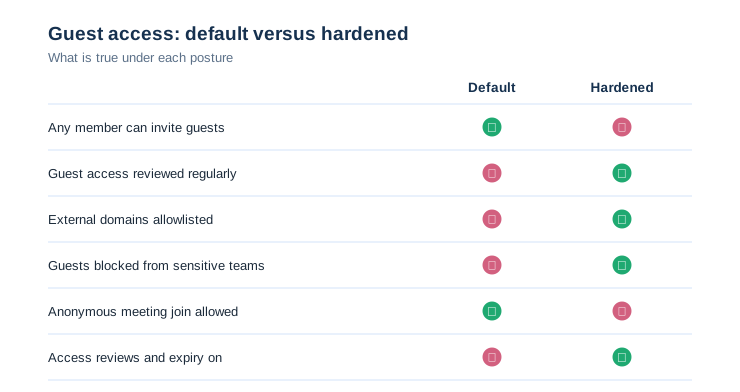
External access (federation) and guest access are two different switches, and both need attention. Therefore we allowlist the domains you actually work with rather than leaving federation open to the world, and we review guests on a schedule. The PowerShell below restricts external access to named domains.
# Restrict external access (federation) to named domains
Set-CsTenantFederationConfiguration -AllowedDomains @{
    Add = "partner.com","supplier.com" }
Set-CsExternalAccessPolicy -Identity Global -EnableFederationAccess $true
Guest hygiene is an ongoing job, not a one-time switch. Specifically, projects end but the guests they invited often linger with access to sensitive teams for months. Therefore scheduled access reviews are part of real Microsoft Teams security, not an optional extra. As a result, your external surface shrinks back automatically instead of growing with every project.
📹 Meeting security
Meetings are where uninvited people slip in, so meeting policy is a pillar of its own. The two controls that matter most are the lobby and presenter roles: make people wait in the lobby, and let only organisers present. Therefore a stranger with a link cannot wander in and take over. The table below is the meeting baseline we apply.
| Meeting control | Default | Hardened |
|---|---|---|
| Lobby | Some bypass | Everyone waits |
| Who can present | Everyone | Organizers only |
| Anonymous join | Allowed | Off or lobby |
| Recording | Anyone | Organizers, governed |
| External chat | Open | Scoped |
Microsoft documents the full control set in its Teams security guide, but the policy below applies the essentials in one command. Therefore you set the lobby, anonymous join and presenter rules tenant-wide rather than meeting by meeting. As a result, every new meeting inherits the safe defaults automatically.
# Apply a hardened meeting policy (Teams PowerShell)
Set-CsTeamsMeetingPolicy -Identity Global `
    -AutoAdmittedUsers EveryoneInCompany `
    -AllowAnonymousUsersToJoinMeeting $false `
    -DesignatedPresenterRoleMode OrganizerOnlyUserOverride
External chat is the meeting-era gap people forget. Specifically, letting staff chat with any external Teams user opens a quiet channel for social engineering. Therefore we scope external chat to known domains rather than leaving it global. As a result, a stranger cannot start a one-to-one chat to groom an employee into a bad click.
Govern recordings and transcripts
Recordings and transcripts are sensitive data, so they need governing like any file. Specifically, we control who can record, store recordings in governed locations, and apply retention, an angle we expand in our AI note taker guide. Therefore a meeting recap never becomes an uncontrolled leak. As a result, the convenience of recording does not create a compliance problem.
Recording governance ties back to identity as well. Specifically, when only organisers can record and recordings land in a governed library, you always know who captured a meeting and where it sits. Therefore a sensitive discussion does not end up as an unmanaged file on someone’s laptop. As a result, the audit trail for meetings is as solid as the one for documents.
📄 Messaging, files and DLP
Chats and the files shared in them are content, and content needs data protection. Therefore Data Loss Prevention policies scan Teams messages and files for sensitive data such as card numbers or health records, and sensitivity labels classify and encrypt documents. Consequently a user cannot casually paste a client’s card number into a chat without the policy catching it.
💡 Wintive insight
The most common thing we find is a tenant with Microsoft Teams security wide open and a third-party security tool the client is paying for on top. Therefore we turn the native controls on first, because they are already bought and they cover most risk. As a result, many clients cancel the extra tool, and the security posture actually improves rather than getting more complicated.
DLP and labels also turn compliance from a promise into a control. Specifically, a policy that blocks card numbers in chat is evidence you can show an auditor, not just a staff guideline. Therefore Microsoft Teams security and compliance reinforce each other. As a result, the same settings that stop a leak also help you pass a questionnaire or an audit.
Labels do the heavy lifting
Sensitivity labels are the most underused control in Microsoft 365. Specifically, a label can encrypt a document, restrict who opens it, and follow the file even when it leaves Teams. Therefore classification protects data wherever it travels, not just inside the tenant. As a result, a leaked file is useless to whoever receives it without rights.
There is a reporting benefit to data controls that leaders care about. Specifically, DLP generates a record of what was nearly leaked and blocked, which turns a vague fear into a measurable risk you are managing. Therefore data protection becomes visible to the business, not just to IT. As a result, the case for keeping the controls on makes itself at the next review.
🧩 App governance and threats
Teams apps are powerful and, left open, risky, because a user can install an app that reads chats or files. Therefore an app permission policy should allowlist the apps you trust and block the rest, while app setup policies pin the good ones. So the app store becomes a curated shelf, not an open door.
# Allowlist apps and block the rest (Teams PowerShell)
Set-CsTeamsAppPermissionPolicy -Identity Global `
    -DefaultCatalogAppsType BlockedAppList `
    -GlobalCatalogAppsType BlockedAppList `
    -PrivateCatalogAppsType BlockedAppList
App governance pays off quietly but consistently. Specifically, an allowlist means a user cannot install a free app that quietly reads every channel they belong to. Therefore the attack surface stays small as the company grows. As a result, you add new staff without each one opening a new door into your data.
Stop phishing inside Teams
Phishing has moved into chat, so threat protection must cover Teams, not just email. Specifically, Microsoft Defender for Office 365 extends Safe Links and Safe Attachments into Teams, scanning links and files people share. Therefore a malicious link in a chat is checked the moment it is clicked. As a result, the same protection that guards the inbox now guards the conversation.
Threat protection inside chat closes the channel attackers have moved to. Specifically, as email filtering has improved, phishing has shifted into Teams messages and shared files, where many tenants have no scanning at all. Therefore extending Defender into Teams removes a blind spot the attacker is actively targeting. As a result, the conversation gets the same scrutiny the inbox has had for years.
📉 The most common Microsoft Teams security gaps
After enough audits, the same holes appear again and again, and naming them helps you check your own tenant fast. The chart shows the gaps we find open most often on a first audit. Therefore you can scan it and likely spot two or three that apply to you right now.
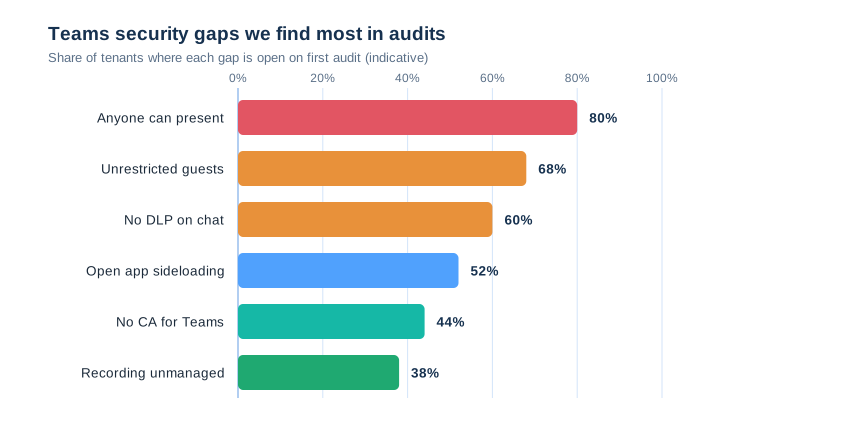
Notice that the top gaps are configuration, not missing products. Specifically, anyone-can-present, unrestricted guests and no chat DLP are all free to fix with settings you already own. Therefore the fastest security win is almost never a purchase; it is a configuration session. As a result, an audit usually pays for itself in cancelled tools and closed holes.
The pattern in these gaps is the real lesson. Specifically, almost every one is a setting left on its permissive default, not a missing feature. Therefore the fastest route to strong Microsoft Teams security is a configuration pass, not a procurement cycle. As a result, the first audit usually closes more risk in a morning than a new tool would in a quarter.
🔎 Monitoring, audit and eDiscovery
Security is not only prevention; it is also knowing what happened. Therefore the Microsoft 365 audit log records Teams activity, alert policies flag risky actions, and eDiscovery preserves chats and files for an investigation. Consequently a suspected incident becomes an answerable question rather than a guess. So monitoring turns Teams from a blind spot into an auditable system.
# Search the audit log for Teams activity (Security & Compliance PowerShell)
Search-UnifiedAuditLog -StartDate (Get-Date).AddDays(-7) -EndDate (Get-Date) `
    -RecordType MicrosoftTeams -ResultSize 500 |
    Select-Object CreationDate, UserIds, Operations
Keep the evidence long enough
A short audit window is a common and costly oversight. Specifically, if retention is too low, the logs you need are gone before you investigate. Therefore we extend audit retention to at least a year on tenants that can support it. As a result, a breach discovered months later can still be reconstructed and contained.
Alerting turns the audit log from a record into a warning. Specifically, an alert policy can flag a sudden spike in external sharing or a mass file download the moment it happens. Therefore you hear about a problem while you can still act on it. As a result, monitoring shifts Microsoft Teams security from cleaning up afterwards to stopping the incident in progress.
⚙️ How to harden Microsoft Teams security
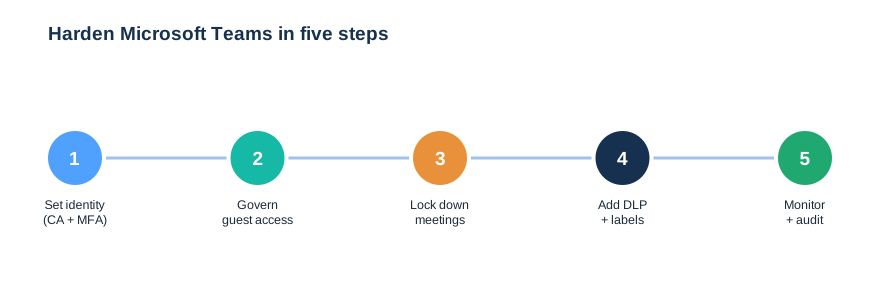
Knowing the pillars is one thing; rolling them out cleanly is another. The five steps below sequence the work so each change builds on the last, from identity outward. So you tighten the tenant without breaking the collaboration people rely on.
Stage Microsoft Teams security in report-only first
Aggressive policy can lock people out, so we never flip everything at once. Specifically, we run Conditional Access in report-only mode first, watch the impact, then enforce. Therefore you see what a policy would have blocked before it actually blocks it. As a result, hardening lands smoothly instead of triggering a flood of help-desk tickets.
Sequencing matters as much as the settings themselves. Specifically, we fix identity, then guests, then meetings, then data, so each layer rests on a solid one beneath it. Therefore nothing important is left exposed while you work down the list. As a result, the tenant is meaningfully safer after the very first step, not only at the end.
🔧 The Wintive Microsoft Teams security baseline
After enough tenants, the right settings stop being a debate. So we apply the same Microsoft Teams security baseline everywhere, then adjust per business. The card below is that baseline, and it is the configuration we hand every managed client.
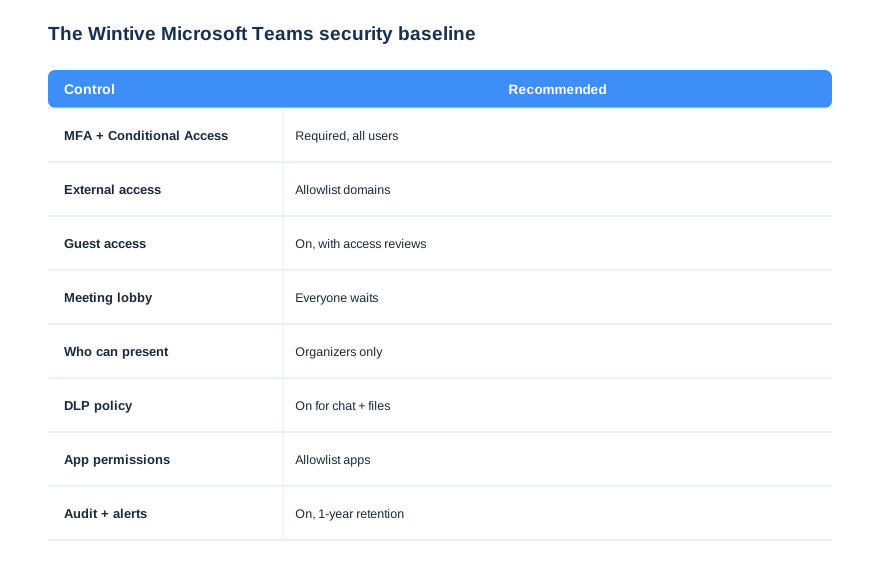
Two lines on this card remove most real-world risk. First, MFA with Conditional Access for all users shuts down credential attacks. Second, an allowlisted external and guest posture stops the quiet data leaks. We tune the rest per tenant, but these defaults make Teams defensible on day one. The same baseline underpins our work on regulated tenants, including HIPAA-compliant Teams.
The baseline is a living standard, not a one-off project. Specifically, we re-check it each quarter, because new apps, new guests and new staff steadily erode any configuration. Therefore Microsoft Teams security is maintained, not achieved once and forgotten. As a result, the tenant that was hardened in January is still hardened in December.
🚨 Common Microsoft Teams security mistakes
These mistakes share one root cause: treating Teams as safe because it is from Microsoft. Specifically, the platform is secure, but the tenant ships open, so the safety depends entirely on what you configure. Therefore the fix for every mistake below is the same discipline of hardening what you own. As a result, avoiding them costs effort and attention, not budget.
Buying a tool before fixing the config
The costliest mistake is paying for a security product while the native controls sit off. Therefore configure what you own first, because it covers most of the risk for free. As a result, you often find the extra tool was never needed.
Leaving guest access wide open
The second mistake is treating guest access as set-and-forget. Consequently old guests keep access to sensitive teams long after a project ends. So review guests on a schedule and expire stale access. As a result, your data stops walking out with people who left months ago.
No MFA on every account
The classic mistake is MFA for some but not all. Specifically, one unprotected account is all an attacker needs. Therefore enforce MFA on everyone, with only a guarded break-glass exception. As a result, a single stolen password is no longer a breach.
Above all, do not treat Microsoft Teams security as a one-time project. Specifically, every new hire, guest and app slowly widens the attack surface, so a tenant hardened today drifts open again without upkeep. Therefore we re-audit on a schedule and fold Teams into the wider security review, rather than fixing it once. As a result, the protection holds as the business changes, instead of decaying the moment the project ends.
📚 More for Growing Businesses
🔍 Want your Teams tenant security checked first?
The M365 Instant Audit scans your tenant in under 10 minutes: license waste, plan right-sizing, MFA coverage, security posture and compliance gaps. As a result, you get a full PDF report with prioritized fixes, delivered instantly.
❓ Microsoft Teams Security: Frequently Asked Questions
It is the set of native Microsoft 365 controls that protect Teams chats, files, meetings, guests and apps: Conditional Access and MFA, external and guest access policies, meeting controls, DLP and sensitivity labels, app permission policies, Defender threat protection, and audit logging. Configured well, they secure Teams with no third-party product.
Teams is built on the secure Microsoft 365 platform, but its defaults favour collaboration over protection: anyone can present, guests are easy to add, and apps install freely. So Teams is only as secure as you configure it, and a few policy changes move it from open to defended.
For most small and mid-sized businesses, no. Conditional Access, MFA, DLP, sensitivity labels, app policies and Defender for Office 365 cover most of the risk and are already in your licensing. A third-party tool is worth proving the need for, not buying by default.
Allowlist the external domains you actually work with rather than leaving federation open, control who can invite guests, block guests from sensitive teams, and review guest access on a schedule with expiry. Set-CsTenantFederationConfiguration and access reviews handle most of this.
Use the lobby and presenter controls: make everyone wait in the lobby, disable or lobby anonymous join, and set only organisers as presenters. Set-CsTeamsMeetingPolicy applies these across the tenant so no meeting is left open.