

Making Microsoft Teams HIPAA compliant is not about a special edition of the app. It is about three things: your plan, your agreement with Microsoft, and a handful of settings. On a business plan, Teams can carry patient chats, video visits, and shared files. You sign a Business Associate Agreement and configure the tenant. The platform is then ready for a US medical or telehealth practice.
This guide answers the question directly. It shows which plans qualify, how telehealth visits stay safe, and which settings make Microsoft Teams HIPAA compliant. It speaks to the practice owner or office manager. You want a straight answer and a short list of what to fix.
Not sure if your Teams setup is actually HIPAA compliant? Wintive checks your Microsoft 365 setup against the rules and tells you exactly what to fix, at a flat fee.
- We check your Teams plan, BAA, guest access, retention, and audit logging against the rules.
- You get one report and a prioritized plan to close the gaps.
📅 Book a Free 30-Min Call | 💬 Chat on WhatsApp | See Our Plans →
Each section below moves from the basic yes-or-no to the practical checks. The order follows what a busy practice needs. First, it starts with the plan and the agreement. Then come telehealth and chat. Last are the settings and the audit trail that prove it.
🔐 Is Microsoft Teams HIPAA compliant? The short answer
Short answer: Yes. Microsoft Teams is HIPAA compliant on a Microsoft 365 business or enterprise plan once you sign Microsoft’s Business Associate Agreement and configure sign-in, guest access, retention, and audit logging. Free or personal Teams cannot sign a BAA, so it is never compliant for patient information.
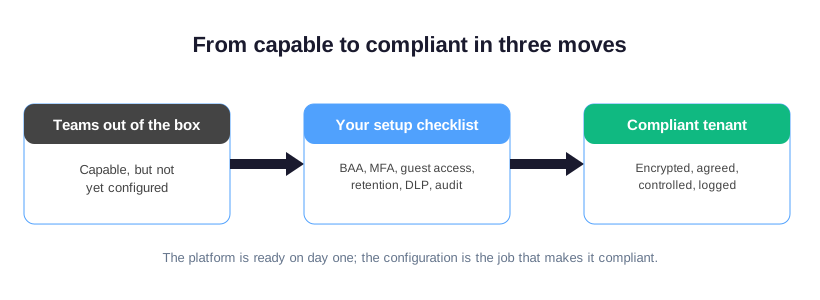
The answer needs a sentence, not a single word. Teams is also the messaging and meeting layer of Microsoft 365. Microsoft already runs it, too, inside an audited, encrypted cloud. So the platform is capable out of the box. On day one, though, it is not yet configured for your practice.
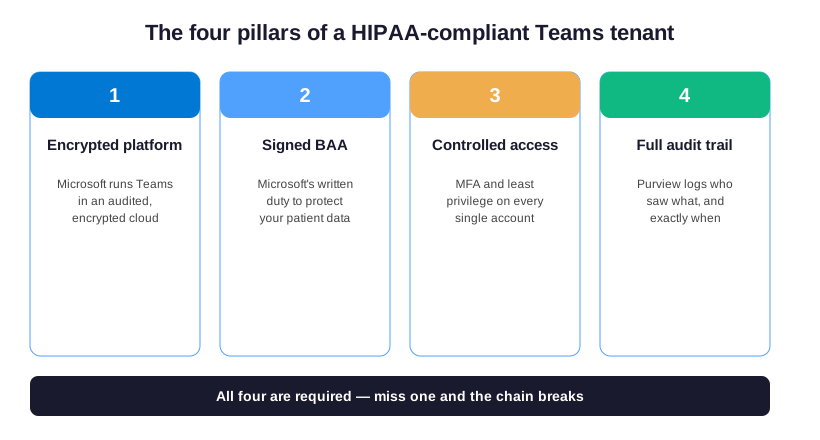
Think of compliance as a chain with four links. Those links are an encrypted platform, a signed agreement, controlled access, and a full audit trail. Microsoft supplies the first link. You and your settings, then, supply the other three. Miss any link and the chain does not hold, however polished the app looks.
Microsoft Teams HIPAA compliant: capable by default, secured once configured
Most of the work is a one-time setup, not an ongoing burden. A practice configures these controls once, documents them, and reviews them on a schedule. The goal is not constant effort. Instead, it is a known-good baseline you can prove. Compliance becomes a state you maintain, not a project you repeat.
The distinction sets the right expectation. A practice does not, though, buy compliance as a finished product. It builds compliance from parts Microsoft already provides. So the real question is never whether Teams can be compliant. It is whether your own tenant is configured to be Microsoft Teams HIPAA compliant.
What Microsoft Teams HIPAA compliant actually requires
The HIPAA Security Rule expects three things from any tool that touches protected health information. Data must stay encrypted. Only named accounts may, in addition, reach it. Every access must also leave a log. A signed Business Associate Agreement then puts Microsoft on the hook for its part. That signed agreement is one pillar of a Microsoft Teams HIPAA compliant tenant.
It helps to know what Microsoft already handles. Teams also encrypts data in transit and at rest. It isolates each tenant. It runs inside data centers audited against recognized standards. The heavy engineering is therefore done for you. What remains is the configuration only you can set, because only you know who should see what.
🛠️ How to make Microsoft Teams HIPAA compliant: a setup checklist
Knowing Teams can be compliant is not the same as making it compliant. Therefore it helps to see the whole job as one short checklist, in the order a practice should work through it. Each step below is a setting an administrator can confirm inside the Microsoft 365 admin center.
- Sign Microsoft’s Business Associate Agreement in the compliance portal.
- Move every user to a paid business or enterprise plan, never free or personal Teams.
- Turn on multi-factor sign-in for all accounts in Entra ID.
- Restrict guest access to approved partner domains only.
- Set a Purview retention policy for Teams chats and channels.
- Add a data-loss rule that blocks patient identifiers from leaving the tenant.
- Confirm audit logging is on, then test that a search returns results.
Worked through in order, the list closes the gaps that cause most Teams compliance failures. None of these steps needs new software beyond the plan you already pay for. That is why the work takes hours rather than weeks.
| Teams plan | Signs a BAA | Second login lock | Audit and DLP |
|---|---|---|---|
| Free or personal Teams | No | No | No |
| Business Basic (about $6 per user per month) | Yes | Add-on | Basic |
| Business Standard (about $12.50 per user per month) | Yes | Add-on | Basic |
| Business Premium (about $22 per user per month) | Yes | Included (Entra ID P1) | Included (Purview) |
| Enterprise E3 or E5 | Yes | Included | Included or advanced |
A practice that skips even one step leaves a gap. The retention policy and the guest review are the steps people miss most. That gap then surfaces at the worst moment. The checklist is far cheaper to run now than to explain later, during a breach or an insurer renewal.
How long it takes to get Microsoft Teams HIPAA compliant
In practice, a small practice with a clean tenant clears this list in a single afternoon. A larger or older tenant, with years of loose guests and no retention, takes longer to untangle. As a result, the first audit is usually where the real timeline becomes clear.
📝 The Business Associate Agreement that makes Teams compliant
No agreement, no compliance. Microsoft must sign a Business Associate Agreement, or BAA, before Teams can carry a single patient message. That signature is the first step to making Microsoft Teams HIPAA compliant. The BAA is, in short, Microsoft’s written promise. It safeguards the data its services hold and reports a breach if one ever happens.
Across the 60+ tenants Wintive manages on Microsoft 365, the Teams gaps are almost always configuration, not the platform. Therefore the fix is rarely a new app; it is switching on what the business plan already includes.
The good news is that the BAA is included with Microsoft 365 business and enterprise plans at no extra cost. Notably, you accept it once through the Microsoft compliance portal. It then covers the core services, including Teams, Exchange, SharePoint, and OneDrive.
What the BAA does and does not cover
The agreement covers Microsoft’s own services, not the third-party apps you bolt into Teams. A transcription bot or a scheduling app from the store needs its own BAA. One agreement does not stretch to a vendor Microsoft never signed for.
Microsoft also publishes the list of subprocessors that support its services. A compliance review can check that list. This transparency is part of what the agreement buys you. A practice can then show an auditor exactly who stands behind the platform, instead of pointing at a logo and hoping.
The app store inside Teams deserves a second look. Check each added app for two things: whether it touches patient data, and whether its vendor will sign a BAA. The safest default allows only the apps a practice has actually vetted.
💳 Which Microsoft Teams plans are HIPAA compliant?
Any paid Microsoft 365 business or enterprise plan can become compliant, because all of them sign the BAA. They differ in the security tools they bundle. That difference decides how much extra you buy to make Microsoft Teams HIPAA compliant.
Business Basic costs about $6 per user per month. It signs the BAA and encrypts data, but it leaves out the second login lock you really want. Business Premium costs about $22 per user per month. It bundles Microsoft Entra ID P1, Defender for Business, and Purview. The controls HIPAA expects are already in the box.
What the upgrade to Business Premium really costs
For a ten-person practice, moving from Basic to Premium costs roughly $1,900 more per year. That buys multi-factor sign-in, device protection, and the audit tools a cyber insurer now asks to see. Buying those pieces separately usually costs more and adds vendors to manage.
Cyber insurers have noticed the difference. Many now ask whether you have switched on multi-factor sign-in and audit logging before they quote a renewal. A plan that bundles those controls can lower a premium, which quietly offsets part of its cost. A bare-bones plan can raise the premium instead.
Larger practices on Microsoft 365 E3 or E5 already hold these controls and more. The extras include advanced data-loss prevention and longer audit retention. A single-location practice rarely needs the enterprise tier. Business Premium covers the HIPAA controls at a lower cost per user per month.
Why free Teams is never Microsoft Teams HIPAA compliant
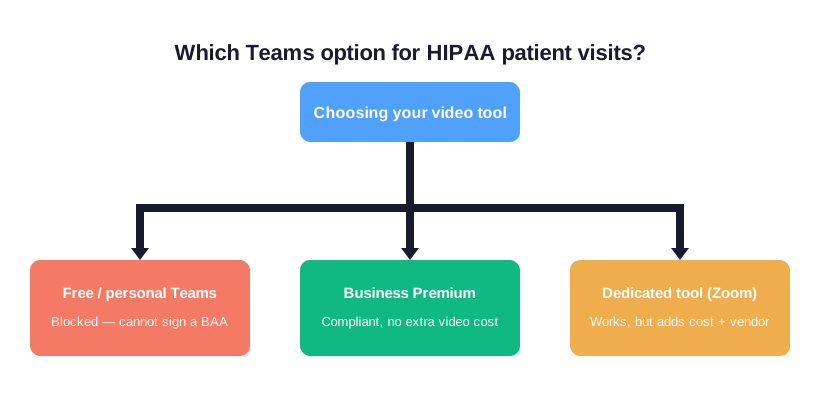
The free version of Teams and a personal Microsoft account cannot sign a BAA. Without that agreement, they cannot legally hold patient information, however well the call is encrypted. A free tool is the one shortcut that is never worth the risk. It can never be Microsoft Teams HIPAA compliant.
🎥 Is Microsoft Teams HIPAA compliant for telehealth?
Yes. The same plan and BAA that protect chat also make Microsoft Teams HIPAA compliant for telehealth, once you configure the meetings. Many practices run virtual visits, intake, and behavioral-health sessions in Teams. It already sits inside their compliant tenant, so there is no second vendor to vet.
This matters most for behavioral health and follow-up care. Virtual visits cut no-shows sharply there. Practices that offer compliant video often see no-show rates fall by 20 percent or more. The same Teams license that protects data also protects revenue. In short, a kept appointment is a billed appointment.
Teams versus a separate telehealth platform
A standalone tool like Zoom for Healthcare also signs a BAA. But it adds a separate subscription and a separate login for staff. When you already pay for Teams, a second video platform usually duplicates cost rather than adding safety.
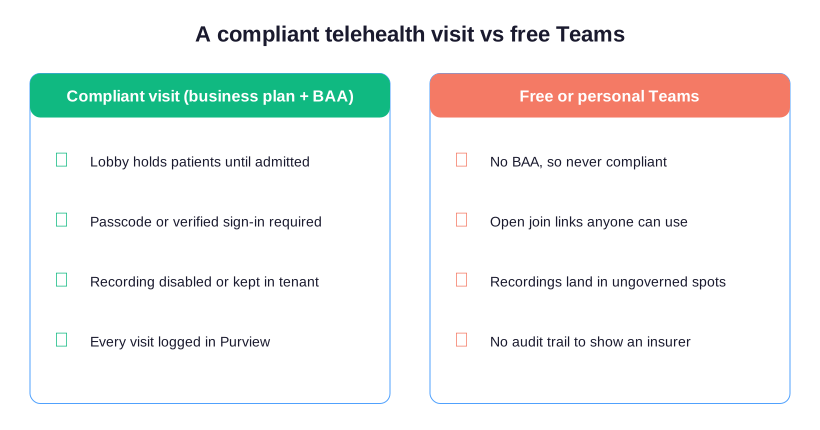
For a compliant visit, the controls are practical, not technical. Require a passcode or a lobby so strangers cannot wander in. Also, restrict who can present. Govern recording so no session is saved where it should not be.
Recording deserves its own rule. A recorded visit becomes a patient record the moment you save it. So it must live in the governed tenant, not on a laptop. Any transcription or note-taking add-on needs its own agreement before it listens in. The safest default keeps recording off unless a clear policy says otherwise.
Running a Microsoft Teams HIPAA compliant telehealth visit
The safe pattern has three parts. A lobby holds patients until you admit them. The meeting locks once everyone has joined. Recordings stay disabled, or live in the governed tenant. The visit then stays inside your logging and your control from start to finish.
Behavioral-health and counseling practices lean on this most. Their sessions are frequent and entirely virtual. A Teams meeting template can preset the lobby, the recording rule, and the permissions. Every clinician then starts each visit from the same compliant baseline, rather than configuring it by hand.
💬 Chat, channels, and message retention under HIPAA
Patient details often live in Teams chat, not just in meetings. So the rules for records apply to messages too. You retain the data when you need it and dispose of it on a schedule. Nothing should drift forever in a thread.
Disappearing messages are not the answer either. Unlike a consumer app, a practice cannot delete history on a whim. Some records must stay for years. The goal is a deliberate schedule, not silence. Retention is about control: keep what the rules require, and clear what they do not.
Microsoft Purview lets a practice set a retention policy. The policy keeps Teams messages for a fixed period, then deletes them. This meets two opposite needs at once. It keeps records long enough for an audit. It also avoids hoarding patient data past its useful life.
Setting retention so messages are kept and disposable
One retention policy across Teams chats and channels sets a single clock for the whole practice. No single staff member decides what to keep. An insurer or a regulator then sees a consistent, defensible rule rather than guesswork.
One exception is worth knowing. When a complaint or a lawsuit is likely, a legal hold freezes the relevant messages. The retention clock then cannot delete them. Those same Purview tools can also preserve it on demand. The practice stays compliant whether the need is deletion or preservation.
🚪 Guest access and external sharing: the biggest Teams leak
Inside the practice, Teams is fairly safe by default. The risk, though, lives at the edges. It appears when someone invites an outside guest into a channel or a meeting. Guest access is the setting most likely to break an otherwise Microsoft Teams HIPAA compliant tenant. Review it first, because one loose invite can expose a whole channel of patient chat.
By default, a tenant can be open enough that staff invite external guests without a second thought. You decide whether to allow guests at all. Next, you set which domains they may come from. Finally, you choose what they see once inside. An external billing partner then sees only the channel you intend, not the whole team.
A common example makes the risk clear. You add an outside billing contractor as a guest for one task. However, nobody removes the account. Months later, it still sees every new message in the channel. A scheduled guest review then catches that account and closes it. Access then shrinks back to the people who actually need it.
Guest access is also the setting auditors check first. It is the easiest place for patient data to slip outside the practice. So run a quarterly review of who still holds guest access. Remove anyone who no longer needs it. This is one of the highest-value habits a small practice can build.
Keeping guest access Microsoft Teams HIPAA compliant
The safe defaults are simple. Limit guest access to approved partners. Require those guests to verify with multi-factor sign-in. Review the guest list on a schedule. A data-loss rule can also stop a message marked as patient data from leaving the tenant by mistake.
🔑 Multi-factor sign-in and access control with Entra ID
A stolen password should never be enough to open patient conversations. The second login lock, multi-factor sign-in, does more than any other single setting to keep Microsoft Teams HIPAA compliant. With it on, an attacker needs the phone in your pocket as well as the password.
Microsoft Entra ID provides this lock natively. So most practices do not need a separate tool like Okta or Duo. Business Premium already bundles Entra ID P1. Adding a third-party identity product usually duplicates cost rather than adding protection.
Entra ID also adds conditional access, which most third-party tools charge extra for. You can require a managed device. It can also block sign-in from risky locations, or step up verification only when something looks wrong. The practice gets stronger protection without a separate product or a separate bill.
Beyond the second factor, access control means least privilege. Each person, therefore, gets only the channels and files their role needs. Former staff also lose access the day they leave. The blast radius of any one compromised account then stays small.

Which accounts need the strongest sign-in
The highest-risk accounts have the widest reach. An office manager or an owner who can see every channel is the obvious example. Those accounts deserve the strongest sign-in. Give them a hardware key or an authenticator app rather than a text message.
🔎 Audit logging, DLP, and eDiscovery with Microsoft Purview
When an insurer or a regulator asks who saw a patient record, you answer from the log, not from memory. Microsoft Purview also records access across Teams. A question becomes a search rather than a scramble. The evidence exists before anyone asks for it.
Purview also runs data-loss prevention and eDiscovery. A DLP rule can block a message that holds a record number from leaving the tenant. eDiscovery can pull every relevant message for a complaint or an audit. The same tools that protect data also prove you protected it.
The numbers make the case on their own. A reported healthcare breach now costs a small practice far more than a year of licensing. Fines, notification, and lost trust add up fast. The audit trail is not overhead. It is the cheapest insurance a practice buys. Reconstructing events after the fact is slow and rarely convincing.
For a practice, the practical payoff is speed. A labeled and logged tenant turns a regulator request from a multi-week project into a same-day search. The tooling repays its cost in the hours it saves. That payoff lands the one time you must account for every access.
Proving who accessed what, when an insurer asks
This audit trail is exactly the evidence a cyber insurer asks for after an incident. Practices that can produce it settle claims far faster than those that cannot. A tenant with no logging answers an insurer with a shrug. That is the worst position to be in.
🤖 Is Microsoft Copilot in Teams HIPAA compliant?
Copilot is the question of 2026. It follows the same rule that makes the rest of Microsoft Teams HIPAA compliant. The same Business Associate Agreement covers Microsoft 365 Copilot, and it processes data inside your compliant tenant. On a licensed plan, Copilot can summarize a meeting or a chat. It never sends patient data outside your control.
The caution is about scope, not the tool itself. Copilot can only reach the data a user already has permission to see. So tight access control matters even more once it is on. The access review from the last section keeps Copilot inside the lines.
A simple example shows why scope matters. Say a front-desk account can open clinical notes it should never touch. Copilot can then summarize those notes for that account too. So tighten permissions before you turn Copilot on. That step is the difference between a helpful assistant and an accidental leak. Copilot inherits your access model, for better or worse.
There is also a record-keeping benefit. A Copilot summary of a long meeting can shorten documentation time. It still inherits the same retention and audit rules as the chat it draws from. Using Copilot does not create a new, ungoverned copy of patient data.
⚠️ Common Microsoft Teams HIPAA mistakes
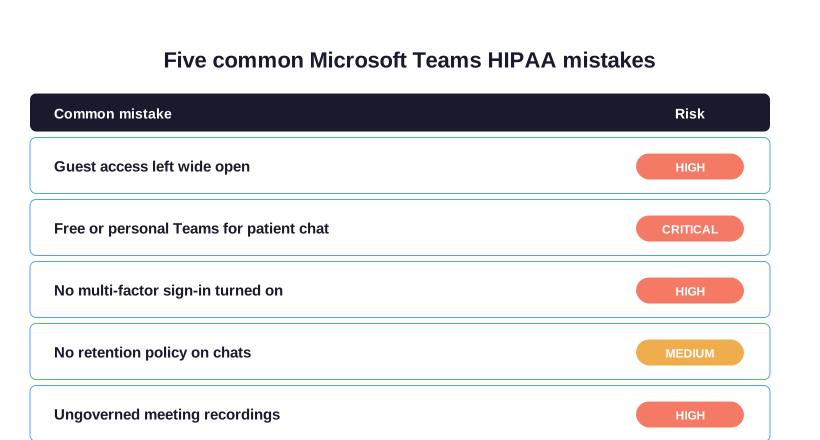
Most Teams compliance failures are not exotic. They are a short list of defaults that nobody changed. Knowing them turns a vague worry into a short checklist you can clear in an afternoon.
- Leaving guest access wide open for any domain.
- Using free or personal Teams for patient chat.
- Never switching on multi-factor sign-in.
- No retention policy, so messages live forever.
- Recording visits to a personal or ungoverned location.
Each of these is a setting, not a rebuild. The path to a compliant tenant is a configuration project measured in hours, not a migration measured in weeks.
Reading your Teams audit trail without a specialist
Microsoft Purview lets a practice search by user, by message, or by action. You can answer who opened a chat last Tuesday without a database expert. The audit trail becomes a tool your own office manager can use, not a black box.
🔍 Where a Wintive tenant audit fits
Reading this is one thing. Confirming your own tenant is another. The settings that make Microsoft Teams HIPAA compliant sit across the Teams admin center, Entra ID, and Purview. A single missed toggle can leave a gap nobody notices until an incident.
This is where a Wintive M365 Master Audit earns its keep. It checks your real Teams configuration, BAA status, guest access, retention, and audit logging against the HIPAA Security Rule. It then hands you a prioritized plan to close each gap, at a flat $1,500 with no hidden add-ons.
The audit is deliberately broad. It does not stop at Teams. It reviews the wider Microsoft 365 tenant, because a leak in email or file sharing undoes careful work in Teams. You get one clear picture of where patient data is exposed. The audit avoids a fix that protects one app and ignores the rest.
What the audit report puts in your hands
The report also doubles as evidence. It is a dated record. It shows that your Teams settings, agreement, and logging met the rule on the day of review. A flat-fee audit often pays for itself the first time a renewal puts your setup under the microscope. The result is documented proof that your tenant is Microsoft Teams HIPAA compliant.
The audit also right-sizes the spend. Some practices pay for an enterprise plan they do not need. Others find a single Business Premium upgrade closes most gaps at once. Guessing at the fix usually costs more than measuring it first.
📚 More for US healthcare practices
Teams is one service in a wider compliance picture. The same plan and settings that secure Teams also shape your email, your files, and your wider tenant. It pays to see how the pieces connect.
It also pays to plan the order of work. Most practices fix email and file sharing first, then Teams, then the wider tenant. That path follows where patient data flows. Each step builds on the last, and nothing important is left for a leak to find.
For the primary sources, see the HHS guidance on the HIPAA Security Rule and the Microsoft HIPAA compliance documentation. Both lay out what the rules expect. A practice can then check the claims here against the rules themselves, rather than taking any vendor at its word.
Related Wintive guides
🔍 Want to know if your Teams tenant is actually configured for HIPAA?
The M365 Master Audit delivers a written report. Specifically, it maps your Microsoft 365 configuration against the HIPAA Security Rule and confirms each control is in place. That means guest access, retention, the second login lock, data-loss rules, and audit logging. You also get a prioritized plan to close every gap, at a flat, predictable cost of $1,500, with no hidden add-ons.
❓ Frequently Asked Questions
Yes, on a Microsoft 365 business or enterprise plan with a signed BAA and the right setup. Free or personal Teams cannot sign a BAA, so it is never compliant for patient data.
Yes. With the BAA signed and meetings configured with a lobby, a passcode, and governed recording, Teams carries virtual visits inside your existing compliant tenant.
Yes. Microsoft must sign the BAA before Teams can hold patient data. It is included free with business and enterprise plans and accepted in the compliance portal.
Business Premium is the common choice, because it bundles the second login lock, device protection, and audit tools. Basic can work but needs add-ons.
Yes, on a licensed plan. Copilot is covered by the same BAA and only reaches data a user can already see, so access control matters more once it is on.
Your next step
The fastest way to know where you stand is to check your own tenant, not trust the defaults. Pick the guide above closest to your next insurer renewal or telehealth launch. Or book the audit and let Wintive confirm every setting that keeps Microsoft Teams HIPAA compliant.