

Office 365 is HIPAA compliant on a business or enterprise plan. Still, you only reach a fully Office 365 HIPAA compliant setup after two moves. First, you sign one contract with Microsoft. Then you turn on a handful of settings. The software is capable out of the box. However, it is not safe out of the box. That gap is a common mistake. As a result, a tool you already pay for can still fail an audit. See the HIPAA Security Rule for the official guidance.
This guide answers the question in plain language. It speaks to a practice owner, not an IT department. First, you will see which plans qualify. Next, the one contract that makes it official. Then the settings that matter for patient records. Finally, a checklist you can hand to whoever manages your accounts.
Not sure if your Office 365 is set up for patient records? Wintive checks your account against the rules. Then we tell you exactly what to fix, at a flat fee.
- We check your plan, your contract with Microsoft, who can see what, and your sign-in protection against the rules.
- You get one clear report and a prioritized plan to close the gaps.
📅 Book a Free 30-Min Call | 💬 Chat on WhatsApp | See Our Plans →
First, it helps to be clear about what the law asks. The rules do not name any product or vendor. Instead, they describe outcomes you have to reach. Moreover, they leave the exact method up to you. That distinction matters. Indeed, it explains why two practices on the same plan can land in very different places.
🏥 Short answer: is Office 365 HIPAA compliant?
The short answer, in plain terms
Short answer: Yes. Office 365 is HIPAA compliant on a business or enterprise plan. First, you sign Microsoft’s Business Associate Agreement. Then you turn on protection for sign-in, email, sharing, and record keeping. However, the free or home versions cannot sign that agreement. Therefore, they are never safe for patient information.
| Mistake | How risky | The fix |
|---|---|---|
| Contract never signed | Severe | Accept it in account settings today |
| Free or home version for patient data | Severe | Move to a business plan |
| Accounts left open after staff leave | High | Close the account the day they go |
| Staff expected to protect each email by hand | High | Set one rule that locks it automatically |
| Everyone can see everything | Medium | Group by role, grant least access |
The federal health privacy law sets a standard. In short, any vendor that handles patient information must agree in writing to meet it. Microsoft does agree, for example, on the paid business and enterprise plans. So the platform clears the legal bar. What is left, therefore, is your half of the deal. In other words, you set things up so patient information stays protected in daily use. Meanwhile, a practice that signs the contract but keeps the defaults is only halfway there. And that half is the half that gets noticed when something goes wrong.
✍️ The contract that makes Office 365 HIPAA compliant
Across the 60+ tenants Wintive manages, one surprise comes up most. In short, nobody ever signed the Microsoft contract. The plan was paid for, and the email worked. So everyone assumed the paperwork was handled. It was not. After all, it is a separate step you take yourself.
The law requires a written promise from any company that touches patient information for you. With Microsoft, that promise is a document you accept in your account settings. It is already written and ready. In other words, you simply find it and agree to it. Until you do, however, none of your Office 365 use counts as covered. And that holds no matter how careful you are with the settings.

The good news is simple. This document is free and included with every business and enterprise plan. So you do not negotiate it, and you do not pay extra. The catch, however, is that it does not switch itself on. As a result, many practices run for years believing they were covered. Yet the agreement was never accepted. Therefore a single complaint could expose the whole gap at once. Because this document is the foundation, we cover it in a dedicated guide rather than rushing it here.
Why this comes first for an Office 365 HIPAA compliant setup
Think of the contract as the lid on the whole effort. You can turn on every protection Office 365 offers. However, without that signed promise, you have no written proof. In short, no proof that your vendor shares the duty to protect patient records. So if a regulator ever asks, that document is the first thing they look for. Therefore, turn it on before you touch anything else. Then confirm the date it was accepted, so you keep a clear record.
💳 Which plans can be made Office 365 HIPAA compliant
Not every Office 365 plan can carry patient information. In short, it comes down to whether Microsoft will sign that contract for your plan. Microsoft builds the home and personal versions for households. So Microsoft will not cover them. By contrast, Microsoft builds the business and enterprise plans for organizations. Therefore they qualify. Check this first. After all, no careful setup will rescue a plan that was never eligible.
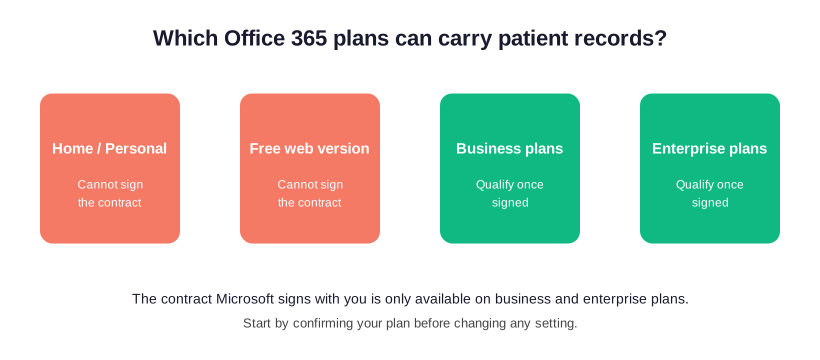
For most small practices, Microsoft 365 Business Premium is the practical choice. It bundles the sign-in protection, the sharing controls, and the record keeping you will read about below. So you are not buying extra tools on the side. You can technically bring a bare plan up to standard. However, you then pay for add-ons the better plan already includes. Moreover, you create more moving parts to maintain. In short, fewer parts means fewer ways to slip.
What about the cheapest business plan?
The entry plan, Microsoft 365 Business Basic, can sign the contract. So it clears the legal bar. However, it leaves out several protections that make daily use safe. Suppose your practice handles patient records every day. Then the small monthly difference for the fuller plan usually pays for itself. Indeed, it pays the first time you avoid buying a separate tool. So price the two side by side over a year first. Also, count the add-ons the cheaper plan would force you to buy.
📧 Email: where Office 365 HIPAA compliant setups slip
Email is the most common way patient information leaves a practice. Likewise, it is the most common place things go wrong. By default, a message travels in the open. So the wrong person could read it if it went astray. To be safe, therefore, you lock messages that carry patient details. That way, only the right person can open them. Office 365 can do this well. However, the locking is not automatic until you set the rule.

Because email is the single biggest risk, it deserves more room than a section can give. So we have a full guide. It walks through how to lock patient email in Office 365. It also shows how to set a rule that catches sensitive messages automatically. Finally, it covers how to give patients a safe way to reply. The short version is simple. Do not rely on staff to remember to protect each message. After all, a setup that leans on memory will silently fail the moment someone forgets. Instead, set the rule once. Then the system protects the message for them.
For the complete walkthrough, see our guide to HIPAA compliant email for medical practices. It covers the exact settings and the patient-facing side in plain language.
Messaging and video visits
Many practices now run quick chats and video visits through the messaging app in Office 365. That is fine for patient information. However, it works only on a paid business or enterprise plan. Moreover, it works only once the contract is signed. By contrast, Microsoft cannot cover the free version of the same app. So a practice that uses free chat for patient matters is exposed. And that holds even if the rest of the account is in good shape.
Video visits add their own questions. For example, who can join a call. Also, whether a recording is kept. And where that recording lives afterward. The paid plan handles these safely. First, you set who is allowed in. Then you set how long recordings are kept. Telehealth has grown fast. So we treat the messaging and video side in its own guide rather than compressing it here.
Suppose video visits or staff chat are part of how you work. Then read our guide on whether Microsoft Teams is HIPAA compliant. It gives the full picture, including the settings that keep a call safe.
📁 Sharing files with patients and staff
The third place patient information moves is in shared files. For example, a scan, a form, or a spreadsheet of appointments. Office 365 gives every user a private space and a shared team space. Moreover, both hold patient records safely when you set up sharing with care. The danger, however, is the convenient link that lets anyone open a file. That is exactly what you do not want for a patient record. After all, a link that works for anyone works for the wrong person too.
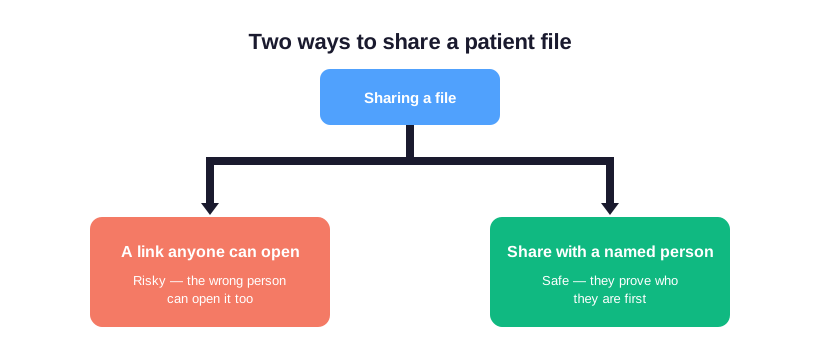
The safe pattern, by contrast, is to share with a named person. First, they prove who they are. Then they can open the file. Also, set the share to expire when it is no longer needed. Office 365 supports all of this. However, the risky option is often the default. So you have to change the setting deliberately. We cover the full set of safe sharing choices in a separate guide. That includes how to handle patients who do not have an account.
For the complete approach, see our guide to HIPAA compliant file sharing for medical practices.
🔐 The second lock that keeps Office 365 HIPAA compliant
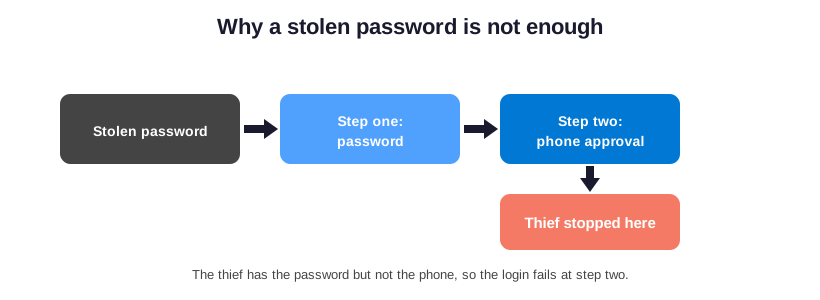
A password alone is no longer enough to protect an account. After all, passwords get guessed, reused, and stolen every day. The fix is a second step at sign-in. So after the password, the person also approves the login on their phone. That second step is, as a result, the single most effective move a small practice can make. In short, it keeps patient records out of the wrong hands. Moreover, it is included with the business and enterprise plans at no extra cost.
The reason this matters is simple. Most break-ins do not involve clever hacking. Instead, they involve a stolen password typed into a normal login page. The second step stops that cold. After all, the thief has the password but not the phone. Moreover, it is built into the business and enterprise plans. So most practices do not need a separate tool such as Duo or Okta. Therefore, turn it on for every account, not just the owner’s. After all, a single unprotected login is all it takes. Make it a condition of working at the practice, like locking the front door at night.
Why staff stop noticing the extra step
Staff sometimes push back on the extra step, because it feels like friction. In practice, the approval takes a second or two. Moreover, most people stop noticing it within a week. So weigh that small daily moment against the cost of a break-in. After all, a break-in exposes every patient record you hold.
Who can see what
The rules expect each person to reach only the patient information their job needs. A front-desk scheduler, for example, does not need a clinician’s access. Likewise, a part-time biller does not need clinical notes. Office 365 lets you group people by role. Then each group gets only what it needs. So access follows the job rather than the person.
The common failure here is generous defaults. As a practice grows, it is tempting to give everyone access to everything. After all, it is faster. That convenience, however, is exactly what an auditor flags. Moreover, it turns a small breach into a large one. The safer habit, instead, is to start each new person with the least access they need. Then add more only when the job calls for it. After all, it is easier to grant access later than to claw it back.
What happens when someone leaves
The moment a staff member leaves, their access has to end. An open account after someone departs is a common gap auditors find. Fortunately, it is also one of the easiest to fix. So build a simple step into your offboarding. For example, when payroll runs the last paycheck, switch the account off the same day. In short, a short written routine here saves a great deal of worry later.
Keeping a record of who did what
The law expects you to show who opened, changed, or shared patient information, and when. Office 365 keeps this record for you automatically on the business and enterprise plans. However, it is worth confirming the record is on. Also, confirm it is kept for long enough. Suppose a question ever comes up, for example from a patient complaint. Then this record is how you answer with facts instead of guesses.
Most practices never look at this record until they need it. That is fine. The point is that it exists and reaches back far enough to be useful. So confirm it is on. Next, confirm how long it is kept. Then write down where to find it. That way, the one time you need it, you are not learning the system under pressure. In short, a few minutes now is worth hours later.
✅ The Office 365 HIPAA compliant checklist
Here is the whole picture in one place. If you can tick every line below, your Office 365 is set up for patient information. If you leave any line unchecked, that is your next task. This is the list we work through ourselves when we review a practice account. Moreover, we reduced it to plain language. So you can hand it to whoever manages your accounts.
| What to confirm | Why it matters | Done? |
|---|---|---|
| The contract with Microsoft is accepted | Without it, nothing else counts as covered | |
| Every account uses the second sign-in step | Stops a stolen password from opening records | |
| Patient email is locked automatically | Keeps messages readable only by the right person | |
| File sharing goes to named people, not open links | Stops the wrong person opening a record | |
| Each person sees only what their job needs | Limits how far any single problem can spread | |
| Accounts close the day someone leaves | Removes a common and easy-to-find gap | |
| The activity record is on and kept long enough | Lets you answer questions with facts |
Print this, and walk through it once a quarter. Also, keep the dated copies. That habit alone, as a result, puts you ahead of most small practices. After all, it turns compliance from a one-time scramble into a routine you can show. Moreover, an auditor who sees a dated, repeated check sees a practice that takes the duty seriously.
🛠️ How to make Office 365 compliant, step by step
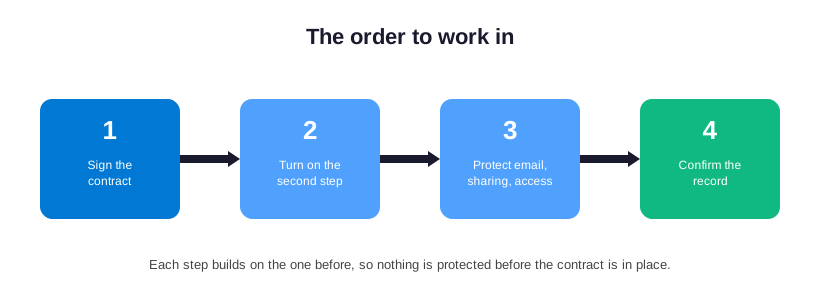
Suppose you are starting from a plain account. Then here is the order to work in. In this sequence, each step builds on the one before. So you are never protecting something the contract does not yet cover. Moreover, none of these steps requires writing code or hiring a developer. Instead, they are settings inside your account that a careful manager can reach.
Step one toward Office 365 HIPAA compliant: the contract
First, confirm your plan is a business or enterprise one. Then accept the Microsoft contract inside your account settings. Also, write down the date you accepted it. This is the foundation, so it comes before everything else. Suppose your plan turns out to be a home or personal version. Then the first move is to switch to a business plan. After all, nothing else is possible until you do.
Step two: turn on the second sign-in step for everyone
Next, switch on the second step at sign-in for every account. Allow no exception. This is the highest-value protection for the least effort. Therefore it comes early. Make it a rule that no account is exempt. That includes the owner’s and any shared accounts. After all, a single gap undoes the protection for the whole practice.
Step three: protect email, sharing, and access
With the foundation in place, set the rule that locks patient email automatically. Next, change file sharing to named people rather than open links. Then group your staff by role, so each person sees only what their job needs. These three move together. After all, they all control how patient information travels day to day. Finally, confirm the activity record is on and kept long enough. Then your account is in good shape.
⚠️ Mistakes that leave Office 365 not HIPAA compliant
Most practices that run into trouble are not careless. Instead, they simply missed one of a small set of common mistakes. So knowing them in advance is the easiest way to avoid them. Each one below has caught an otherwise well-run practice. Fortunately, each one is straightforward to fix once you know to look.
The five to watch for
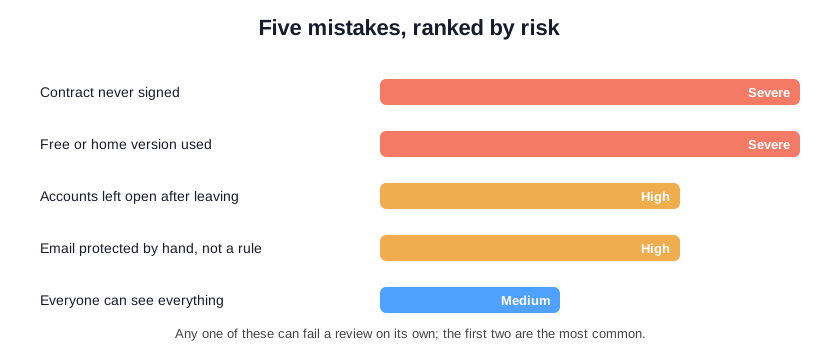
First on the list is assuming someone signed the contract when nobody did. A close second is using a free or home version for patient matters. Another frequent gap is leaving accounts open after staff leave. Similarly, some practices rely on staff to protect each email by memory. Instead, they should set a rule that does it for them. After all, memory fails the moment someone forgets. Finally, giving everyone access to everything quietly turns a small problem into a large one. None of these is hard to fix. However, each one can fail a review on its own.
Suppose reading that table left you unsure about even one line. Then that uncertainty is worth resolving.
Turning uncertainty into proof
The whole point of a review is simple. It replaces “I think so” with “I know, and here is the dated proof.” In short, that is the difference between hoping you are covered and being able to show it.
📚 More for US medical practices
The four guides below go deeper on the parts of this page that most often need a walkthrough. Specifically, they cover four areas. First, the contract with Microsoft. Next, locking patient email. Then safe file sharing. Finally, video visits and staff chat.
Related Wintive guides for US medical practices
🔍 Want to know if your Office 365 is actually set up for patient records?
The M365 Master Audit delivers a written report. Specifically, it checks your plan and the contract with Microsoft. It also checks the second step at sign-in, locked email, and safe sharing. Moreover, it checks who can see what, and the activity record. Then you get a prioritized plan to close every gap. The cost is flat and predictable, at $1,500, with no hidden add-ons.
❓ Frequently Asked Questions
No. Office 365 can be made compliant on a business or enterprise plan, but only after you sign the contract with Microsoft and turn on protection for sign-in, email, sharing, and record keeping.
A business or enterprise plan, because only those let Microsoft sign the contract. The home and personal versions can never carry patient records.
No. The contract is the foundation, but you still have to turn on the settings that protect patient information in daily use, such as the second step at sign-in and locked email.
After the contract, the second step at sign-in. It stops a stolen password from opening patient records and is included at no extra cost.
Keep a dated record: the contract acceptance date, your quarterly checklist, and the activity record that shows who did what. A review by Wintive turns that into one clear report.
Your next step
The fastest way to know where you stand is simple. Check your own account against the list above. In short, do not trust the defaults. So pick the guide closest to your most pressing worry, whether that is email or video visits. Or book the audit. Then let Wintive confirm every setting that keeps Office 365 HIPAA compliant for your practice.