

HIPAA compliant file sharing is not a product you buy; it is a way of handling patient files that the rules can stand behind. For a US medical practice, that means encryption, tight access control, audit logs, and a signed agreement with whoever holds the data. Most guides hand you a list of yet another vendor to subscribe to. Wintive takes a different line. If you already pay for Microsoft 365, then OneDrive, SharePoint, and Teams can do HIPAA compliant file sharing. You sign a Business Associate Agreement and set the sharing options correctly first.
This guide is written for a practice owner. It covers what makes file sharing compliant, and how the Microsoft 365 tools you already own measure up. Finally, it shows when a dedicated product is worth the extra spend. Specifically, it covers the agreement, encryption, audit logging, external sharing, and the mistakes that quietly put patient data at risk.
Not sure if your file sharing is actually HIPAA compliant? Wintive checks your Microsoft 365 setup against the rules and tells you exactly what to fix, at a flat fee.
- We test how your Microsoft 365 sharing is configured against the rules.
- You get one report and a prioritized plan to close the gaps.
📅 Book a Free 30-Min Call | 💬 Chat on WhatsApp | See Our Plans →
Below, each section moves from the basics to the practical checks, in the order a busy practice owner needs them. Specifically, it starts with what compliant sharing means. Then it covers how the tools you already own measure up, and how to confirm your setup is safe.
🔐 What does HIPAA compliant file sharing actually mean?
In short: HIPAA compliant file sharing protects patient files in four ways. It encrypts the data, limits who can open it, records every access, and rests on a signed Business Associate Agreement. The tool matters less than how you configure and use it.
The phrase sounds like a product label, but no file-sharing tool is HIPAA certified by the government. Specifically, a tool becomes part of a compliant setup when it supports four things. Those are strong encryption, access control, audit logging, and a signed Business Associate Agreement. Furthermore, you have to use it the way the rules expect, which is where most practices slip.
HIPAA compliant file sharing is a setup, not a product
Think of it as a chain. The data has to stay unreadable to outsiders and reachable only by the right staff. It also needs a log on every touch, plus a vendor that signed up to protect it. However, if any link is missing, an outsider can reach the whole share. As a result, the question is never just which app, but how that app is set up and who can reach the files.
| Requirement | What it means for shared patient files |
|---|---|
| Encryption | Files stay scrambled in transit and at rest, so an intercepted link or stolen device reveals nothing |
| Access control | Only named accounts open a file, with a second login lock on every sign-in |
| Audit logging | A record of who opened, downloaded, or shared each file, and when |
| External sharing limits | Links that expire, block downloads, and never default to anyone-with-the-link |
| Signed BAA | The vendor commits in writing to protect the data it touches |
The four pillars of HIPAA compliant file sharing
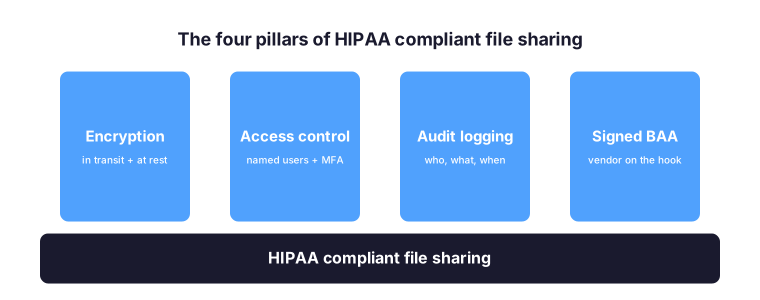
Strip away the jargon and HIPAA compliant file sharing rests on four pillars. Specifically, you must encrypt the data, limit it to named accounts, log every access, and back it with a signed agreement. Furthermore, each pillar backs up the others. Strong encryption means little if anyone-with-the-link can open the file, and tight access control means little if nothing is logged. Therefore a practice should check all four together, not one at a time. Notably, Microsoft 365 supplies the first three out of the box and Microsoft signs the fourth.
📝 The Business Associate Agreement: the gate you cannot skip
Before any tool touches patient data, the vendor has to sign a Business Associate Agreement, or BAA. Critically, this is not paperwork you can defer. A vendor that will not sign one cannot legally hold protected health information for you. The strength of its encryption on the marketing page does not change that.
Across the 60+ tenants Wintive manages on Microsoft 365, the file-sharing gaps are almost always configuration, not the product. Specifically, the platform is capable, but external sharing sits wide open, links never expire, and no agreement is on file. Therefore the fix is rarely a new tool.
Microsoft signs a BAA for Microsoft 365 business and enterprise plans, and it covers OneDrive, SharePoint, Exchange, and Teams. Notably, plans like Microsoft 365 Business Premium include the agreement at no extra cost. You accept it through the compliance portal. By contrast, consumer Google accounts and free Dropbox tiers will not sign one, which rules them out for patient files on their own.
Therefore the first check on any file-sharing plan is simple. Is there a signed BAA on file, and does it name the exact service you are using? Wintive treats a missing BAA as a hard stop, because without it the rest of the configuration does not matter.
What a signed BAA does and does not cover
A BAA makes the vendor a partner in protecting patient data, but it does not configure anything for you. Specifically, Microsoft commits to safeguard the data its services hold, yet how you set sharing, links, and sign-in stays your responsibility. Therefore a signed agreement is necessary but not sufficient. However, practices often treat the BAA as the finish line, then leave external sharing wide open. As a result, they look covered on paper but stay exposed in practice. Critically, the agreement also has to name the exact services in use. A BAA that covers email does not automatically cover a third-party app you bolted on.
☁️ Are OneDrive, SharePoint, and Teams HIPAA compliant file sharing?
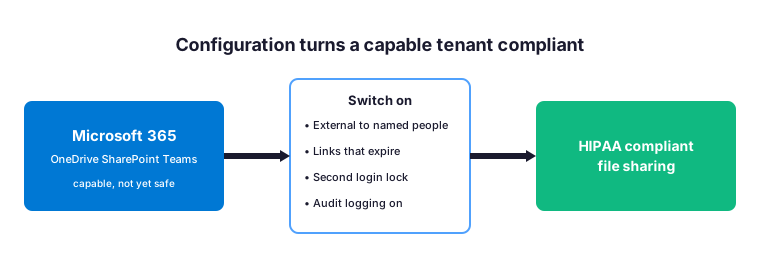
Yes, with two conditions: a signed BAA and the right configuration. Specifically, OneDrive, SharePoint, and Teams in a Microsoft 365 business plan already encrypt files in transit and at rest. They also support multi-factor sign-in through Entra ID and log access in the compliance center. Therefore Microsoft 365 already provides the technical floor for HIPAA compliant file sharing.
The catch is the default settings. However, a fresh tenant often allows anyone-with-the-link sharing, never expires links, and skips the second login lock. As a result, a capable platform behaves like a leaky one until someone tightens it. Wintive sees this on most tenants we inherit.
The practical upshot for a small practice is money. Notably, you are likely paying for Business Premium already, so compliant sharing is a configuration project, not a new per-user subscription. By contrast, bolting on a separate file-sharing product adds cost and another vendor to manage.

What HIPAA compliant file sharing needs switched on
The gap between a capable tenant and HIPAA compliant file sharing is a short list of settings. Specifically, you switch external sharing from anyone-with-the-link to named people, turn on link expiration, enforce the second login lock, and confirm audit logging is recording. Furthermore, sensitivity labels and data-loss rules add a safety net so a mislabeled file cannot leave by accident. Therefore the work is a configuration project a practice can finish in an afternoon and verify once. Notably, none of it requires a new subscription if you already run Business Premium.
⚙️ How to configure Microsoft 365 for HIPAA compliant file sharing
Configuration is where a capable platform becomes a compliant one. The work falls into a few settings that a practice can verify once and then monitor.
Locking down external links and downloads
In the SharePoint and OneDrive admin settings, set external sharing to specific people rather than anyone-with-the-link. Furthermore, set links to expire and, for sensitive files, block downloads so a patient can view but not copy. Therefore a shared lab result stops being a permanent, forwardable file living in someone inbox.
Sensitivity labels, data-loss rules, and the second login lock
Microsoft Purview sensitivity labels tag patient files so encryption and sharing limits follow the file wherever it goes. In addition, a data-loss prevention rule can stop a file marked as patient data from being shared externally by mistake. Critically, Conditional Access through Entra ID P1 enforces multi-factor sign-in, so a stolen password alone does not open the files.
Audit logging you can actually search
Finally, confirm that audit logging is on in the Purview compliance portal. Specifically, you want a searchable record of who opened, shared, or downloaded each file. As a result, an insurer question or a breach review becomes a lookup rather than a panic.
👥 Sending records to patients and outside parties
Sharing inside the practice is the easy part. The risk lives at the edges, when a file leaves for a patient, a referring clinic, or a billing partner. Specifically, this is where anyone-with-the-link sharing and forwarded email attachments cause most exposures.
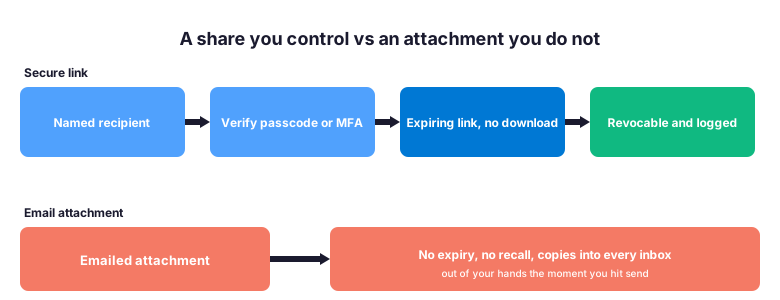
The compliant pattern is a secure, expiring link sent to a named recipient, protected by a one-time passcode or a sign-in. Furthermore, Microsoft 365 lets a practice require verification before an outside person opens a shared file, and lets you pull the link back later. By contrast, you cannot recall a public link or an emailed attachment once it is out.
For routine patient sharing, a simple secure portal beats email every time. Notably, many practices already have the pieces in SharePoint and Teams to run one without buying anything extra. Wintive helps set the sharing defaults so staff cannot accidentally over-share, because the safest setting is the one nobody has to remember.
Secure links, passcodes, and pulling access back
A secure share has three traits a public link lacks. Specifically, it goes to a named recipient, and it asks them to verify with a passcode or a sign-in. You can also revoke it later. Furthermore, you can set it to expire on a date and block downloads so the file is viewed, not copied. Therefore a shared lab result stops being a permanent, forwardable object. By contrast, an emailed attachment is gone the moment you hit send, with no expiry and no way to pull it back. As a result, the secure-link pattern is the single biggest upgrade most practices can make.
🆓 Is there free HIPAA compliant file sharing, and what about Google Drive or Dropbox?
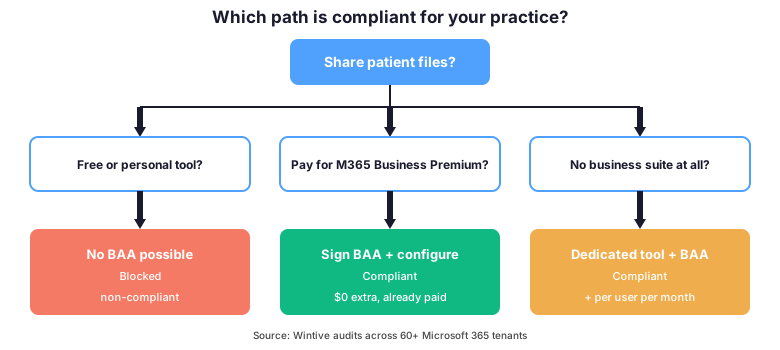
Free is the most searched angle, and it is also where practices get burned. Specifically, the free tiers of consumer tools will not sign a BAA, so they cannot legally hold patient files no matter how secure they feel. That is the common mistake that silently fails an audit.
Google Workspace can reach HIPAA compliance on paid business tiers with a signed BAA, much like Microsoft 365. A personal Gmail or consumer Google Drive cannot. However, free Dropbox and a personal Google account are out, while Dropbox Business and Google Workspace business plans are options if configured and covered by a BAA. Therefore the word free is the gotcha, not the brand.
The honest answer on cost is that there is rarely a truly free compliant option, but there is often an already-paid one. Notably, if your practice runs Microsoft 365 Business Premium, compliant file sharing is included in the Microsoft 365 Business Premium licenses you already pay for. As a result, the cheapest compliant path is usually the platform on your desk, not a new line item.
Why free HIPAA compliant file sharing is usually a trap
The search for free HIPAA compliant file sharing usually ends one of two ways. Specifically, either the free tool will not sign a BAA, which rules it out. Or it signs one but pushes the real work and cost onto you. Furthermore, a free tier that drops the agreement the moment you pass a storage limit is worse than none, because staff keep using it. Therefore free is the wrong filter. As a result, the better question is what you already pay for, since a compliant share usually sits inside your current Microsoft 365 bill.
🧰 Dedicated tools vs the Microsoft 365 you own
If you run no productivity suite, a dedicated HIPAA file-sharing tool fills the gap. Specifically, names like Box, Tresorit, Sync, and HIPAA Vault sell encrypted sharing with a BAA included on their paid tiers. Therefore they are a clean option for a practice with nothing else in place.
The trade-off is cost and overlap. However, if you already pay for Microsoft 365 Business Premium, a separate tool duplicates encryption and access controls you own. It also adds a second vendor and raises your total cost of ownership (TCO). By contrast, a dedicated tool earns its keep only when you need something the suite lacks, such as very large external transfers. A privacy-first option like Proton Drive sits here too, but it adds a vendor and cost OneDrive does not. Unlike an on-prem file server, the suite also needs no hardware to maintain.
| Option | Signs a BAA? | Where it fits |
|---|---|---|
| Microsoft 365 (OneDrive, SharePoint, Teams) | Yes, on business plans | Already owned; compliant once configured |
| Google Workspace | Yes, on business plans | Alternative suite; same BAA-plus-config rule |
| Box, Tresorit, Sync | Yes, on paid HIPAA tiers | Dedicated tool when you run no suite |
| HIPAA Vault | Yes | Niche hosting for specific workloads |
| Personal Dropbox, consumer Google Drive | No | Cannot be used for patient files |
Wintive maps the gaps first, then decides. Notably, for most small US practices the answer is to configure what they already own. They add a point tool only where it closes a real gap.
When a dedicated HIPAA compliant file sharing tool earns its place
A point tool is not wrong; it is just rarely necessary for a small practice. Specifically, a dedicated platform earns its place in three cases. You send very large files outside the practice every day, you need a branded patient portal with no setup, or you run no business suite at all. Furthermore, some specialty workflows, such as medical imaging, have tools built for their exact format. Therefore the test is simple. Does the tool close a gap your Microsoft 365 cannot, or duplicate controls you already pay for? As a result, most practices land on the suite.
🔎 Encryption, audit logs, and access controls explained
Encryption is the control that limits the damage when a link leaks or a laptop walks. Specifically, the platform should scramble files both in transit, as they move to a recipient, and at rest, where they sit stored. As a result, an intercepted share or a lost device reveals nothing readable. Notably, Microsoft 365 is independently audited against frameworks like SOC 2 and aligns with NIST guidance, so these controls are verified, not just promised.
Access control decides who can open a file. Furthermore, the rules expect unique accounts, least-privilege permissions, and a second login lock through Entra ID P1. Therefore a stolen password alone does not open patient files. Shared logins break this immediately, because a generic account cannot tell you which staff member actually opened a chart.
Audit logging is the evidence layer. Critically, it records who opened, downloaded, or shared each file, and when. Therefore, when an insurer or a regulator asks you to prove who touched a record, you answer from the log instead of guessing.

Reading your audit log without a specialist
An audit log is only useful if someone can read it. Specifically, Microsoft Purview lets a practice search by user, by file, or by action. As a result, you can answer who opened a chart last Tuesday without a database expert. Furthermore, you can set alerts for risky events, such as a large download or a new external share. Therefore the log shifts from a passive record to an early-warning system. Notably, this is exactly the evidence a cyber insurer asks for after an incident, and the practices that can produce it settle claims far faster.
⚠️ Common HIPAA file-sharing mistakes practices make
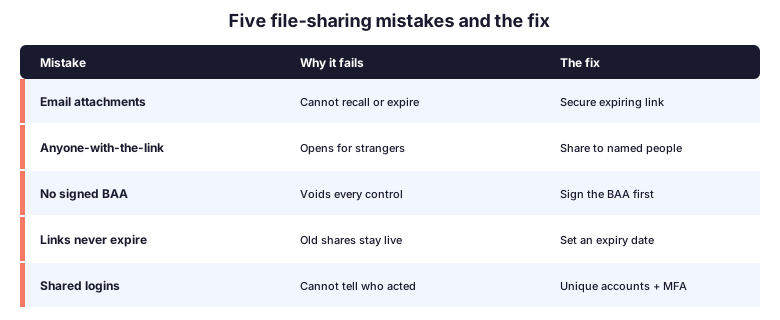
The same handful of mistakes shows up across practices, and each one silently fails an audit. Specifically, the worst is emailing patient files as plain attachments, because an attachment cannot be recalled or expired once it is sent.
- Using anyone-with-the-link sharing, so a forwarded link opens for strangers
- Skipping the BAA, the gotcha that quietly voids every other control
- Leaving links that never expire, so old shares stay live for years
- Storing patient files in a personal Dropbox or a consumer Google account
- Turning off the second login lock to make sign-in faster
Each of these is a configuration choice, not a flaw in the platform. However, the pitfall is assuming the defaults are safe. Therefore the fix is to set the safe option once, centrally, so staff cannot opt out under deadline pressure.
Email attachments: the mistake to fix first
If a practice fixes one habit, it should be emailing patient files as attachments. Specifically, an attachment leaves your control the instant it sends; it cannot expire, cannot be revoked, and copies itself into every inbox it touches. Furthermore, it often lands in a personal account that was never covered by a BAA. Therefore the single highest-value change is to replace attachments with a secure, expiring link. As a result, the file stays in your tenant, under your logging, and the recipient gets access rather than a copy.
🛡️ Where a Wintive tenant audit fits
Reading a guide tells you what good looks like; an audit tells you where your own tenant stands. Specifically, the Wintive M365 Master Audit checks your real sharing settings, BAA status, encryption, and audit logging against the HIPAA Security Rule.
You get one written report and a prioritized plan to close each gap, at a flat fee with no hidden add-ons. Therefore you stop guessing whether anyone-with-the-link sharing is still on somewhere, and you get evidence you can hand an insurer. Notably, the audit also flags the email and identity gaps that sit right next to file sharing.
What the audit report puts in your hands
An audit is only worth it if you can act on the result. Specifically, the report lists each gap, ranks it by risk, and names the exact setting to change. Therefore your staff or Wintive can close each one in order. Furthermore, it doubles as evidence: a dated record that your sharing, BAA, and logging meet the rule on the day you were reviewed. Therefore the same document answers an insurer questionnaire and guides the fix. As a result, a flat-fee audit often pays for itself the first time a renewal puts your setup under the microscope.
🏥 More for US healthcare practices
File sharing is one layer of a compliant Microsoft 365 setup. Furthermore, the same BAA, encryption, and access controls protect the email, calendars, and Teams chats that also carry patient data. Therefore it pays to treat the tenant as one system rather than a stack of separate apps.
For the primary sources, the HHS guidance on the HIPAA Security Rule and Microsoft compliance documentation both lay out what the rules expect. You can read the HHS Security Rule overview on HHS.gov. As a result, a practice can verify the claims here against the rules themselves rather than taking any vendor at its word.
Related Wintive guides
🔍 Want to know if your file sharing is actually configured for HIPAA?
The M365 Master Audit delivers a written report. Specifically, it maps your Microsoft 365 configuration against the HIPAA Security Rule and confirms each vendor agreement is in place. That means the second login lock, outbound encryption, data-loss rules, external sharing controls, and audit logging. You also get a prioritized plan to close every gap, a flat, predictable cost of $1,500, with no hidden add-ons.
❓ Frequently Asked Questions
Yes, on a business plan with a signed BAA and the right configuration. OneDrive, SharePoint, and Teams encrypt files and log access; you still lock down external sharing and turn on the second login lock.
Rarely truly free, but often already paid for. Consumer free tiers will not sign a BAA, so they are out. If you run Microsoft 365 Business Premium, compliant sharing is included in what you already spend.
Only on paid business plans with a signed BAA. A personal Gmail, consumer Google Drive, or free Dropbox cannot sign a BAA and cannot legally hold patient files.
Yes. Any vendor that stores or transmits patient files must sign a BAA. Without one, the tool cannot be used for protected health information, however secure it looks.
Emailing patient files as plain attachments, closely followed by anyone-with-the-link sharing. Both put files where they cannot be recalled, expired, or fully tracked.
Your next step
In practice, the fastest way to know where you stand is to check your own tenant rather than trust the defaults. Therefore, pick the guide above closest to your next insurer renewal or patient request, or book the audit and let Wintive confirm every setting for you.