

Intune compliance policies are the rules that decide whether a device is healthy enough to reach your company data. Each policy checks things like encryption, OS version, and password strength, then marks the device compliant or not. On their own they only label a device. Paired with Conditional Access, though, they become the gate that actually blocks risky devices. So getting Intune compliance policies right is one of the highest-impact things an Intune admin does.
Yet most tenants get them subtly wrong, and the symptoms are confusing. A device shows “Not Compliant” with no obvious reason, or a policy blocks nobody because Conditional Access was never wired up. So this guide explains how Intune compliance policies work, the default-policy trap, the grace period, custom rules, reporting, and the mistakes we see most. We build these for small businesses, so the advice is practical, not theoretical.
🛡️ Free: M365 Audit Checklist
19-page PDF with 50 hands-on checks covering Entra ID, Exchange Online, SharePoint, Teams, Intune, license waste, and audit logging. PowerShell commands included. Built from 60+ real tenant audits at Wintive.
🧭 What Intune compliance policies are
Intune compliance policies are device-health rules in Microsoft Intune. In short, each policy checks settings such as encryption, OS version, password, and threat level, then marks a device compliant or noncompliant. That verdict feeds Conditional Access, which grants or blocks access to apps and data. So Intune compliance policies are how you stop an unhealthy device from reaching email, files, or Teams, without locking out the healthy ones.
Think of a policy as a checklist the device must pass. The chart below shows the typical rules. Each one is a simple yes-or-no test, and a device must clear every rule to count as compliant.
A quick example makes it concrete. A laptop with BitLocker on, a current OS, and a strong password passes, so it reaches email normally. Turn off encryption, and the next check-in marks it noncompliant. So the policy quietly tracks the device’s health and reacts the moment it slips.
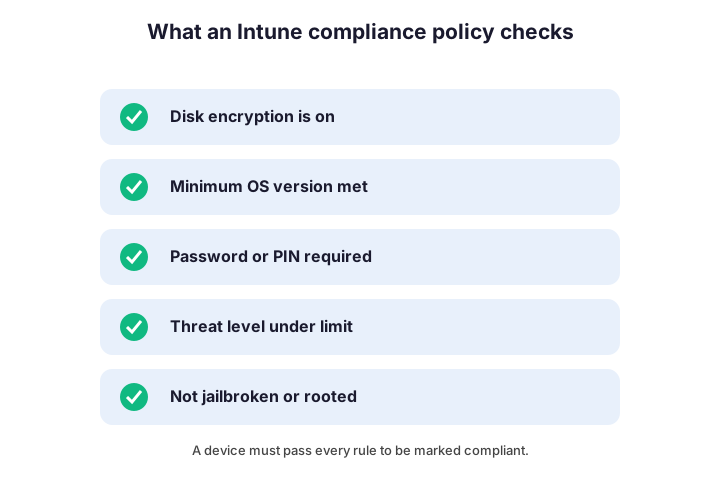
Crucially, a compliance verdict is just a label until something acts on it. Intune writes “compliant” or “noncompliant” against the device, and then Conditional Access reads that label. So the policy and the access rule are two halves of one control, and we will connect them shortly.
It helps to separate compliance from configuration, because admins mix them up. A configuration profile pushes a setting onto a device, while a compliance policy only checks whether a setting is right. So one acts, and the other audits. Intune compliance policies never change the device; they simply judge it and report the result.
⚙️ How Intune compliance policies work
Evaluation happens on a cycle, not the instant you change a setting. When a device checks in, Intune compares it against every assigned policy. Then it records a single verdict and reports it back to the service.
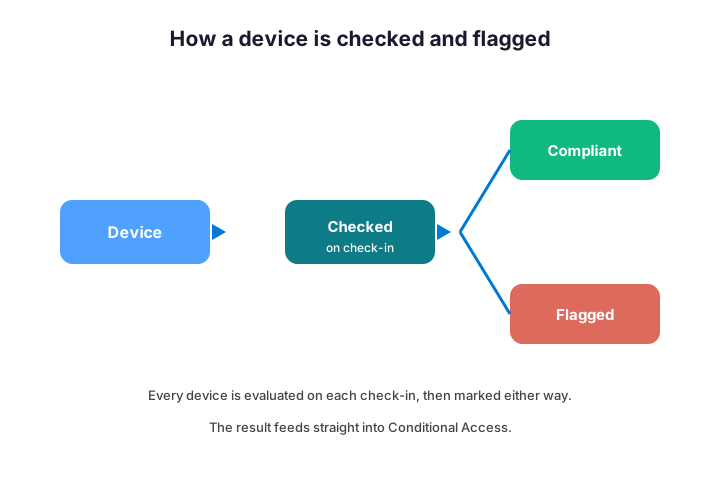
Timing trips people up here. A freshly enrolled device can show as noncompliant simply because it has not checked in yet. So before you chase a “failure”, confirm the device has actually reported. Often the fix is patience or a manual sync, not a policy change.
Assignment matters just as much as the rules. You target Intune compliance policies at user or device groups, so a device only faces the policies aimed at it. Because overlapping assignments can conflict, keep your group design clean and deliberate.
Each platform reports through its own channel, which explains some delays. Windows uses the MDM agent, while iOS and Android report through their management profiles. So a setting that evaluates instantly on one platform may take a check-in on another. Knowing this saves you from chasing a “stuck” device that is simply waiting for its next sync.
One policy can also hold several rules at once. A single Windows policy might require encryption, a minimum build, and a password together. So the device must satisfy all of them to pass, and any one failure flips the whole verdict. Knowing which rule tripped is exactly what the per-device report is for.
🔍 What Intune compliance policies can check
The rules span every platform you manage, though the exact options differ. Windows and macOS expose deep checks like disk encryption and firewall state. Mobile platforms add tamper checks such as jailbreak and root detection. So the same policy idea adapts to each device type.
| Setting | What it checks | Typical platforms |
|---|---|---|
| Disk encryption | BitLocker or FileVault is on | Windows, macOS |
| Minimum OS version | Device is patched to a baseline | All platforms |
| Password / PIN | A passcode is set and strong | All platforms |
| Threat level | Defender reports the device clean | Windows, Android, iOS |
| Jailbreak / root | The device is not tampered with | iOS, Android |
Threat level is the cleverest setting, since it links to Microsoft Defender. When Defender flags a device as risky, the compliance policy can mark it noncompliant automatically. So your endpoint security and your access control start working as one system, which is exactly the point.
Resist the urge to switch on every available rule, though. A policy with twenty checks generates twenty ways for a device to fail, and a flood of support tickets with it. So start with the handful of rules that map to a real risk: encryption, OS version, password, and threat level. You can always add more once the basics run cleanly.
Linux now joins the list, which surprises some admins. Intune supports compliance on Linux desktops, though the available checks are narrower than on Windows. So confirm which rules exist per platform before you promise a uniform standard.
⚠️ The default-policy trap that catches tenants
Here is the mistake we see most often. Intune has a built-in setting that decides how to treat a device with no compliance policy assigned. By default, many tenants leave it set to treat those devices as compliant, which quietly defeats the whole point.
Flip that setting, and the picture changes. When you mark devices with no policy as “Not Compliant”, any unmanaged or unassigned device is blocked by Conditional Access. So a gap in assignment fails closed, not open. Because this single toggle decides your security posture, check it before anything else.
The flip side is real, too. If you switch it on before your policies and groups are ready, you can lock out legitimate users overnight. So enable it deliberately, after your assignments are sound, and communicate the change first.
You will find the toggle in the Intune admin center under compliance settings, not inside any single policy. That separation is exactly why it gets missed. So make a point of checking it during every tenant review, because it is the one switch that decides whether a gap fails open or closed.
There is also a separate “compliance status validity period”. It sets how long a verdict stays trusted before the device must re-prove itself. Leave it too long, and a device that drifted out of health still counts as compliant for days. So tune it to a sensible window, and your data reflects reality rather than a stale check.
🔗 Intune compliance policies and Conditional Access
This is the pairing that makes everything matter. A compliance verdict alone changes nothing a user can feel. Conditional Access is what reads that verdict and decides whether to allow the sign-in.
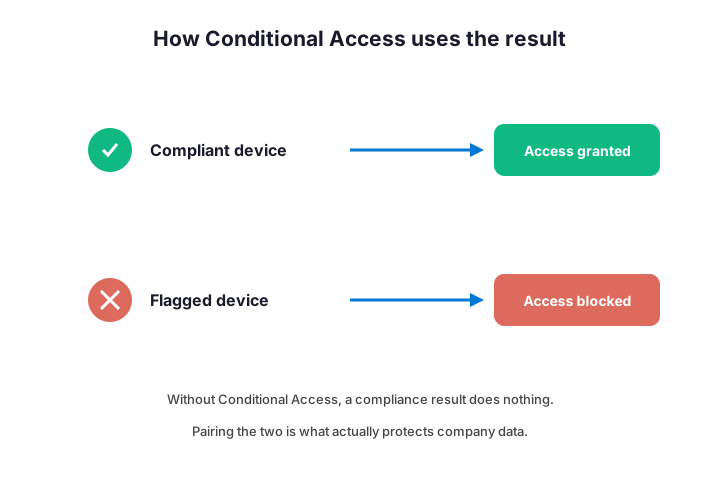
You build the link with a Conditional Access policy that requires a compliant device. From then on, a compliant laptop reaches Microsoft 365 normally, while a flagged one is blocked or limited. So the two features are useless apart and powerful together.
Always keep a break-glass account excluded from the rule, though. If a misconfiguration ever blocks every device, that emergency login is how you get back in. So create it, exclude it from the compliance requirement, and store its credentials safely. Because lockouts do happen, this small safeguard has saved many a tenant.
Decide what the access rule should require, since “compliant” is not the only option. Most teams require a compliant device, yet you can also accept a hybrid-joined one. So choose the requirement that matches how your devices are managed. For a cloud-first small business, requiring compliance is usually the cleanest fit.
Microsoft documents the full setup in its device compliance get-started guide, which is the reference to keep open. Read it alongside this article, and you will see how the two policies snap together.
Roll the access rule out in report-only mode first, because it shows the impact without blocking anyone. Conditional Access then logs what it would have done, so you can spot surprises before they hit users. Once the logs look clean, you switch the rule to enforce. So you get the safety of a dry run before the real block.
⏳ What happens when a device fails
A failed check does not have to mean an instant lockout. Intune lets you stage what happens through actions for noncompliance. So instead of blocking a user the moment a rule trips, you can warn them first.
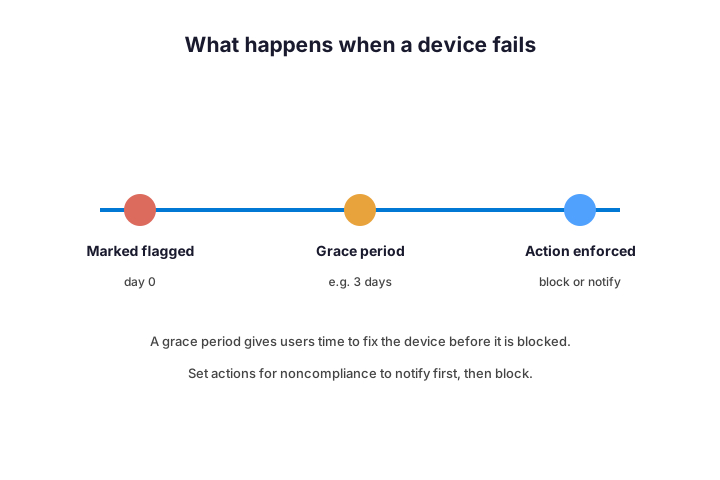
The grace period is the kindest and most practical option. You give the device a set number of days to get healthy before any block applies. Meanwhile the user gets an email explaining what to fix. So most people resolve the issue themselves, and your help desk stays quiet.
Word the notification like a human, not a system. A line such as “your laptop needs an update to keep email working” beats a cryptic code, so users act instead of opening a ticket.
| Action for noncompliance | When it fires | Best use |
|---|---|---|
| Mark noncompliant immediately | At once on failure | Critical rules only |
| Send email to the user | After a set delay | Most rules, as a nudge |
| Add a grace period | A few days before blocking | The sensible default |
| Remotely lock the device | After repeated failure | High-risk scenarios |
Order these actions thoughtfully, from gentle to firm. A notification, then a grace period, then a block is a sequence users accept. Because an abrupt block feels like an outage, the staged approach protects both security and goodwill.
Pick the grace length to match your users, not a guess. Set the window to the slowest realistic device, so almost nobody hits a surprise block. Around three days suits most small businesses.
🔁 How often Intune compliance policies re-check
A common question is how quickly a change takes effect. Devices re-evaluate on their regular check-in, which is roughly every eight hours, plus whenever a relevant setting changes. So a fix is rarely instant, and that is normal rather than a fault.
You can force the issue when testing. A manual sync from the device or the portal pulls a fresh evaluation within minutes. So in a pilot you do not wait for the natural cycle; you sync and check the result straight away. For the wider fleet, though, let the cadence do its work.
Plan changes around this rhythm, not against it. Because thousands of devices re-checking at once would hammer the service, the staggered cycle is deliberate. So roll a policy change out and give it a day to settle before you judge the impact. Patience reads the real picture; panic reads a half-synced one.
Pair that patience with a ringed rollout. Assign a change to a small pilot group first, then widen it once the result looks clean for a day. So a mistake reaches a few testers, never the whole company at once. That single habit keeps a compliance change from turning into an incident.
🧩 Custom Intune compliance policies
Sometimes the built-in settings are not enough, and that is where custom compliance comes in. You write a detection script that reports a value, then a JSON rule that defines the expected result. So you can check almost anything the device can measure.
# Custom compliance = a detection script + a JSON rule (Windows)
# 1) Upload a PowerShell discovery script that outputs JSON
# 2) Pair it with a JSON rule that defines the expected value:
{ "Rules": [ { "SettingName": "BiosVersion", "Operator": "GreaterEquals",
             "DataType": "Version", "Value": "1.2.0" } ] }
Common uses are checking a BIOS version, a registry key, or a specific app. Because the script runs on the device and returns JSON, your imagination is the main limit. Still, keep custom rules few and well-tested, since each one is extra surface to maintain.
Test a custom rule on one device before you assign it widely. A script that returns the wrong JSON shape marks every device noncompliant, which is a fast way to cause an outage. So validate the output by hand first, then pilot it on a small group. Because custom Intune compliance policies run with real power, that caution is well spent.
Treat custom compliance as a scalpel, not a hammer. Use the built-in settings for the common rules, and reserve custom scripts for the genuine gaps. So your policy set stays readable, and the next admin can understand it.
📊 Reporting on Intune compliance policies
Once your policies run, you need to see the results clearly. The Intune portal shows a compliance overview, broken down by device and by policy. So you can spot how many devices are compliant, in grace, or flagged at a glance.
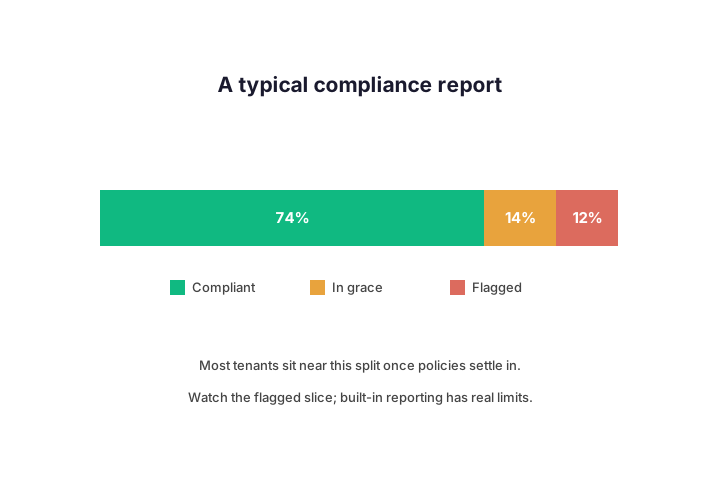
Two views help in different ways, so learn both. The per-policy view shows how one rule performs across all devices, which is perfect for spotting a broken setting. The per-device view shows every rule for a single machine, which is what you open when one user complains. So switch between them depending on whether you are debugging a rule or a device.
Be aware of the limits, though, because they catch admins out. The built-in reports can lag, and they do not always export cleanly for an audit. So for board-level or auditor reporting, many teams pull the data through Graph or a workbook instead. Plan for that gap before someone asks for a formal report.
Make the report a habit, not a fire drill. A weekly glance at the compliant-versus-flagged split catches drift while it is still small. So put a recurring slot in the calendar and actually keep it. Because problems compound quietly, the teams that review on a schedule are the ones that never get surprised.
🛠️ How to create one, step by step
Building a policy is quick once the plan is clear. In the Intune admin center you pick a platform, choose the settings, set the actions for noncompliance, and assign it to a group. So the portal walks you through it in a few screens.
Start by listing what you already have, so you do not duplicate rules. The command below shows every policy and its type, which is the cleanest way to audit your current set.
# List your compliance policies and their assignments (Microsoft Graph PowerShell)
Connect-MgGraph -Scopes "DeviceManagementConfiguration.Read.All"
Get-MgDeviceManagementDeviceCompliancePolicy |
  Select DisplayName, '@odata.type' | Format-Table -AutoSize
Build one policy per platform rather than cramming everything into a single rule. Windows, macOS, iOS, and Android each get their own, so a change to one never breaks another. So your set stays modular and easy to reason about. That structure also makes the reports far easier to read.
You can also check the live state across your fleet. The snippet below groups devices by compliance state, so you see the real split in seconds. Run it before and after a change to confirm the effect.
# See which devices are compliant, in grace, or flagged
Get-MgDeviceManagementManagedDevice -All |
  Group-Object ComplianceState |
  Select Name, Count | Sort Count -Descending
Name your policies so the next admin understands them at a glance. A label like “Windows – Encryption + OS baseline” beats “Policy 3” every time. So include the platform and the intent in the name. Because Intune compliance policies tend to multiply over the years, that small discipline keeps the list readable.
🪤 Why most tenants get Intune compliance policies wrong
The same handful of mistakes shows up in almost every audit we run. None are obscure, yet each one quietly weakens the control. So scan this list against your own tenant.
- Leaving the default to treat no-policy devices as compliant.
- Building policies but never linking them to Conditional Access.
- Blocking immediately, with no grace period or warning.
- Overlapping assignments that conflict and confuse the verdict.
- Ignoring the report until an auditor asks for evidence.
A subtler mistake is drift. A tenant sets up compliance once, then never revisits it as the fleet changes. So a new device type or a new OS version slips through a policy that was written for last year. Because the estate keeps moving, a policy set is a living thing, not a one-time project.
Wintive insight. Across the tenants we audit, the policy itself is rarely the problem; the wiring is. For example, a perfect set of Intune compliance policies that never touches Conditional Access blocks nobody. As a result, we check the links and the default setting first, long before we tweak any rule. So treat the plumbing as the product, not an afterthought.
✅ Intune compliance policies best practices
A few habits keep your policies effective and calm. None take long, yet together they prevent most of the noise. So build them in from the start.
- Set no-policy devices to “Not Compliant”, but only after assignments are ready.
- Always pair a policy with a Conditional Access rule that requires compliance.
- Use a grace period and an email before any block.
- Keep one clear policy per platform rather than many overlapping ones.
- Pilot every change on a test group before a broad rollout.
- Review the compliance report on a schedule, not just in a crisis.
Document the intent behind each rule, not just the rule itself. A one-line note explaining why a policy exists saves the next admin hours of guesswork. So keep a short register alongside your Intune compliance policies. Because staff change and memories fade, that record is what keeps the control sane over years.
Pair these with strong device management overall. If you are still shaping Intune, our guides to the Intune Company Portal and the Intune Management Extension cover the pieces around compliance. So the whole setup hangs together.
📚 More for Intune admins
These published Wintive guides go deeper on the topics compliance touches. Each one tackles a single area, so you can read only what you need. Therefore bookmark the ones that fit your environment.
🔍 Want a complete audit of your Microsoft 365 tenant?
The M365 Instant Audit scans your environment in under 10 minutes: license waste, security posture, MFA coverage, compliance gaps, and rightsizing. A full PDF report with prioritized fixes arrives instantly.
❓ Frequently Asked Questions
They are device-health rules in Microsoft Intune that check settings like encryption, OS version, and password, then mark a device compliant or noncompliant for Conditional Access to act on.
No. A policy only labels a device. You must pair it with a Conditional Access rule that requires a compliant device for the block to actually happen.
It decides how to treat a device with no policy assigned. Set it to “Not Compliant” so unmanaged devices fail closed, but only once your assignments are ready.
It is a set number of days a flagged device has to get healthy before any block applies. It lets users fix issues without an instant lockout.
Yes. Custom compliance pairs a detection script with a JSON rule, so you can check a BIOS version, a registry key, or almost any device value.
Common causes are a rule that genuinely fails, a device that has not checked in yet, or the default no-policy setting. Check the device compliance report for the exact reason.
🧭 Your next step
Start by checking two things today: the default no-policy setting, and whether your Intune compliance policies are actually linked to Conditional Access. Because those two decide your real posture, they matter more than any single rule. Once they are sound, the rest is steady tuning. When you want a second pair of eyes on your setup, we are happy to help.
If you remember only three things, make them these. First, a compliance verdict does nothing until Conditional Access enforces it. Second, set no-policy devices to “Not Compliant” once your assignments are ready. Third, always give users a grace period before a block. So follow that order, and your Intune compliance policies protect data without punishing people.
Related Wintive guides: Microsoft Intune Plan 1 guide, Microsoft Intune pricing breakdown, and Intune Remote Help guide.