

Therefore, the intune admin portal is the cloud console where IT teams run Microsoft Intune. You open it in a browser at intune.microsoft.com. However, from that one tab, you enroll laptops and phones, push settings, deploy apps, and check device compliance. It is the single place where modern endpoint management happens, with no on-premises server to maintain.
Furthermore, this guide is a complete reference for the portal. We cover how to sign in, who gets access, and every pane in the navigation rail. Specifically, we also walk through first-time setup, the licences you need, the connectors that make enrollment work, and the four Microsoft consoles people confuse it with. Read it once, and the whole console makes sense.
🛡️ Free: M365 Audit Checklist
19-page PDF with 50 hands-on checks covering Entra ID, Exchange Online, SharePoint, Teams, Intune, license waste, and audit logging. PowerShell commands included. Built from 60+ real tenant audits at Wintive.
🧭 What is the Intune admin portal
The Intune admin portal is the cloud console for Microsoft Intune, found at intune.microsoft.com. It is where IT admins manage devices, apps, compliance, and endpoint security for a whole organization. It replaced the old Azure portal blade and the Microsoft Endpoint Manager admin center. Anyone with the right Microsoft Entra role can sign in and run every endpoint task from one screen.
Notably, the Intune admin portal is the web home of Microsoft Intune. Intune is Microsoft’s cloud service for unified endpoint management, or UEM. Finally, in plain terms, it manages your company’s devices and the apps on them. The Intune admin portal is simply the dashboard you use to drive that service.
Critically, two jobs sit at its core. Mobile device management (MDM) controls the whole device. In practice, mobile application management (MAM) protects company data inside specific apps. The Microsoft Intune admin center exposes both from the same menu. So you set a device policy and an app policy in the same place, for any platform.
As a result, the Intune admin portal also pulls in nearby services. It surfaces Microsoft Defender security tasks, Entra ID groups, and Windows Autopilot. As a result, you rarely leave the screen during a normal day. Therefore, older shops are covered too. Co-management lets Intune and on-premises Configuration Manager run the same Windows PC together, so the move to the cloud is gradual rather than a risky big bang.
🔗 How to access the Intune admin portal
However, there are three common ways into the console. All three land on the same place. The diagram below shows each route.
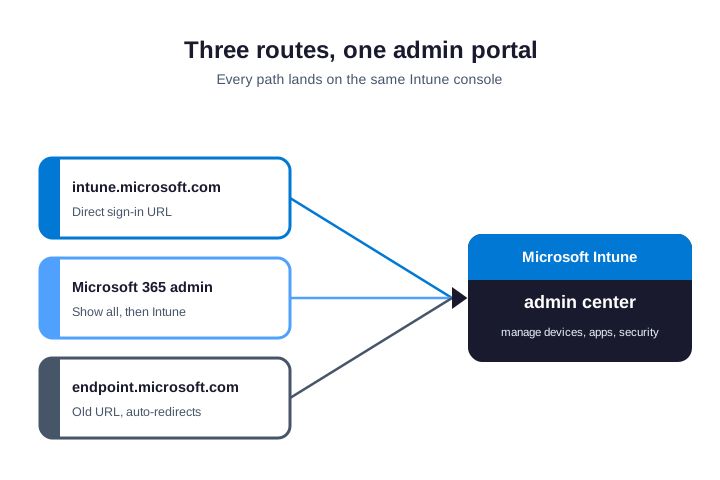
Furthermore, the direct way is fastest. Go to intune.microsoft.com and sign in with your work account. Specifically, you can also start from the Microsoft 365 admin center. Select Show all, then Intune, and the same console opens. Both routes prompt for multi-factor authentication if your tenant requires it, which it should for every admin.
🔁 Old URLs that still work
Notably, Microsoft has renamed this console twice. The old address endpoint.microsoft.com still works and redirects you in. Finally, the original Intune blade in the Azure portal is retired. The console runs in any modern browser, and it works on a phone in a pinch. Critically, for the official sign-in steps, see Microsoft’s account sign-up guide. Bookmark the new URL, and ignore the old ones.
🏗️ First steps in the Intune admin portal
In practice, a fresh tenant needs a little setup before you manage anything. First, confirm the MDM authority is set to Intune. As a result, new tenants do this for you. Second, add the connectors for the platforms you support. Therefore, third, create the Entra groups you will target policies at. Skip these, and enrollment quietly fails on day one.
However, start small and test as you go. Enroll one pilot device of each platform before you roll out widely. Then attach a simple compliance policy and watch it apply. Furthermore, so you catch a broken connector with one device, not five hundred. A short pilot is the cheapest insurance in endpoint management.
Specifically, set your defaults while the tenant is empty. Choose an enrollment restriction that blocks any platform you do not support. Notably, pick a device-naming template, so machines arrive with tidy names. These choices are easy now and tedious later. So lock them in before the first wave of users.
🔑 Who can sign in: roles and access
Finally, not every account can open the portal. You need a Microsoft Entra role that grants access. Critically, a Global Administrator can do everything, but that is too much power for daily work. The right choice for most admins is the Intune Administrator role.
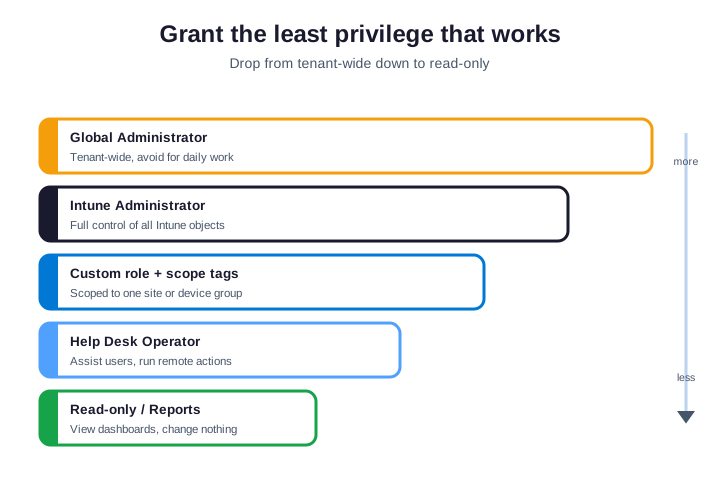
In practice, below the tenant-wide roles sit Intune’s own RBAC roles. These limit what an admin can see and change. As a result, you pair a role with scope tags to fence an admin into one site or device group. So a branch technician sees only their branch. For the full model, read Microsoft’s role-based access control docs.
🧾 List who holds admin access
Therefore, you can audit access from PowerShell. The snippet below connects to Microsoft Graph and lists every Intune RBAC role. Run it before any access review, so you know exactly who can touch the tenant.
# Connect to Microsoft Graph and list Intune RBAC roles
Connect-MgGraph -Scopes "DeviceManagementRBAC.Read.All"
Get-MgDeviceManagementRoleDefinition |
  Select-Object DisplayName, IsBuiltIn |
  Sort-Object DisplayName
However, the table below breaks down the built-in roles in the Intune admin portal. So you match each admin to the narrowest one that still lets them do the job.
| Built-in Intune role | What this admin can do |
|---|---|
| Intune Role Administrator | Manage custom roles and assignments |
| Policy and Profile Manager | Create compliance and configuration policies |
| Application Manager | Add, assign, and monitor apps |
| Endpoint Security Manager | Run antivirus, encryption, and EDR tasks |
| Help Desk Operator | Assist users and trigger remote actions |
| Read Only Operator | View everything, change nothing |
🧱 The Intune admin portal navigation rail
Furthermore, the left rail is the spine of the Intune admin portal. Each pane opens a full workspace. The map below shows all ten panes, with the Devices pane expanded as an example.
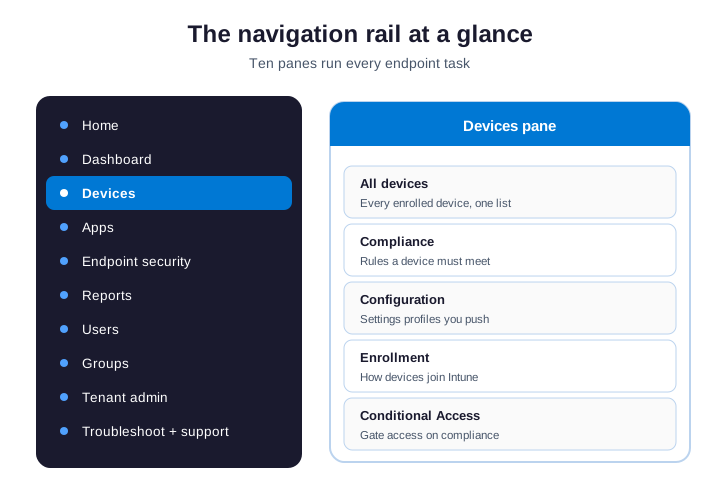
Specifically, most work happens in the top four panes: Home, Devices, Apps, and Endpoint security. The lower panes handle people, settings, and support. The table below is a quick reference for what each pane controls.
| Pane | What you manage there |
|---|---|
| Home and Dashboard | Tenant status, alerts, and quick links |
| Devices | Enrollment, compliance, and configuration |
| Apps | App deployment and app protection policies |
| Endpoint security | Antivirus, encryption, firewall, and EDR |
| Reports | Compliance, configuration, and analytics data |
| Users and Groups | People and the groups you target policies at |
| Tenant administration | Connectors, roles, audit logs, branding |
| Troubleshooting + support | Per-user diagnostics and support tickets |
🖥️ Devices in the Intune admin portal
Notably, the Devices pane is where most admins live. It lists every enrolled device in one view. Finally, you can filter by platform, so Windows, iOS, macOS, and Android each get their own page. From here you also start enrollment and run remote actions like wipe, restart, or sync.
Critically, scale changes how you work here. Filters target a policy by rule, such as OS version or device model. Device categories sort machines into groups at enrollment. Bulk device actions let you restart or sync hundreds of devices at once. In practice, so a fleet of thousands stays as manageable as a handful.
🛡️ Compliance and configuration
As a result, two policy types do the heavy lifting. Compliance policies set the rules a device must meet, such as encryption or a minimum OS version. Configuration profiles push the settings themselves, like Wi-Fi or a VPN. Therefore, non-compliant devices can then lose access through Conditional Access. The snippet below lists your managed devices and their compliance state.
# List enrolled devices and their compliance state
Connect-MgGraph -Scopes "DeviceManagementManagedDevices.Read.All"
Get-MgDeviceManagementManagedDevice |
  Select-Object DeviceName, OperatingSystem, ComplianceState |
  Sort-Object ComplianceState
📲 How devices get enrolled
However, devices do not appear by magic. Each one enrolls through a method that fits how it is owned. Furthermore, the portal has one for every scenario. You set them up once under Devices, then Enrollment, and reuse them for good.
Windows Autopilot ships a new PC straight to a user, pre-configured out of the box, and a hybrid Azure AD join uses the Intune Connector for Active Directory behind the scenes. Bring your own device, or BYOD, lets staff enroll a personal phone through the Company Portal. Apple automated device enrollment locks corporate iPhones to your tenant. Android Enterprise covers work profiles and fully managed phones. Specifically, each method lands the device in the same All devices list.
🪪 Personal versus corporate
Notably, ownership changes what you can do. On a corporate device, you manage the whole thing. Finally, on a personal device, you touch only the work data, never the photos or texts. So a wipe on a BYOD phone removes the company files alone. This line matters for privacy, and it matters for staff trust.
📦 Apps: deploy and protect
Critically, the Apps pane handles software across every platform. You add an app once, then assign it to a group. In practice, the assignment intent decides what happens. Required forces the install. Available lets users pick it from the Company Portal. Uninstall removes it cleanly.
As a result, the portal handles many app types. You add store apps from the Microsoft, Apple, and Google stores. Therefore, you upload line-of-business apps, like an in-house installer. Win32 apps wrap a classic Windows installer for advanced control. However, you can also pin a web link as an app. Each type assigns the same way.
🔏 App protection policies
Furthermore, app protection policies, or APP, guard company data inside an app. For example, they can block copy-paste from Outlook into a personal app. Specifically, they work even on phones that are not enrolled. So you protect data on personal devices without managing the whole phone. This is the heart of mobile application management.
Notably, you can layer the two as well. A managed device can also carry an app protection policy. Finally, so even a corporate laptop gets a second ring of data protection. Defence in depth applies inside the device, not just at its edge.
🛡️ Endpoint security workloads
Critically, the Endpoint security pane groups your defensive tools. Each workload is a focused console. Antivirus tunes Microsoft Defender. Disk encryption manages BitLocker on Windows and FileVault on macOS. Firewall and endpoint detection and response push rules to every device.
In practice, two extra workloads matter for hardening. Attack surface reduction blocks risky behaviour, like a macro launching a script. Security baselines apply a Microsoft-recommended set of settings in one click. As a result, a new tenant gets a strong floor fast. As a result, you then tune from there, instead of starting from zero.
Therefore, Conditional Access ties it all together. It checks a device’s compliance before granting access to email or files. However, so a jailbroken or unencrypted device is simply turned away at the door. This is how device management becomes real security, not just an inventory of hardware.
Wintive insight. Across the tenants we manage, the portal is rarely the problem. Access is. Too many admins sign in as Global Administrator and skip scope tags. So one mistake hits every device at once. We assign the Intune Administrator role, add scope tags per site, and keep Global Admin for break-glass only. That single habit prevents most self-inflicted outages.
📊 Reports and monitoring
Furthermore, the Reports pane turns raw device data into answers. You get device compliance, configuration, and app install reports. Endpoint analytics goes further. Specifically, it scores startup time, app reliability, and the overall work-from-anywhere experience.
Notably, some reports earn their keep daily. The device compliance report flags every failing device. Noncompliant devices drills into why. Finally, the app install status report shows failed deployments. Reports are exportable too. Critically, you pull a CSV, or query the data through Microsoft Graph, then feed it into Power BI or a ticketing tool. So you prove compliance to an auditor with numbers, not screenshots.
In practice, set a baseline early. Endpoint analytics compares your scores against your own history, and against peer organizations. As a result, so you see whether a change helped or hurt. Slow boot times and crashing apps surface here first, often before a single user complains. That early warning is the whole point of monitoring.
🧩 Licences for the Intune admin portal
Therefore, the portal itself is free to open. Managing a user, however, needs an Intune licence on that user. However, there are two ways to get one. You buy Intune on its own, or you get it inside a bigger bundle.
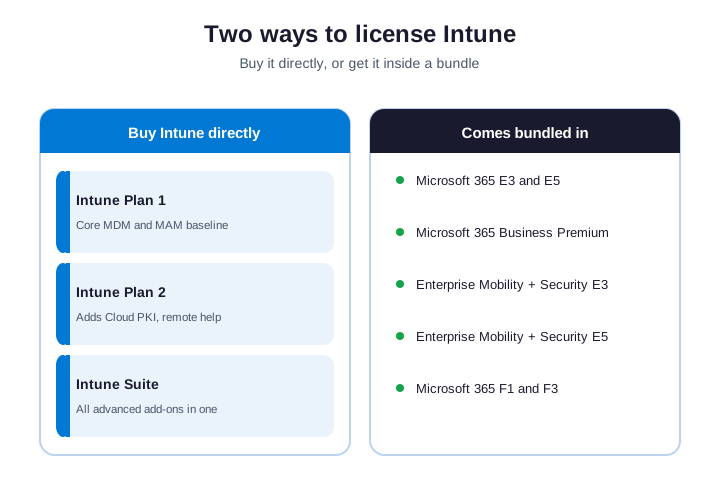
Furthermore, most small firms already own it without knowing. Intune ships inside Microsoft 365 Business Premium, Microsoft 365 E3 and E5, and the Enterprise Mobility + Security plans. Specifically, if you are weighing plans, our guide to Microsoft 365 Business plans shows which tiers include it. Standalone buyers pick Intune Plan 1 as the baseline, and our Intune pricing guide breaks down what each tier costs.
Notably, you can try before you buy. The portal offers a free Intune trial, and the Suite has its own trial too. Finally, so you pilot an add-on like Remote Help on a few users first. Then you license it for real once the value is clear. That keeps spend tied to need.
Critically, the paid add-ons unlock advanced tools. Intune Plan 2 adds Microsoft Tunnel for mobile and management of specialty devices. In practice, the Intune Suite bundles Remote Help, Endpoint Privilege Management, Advanced Analytics, and Cloud PKI. Most SMBs never need these. Larger or regulated teams often do, so weigh the Suite once you outgrow the basics.
🎛️ Customize the admin center
As a result, the Intune admin portal bends to fit how you work. Select the Settings gear at the top right. Therefore, from there you set your default startup pane, switch on dark mode, and change the language. You also switch between tenants here if you manage more than one.
📌 Dashboards and tiles
However, the Dashboard is yours to shape. Select Edit to rearrange tiles, or build a new private dashboard from the Tile Gallery. Furthermore, you can then publish a dashboard and share it with your team. So everyone opens the same focused view each morning. A clean dashboard saves real clicks over a week.
🔌 Tenant administration and connectors
Specifically, tenant administration is the engine room. It holds the settings that make the whole portal run. Notably, here you manage connectors, roles, audit logs, and enrollment rules. Most of it you set once, then rarely touch again.
Finally, connectors let Intune talk to each platform. Apple devices need an Apple MDM push certificate, which you renew every year. Critically, iOS app licences flow through an Apple VPP token. Android relies on the Managed Google Play link. In practice, you add each one here. A calendar reminder for the Apple certificate saves a painful, fleet-wide outage.
🧹 Roles, audit logs, and clean-up
As a result, this pane also holds the housekeeping. You assign Intune RBAC roles and scope tags from here. Therefore, the audit log records every change, with the admin and the time. Device clean-up rules retire stale devices after a set number of inactive days. So the device list stays honest, instead of bloating with ghosts.
🔀 Intune admin center vs other portals
However, people mix up four Microsoft consoles. They look alike, but each has a job. The matrix below sorts them out, so you log in to the right one.
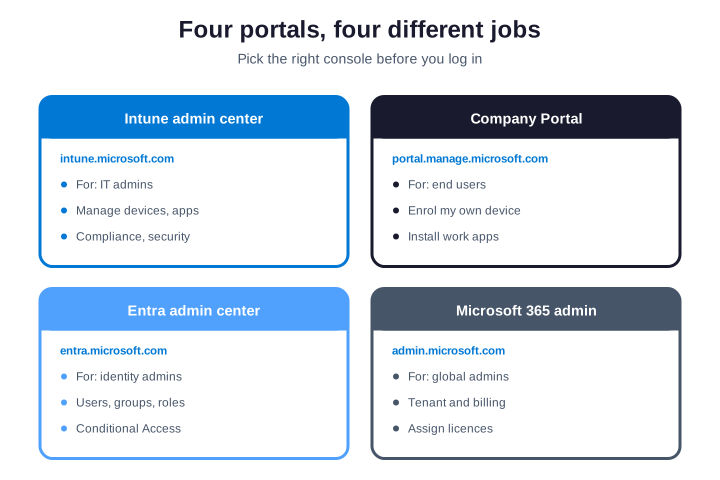
Furthermore, the key split is admin versus user. IT admins use the Intune admin center. Specifically, end users use the Company Portal to enroll their own device and install apps. Our Company Portal guide covers that side in depth. Identity work lives in the Entra admin center, while billing and licences live in the Microsoft 365 admin center.
Notably, one more console sometimes appears: the old Azure portal. Its Intune blade is retired, so ignore links that point there. Finally, if a tutorial sends you to portal.azure.com for Intune, it is out of date. Everything now lives in the Intune admin center instead.
🧰 Intune admin portal best practices
Critically, a few habits keep the portal safe and tidy. They cost nothing, and they prevent the messes we clean up most often. Apply them on day one.
- Use named admin accounts. Never share one login.
- Require MFA on every admin. No exceptions.
- Assign Intune Administrator, not Global Admin. Save Global for break-glass.
- Add scope tags. Fence each admin to their site or group.
- Review audit logs monthly. Know who changed what.
In practice, the audit log is your memory. It records every policy change, with the admin and the timestamp. As a result, the snippet below pulls the most recent entries from Microsoft Graph. Run it after any incident, so you can trace the cause fast.
# Pull the latest Intune audit-log events
Connect-MgGraph -Scopes "DeviceManagementApps.Read.All"
Get-MgDeviceManagementAuditEvent -Top 20 |
  Select-Object DisplayName, Activity, ActivityDateTime |
  Sort-Object ActivityDateTime -Descending
🩺 Troubleshooting the Intune admin portal
Therefore, when a single user is stuck, start in Troubleshooting + support. The Troubleshoot blade shows one user’s devices, policies, and app assignments on one page. However, so you see why a policy did not apply, without guessing. It is the fastest way to close a help-desk ticket.
Furthermore, the blade also shows enrollment failures with a reason code. So instead of a vague “it will not enroll”, you get the exact step that broke. Specifically, you fix that one step, and the device joins. This turns a long back-and-forth into a single clear action.
Notably, two more tools live here. Service health tells you if the outage is on Microsoft’s side, not yours. Help and support opens a ticket with Microsoft. Finally, note that filing a ticket needs a support role, such as Service Support Administrator. Grant that role in advance, so nobody is blocked mid-incident.
✅ Intune admin portal quick-reference
Critically, condensed, here is how a well-run portal looks in the field.
- Bookmark intune.microsoft.com and drop the old URLs.
- Sign in with a named account that has the Intune Administrator role.
- Create scope tags before you onboard a second admin.
- License every managed user, usually through Business Premium or E3.
- Add the Apple and Google connectors before you enroll those devices.
- Set security baselines first, then tune from that floor.
- Turn on MFA for admins, and review the audit log monthly.
- Use the Troubleshoot blade before escalating any ticket.
In practice, at Wintive, we set up and run the Intune admin portal for SMBs as part of our Microsoft 365 managed services. We harden access, build the policies, and document the lot. As a result, to get started, contact us for a free consultation. It is quick, and we do the rest.
🆕 How the Intune admin portal changes
Therefore, the Intune admin portal is not static. Microsoft ships changes to Intune every month. However, new settings appear, and panes get reorganized. So a screenshot from last year may not match what you see today. This is normal for a cloud service, not a glitch.
Furthermore, two habits keep you current. Read the What’s new page in the portal before you plan a big change. Specifically, watch the Message center in the Microsoft 365 admin center for advance notice of retirements. As a result, a renamed setting never catches you off guard. A few minutes a month is enough to stay ahead of the changes.
📚 More for IT admins
Notably, these published Wintive guides go deeper on the topics the portal raises next. So bookmark the ones that fit your tenant.
🔍 Want a complete audit of your Microsoft 365 tenant?
Finally, the M365 Instant Audit scans your environment in under 10 minutes: license waste, security posture, MFA coverage, compliance gaps, and rightsizing. A full PDF report with prioritized fixes arrives instantly.
❓ Frequently Asked Questions
It is the cloud console for Microsoft Intune, at intune.microsoft.com. IT admins use it to manage devices, apps, compliance, and endpoint security for an organization from one screen.
Go to intune.microsoft.com and sign in with your work account. You can also open it from the Microsoft 365 admin center under Show all, then Intune. The old endpoint.microsoft.com address still redirects in.
You need a Microsoft Entra role with access. Global Administrator works but is too broad. The Intune Administrator role is the right tenant-wide choice, and Intune RBAC roles narrow it further.
Opening the portal is free. Managing a user needs an Intune licence on that user. Intune is included in Microsoft 365 Business Premium, E3, E5, and the Enterprise Mobility + Security plans.
You do not add devices by hand. Users enroll their own device through the Company Portal, or you use Windows Autopilot. The device then appears under Devices, All devices in the admin center.
No. The admin center is for IT admins to manage the whole fleet. End users instead open the Company Portal app to enroll their device and install approved work apps.
🧭 Your next step
Critically, ready to get the portal right? First, book a short call. Then we audit your tenant and harden admin access. Finally, we build the policies and document them. In practice, to start, contact Wintive. It is quick, and we do the rest.