

Intune updates are how you keep every managed Windows device patched, secure, and consistent from the cloud. However, the controls confuse many admins at first. Therefore, this guide turns Intune updates into a clear, repeatable system you can trust.
Specifically, we cover how Intune updates work, every policy type, and a safe rollout strategy. In addition, you get the role of Windows Autopatch, third-party patching, monitoring, and PowerShell to check your own tenant. By the end, managing Intune updates will feel routine rather than risky.
🛡️ Free: M365 Audit Checklist
19-page PDF with 50 hands-on checks covering Entra ID, Exchange Online, SharePoint, Teams, Intune, license waste, and audit logging. PowerShell commands included. Built from 60+ real tenant audits at Wintive.
🧭 Intune updates: the short answer
Intune updates manage Windows patching from the cloud through update policies, not manual patch files. You set update rings to control deferrals, deadlines, and restarts, then layer feature, quality, and driver policies on top. Windows Autopatch approves the content, and devices pull it straight from Windows Update. In short, Intune updates give you a phased, predictable rollout with full reporting, so security patches land fast and big upgrades land only when you are ready.
Critically, Intune does not store the updates themselves. Instead, it stores your policy, and Windows Autopatch decides which content is approved. Devices then download approved updates directly from Windows Update. Therefore, you manage rules, not packages.
Notably, this approach also gives you a clear audit trail. Every device reports its update status back to Intune. Therefore, you can prove compliance to an auditor or an insurer in minutes. As a result, Intune updates double as evidence, not just maintenance.
In practice, that model scales beautifully. You write a policy once, assign it to a group, and every device follows it. As a result, a team of five and a fleet of five thousand use the same simple controls. So Intune updates replace the old grind of manual patching with a set of clear rules.
⚙️ How Intune updates work
First, picture the flow. You define a policy in Intune, such as an update ring. Then Intune passes that configuration to Windows Autopatch, which approves the matching update content. Finally, each device pulls the approved update straight from Windows Update and installs it on your schedule.
Importantly, the heavy lifting happens in the cloud, not on your network. Microsoft hosts and serves the patches, while you simply set the rules. Therefore, your admins steer the policy and the service drives delivery. In short, you decide the when, and Windows Update handles the how.
Notably, this design keeps Intune light and reliable. Microsoft hosts the updates, so your network never proxies large patch files. Therefore, a remote laptop patches just as easily as an office desktop. The diagram traces the path that Intune updates follow.
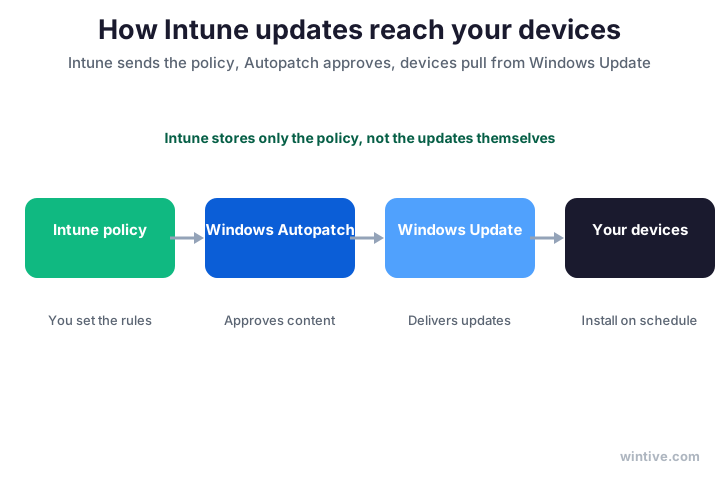
In short, you set the destination, and Microsoft drives the car. That clean division of labour is exactly what makes Intune updates reliable at scale. Therefore, even a small IT team can patch a large fleet without heroics.
🧱 The Intune updates policy types
Next, learn the building blocks. Intune updates come from a small set of policy types, and each one has a clear job. Therefore, once you know them, the whole system clicks into place.
Moreover, you rarely need all of them on day one. Most teams start with update rings, then add feature and quality policies as they mature. Therefore, treat the list as a menu, not a mandate. As a result, your Intune updates setup can grow at a comfortable pace.
Specifically, update rings control timing and restarts. Feature update policies pin the Windows version. Quality update policies handle monthly security patches, plus expedite and hotpatch. Driver update policies manage hardware drivers. In addition, the Windows Update client policy exposes granular settings through the Settings Catalog. The chart lays out the full set.
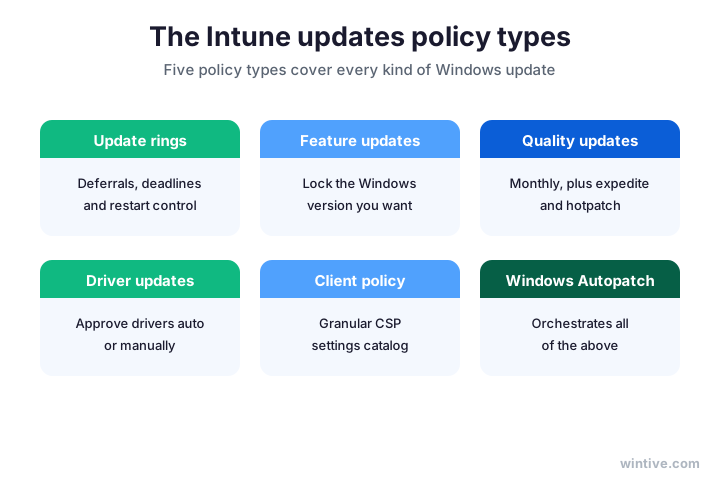
Therefore, do not try to master all five at once. Instead, add each policy type as a real need appears. As a result, the system stays manageable, and your confidence grows with each step.
💍 Update rings: the core of Intune updates
Above all, update rings are the heart of Intune updates. A ring groups devices and sets how long they wait before installing updates. Therefore, you can release patches to a small pilot first, then to everyone once they look safe.
Furthermore, you can run several rings at once for different groups. A finance team might wait longer than the marketing team, for instance. Therefore, each part of the business gets a pace that suits its risk. In practice, two or three rings cover almost every company.
Specifically, each ring controls the deferral period, the deadline, and the restart behaviour. You might defer quality updates a few days and feature updates much longer. Then a deadline forces the install if a user keeps postponing it. As a result, you balance security against disruption. The chart shows a phased ring rollout.
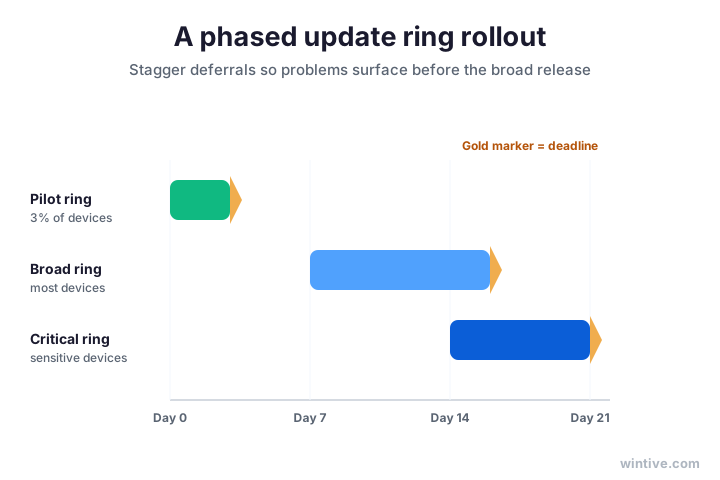
Moreover, keep a short grace period after the deadline. That window lets people save their work before a forced restart. Therefore, security still wins, yet nobody loses an open document.
In addition, explain the schedule to your users once. A short note about the rings and the restart prompt prevents surprise and complaints. Therefore, people cooperate instead of fighting the updates. As a result, your rollout stays smooth from the very first cycle.
🗓️ Feature updates: pin the Windows version
Meanwhile, feature update policies solve a different problem. They lock devices to a specific Windows version, such as Windows 11 24H2. Therefore, a major upgrade never surprises your users before you have tested it.
In addition, feature policies prevent the dreaded overnight jump. Without them, a device might move to a new Windows version on its own. Then a critical app could break before anyone tests it. Therefore, pinning the version is simply good change control.
In practice, this control is a lifesaver for compatibility. You hold the whole fleet on a known-good version while you validate apps. Then, when you are ready, you raise the target and roll the upgrade out in waves. As a result, big jumps stay calm and planned, not chaotic.
🛡️ Quality updates, expedite, and hotpatch
Of course, security cannot always wait for a ring. That is why quality update policies add two fast lanes. First, expedite pushes a critical patch immediately, overriding your normal deferral. Therefore, a zero-day fix can reach every device within hours.
In practice, reserve expedite for genuine emergencies, not routine patches. Overusing it defeats the calm of your rings. Therefore, let normal updates follow the schedule, and expedite only the rare zero-day. As a result, you stay both safe and predictable.
Furthermore, hotpatch applies eligible monthly security updates without a reboot. Notably, Microsoft now enables hotpatch by default on supported devices. As a result, machines stay protected with far fewer restarts. In short, you get faster security and happier users at the same time.
🔧 Driver and firmware updates in Intune
In addition, Intune manages hardware driver and firmware updates from Windows Update. This often-forgotten layer keeps devices stable and compatible. Therefore, treat drivers with the same care as the operating system.
Notably, driver updates are a common cause of mystery faults. A bad graphics or network driver can disrupt a whole department. Therefore, staging drivers through a pilot ring is just as wise as staging Windows itself. In short, drivers deserve the same discipline.
Specifically, a driver update policy lets you approve drivers automatically or review each one by hand. Automatic suits a low-risk fleet that values speed. Manual suits sensitive devices where one bad driver is costly. The table compares the two approaches.
| Approval mode | What it does | Best for |
|---|---|---|
| Automatic | Approves recommended drivers for you | Standard, low-risk devices |
| Manual | You review and approve each driver | Sensitive or specialised hardware |
Therefore, many teams auto-approve drivers on standard laptops and switch to manual on specialised kit. As a result, the fleet stays current without risking the fragile machines. In practice, that split gives you the best of both worlds.
🤖 Windows Autopatch behind Intune updates
Importantly, Windows Autopatch now sits behind feature, quality, and driver policies. It decides which content is approved, then deploys only that content to assigned devices. Therefore, Autopatch is the engine that makes modern Intune updates work.
Critically, these Autopatch-driven policies need the right licence and join type. Feature, quality, and driver policies all run through this service. Therefore, a device that is only Entra registered falls back to update rings alone. As a result, check entitlements before you rely on the advanced workflows.
Furthermore, Autopatch Groups add power on top. They sort devices into rings automatically and roll updates out gradually across the whole release. In addition, Autopatch reports reveal update readiness, compliance, and alerts. The table contrasts the manual and grouped approaches.
| Capability | Manual policies | Autopatch Groups |
|---|---|---|
| Device grouping | You sort devices by hand | Automatic, multi-ring grouping |
| Rollout | One ring at a time | Gradual across all rings |
| Reporting | Per-policy views | Readiness and compliance alerts |
Therefore, small teams can start with manual policies and graduate to Autopatch Groups later. Meanwhile, larger estates benefit from the automation straight away. In short, the engine scales smoothly with you.
⏱️ The life of a single update
To make this concrete, follow one update through your ring. First, Microsoft releases it. Then your deferral period holds it back while early rings test it. Next, it becomes available to the broader fleet, where users can install or briefly defer.
Moreover, users see only a gentle version of this arc. They get a notification, a chance to pick a time, and a final reminder. Therefore, the experience feels considerate rather than forced. In practice, that goodwill stops people from disabling updates themselves.
Finally, the deadline arrives, a short grace period passes, and the device restarts to finish. Therefore, every patch follows the same predictable arc. As a result, you always know where an update sits and when it will land. The timeline maps that journey.
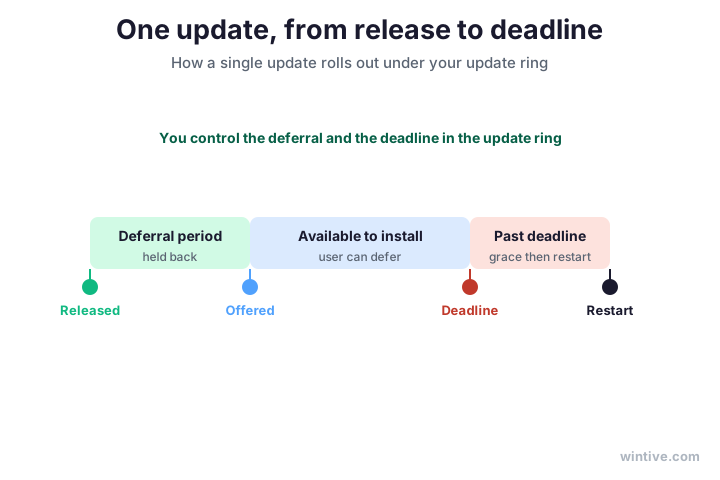
Therefore, when a user asks why their laptop restarted, you can show exactly where the update sat. As a result, support calls get shorter and calmer. Moreover, that transparency builds trust in the whole process.
📊 Monitoring Intune updates
Critically, a policy is only half the job. You also need to confirm devices are actually updating. Therefore, monitoring is where good Intune updates prove themselves. Reddit is full of admins asking whether a PC is truly patching.
Specifically, watch three things: devices behind on quality updates, devices stuck on an old feature version, and failed installs. Each one points to a fixable cause. Therefore, a short weekly review prevents a slow drift into risk. As a result, small gaps never grow into big ones.
In practice, Intune and Autopatch reports answer that for you. They show update status, compliance, and any devices stuck behind. Moreover, you can pull the same data with PowerShell for a quick audit.
# Check Windows update status across your devices (Graph PowerShell)
Connect-MgGraph -Scopes "DeviceManagementManagedDevices.Read.All"
Get-MgDeviceManagementManagedDevice -All |
  Select-Object DeviceName, OperatingSystem, OsVersion, ComplianceState
Specifically, run that and scan the OS versions and compliance column. Any device far behind the others needs attention. Therefore, a weekly glance keeps the whole fleet honest.
Moreover, set an alert for devices that miss two cycles in a row. That early signal catches a stuck machine before it becomes a security hole. Therefore, you fix it quietly, long before anyone notices. In short, good monitoring turns firefighting into routine.
Wintive insight. Across the SMB fleets we audit, the weakest link in Intune updates is almost never the policy. It is the missing follow-up. Rings get built, then nobody watches the reports, so a handful of devices quietly fall months behind. As a result, the riskiest machine is usually the one everyone forgot. A ten-minute weekly review of update compliance prevents almost every patching gap we find.
🧩 Third-party patching beyond Intune updates
However, Intune updates do not cover everything by default. Natively, Intune patches Windows, Microsoft 365 apps, Store apps, and the Win32 apps you package. Yet third-party apps like Chrome and Zoom need extra help.
Furthermore, third-party software is where many breaches begin. An outdated browser or PDF reader is an easy target. Therefore, covering those apps matters as much as patching Windows itself. In short, attackers do not care which vendor left the hole.
Specifically, you close that gap with a patching tool that plugs into Intune, such as Patch My PC or a vendor updater. Therefore, you keep one console while covering every app. As a result, your Intune updates strategy reaches the whole device, not just the Microsoft parts. The chart shows what is built in.
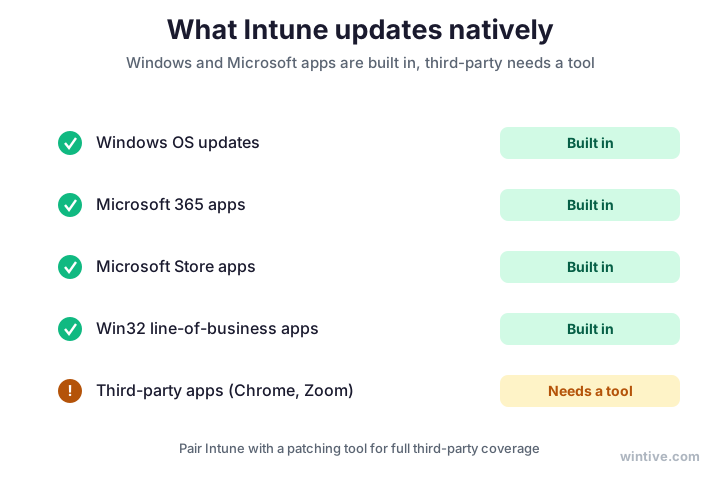
Therefore, treat third-party patching as part of the plan, not an afterthought. In practice, it often closes the single biggest remaining gap. As a result, your devices are fully covered, not just the Microsoft layer.
🪜 A ring strategy that works
So, how should you design your rings? Keep it simple, with three waves. First, a small pilot ring of IT staff and volunteers catches obvious problems. Then a broad ring covers most devices after a short delay.
In addition, name your rings clearly and write the deferrals down. A new admin should grasp the plan at a glance. Therefore, document it rather than keeping it in your head. As a result, the strategy survives staff changes and holidays.
Finally, a critical ring holds your most sensitive machines back the longest. Therefore, a bad patch hits a handful of testers, never the whole company. The table shows a sensible starting point.
| Ring | Devices | Suggested deferral |
|---|---|---|
| Pilot | IT and volunteers | 0 to 2 days |
| Broad | Most staff devices | About 7 days |
| Critical | Servers, executives, sensitive roles | 14 days or more |
Moreover, adjust the numbers to your appetite for risk. A cautious firm widens the gaps, while a fast one narrows them. Therefore, the shape stays the same, only the spacing changes.
Finally, review the rings every quarter. Devices move teams, risk levels shift, and new hardware arrives. Therefore, a quick check keeps the groups accurate. As a result, your Intune updates rollout never drifts out of step with the business.
✅ Prerequisites for Intune updates
Before you build policies, check the groundwork. Intune updates rely on a few prerequisites, and missing one quietly breaks the feature, quality, and driver workflows. Therefore, confirm these first.
Notably, a wrong join type is the quiet killer here. Entra registered devices cannot use the feature, quality, or driver workflows. Therefore, confirm devices are Entra joined or hybrid joined before you build those policies. In practice, that one check saves hours of confusion later.
Specifically, devices must be enrolled in Intune and joined to Microsoft Entra. In addition, diagnostic data must be set to Required, and the right Windows licence must carry the Autopatch entitlement. The table lists the essentials.
| Requirement | What it needs |
|---|---|
| Enrollment | Device enrolled in Intune |
| Join type | Entra joined or hybrid joined (not registered) |
| Telemetry | Diagnostic data set to Required |
| Licensing | Windows licence with the Autopatch entitlement |
| Service | Microsoft Account Sign-In Assistant enabled |
Therefore, run a quick prerequisite check before you build anything. As a result, your first Intune updates policy works on the first attempt. In short, five minutes of checks saves an afternoon of troubleshooting.
🪤 Common Intune updates mistakes
Meanwhile, a few mistakes trip up most teams. First, some admins skip rings and push updates to everyone at once. Therefore, one bad patch can take down the whole fleet on the same morning.
Moreover, another trap is ignoring restart behaviour. If you never set a deadline, some devices defer forever and stay unpatched. Therefore, always pair a deferral with a firm deadline and a grace period. As a result, security still happens, even on the laptops nobody reboots.
Conversely, others defer everything for too long, leaving devices exposed for weeks. However, the fix is balance, not extremes. In addition, many forget to monitor, so they never notice stuck devices. So treat Intune updates as a living system: set rings, watch reports, and adjust. As a result, problems stay small and visible.
🧮 Set up your first update ring
Now, put it into practice. Start small, with one pilot ring and a short deferral. First, confirm a test device meets the prerequisites, since a wrong join type blocks the modern policies.
# On a device: confirm it is Microsoft Entra joined (a prerequisite)
dsregcmd /status
Then create the ring in the Intune admin centre, or review what already exists with PowerShell. The check below lists your current update ring policies.
# List your Windows update ring policies (Graph PowerShell)
Connect-MgGraph -Scopes "DeviceManagementConfiguration.Read.All"
Get-MgDeviceManagementDeviceConfiguration -All |
  Where-Object { $_.AdditionalProperties["@odata.type"] -like "*windowsUpdateForBusiness*" } |
  Select-Object DisplayName, Id
Finally, assign the ring to a small pilot group and watch it for a week. Microsoft documents each setting in its Windows update policy guide. Therefore, expand only once the pilot proves quiet.
👤 Who should manage updates this way
Of course, the right depth depends on your situation. A tiny office with a handful of laptops needs only update rings and automatic driver approval. Therefore, do not over-engineer a small fleet.
Furthermore, your industry shapes the answer too. A clinic or a law firm leans cautious, with manual approvals and longer testing. Meanwhile, a fast startup may accept more risk for speed. Therefore, weigh both your size and your sector when you choose.
However, a regulated firm or a large estate gains from staged rings, manual driver approval, and Autopatch Groups. In addition, sensitive devices deserve longer deferrals and closer monitoring. The table maps approach to scenario.
| Your situation | Sensible approach |
|---|---|
| Small office, few devices | Update rings plus automatic drivers |
| Regulated or sensitive data | Staged rings plus manual approval |
| Hundreds of devices | Autopatch Groups with gradual rollout |
Therefore, start where you are and tighten over time. A small team can adopt staged rings as it grows. As a result, your update practice matures alongside the company, never lagging behind it.
✅ Intune updates quick checklist
Condensed, here is how to run Intune updates with confidence.
- Build update rings for pilot, broad, and critical devices.
- Set deferrals and a deadline, plus a short restart grace period.
- Pin the Windows version with a feature update policy.
- Use expedite for zero-days and keep hotpatch on.
- Manage drivers, and approve them auto or manually by group.
- Confirm prerequisites: Entra join, Required telemetry, licensing.
- Add a patching tool for third-party apps.
- Watch the reports every week and fix stuck devices.
Ultimately, at Wintive we design and run Intune updates for SMBs as part of our managed services. Moreover, we set the rings, monitor compliance, and patch the third-party gap. To get started, contact us for a free consultation. It is quick, and we do the rest.
📚 More for Intune admins
Therefore, these published Wintive guides go deeper on the topics Intune updates touch next. So bookmark the ones that fit your setup.
🔍 Want a complete audit of your Microsoft 365 tenant?
The M365 Instant Audit scans your environment in under 10 minutes: license waste, security posture, MFA coverage, compliance gaps, and rightsizing. A full PDF report with prioritized fixes arrives instantly.
❓ Frequently Asked Questions
Intune updates are cloud-managed Windows update policies. You set update rings, plus feature, quality, and driver policies. Intune passes them to Windows Autopatch, which approves the content, and devices then install it from Windows Update.
An update ring groups devices and sets the deferral period, deadline, and restart behaviour. You release updates to a small pilot ring first, then to broad and critical rings, so any bad patch hits only a few devices.
Feature updates change the Windows version, such as moving to 24H2. Quality updates are the monthly security and reliability patches. Intune controls each with its own policy, and quality updates also support expedite and hotpatch.
Not fully on its own. Intune natively updates Windows, Microsoft 365 apps, Store apps, and packaged Win32 apps. For third-party apps like Chrome or Zoom, you add a patching tool that integrates with Intune.
Windows Autopatch is the service that approves and deploys update content behind Intune. It powers feature, quality, and driver policies, and Autopatch Groups automate device grouping and gradual rollouts with rich reporting.
Use the Intune and Autopatch update reports, or query devices with Graph PowerShell. Look at each device’s OS version and compliance state, and follow up on any machine that lags well behind the rest.
🧭 Your next step
Want Intune updates handled for you? First, book a short call. Then we review your devices, your rings, and your reports. Finally, we set up a safe rollout and keep it healthy. To start, contact Wintive. It is quick, and we do the rest.