

A Microsoft 365 backup is the safety net most businesses assume they already have — and most do not. Microsoft keeps the service running and holds your data for a short window, but it does not take a restorable backup of your emails and files on your behalf. So when a user empties a folder, or ransomware sweeps a tenant, the gap becomes painfully clear.
This guide explains Microsoft 365 backup in plain terms for IT admins and the businesses they support. First, it settles the shared responsibility question. Then it covers native retention, the native backup service, third-party tools, what to protect, and how to choose. By the end, you will know exactly what a real Microsoft 365 backup looks like for your tenant.
It is a gap with real consequences. Accidental deletion, a departing employee wiping files, a misfired retention change, or a ransomware hit can all erase data that Microsoft will not bring back for you. So the question is not whether you need a Microsoft 365 backup, but which form of it fits your tenant and your risk.
📋 Free: the M365 Audit Checklist (50 points)
Before you trust your data to defaults, see what your Microsoft 365 tenant actually retains and protects today.
🛡️ What a Microsoft 365 backup really is
A Microsoft 365 backup is a separate, restorable copy of your tenant data, kept so you can recover after deletion, corruption or attack. It covers the data you create in Exchange, SharePoint, OneDrive and Teams. Crucially, it is independent of the live service, so a problem inside the tenant cannot take the copy with it.
In short: a Microsoft 365 backup is a separate, restorable copy of your Exchange, SharePoint, OneDrive and Teams data. Microsoft runs the platform and offers short-term retention, but under the shared responsibility model, protecting and recovering your own data is your job. You can use the native Microsoft 365 Backup service, a third-party tool, or both. Retention and recycle bins are not a backup, because they live inside the same tenant.
That definition matters because it rules things out. A recycle bin is not a backup. A retention policy is not a backup. Both are useful, yet both live inside the tenant they are meant to protect. A true Microsoft 365 backup keeps an independent copy you can restore from on your terms.
It also helps to separate two ideas people blur together: availability and recoverability. Microsoft gives you outstanding availability, so the service is almost always up. Recoverability of your own content after a mistake or an attack, however, is a different promise — and it is the one a Microsoft 365 backup actually makes.
⚖️ Does Microsoft back up your Microsoft 365 data?
This is the question that catches teams out, so let us answer it directly. No, Microsoft does not back up your data for you in the way most people imagine. Microsoft guarantees the service is available and resilient, and it keeps deleted items for a short, fixed window. Beyond that, recovering your own data is squarely your responsibility.
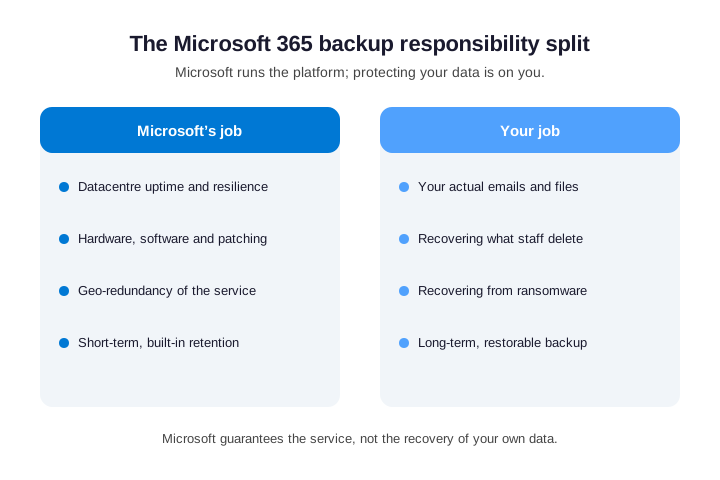
Microsoft sets this out plainly in its own backup documentation and shared responsibility model. So the platform is covered, but the data your staff create is not automatically backed up. Once you accept that split, the rest of the decision becomes straightforward.
Microsoft is explicit about this, and so is the contract. The service agreement commits to uptime and to short retention, not to recovering data you delete or that an attacker destroys. So the responsibility is not hidden; it is simply assumed by Microsoft to be yours. Reading it that way turns a nasty surprise into a planned decision.
♻️ Why native retention is not a Microsoft 365 backup
Microsoft 365 gives you several native safety nets, and they are worth using. The recycle bin holds deleted items for a while, retention policies keep content for a set period, and litigation hold preserves mailboxes. Yet none of these is a Microsoft 365 backup, because each one lives inside the same tenant it protects.
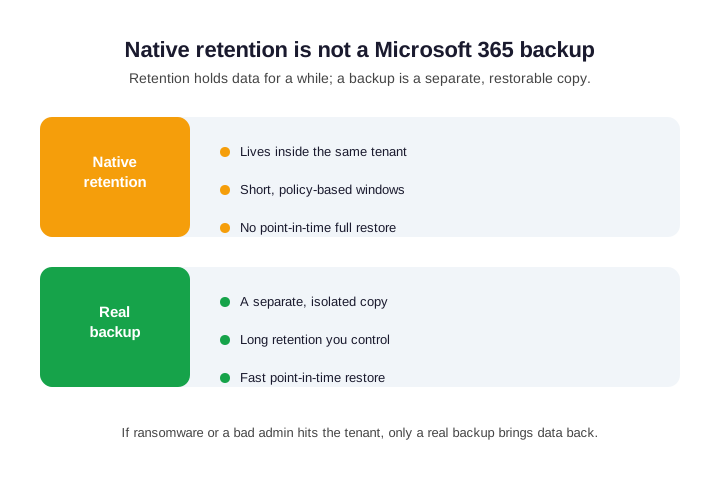
The limits show up exactly when you need them most. Retention windows expire, a determined attacker or a rogue admin can purge content, and there is no clean point-in-time restore of a whole site or mailbox. The table sums up where each native net stops.
| Native net | What it does | Where it stops |
|---|---|---|
| Recycle bin | Holds deleted items briefly | Empties on a timer |
| Retention policy | Keeps content for a period | Expires, lives in-tenant |
| Litigation hold | Preserves a mailbox | Mailbox only, not a restore |
| Versioning | Keeps file versions | Lost if the site is destroyed |
None of this means you should turn the native nets off. On the contrary, retention and holds are a valuable first layer, and they are free. The point is simply that they are a first layer, not the whole defence. So configure them well, then add a real backup on top rather than in their place.
📦 What to back up across Microsoft 365
A complete Microsoft 365 backup covers four workloads. Exchange Online holds mailboxes, calendars and contacts. SharePoint holds sites, document libraries and lists. OneDrive holds personal files. Teams, meanwhile, spreads its data across all three, plus its own chat, which is why people so often miss it. Each mailbox also needs an Exchange Online license to exist at all.
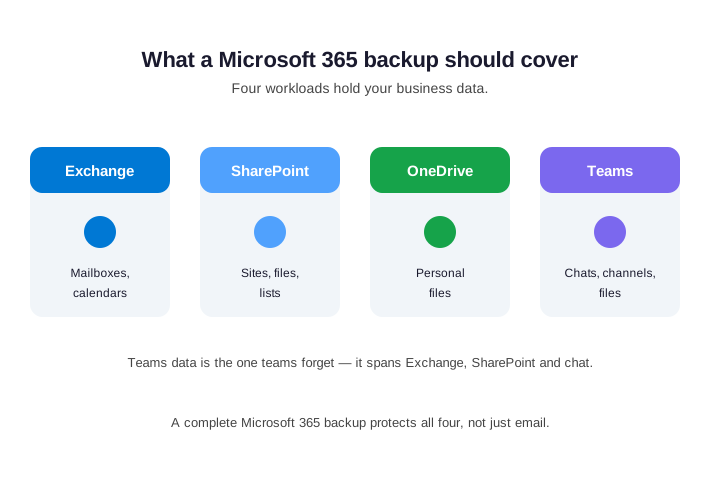
Teams is the one to watch. Because a team is really a Microsoft 365 group, its files sit in SharePoint while its chats sit elsewhere, so a half-configured tool can quietly skip it. Therefore, when you scope a Microsoft 365 backup, confirm explicitly that Teams content is included rather than assumed.
Group and planner data deserve the same attention. Because so much now hangs off a Microsoft 365 group, a backup that only grabs mailboxes misses shared files, plans and notebooks. So when you evaluate any tool, test a real restore of a Team, not just an inbox. That single test reveals what a product genuinely covers.
☁️ The native Microsoft 365 Backup service
In 2024 Microsoft launched its own Microsoft 365 Backup service, built directly into the platform. Because the data never leaves Microsoft, restores are fast and the setup is simple. It protects Exchange, SharePoint and OneDrive, and it is billed on a pay-as-you-go basis by the volume you protect.
Its strength is speed and simplicity. A large restore that once took days can complete far quicker, since the data stays within Microsoft. So for ransomware recovery and bulk restores, the native service is genuinely compelling. It is the easiest Microsoft 365 backup to switch on for an admin already living in the portal.
It has a clear trade-off, though. Because the copy stays inside Microsoft, it does not give you the independent, off-platform copy that strict compliance or a true 3-2-1 strategy demands. So treat the native service as a fast first line, not necessarily the whole plan.
🔗 Third-party Microsoft 365 backup tools
Third-party tools take a different approach: they copy your tenant data to storage outside Microsoft. Established names such as Veeam, Druva, AvePoint and Barracuda fall here, offering cloud-to-cloud backup with long retention. That external copy is the point, because it survives even if your tenant itself is compromised.
These tools tend to win on retention and control. You can keep data for years, choose where it lives, and meet compliance rules that demand an isolated copy. In addition, most cover legacy items and granular restores that the native service does not. The cost is another vendor and another bill to manage.
So the choice is rarely native versus third-party in the abstract. Rather, it is about which risks you must cover. A third-party Microsoft 365 backup answers the “separate copy” requirement that the native service, by design, does not.
🛠️ Setting up the native backup service
Turning on the native service is refreshingly quick for an admin already in the portal. You enable Microsoft 365 Backup in the admin center, accept the pay-as-you-go terms, then create policies that select which sites, accounts and mailboxes to protect. From there, protection runs in the background with no infrastructure to manage.
A little planning still pays off. Start with your most critical sites and mailboxes rather than everything at once, so you can watch the cost as it grows. Because billing follows the volume you protect, scoping deliberately keeps the bill in line with the value. Then widen coverage as you confirm the spend.
Restores are where the service shines. When something is lost, you pick a point in time and recover the site or mailbox to it, fast, because the data never left Microsoft. So for everyday deletions and bulk recovery, the native route is hard to beat on speed and simplicity.
| Setup step | What you do |
|---|---|
| Enable the service | Switch on Microsoft 365 Backup in the admin center |
| Create policies | Select the sites, OneDrive and mailboxes to protect |
| Start small | Scope critical data first, watch the cost |
| Test a restore | Recover a sample to a point in time |
Roles matter here as much as the steps. Decide who can create backup policies and, just as importantly, who can run a restore, then keep that list short. Because a restore can overwrite live data, it deserves the same care as any privileged action. So scope the permission, log its use, and review it alongside your other admin roles.
⚖️ Microsoft 365 Backup vs third-party tools
Set side by side, the two options solve different problems. The native service is fast, simple and in-place. Third-party tools give a separate, long-retained copy outside the tenant. Neither is strictly better; they cover different gaps, and many organisations end up running both.
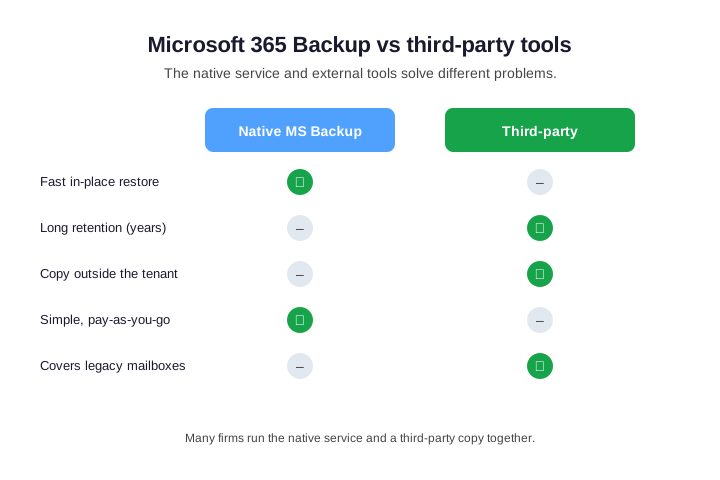
The table makes the trade-off concrete. Read it against your own recovery and compliance needs rather than a vendor pitch. For many regulated firms, the answer is the native service for speed plus a third-party copy for resilience.
Cost shapes the blend, too. Running both is not double-paying for the same thing, because each covers a gap the other leaves open. Still, you can be selective: protect everything with the fast native service, then send only your most sensitive or regulated data to the external copy. That keeps resilience high and spend sensible.
| Need | Native MS Backup | Third-party |
|---|---|---|
| Fast in-place restore | Yes | Sometimes |
| Copy outside the tenant | No | Yes |
| Multi-year retention | Limited | Yes |
| Simple pay-as-you-go | Yes | Varies |
| Air-gap from ransomware | Partial | Yes |
🔒 Backup and ransomware recovery
Ransomware is the reason backup stopped being optional. Modern attacks do not just encrypt files; they hunt for and delete the recovery points inside your tenant first. So the recycle bin and retention you were relying on can be gone before you even notice the attack.
This is exactly where an isolated copy earns its keep. Because a third-party backup sits outside the tenant, an attacker who owns your Microsoft 365 still cannot reach it. Meanwhile the native service speeds the actual restore once you are ready to recover. Together, they cover both halves of the problem: a clean copy to restore from, and a fast way to put it back.
Plan the recovery, not just the backup. Decide in advance how quickly each workload must come back and who is allowed to run a restore. Then rehearse it. A ransomware event is the worst possible moment to discover that nobody has ever tested a full restore.
| Ransomware need | What covers it |
|---|---|
| A copy attackers cannot reach | Third-party, off-tenant backup |
| Fast bulk restore | Native Microsoft 365 Backup |
| Proof it works | A rehearsed test restore |
Immutability is the detail to ask about. The strongest backups keep copies that cannot be altered or deleted for a set period, even by an admin account. So when you evaluate any tool, ask whether its copies are immutable and how long that lock lasts. That single feature is often what separates a backup that survives an attack from one that does not.
🧭 How to choose your Microsoft 365 backup
Start from your recovery and compliance needs, not from a product. Ask two questions: how fast must you restore, and how long must you keep data in a separate copy? Your answers point cleanly to the native service, a third-party tool, or a combination of both.
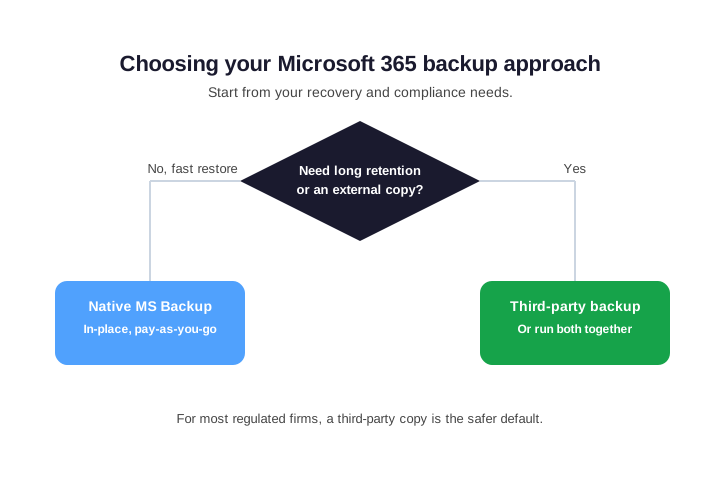
If you only need fast in-place recovery, the native service is enough. However, if you need long retention or an isolated copy for compliance, add a third-party tool. For most regulated businesses, running both is the safest default, and the decision tree above keeps the call quick.
Whatever you pick, write the decision down. Note which workloads are protected, by which tool, with what retention, and who can restore. So a new admin inherits a clear plan rather than a guess. Moreover, that short record is exactly what an auditor or an insurer will ask to see.
🔧 Native safety nets you can set today
Even before you choose a backup, you can tighten the native nets with a few commands. They are not a Microsoft 365 backup, but they buy time and reduce risk. Start by checking which mailboxes already have a retention safety net in place.
# See which mailboxes have a retention safety net (Exchange Online PowerShell)
Connect-ExchangeOnline
Get-Mailbox -ResultSize Unlimited |
  Select-Object DisplayName, LitigationHoldEnabled, RetainDeletedItemsFor
Where a key mailbox has no hold, you can enable one to preserve its contents for years. Again, this is a preservation net rather than a true backup, but it stops a deletion from becoming permanent while you put real protection in place.
# Enable a 7-year litigation hold on a mailbox
Set-Mailbox -Identity user@contoso.com -LitigationHoldEnabled $true -LitigationHoldDuration 2555
Do the same review on the SharePoint side, where deleted sites and personal files also have their own retention timers. Knowing those windows tells you how long you really have to recover something before it is gone for good. So note the numbers now, while everything is calm, rather than scrambling to find them in the middle of an incident.
# Check SharePoint and OneDrive deleted-site retention (SharePoint PowerShell)
Connect-SPOService -Url https://contoso-admin.sharepoint.com
Get-SPOTenant |
  Select-Object DeletedUserPersonalSiteRetentionPeriod, OrphanedPersonalSitesRetentionPeriod
Treat these commands as a quarterly baseline, not a one-off. They tell you how long the native nets actually hold data, which is the number that matters in an incident. So even before a backup tool is in place, you know your real recovery window rather than guessing at it under pressure.
✅ Backup best practices that actually work
A good backup is a habit, not a purchase. The classic 3-2-1 rule still applies: keep three copies of data, on two types of media, with one copy off the platform. For Microsoft 365, that off-platform copy is exactly what a third-party tool provides on top of native retention.
In our experience, the backup nobody tests is the backup that fails. We see tenants paying for a tool for years that has never completed a real restore. So we run a scheduled test restore every quarter on each workload. That single habit turns a backup from a line item into something you can actually rely on the day it matters.
A few other habits pay off. Set retention windows to match your compliance rules, not a default. Protect all four workloads, including Teams. And document who can restore what, so a real incident is not the first time anyone tries. The table turns these into a short routine.
| Practice | Why it matters |
|---|---|
| Follow 3-2-1 | Survives tenant-wide failure |
| Test restores quarterly | Proves the backup actually works |
| Cover all four workloads | Closes the Teams gap |
| Match retention to policy | Meets compliance, avoids waste |
Automation makes the habits stick. Schedule the test restore, alert on any backup that fails, and review coverage when you onboard a new workload. Because the routine runs whether or not anyone remembers, the protection does not quietly decay. That reliability is the difference between a backup on paper and one you can trust.
💰 What backup costs, and how to frame it
Cost depends on the route. The native Microsoft 365 Backup service is pay-as-you-go, billed by the volume of data you protect, so the price scales with your tenant. Third-party tools usually charge per user per month, which makes budgeting predictable but adds a separate subscription.
Read the cost against the alternative, not in isolation. A single ransomware incident or a lost executive mailbox dwarfs a year of backup fees. So frame a Microsoft 365 backup as insurance against a known, expensive risk rather than as another line on the bill. That framing makes the spend easy to justify.
Watch the hidden costs as well. With the native service, the pay-as-you-go meter rises with the data you protect, so scope it deliberately, and check whether third-party tools add restore or egress fees. Bundling can also change the maths: some plans you already own include adjacent protection, and a managed provider often folds backup into a predictable per-user fee. Either way, compare the all-in cost rather than the sticker price.
🚦 Common backup mistakes to avoid
A handful of assumptions cause most data loss. Believing Microsoft already backs you up is the first. Treating retention as a backup is the second. Forgetting Teams is the third. And never testing a restore is the quiet one that turns a minor incident into a disaster.
| Mistake | The fix |
|---|---|
| Assuming Microsoft backs you up | Own the data side yourself |
| Retention treated as backup | Add a separate, restorable copy |
| Teams data left out | Scope all four workloads |
| Never testing restores | Schedule a quarterly test |
Each fix is small on its own. Together, however, they move you from hoping your data is safe to knowing it is. That shift is the whole point of taking backup seriously.
The cheapest mistake to fix is the first one: the assumption. So if you take one thing from this guide, let it be that Microsoft 365 backup is your responsibility, not a default. Once a team internalises that, the rest of the plan tends to fall into place quickly.
🤝 How Wintive handles Microsoft 365 backup
We treat backup as part of a healthy tenant, not an afterthought. First, we confirm what native retention already covers, then we layer the right Microsoft 365 backup on top — the native service for speed, a third-party copy where compliance demands it. The aim is recovery you can prove, not just a tool you pay for.
| What we do | Why it matters |
|---|---|
| Map native retention | Shows the real starting gaps |
| Layer the right backup | Matches cost to actual risk |
| Cover all four workloads | No silent Teams gap |
| Quarterly test restore | Proves recovery works |
After that, a short quarterly review keeps it honest: what is protected, how long it is kept, and whether a restore still works. If you would rather not run that yourself, it is exactly the kind of steady, governed work a managed partner takes off your plate.
Either way, the destination is the same: data you can restore, on a timeline you have agreed, proven by a test that actually runs. So aim for that, whether you build it in-house or hand it over. A Microsoft 365 backup is only as good as the restore behind it, and the restore is what we make sure works.
📚 More for IT admins
🔍 Not sure what is actually protected in your tenant?
The M365 Instant Audit scans your environment in under 10 minutes. It checks retention, backup posture, license waste, MFA coverage and compliance gaps. As a result, you get a full PDF report with prioritized fixes, delivered instantly.
❓ Microsoft 365 backup: Frequently Asked Questions
No. Under the shared responsibility model, Microsoft keeps the service running and holds deleted items for a short window, but it does not take a restorable backup of your data. Protecting and recovering your emails and files is your responsibility, through native retention plus a real backup.
No. Retention policies, recycle bins and litigation hold are useful safety nets, but they live inside the same tenant they protect and expire on a timer. A real Microsoft 365 backup is a separate, restorable copy that survives a tenant-wide problem such as ransomware.
Four workloads: Exchange mailboxes, SharePoint sites, OneDrive files and Teams. Teams is the one most often missed, because its data spans SharePoint, Exchange and chat. A complete backup confirms Teams is included rather than assumed.
The native Microsoft 365 Backup service is fast and simple but keeps the copy inside Microsoft. Third-party tools store an isolated copy outside the tenant with long retention. Many regulated firms run both: the native service for speed and a third-party copy for resilience.
The native service is pay-as-you-go by the volume you protect, while third-party tools usually charge per user per month. Either way, the cost is small next to a single ransomware incident or a lost mailbox, so it is best framed as insurance.