

If your Exchange Online scripts still lean on Get-Mailbox, they are slower than they need to be. Get-ExoMailbox is the REST-based cmdlet Microsoft built to replace it. On any tenant with more than a handful of mailboxes, the difference is dramatic. This guide is the practical, no-fluff version. You will learn what the cmdlet does, why it is faster, and how to migrate your scripts safely.
We run Microsoft 365 for small businesses, so we write these scripts every week. That means you get the real working patterns and the gotchas that waste an afternoon. You also get honest guidance on the rare cases where the old cmdlet still wins. No theory for its own sake, just the patterns we ship. By the end you can rewrite a slow report to run three times faster, then forget about it.
One idea frames everything that follows. The old cmdlet talks to Exchange over a heavy, session-based channel. The new one uses a lean REST API and fetches only what you ask for. So the speed is not magic, it is architecture. Once that clicks, every best practice in this guide makes immediate sense.
🛡️ Free: M365 Audit Checklist
19-page PDF with 50 hands-on checks covering Entra ID, Exchange Online, SharePoint, Teams, Intune, license waste, and audit logging. PowerShell commands included. Built from 60+ real tenant audits at Wintive.
🧭 Get-ExoMailbox: what it is and why it replaces Get-Mailbox
Get-ExoMailbox is the REST-based cmdlet in the ExchangeOnlineManagement module that reads mailbox information from Exchange Online. It replaces the older Get-Mailbox for cloud work. It is roughly three times faster on large sets, returns only the 15 core properties by default, and lets you request more on demand. Use it for any script that touches more than a few mailboxes. Keep Get-Mailbox only for on-premises Exchange, where the REST cmdlets do not exist.
Here is the short history, because it explains the design. The classic Exchange cmdlets ran over Remote PowerShell. That session protocol was never built for pulling thousands of objects. So Microsoft shipped a parallel family of REST-backed cmdlets, all prefixed Exo. Get-ExoMailbox is the one you will reach for most. It is not a wrapper around the old command; it is a leaner path to the same data.
The practical upshot is simple. For a single mailbox lookup you would barely notice the difference. For a tenant-wide report, though, the old cmdlet crawls while the new one sprints. So our rule of thumb is blunt: if a script loops over the whole organisation, it should call Get-ExoMailbox.
It also helps to know that Get-ExoMailbox has siblings. The same REST family includes Get-ExoMailboxStatistics, Get-ExoCASMailbox, and Get-ExoRecipient. Each mirrors an older Get-* command. So once you learn the pattern here, the rest of the family behaves the same way: a trimmed default set, on-demand properties, and REST underneath. That consistency is why it is worth an afternoon to learn properly.
📊 The performance gap: REST versus RPS
The reason to switch is speed, and the gap is not subtle. The old cmdlet fetches every property of every object over a chatty session. So its time grows fast as the mailbox count climbs. Get-ExoMailbox pages results over REST and skips the properties you did not request. That is why it stays lean even at scale.
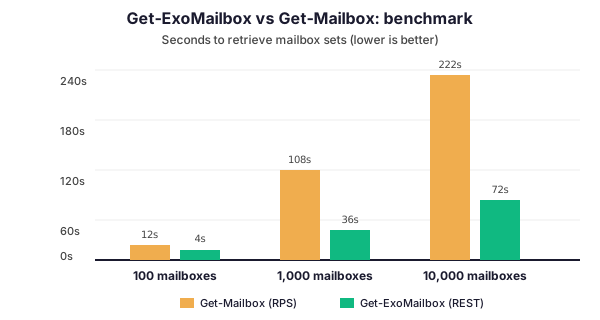
Read the chart as a trend, not a promise; exact times depend on your tenant and network. But the shape holds everywhere we have measured it. At a hundred mailboxes the old way takes about twelve seconds, the new way about four. At ten thousand, the old cmdlet drags past three and a half minutes. Get-ExoMailbox finishes the same job in just over one. So the bigger the job, the more the REST path pays off.
There is a second, quieter win. The old session protocol is prone to timeouts and throttling on long runs, which is why so many overnight reports fail halfway. Because Get-ExoMailbox is REST-based and pages cleanly, those long jobs simply finish more reliably. So you gain speed and stability in the same move.
Translate those seconds into your real workflow and the case closes itself. Think of a licensing review, a litigation-hold audit before a deadline, or a nightly export feeding a dashboard. Each one lives or dies by how long the pull takes. When the old cmdlet pushes a job past its maintenance window, it fails silently. Then someone wastes a morning re-running it. So the speed of Get-ExoMailbox is not a vanity metric. It is the difference between automation you can schedule and a chore you babysit.
🛠️ How to run Get-ExoMailbox, step by step
Everything starts with the ExchangeOnlineManagement module, version 3 or later. You install it once, connect with your admin account, and the Exo cmdlets become available in that session. If you have ever connected for a different reason, you already have the module; just make sure it is current.
# Connect once, then call Get-ExoMailbox (ExchangeOnlineManagement module)
Install-Module ExchangeOnlineManagement -Scope CurrentUser
Connect-ExchangeOnline -UserPrincipalName admin@contoso.com

# One mailbox, the fast way
Get-ExoMailbox -Identity john@contoso.com | Format-List DisplayName, PrimarySmtpAddress, RecipientTypeDetails
That is the whole pattern: connect, then call. The -Identity parameter accepts a UPN, an alias, or a display name. A bare call with no identity returns every mailbox in the tenant. So one line gets you a single mailbox, and dropping -Identity gets you all of them, paged automatically over REST.
One habit saves you grief later. Pipe the result into Format-List while you are exploring, so you see which properties came back. Get-ExoMailbox returns a trimmed default set. That quick look tells you at once whether you need to ask for more, which is the next section.
A word on -ResultSize, because it surprises people. Without it, an unqualified call returns at most a thousand objects. On a larger tenant you would quietly report on a subset and never know. Pass -ResultSize Unlimited whenever you want the whole organisation. So make that flag a reflex on any tenant-wide call. It is the most common cause of a report that looks complete but is not.
🗂️ Property sets: the parameter that trips everyone up
This is the single biggest difference from the old cmdlet, and the cause of most confusion. Get-Mailbox returned every property whether you wanted it or not. Get-ExoMailbox returns only fifteen core properties by default, because fetching everything is exactly what made the old way slow. So if a property you expected is missing, that is by design, not a bug.
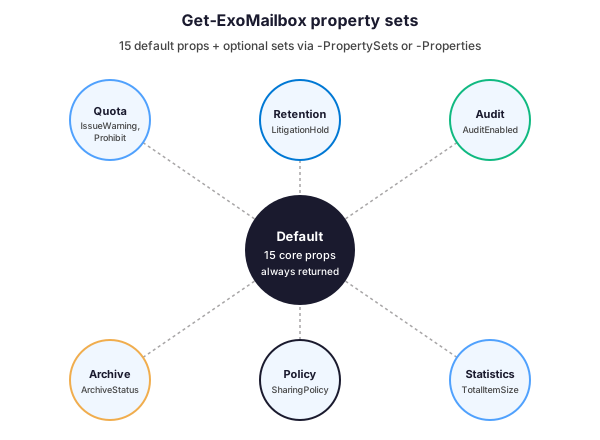
You have two ways to ask for more, shown in the chart above. A named set, requested with -PropertySets, loads a whole themed group at once. Quota, Archive, and Retention are examples. Or you can name individual properties with -Properties. That is the leanest option, because you fetch only what you truly need.
# Get-ExoMailbox returns 15 core properties by default. Ask for more, explicitly.
# A named property set (loads a whole group at once):
Get-ExoMailbox -ResultSize Unlimited -PropertySets Quota, Archive

# Or just the individual properties you actually need (leanest, fastest):
Get-ExoMailbox -ResultSize Unlimited -Properties LitigationHoldEnabled, ArchiveStatus |
  Select DisplayName, LitigationHoldEnabled, ArchiveStatus
Our advice is to prefer -Properties for production scripts and keep -PropertySets for quick interactive exploration. Because naming exact properties keeps each call as small as possible, your reports stay fast even as the tenant grows. So treat the default fifteen as a starting point and add precisely what the script consumes, nothing more.
🔀 When Get-ExoMailbox wins, and when Get-Mailbox still does
The new cmdlet is the default for cloud work, but it is not the answer to every question. The decision flow below captures the three situations that actually matter, so you can choose without second-guessing.
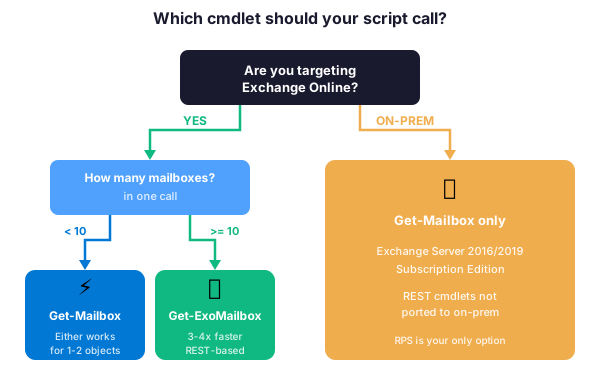
Follow the branches and the rule is clear. If you target Exchange Online and touch ten or more objects, Get-ExoMailbox is the obvious winner on speed. For one or two objects either cmdlet is fine, so use whichever your muscle memory prefers. The only hard exception is on-premises Exchange, where the Exo cmdlets simply do not exist.
That on-premises point is worth underlining, because it confuses people who run hybrid setups. Exchange Server 2016, 2019, and the Subscription Edition never received the REST cmdlets, so against those servers Get-Mailbox is your only option. So a script that has to work in both worlds needs a check at the top to call the right cmdlet for the right target.
In practice that check is one line. After connecting, test whether the Get-ExoMailbox command exists, then branch on the result. The same script then runs cloud-fast online and falls back to Get-Mailbox on-premises. Because the cmdlet name is the signal, you never hard-code which environment you are in. So one portable script serves a hybrid estate cleanly. That beats maintaining two copies that quietly drift apart.
🔁 Migrating your scripts from Get-Mailbox
Modernising an old script is mostly mechanical once you know the pattern. You swap the cmdlet name, add the properties the script reads, and move any client-side filtering into -Filter. The table below maps the common patterns so you can work through a script line by line.
| Old Get-Mailbox pattern | Get-ExoMailbox equivalent | What changes |
|---|---|---|
| Get-Mailbox -Identity user | Get-ExoMailbox -Identity user | REST transport, far faster |
| Get-Mailbox (all props returned) | Get-ExoMailbox -Properties X, Y | You name the properties you need |
| Get-Mailbox | Where { … } | Get-ExoMailbox -Filter “…” | Filtering moves to the server |
| Get-Mailbox -ResultSize Unlimited | Get-ExoMailbox -ResultSize Unlimited | Same flag, paged over REST |
| Get-CASMailbox / Get-MailboxStatistics | Get-ExoCASMailbox / Get-ExoMailboxStatistics | Matching Exo* cmdlets exist |
The one step people skip is the properties audit, and it bites them. Before you change anything, list every property the old script reads downstream. Then pass exactly those to -Properties. Because the default set is trimmed, a forgotten property does not crash the script. It surfaces as an empty column or a quiet error, which is harder to spot in testing.
# BEFORE (slow, RPS-based): pulls every property for every mailbox
Get-Mailbox -ResultSize Unlimited | Select DisplayName, LitigationHoldEnabled

# AFTER (Get-ExoMailbox: REST-based, asks only for what it needs)
Get-ExoMailbox -ResultSize Unlimited -Properties LitigationHoldEnabled |
  Select DisplayName, LitigationHoldEnabled
Test the rewrite against a slice of the tenant first. Run both versions and compare the output side by side. Only then point the scheduled job at the new code. So the migration carries almost no risk. The payoff is a report that finishes in a third of the time.
🔎 Filter on the server, not on your laptop
The fastest Get-ExoMailbox call is the one that asks Exchange Online to do the filtering. Pipe every mailbox into a Where-Object on your machine, and you pull the whole tenant across the wire first. That throws away much of the speed advantage. The -Filter parameter pushes the condition up to the server instead.
# Filter server-side so Exchange Online does the work, not your laptop
Get-ExoMailbox -Filter "RecipientTypeDetails -eq 'UserMailbox'" -ResultSize Unlimited |
  Where-Object { $_.ArchiveStatus -eq 'Active' } |
  Select DisplayName, PrimarySmtpAddress
Use server-side -Filter for anything the API supports, such as recipient type. Reserve client-side Where-Object for the few attributes -Filter cannot reach. Because the server returns a smaller set, every later step in your script runs faster too. So filtering placement, not just the cmdlet name, separates a quick report from a slow one.
A small caveat keeps you out of trouble. The -Filter syntax is OPATH, not the PowerShell comparison you use in Where-Object. You wrap the expression in quotes and use operators like -eq and -like inside it. Not every property is filterable server-side, and the official reference marks which ones are. So when a filter errors, check the operator and the property first. Nine times out of ten it is a syntax slip, not a limitation.
A quick habit makes filters painless. Build the expression in a variable first, then print it to confirm the quoting is right. Test it on one mailbox before you run it tenant-wide. That way a typo costs a second, not a failed overnight job. Small checks like this are what keep a Get-ExoMailbox script boring and reliable.
⚠️ Common Get-ExoMailbox errors and quick fixes
Most of the trouble people hit with the cmdlet comes down to five recurring symptoms. None of them is mysterious once you know the cause, so this short table is the one to bookmark for the next time a script misbehaves.
| Symptom | Likely cause | Fix |
|---|---|---|
| Get-ExoMailbox returns nothing | Connected to the wrong tenant or no permission | Re-run Connect-ExchangeOnline as an admin role |
| “A property could not be found” | That property is not in the default set | Add it with -Properties or a -PropertySets group |
| Command not recognised | Old or missing module | Update-Module ExchangeOnlineManagement (v3+) |
| Slower than expected | Client-side Where-Object on every object | Move the condition into -Filter instead |
| Different values than Get-Mailbox | Format or alias differences | Compare the same -Properties on both cmdlets |
The classic one is “Get-ExoMailbox returns nothing” when you know the mailbox exists. Nine times out of ten, you connected to the wrong tenant or without the right role. So the cmdlet is working and simply sees an empty result. Before you debug the logic, confirm the connection with a quick Get-ConnectionInformation.
Next comes “a property could not be found”, which is the property-set trap in disguise. Your script asks for a value, such as a retention or archive attribute, that is not in the default fifteen. So PowerShell genuinely cannot see it. The fix is never to abandon Get-ExoMailbox. Just add the property to your -Properties list or pull its named set. Treat that error as a reminder, not a roadblock.
✅ Get-ExoMailbox best practices for clean scripts
A few habits keep your scripts fast, readable, and safe to schedule. None costs anything, and together they are the difference between a report you trust and one you babysit.
- Name exact properties with -Properties; avoid pulling sets you do not use.
- Push every supported condition into -Filter, not a client-side Where-Object.
- Always pass -ResultSize Unlimited for tenant-wide reports, or you cap at 1,000.
- Connect once per session; do not call Connect-ExchangeOnline inside a loop.
- Disconnect at the end of scheduled jobs to free the session cleanly.
One subtle habit deserves its own mention: let Get-ExoMailbox do the paging. It is tempting to write your own batching loop. But the cmdlet already streams results over REST in efficient pages. A hand-rolled loop usually just adds overhead and reconnect risk. So pass -ResultSize Unlimited, pipe the output into your processing, and trust the transport.
These habits compound. Because each call stays small and the connection stays stable, an overnight report that once failed on throttling now finishes quietly. So adopt them as defaults in your script template, and every future script inherits the speed for free.
Wrap a scheduled job in a little error handling while you are at it. A try/catch around the connect and the main call lets the script log a clean message and exit. Without it, a hiccup can leave a half-open session behind. Get-ExoMailbox is reliable, but the network is not. So spend your robustness budget on the connection around the cmdlet, not the cmdlet itself.
🪤 Mistakes that quietly slow your scripts down
Some habits look harmless but cost you the whole performance gain. They are easy to miss because the script still works, just slowly, so learn to spot them now.
- Calling Get-ExoMailbox with no -Properties, then wondering where a value went.
- Filtering with Where-Object after pulling the entire tenant first.
- Forgetting -ResultSize Unlimited and silently reporting on only 1,000 mailboxes.
- Running it against on-premises Exchange, where the cmdlet does not exist.
- Reconnecting on every iteration of a loop, which adds seconds each time.
The thread running through all five is the same. Each one quietly forfeits the speed that made you switch. None throws a loud error, so the script keeps running and nobody questions it. That is precisely why these habits survive for years. So the fix is cultural as much as technical: treat a slow Exchange report as a bug to investigate, not a fact of life. Do that, and you will catch every one of these the first time it appears.
Wintive insight. The most common thing we fix in client scripts is not a bug, it is a missing -Filter. A reporting job pulls all 4,000 mailboxes, then a Where-Object keeps 30 of them, and the owner blames the cmdlet for being slow. As a result, we rewrite the condition into -Filter, the run time drops from minutes to seconds, and Get-ExoMailbox gets the credit it deserved all along. So before you tune anything else, check where the filtering happens.
📘 Get-ExoMailbox in one page
Pull it together into a routine you can apply to any script today. None of it is hard once the architecture clicks into place. The list below is the whole method on one screen. Keep it next to your editor and run each new script through it.
- Use Get-ExoMailbox for all Exchange Online work; Get-Mailbox only on-premises.
- Expect 15 default properties; request more with -Properties or -PropertySets.
- Filter server-side and pass -ResultSize Unlimited for full reports.
- Migrate old scripts by mapping cmdlets, auditing properties, and testing on a slice.
If you adopt only one change from this guide, make it the cmdlet swap. Everything else builds on it. The properties discipline and the server-side filter are refinements that take a fast call and make it faster. But the leap from RPS to REST is where the real time is won. So switch first, measure the difference, then layer the rest in.
Get-ExoMailbox is one piece of a tidy Exchange Online toolkit. If you are sharpening the wider setup, three Wintive guides cover the neighbouring ground: connecting to Exchange Online PowerShell, Exchange Online Plan 1 vs Plan 2, and recalling a message in Outlook. Microsoft also publishes the full parameter reference in its official Get-EXOMailbox documentation, the canonical source for every property set.
📚 More for Microsoft 365 admins
These published Wintive guides go deeper on the mailbox, licensing, and PowerShell side. Each one tackles a single area in plain terms, so you skip the dry docs and get to the working answer faster. Therefore bookmark whichever fit your setup and return when the question lands. Together they form the toolkit we lean on for day-to-day Exchange Online administration, and Get-ExoMailbox sits right at the centre of it.
🔍 Want a complete audit of your Microsoft 365 tenant?
The M365 Instant Audit scans your environment in under 10 minutes: license waste, security posture, MFA coverage, compliance gaps, and rightsizing. A full PDF report with prioritized fixes arrives instantly.
❓ Frequently Asked Questions
Get-ExoMailbox is REST-based and built for Exchange Online. It is roughly three times faster on large sets and returns only 15 core properties by default. Get-Mailbox uses the older session protocol and returns every property.
Almost always because you connected to the wrong tenant or without an admin role. The cmdlet is working and simply sees an empty result. Re-run Connect-ExchangeOnline and check Get-ConnectionInformation.
It is not in the default 15. Request it explicitly with -Properties. Or load its whole group with a named -PropertySets value such as Quota or Archive.
No. The REST-based Exo cmdlets were never ported to Exchange Server 2016, 2019, or the Subscription Edition. Use Get-Mailbox there instead.
Name only the properties you need with -Properties. Push conditions into -Filter rather than Where-Object. And pass -ResultSize Unlimited so you are not paging needlessly.
The ExchangeOnlineManagement module, version 3 or later. Install it with Install-Module ExchangeOnlineManagement and connect with Connect-ExchangeOnline.
Yes. Connect with certificate-based app-only authentication instead of a user prompt. Register an app, grant it the Exchange.ManageAsApp role, and Connect-ExchangeOnline accepts the certificate. The Get-ExoMailbox call itself does not change.
🚀 Your next step
Open your slowest Exchange Online report and swap Get-Mailbox for Get-ExoMailbox today. That one change usually pays for itself the first time the job runs. Then add a -Properties list and a -Filter, and watch a multi-minute report finish in seconds. When you want your whole Microsoft 365 setup tightened, not just the scripts, we are happy to help.
If you remember only three things, make them these. First, Get-ExoMailbox is the default for all cloud work and is far faster at scale. Second, it returns fifteen properties by default, so request the rest explicitly. Third, filter on the server with -Filter, never on your laptop. Follow that, and your Exchange scripts stop being the slow part of your week.