

Microsoft Defender for Office 365 is the difference between an email the filter quarantines and a wire-fraud that empties an account. It is the layer that checks links the moment someone clicks them, detonates attachments before they open, and blocks the impersonation emails that fool people. Yet most tenants either leave it half-configured or pay a third party for protection they already own.
This guide is the practical, buyer-and-admin view. Wintive runs Microsoft 365 for 60+ tenants, therefore we cover the questions people actually ask: what is in Plan 1 versus Plan 2, what it costs, what comes free with Business Premium, and exactly how to turn it on properly. Moreover, we answer the honest question of whether you still need Mimecast or Proofpoint, because for most small businesses you do not.
🛡️ Free: M365 Audit Checklist
19-page PDF with 50 hands-on checks across Entra ID, Exchange Online, SharePoint, Teams and Intune. Run it before you harden email, so you start from a clean tenant. PowerShell commands included. Built from 60+ real tenant audits at Wintive.
🛡️ What Microsoft Defender for Office 365 is
Quick answer. Microsoft Defender for Office 365 (MDO) is the advanced email and collaboration security that sits on top of Exchange Online Protection. It adds Safe Links, Safe Attachments and stronger anti-phishing, plus, in Plan 2, threat hunting and attack simulation. Plan 1 is included in Microsoft 365 Business Premium; Plan 2 comes with E5. For most SMBs, Plan 1 plus good configuration replaces a third-party email gateway.
Every Microsoft 365 tenant already has Exchange Online Protection, the baseline anti-spam and anti-malware filter. Therefore Defender for Office 365 is the upgrade that handles the modern threats EOP cannot: zero-day attachments, weaponised links and convincing impersonation. Consequently the question is never whether you have email security, but whether the advanced layer is switched on and tuned. That distinction drives this entire guide. Crucially, the licence audit and the short configuration session that follow cost far less than the breach a dormant MDO would let through.
This layered design is also why MDO is efficient to run. Specifically, because it lives inside Microsoft 365, there is no mail to reroute, no extra MX record, and no separate console to learn. Therefore protection improves without adding operational drag. As a result, a small team can run enterprise-grade email security without an enterprise-sized workload.
MDO sits on top of EOP
It helps to picture two layers. Specifically, Exchange Online Protection blocks the known and the obvious, while Microsoft Defender for Office 365 catches the targeted and the novel. Therefore they work together, not instead of each other. As a result, turning MDO on does not replace your existing filtering; it closes the gaps that filtering alone leaves open. In practice, the two layers report into the same Defender portal, so an admin manages both from one screen rather than juggling separate tools.
The threats it targets have shifted, which is the real reason it matters now. Specifically, attackers moved from noisy malware to quiet impersonation and link-based attacks that basic filters were never built to catch. Therefore the advanced layer is no longer optional for a business that handles money or data. As a result, switching Microsoft Defender for Office 365 on is one of the highest-impact security moves an SMB can make.
⚖️ Plan 1 versus Plan 2
The first real decision is which plan you need, and it is simpler than the marketing suggests. Plan 1 is prevention; Plan 2 adds detection, hunting and training. The comparison below shows exactly where the line falls, so you buy the protection you need and not the tier you do not.
Keep one rule in mind as you read the comparison. Specifically, everything that blocks an attack sits in Plan 1, and everything that investigates or trains sits in Plan 2. Therefore the split is prevention versus response, not basic versus good. As a result, no business is left unprotected by choosing Plan 1; it simply hunts and trains less.
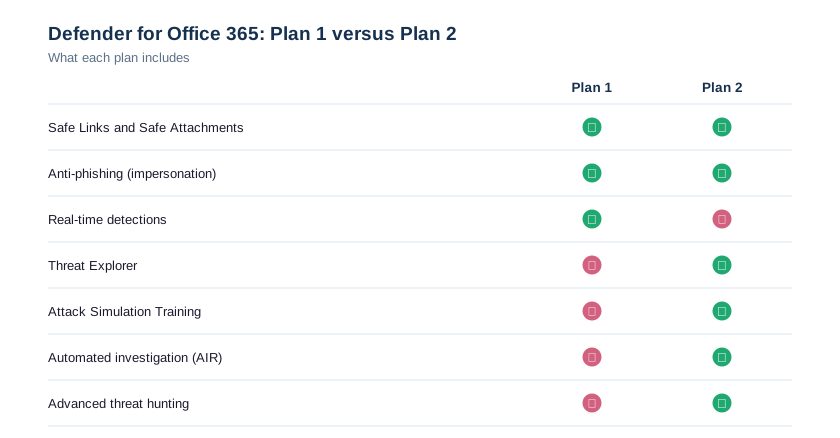
The naming has changed over the years, which causes confusion when buying. Notably, what used to be called Advanced Threat Protection is now Microsoft Defender for Office 365, and the two plans replaced the old single SKU. Therefore older guides and quotes may use outdated names. As a result, we always map a quote back to the current Plan 1 or Plan 2 before anyone signs.
Plan 1 is prevention
Plan 1 delivers the controls that stop most attacks at the door: Safe Links, Safe Attachments and impersonation-aware anti-phishing. Therefore for a typical small business, Plan 1 plus careful configuration blocks the threats that actually land. As a result, most SMBs get the protection they need from Plan 1 alone, which is why it ships in Business Premium.
We see the cost of getting this wrong in both directions. Specifically, some tenants overspend on Plan 2 they never use, while others assume Plan 1 is weak and bolt on a third party. Therefore matching the plan to the actual need saves real money. As a result, the right-sizing conversation usually pays for the whole engagement on its own.
Plan 2 adds hunting and training
Plan 2 layers on Threat Explorer, automated investigation and Attack Simulation Training. Specifically, it is for teams that want to hunt threats and train users, not just block mail. Therefore Plan 2 suits larger or higher-risk organisations, and it comes bundled in E5, as covered in our E5 Security guide. As a result, the upgrade is about visibility and response, not basic protection.
There is a simple test for which plan a business needs. Specifically, if the goal is to stop attacks, Plan 1 is enough; if the goal also includes hunting threats and training users, Plan 2 earns its place. Therefore the decision follows the security maturity of the team, not just the headcount. As a result, most SMBs land on Plan 1 and grow into Plan 2 only if they build a security function.
💰 Pricing and what comes with Business Premium
The data-driven reality is that most people searching for this are really asking what it costs and what they already own. The table below lays out the plans, their typical price, and where each one ships, so you can stop paying twice for protection. So before buying anything, check what your existing licence already includes.
| Plan | Typical price (per user/mo) | Bundled in |
|---|---|---|
| MDO Plan 1 | About $2 | Business Premium |
| MDO Plan 2 | About $5 | Microsoft 365 E5 |
| EOP only | Included | All M365 plans |
| Third-party gateway | $3 to $6+ | Extra, on top |
The single most common waste we find is a Business Premium tenant paying for a third-party email gateway it does not need. Therefore the first move is almost always to switch on the Plan 1 you already own, not to buy more. Business Premium is the value sweet spot here, as we explain in our Business Premium guide. As a result, many clients cancel a per-user gateway and improve protection at the same time.
🛡️ The core features that stop attacks
Three features do the heavy lifting, and knowing what each one stops makes configuration obvious. Safe Links rewrites and checks URLs at click time, Safe Attachments detonates files in a sandbox, and anti-phishing models impersonation. The matrix below maps each to the threat it kills and the plan it needs.
Each feature targets a distinct stage of an attack, which is why they work as a set. Specifically, anti-phishing screens the sender, Safe Attachments screens the payload, and Safe Links screens the destination, so a message is checked from three angles. Therefore an attacker has to beat all three, not one. As a result, the combined coverage is far stronger than any single filter.
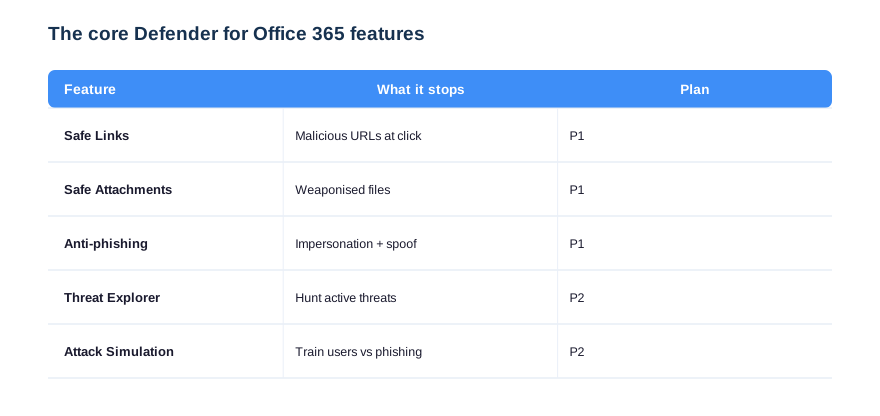
Reading the chart, notice that the prevention features all sit in Plan 1. Therefore the protection that actually blocks attacks is available to every Business Premium tenant, with no upgrade required. As a result, the common belief that you need the expensive plan to be safe is simply wrong; you need the included one configured well.
Safe Links and Safe Attachments
These two are the reason MDO beats basic filtering. Specifically, Safe Links re-checks a URL at the moment someone clicks, so a link that was clean on delivery is still caught if it turns malicious later, and Safe Attachments opens files in isolation before the user ever does. Therefore MDO covers time-of-click and time-of-open threats, not just time-of-delivery. As a result, MDO stops the attacks that slip past static filters anyway.
These features also explain why MDO catches what ordinary filters miss. Specifically, a basic filter judges a message once, on arrival, while Safe Links re-checks at click and Safe Attachments detonates on open. Therefore the protection follows the user through the moment of risk, not just the moment of delivery. As a result, MDO still stops the slow, patient attacks that beat static filtering.
Anti-phishing and impersonation
Phishing is now impersonation, not bad spelling. Specifically, MDO anti-phishing learns who your executives and domains are, then flags mail that pretends to be them. Therefore MDO catches a fake CEO wire request even though it carries no malware. As a result, the highest-cost attack on a small business, business email compromise, gets a dedicated defence.
Anti-phishing is also where we tune impersonation protection for the names attackers actually spoof. Therefore we add the executives and the company domains to the policy, so MDO flags a fake from the CEO on sight. The policy below creates an anti-phishing rule with mailbox intelligence on.
# Create an anti-phishing policy with impersonation protection
New-AntiPhishPolicy -Name "Wintive-AntiPhish" -EnableMailboxIntelligence $true `
    -EnableMailboxIntelligenceProtection $true -EnableSpoofIntelligence $true
New-AntiPhishRule -Name "Wintive-AntiPhish" `
    -AntiPhishPolicy "Wintive-AntiPhish" -RecipientDomainIs "contoso.com"
⚙️ How to configure it with preset policies
The fastest, safest way to turn on Microsoft Defender for Office 365 is the preset security policies, Standard and Strict, which apply Microsoft’s recommended settings for you. Therefore you avoid hand-building dozens of rules and getting them subtly wrong. Microsoft documents the controls in its MDO overview, and the five steps below are the rollout we run.
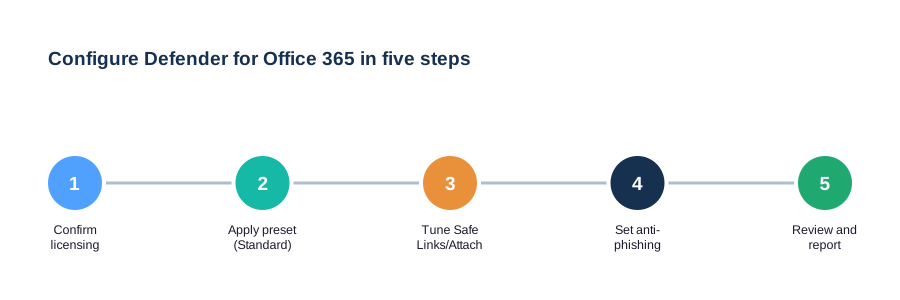
We apply Standard to everyone and Strict to the high-risk users, then layer specific tweaks only where needed. Therefore protection is consistent and maintainable, rather than a pile of one-off rules nobody understands. The PowerShell below creates a Safe Links policy and assigns it, for the cases where a preset is not enough.
# Create and assign a Safe Links policy (Exchange Online PowerShell)
New-SafeLinksPolicy -Name "Wintive-SafeLinks" -EnableSafeLinksForEmail $true `
    -EnableSafeLinksForTeams $true -ScanUrls $true -DeliverMessageAfterScan $true
New-SafeLinksRule -Name "Wintive-SafeLinks" -SafeLinksPolicy "Wintive-SafeLinks" `
    -RecipientDomainIs "contoso.com"
Add Safe Attachments in Dynamic Delivery
Safe Attachments has a mode that removes the usual downside of scanning delay. Specifically, Dynamic Delivery sends the email body immediately and releases the attachment once it clears the sandbox, so users keep working without waiting. Therefore you get security and speed together. The policy below turns it on.
# Create a Safe Attachments policy with Dynamic Delivery
New-SafeAttachmentPolicy -Name "Wintive-SafeAtt" -Enable $true -Action DynamicDelivery
New-SafeAttachmentRule -Name "Wintive-SafeAtt" `
    -SafeAttachmentPolicy "Wintive-SafeAtt" -RecipientDomainIs "contoso.com"
🔎 Threat Explorer, simulation and response
Plan 2 is where Microsoft Defender for Office 365 stops being only a filter and becomes a security tool. Threat Explorer shows what is hitting the tenant in real time, Attack Simulation Training phishes your own users safely, and automated investigation and response cleans up incidents without manual digging. So Plan 2 buys visibility and reaction, not just prevention.
💡 Wintive insight
Most Business Premium tenants we audit pay for a third-party email gateway while their included Microsoft Defender for Office 365 sits switched off or on defaults. Therefore we enable the preset policies first, measure for a month, and the gateway almost always proves redundant. As a result, clients routinely cancel a per-user subscription AND get better protection, because MDO is woven into the same platform as their mail.
Threat Explorer changes how an incident feels. Specifically, instead of guessing what got through, an admin can search every message by sender, URL or file and see exactly what landed and where. Therefore investigation drops from hours to minutes. As a result, a suspected phishing wave becomes a quick, answerable query rather than a frantic manual hunt.
Train users, do not just block
Technology stops most phishing, but people stop the rest. Specifically, Attack Simulation Training sends realistic fake phishing and coaches whoever clicks, turning the riskiest users into the most aware. Therefore the human layer improves measurably over time. As a result, the same budget protects against the attacks that target judgement, not just inboxes.
Automated investigation and response is the quiet workhorse of Plan 2. Specifically, when an alert fires, it can trace the blast radius, find every copy of a malicious mail, and remediate them without an admin clicking through each one. Therefore the response scales even on a small team. As a result, MDO contains an incident that would otherwise swamp one admin.
📊 Defender for Office 365 versus a third-party gateway
The question the data shows people asking is whether MDO replaces Mimecast or Proofpoint. For most small and mid-sized businesses, the honest answer is yes. The chart shows how much of a typical SMB email-security need the native service covers, and the gaps are small. So the burden of proof should sit on the extra product, not on the native one.
The data behind this verdict is worth stating plainly. Specifically, searches comparing the native service to Mimecast and Proofpoint are common, yet the native coverage now meets nearly every SMB need, as the chart shows. Therefore the comparison usually ends in favour of what is already bundled. As a result, the honest recommendation for most small businesses is to configure what they own before buying anything extra.
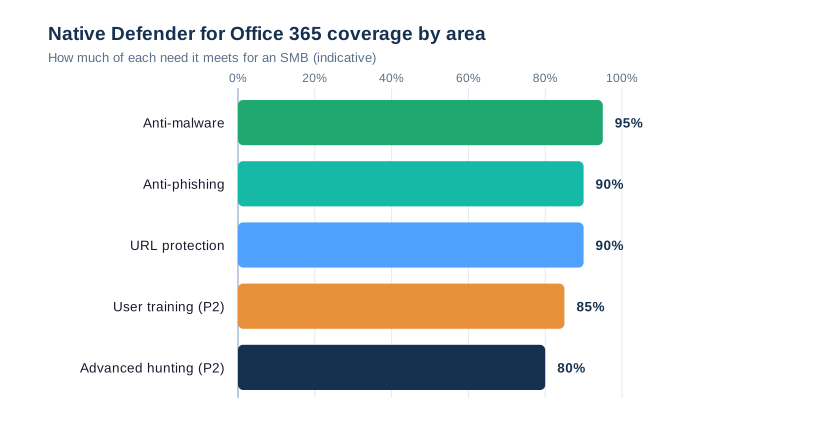
The chart makes the verdict concrete. Specifically, native Microsoft Defender for Office 365 covers the large majority of every core email-security need, and the remaining slivers rarely justify a second product for an SMB. Therefore the default should be native-first. As a result, the money a gateway would cost is better spent on configuration, training and the wider security baseline.
Switching costs also favour staying native. Specifically, a third-party gateway means changing MX records, training staff on a second console, and adding a vendor to every security review, none of which native MDO requires. Therefore the true cost of a gateway is more than its licence. As a result, the bar to justify one over Microsoft Defender for Office 365 is higher than the sticker price suggests.
When a third-party still helps
There are narrow cases where a gateway adds value. Notably, very large enterprises, heavily regulated mail archiving, or multi-platform estates with non-Microsoft mail can justify one. However, that is the exception for an SMB on Microsoft 365. As a result, we treat a third-party gateway as something to prove the need for, not a default purchase on top of Business Premium.
Integration is the deciding factor people overlook. Specifically, because MDO shares signals with Defender for Endpoint, Entra and the rest of Microsoft 365, a threat seen in mail informs the rest of the stack automatically. Therefore native protection gets context a bolt-on gateway never sees. As a result, the whole tenant defends as one system rather than a set of disconnected tools.
🔧 The Wintive Microsoft Defender for Office 365 baseline
After enough tenants, the right setup stops being a debate. So we apply the same Microsoft Defender for Office 365 baseline everywhere, then adapt per business. The card below is that baseline, and it is the configuration we hand every managed client.
We treat this baseline as a deployment standard, not a suggestion. Specifically, on every managed tenant we apply the Standard preset, harden the executives with Strict, and confirm Safe Links and Safe Attachments are live, so the protection is real rather than theoretical. Therefore we defend a new client in the first week. As a result, Microsoft Defender for Office 365 stops being a dormant licence and becomes the working core of their email security.
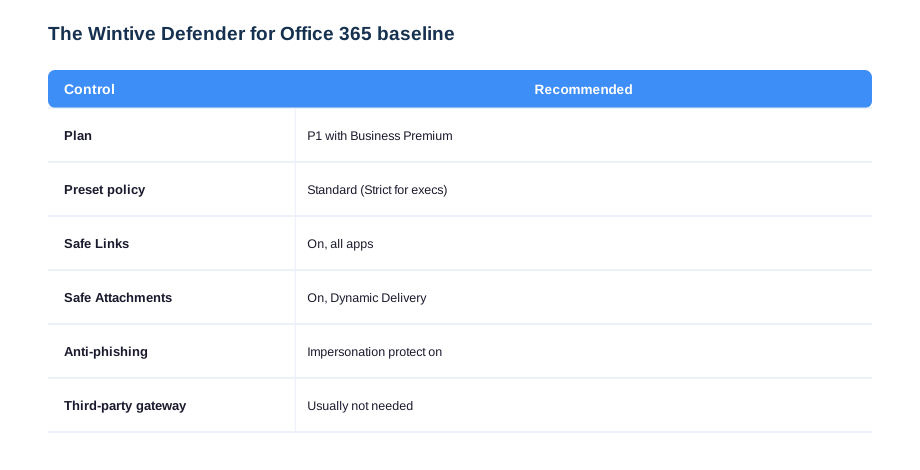
Two lines on this card capture most of the value. First, Plan 1 with the Standard preset policy gives strong, maintainable protection out of what Business Premium already includes. Second, Strict for executives hardens the people most targeted by impersonation. We tune the rest per tenant, but these defaults make email defensible on day one, and they pair with hardening Teams in our Teams security guide.
🚨 Common Microsoft Defender for Office 365 mistakes
These mistakes share one root: treating email security as a product to buy rather than a capability to configure. Specifically, the licence is already there in Business Premium, so setup unlocks the value rather than spend. Therefore an audit and a configuration session beat a new purchase almost every time. As a result, the fix is usually cheaper and more effective than the thing people reach for.
Paying twice for email security
The costliest mistake is buying a third-party gateway while MDO sits unused in Business Premium. Therefore audit what you own before you renew anything. As a result, most tenants find they are paying twice and can stop.
There is a measurement angle worth adding. Specifically, after enabling the preset policies we watch the reports for a month to confirm legitimate mail is not caught and real threats are. Therefore the rollout is evidence-based, not fire-and-forget. As a result, you tune Microsoft Defender for Office 365 to the business instead of trusting a default blindly.
Leaving it on defaults
The second mistake is assuming the licence is the protection. Specifically, MDO does little until the preset or custom policies are applied. Therefore enable Standard at minimum. As a result, the feature you pay for actually defends the inbox instead of sitting idle.
One more mistake deserves a mention: ignoring the reports. Specifically, MDO produces clear data on what it blocked and what users clicked, yet many tenants never look. Therefore they miss the early signal of a campaign aimed at their staff. As a result, we review the threat reports monthly and feed what we learn back into the policies, so the protection keeps pace with the attacks.
Protecting mail but not Teams
The third mistake is hardening email and forgetting collaboration. Consequently malicious links land in Teams chats instead. So extend Safe Links into Teams and harden the platform, as in our Teams security guide. As a result, the protection follows the conversation, not just the inbox.
Pulling it together, Microsoft Defender for Office 365 is advanced email security you most likely already own: Plan 1 ships in Business Premium, the preset policies turn it on safely, and for most SMBs it replaces a third-party gateway outright. Therefore the work is configuration and an honest licence audit, not a new subscription. As a result, you get stronger protection and a smaller bill at the same time, which is the rare combination that makes this one of the easiest security wins a small business can claim.
📚 More for Growing Businesses
🔍 Hardening email and want the tenant checked first?
The M365 Instant Audit scans your tenant in under 10 minutes: license waste, plan right-sizing, MFA coverage, security posture and compliance gaps. As a result, you get a full PDF report with prioritized fixes, delivered instantly.
❓ Microsoft Defender for Office 365: Frequently Asked Questions
It is the advanced email and collaboration security that sits on top of Exchange Online Protection in Microsoft 365. The service adds Safe Links, Safe Attachments and stronger anti-phishing, and in Plan 2, threat hunting and attack simulation. In short, it protects against zero-day attachments, malicious links and impersonation that basic filtering misses.
Plan 1 is prevention: Safe Links, Safe Attachments and anti-phishing. Plan 2 adds detection and response: Threat Explorer, automated investigation, and Attack Simulation Training. In licensing terms, Business Premium includes Plan 1 while E5 includes Plan 2. Most SMBs only need Plan 1.
Yes. Microsoft 365 Business Premium includes Defender for Office 365 Plan 1, so most small businesses already own the advanced email protection and only need to switch it on. Plan 2 is included with E5 or available as an add-on.
The fastest way is the preset security policies: apply Standard to all users and Strict to high-risk users, which sets Microsoft’s recommended Safe Links, Safe Attachments and anti-phishing settings. For specific needs, create custom Safe Links and Safe Attachments policies in the Defender portal or with PowerShell.
For most small and mid-sized businesses, no. A properly configured Defender for Office 365 covers the large majority of email-security needs and is already bundled in Business Premium. A third-party gateway mainly helps very large, heavily regulated, or multi-platform mail estates.