

SharePoint pages are how a modern intranet actually speaks: the home page everyone lands on, the policy nobody can claim they missed, the project hub that replaces a hundred emails. Yet most teams still build them like it is 2013, with clunky layouts and dead web parts. The result looks tired and performs worse.
This guide fixes that. Wintive runs Microsoft 365 for 60+ tenants, therefore we cover what the documentation skips: the page-type decision, the web parts that earn their place, templates, approval and scheduling, audience targeting, and how to govern SharePoint pages at scale with PowerShell. Moreover, every section answers a real question, so you can build a better page today.
🛡️ Free: M365 Audit Checklist
19-page PDF with 50 hands-on checks across Entra ID, Exchange Online, SharePoint, Teams and Intune. Run it before you rebuild the intranet, so you start from a clean tenant. PowerShell commands included. Built from 60+ real tenant audits at Wintive.
📄 What SharePoint pages are
Quick answer. SharePoint pages are the content canvas of a modern SharePoint site, mapped in our SharePoint vs OneDrive guide. You build them from sections and web parts, no code required, and publish them to the team. The two modern types are the site page (evergreen content) and the news post (announcements). The old classic web-part and wiki pages still exist but should be retired.
A page is not a document; it is a living layout that mixes text, images, links, documents and live data on one screen. Therefore a good page replaces the cluttered email, the stale PDF and the “where is that file” question in one move. It lives inside a modern site, which you stand up first, as covered in our guide to creating a SharePoint site.
Pages versus documents
People confuse the two because both live on a site. However, a document is a file you open and edit, while a page is a web view you read in the browser. Consequently you store the contract in a document library and you surface it on a page. As a result, the page becomes the front door and the library stays the filing cabinet.
There is a second reason to lead with pages. Specifically, a page is governed, versioned and searchable like any other SharePoint content, so it is auditable in a way a mass email never is. Therefore moving announcements onto SharePoint pages is not just tidier; it creates a record of what the company was told and when. As a result, the intranet becomes a single source of truth instead of a dozen scattered inboxes.
📑 The four SharePoint pages types
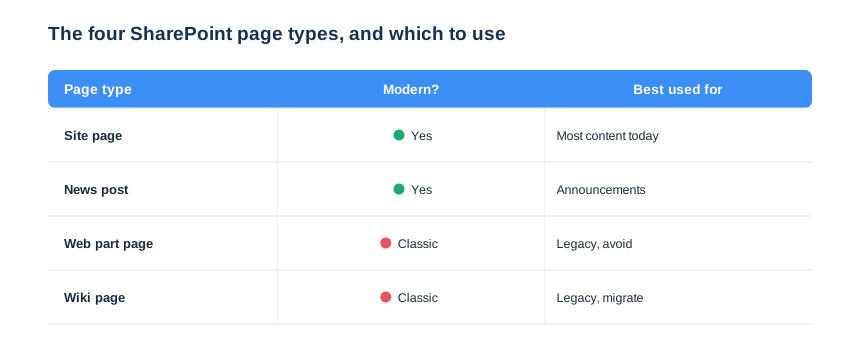
Before you build anything, know what you are building. There are four page types in SharePoint, but only two are modern and worth your time. The matrix below settles the choice in one view, so nobody starts a new page on dead technology.
Site pages and news posts
A site page is the workhorse for evergreen content such as a team home, a process or a hub. The news post, by contrast, is for time-stamped announcements that should surface in feeds and the News web part. Therefore the rule is simple. If it is an update, make it news; if it is reference content, make it a site page.
Retire classic web-part and wiki pages
Classic web-part pages and wiki pages still open, but they are a dead end. Specifically, they miss modern web parts, they look dated, and they do not work well on mobile. Consequently we migrate them to modern site pages during every tenant tidy-up. As a result, the whole site gets the same modern editor, mobile rendering and web parts.
Knowing the types also stops a common licensing worry. Importantly, all four page types are included with any SharePoint Online plan, so building SharePoint pages costs nothing beyond the license you already own. Therefore the only real cost is the time to build them well. As a result, the smart move is to standardise on modern site pages and invest that time once, in a template every team can reuse.
📰 Site page versus news post
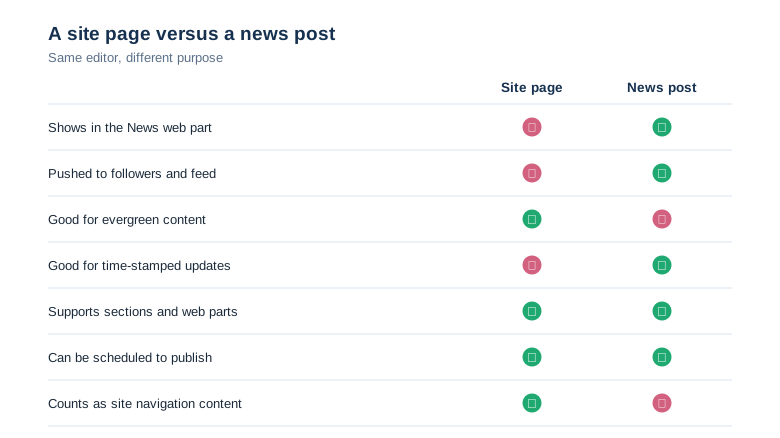
This is the decision people get wrong most often, so it deserves its own look. Both use the identical editor, sections and web parts, yet they behave very differently once published. The comparison below shows exactly where they diverge, so you pick the right one before you start typing.
Why the wrong choice hurts
Pick a site page for an announcement and nobody sees it, because it never reaches the News web part or the feed. Pick a news post for evergreen reference and it scrolls away as newer posts arrive. Therefore the choice is not cosmetic; it decides whether your content is found. As a result, we coach editors to ask one question first: is this a dated update, or is it here to stay?
📝 How to create a SharePoint page
Creating a page takes seconds; building a good one takes a little planning. From any modern site you choose New, then Page, pick a blank layout or a template, and you are in the editor. The settings that matter are small in number, so the table below is the whole checklist before you publish.
| Page detail | Why it matters | Wintive default |
|---|---|---|
| Title and thumbnail | How it shows in search and News | Clear title, custom image |
| Page description | Drives the preview snippet | One sentence, keyword-led |
| Section background | Readability and structure | Subtle, not rainbow |
| Page approval | Stops drafts going live | On for comms sites |
| Schedule | Publishes at the right time | Use for launches |
Start from a layout, not a blank screen
A blank page tempts editors into a wall of text. Therefore we start most pages from a template or a saved layout, so structure comes first and content fills it. It also keeps a site consistent. As a result, every team page shares the same rhythm, and readers always know where to look.
Two details earn their place every time. First, a custom thumbnail makes the page stand out in search and in the News web part, where the default grey placeholder gets ignored. Second, a one-line page description becomes the preview snippet readers see before they click. Therefore filling both is a two-minute habit with outsized payoff. As a result, your SharePoint pages get found and clicked rather than buried.
📐 Sections and column layouts
Sections are the skeleton of a page, and getting them right is most of the design work. Each section holds one to three columns, or a full-width band for a hero or a banner. So you plan the page as a stack of sections, then drop web parts into the columns.
A few section types do most of the work. Specifically, a full-width hero anchors the top of a home page, a one-column band carries the main story, and a two-column section pairs text with a related link list. Therefore you rarely need anything more exotic. As a result, the page stays fast and readable, because every extra column and web part adds weight the reader pays for.
Keep layouts simple and mobile-first
Readers skim, and most of them are on a phone. Consequently a clean two-column section beats a cramped three-column grid every time, because columns stack vertically on mobile. Therefore we design for the narrow screen first. As a result, the page reads well everywhere, instead of looking right only on a wide monitor.
Vertical sections add a useful trick. Notably, a vertical section runs down the right side of the page and is perfect for contacts, quick links or a small calendar, while the main column carries the story. Therefore you get a sidebar without leaving the modern editor. As a result, a busy team home stays organised instead of becoming one long scroll.
🧩 The web parts that matter
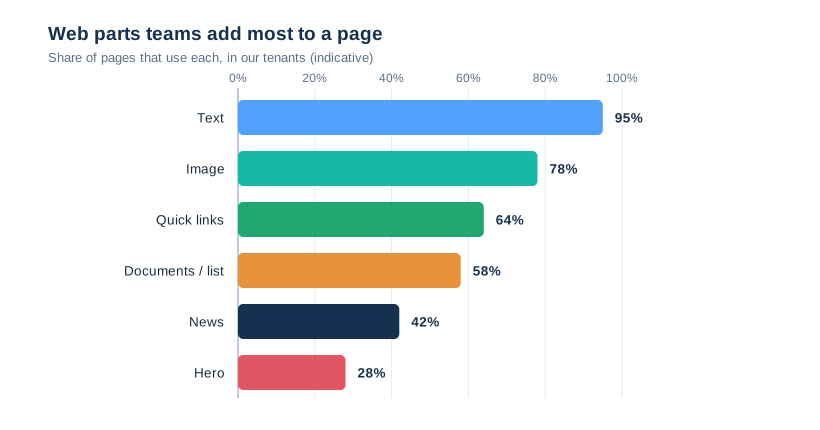
Web parts are the building blocks you place inside columns, and SharePoint ships dozens. However, a handful do almost all the work, and chasing the exotic ones is how pages get slow and confusing. The chart shows which web parts teams actually use, so you can focus there.
Use live data, not screenshots
The point of a web part is live content. Specifically, the Documents and List web parts surface real files and records from a SharePoint list or library, so the page is never stale. Therefore never paste a screenshot of a table when a List web part can show the live version. As a result, the page updates itself the moment the underlying data changes.
A short list of web parts covers almost every page. For example, Text and Image handle the story, Quick Links replaces a bullet list of URLs with clickable tiles, and the Hero web part carries a striking top band on a home page. Therefore mastering five or six web parts matters far more than knowing all of them. As a result, editors build confident, consistent SharePoint pages instead of hunting through a menu they do not understand.
📋 Page templates and save as template
Once a page works, do not rebuild it; template it. Any SharePoint page can be saved as a template, so the next editor starts from your structure instead of a blank screen. Therefore a single well-built project page becomes the pattern for every project that follows. It pairs with our wider SharePoint templates guidance.
One template per type of SharePoint pages
We keep a small, deliberate set of templates rather than dozens. Specifically, one project template, one team-home template and one news template cover most needs. Consequently editors are never paralysed by choice, and the intranet stays coherent. As a result, a new site looks professional on day one, not after months of drift.
Templates also carry your brand without a design team. Notably, a saved template keeps the section layout, the web parts and the placeholder text, so the next author only swaps the words. Therefore branding and structure travel for free with every new page. As a result, fifty project hubs built by fifty people still look like one organisation made them.
🚀 Publish, schedule and approve SharePoint pages
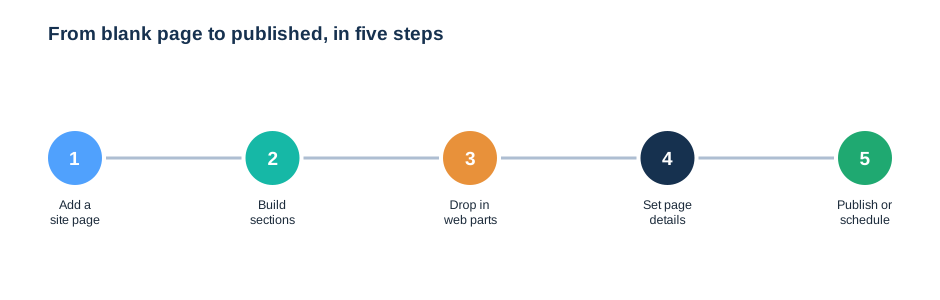
A page does nothing until it is published, and on a real intranet publishing should be controlled. The five steps below take a page from blank to live, with the governance that keeps a comms site trustworthy. So the path is the same whether one person or a team owns the page.
Turn on page approval for comms sites
On a site that the whole company reads, an unreviewed page is a risk. Therefore we switch on page approval, so a draft cannot go live until an owner approves it. It uses the same versioning engine behind SharePoint version history. As a result, the published page is always the approved one, and every draft is recoverable.
Schedule pages for launches
Big announcements should land at the right moment, not whenever the author hits publish. Specifically, scheduling lets you set a future publish time, so a launch page goes live at 9am sharp. Consequently comms teams prepare in advance and stop publishing at midnight. As a result, the rollout feels planned rather than panicked.
💡 Wintive insight
On nearly every tenant we audit, the company home page has no approval and a dozen people who can edit it. That is how a stray test edit ends up on the front door for a week. Therefore we turn on page approval for comms sites first, before any redesign. As a result, the most-seen SharePoint pages become the best-governed ones, not the riskiest.
🎯 Audience targeting on a page
Not every visitor needs every web part, and audience targeting fixes that. You enable it on the page, then target individual web parts or news to specific groups, so finance sees finance links and field staff see theirs. Microsoft documents the controls in its page audience targeting guide.
Personalise the home page first
The home page is where targeting pays off most. Therefore we target the hero and quick links there, so each department lands on what it needs without a dozen sub-sites. It reduces clutter for everyone. As a result, the intranet feels relevant instead of generic, which is what drives people to actually use it.
Targeting needs a little setup discipline, though. Specifically, it relies on Microsoft 365 groups, so the audiences you target must exist and be maintained, or the feature quietly shows everything to everyone. Therefore we map audiences to the groups a tenant already runs, rather than inventing new ones. As a result, targeting on your SharePoint pages stays accurate as people join and leave, instead of drifting out of date.
🔐 SharePoint pages permissions
Page permissions follow the site, which is both simple and a trap. By default, anyone who can edit the site can edit its pages, so a careless member can change the home page. Therefore controlling who edits SharePoint pages is really about getting site permissions right from the start.
| Role | View pages | Create / edit pages | Approve pages |
|---|---|---|---|
| Visitor (Read) | Yes | No | No |
| Member (Edit) | Yes | Yes | No |
| Approver | Yes | Yes | Yes |
| Owner | Yes | Yes | Yes |
Protect the home page
The home page is the one page you cannot afford to have broken. Consequently we lock editing on key pages to a small group, while everyone else contributes elsewhere. Page approval adds a second guard. As a result, an accidental edit cannot quietly deface the front door of the intranet.
There is a subtler permission trap worth naming. Specifically, breaking inheritance on a single page to give one person access creates a permission island that nobody remembers later. Therefore we keep page permissions inherited from the site wherever possible and manage access through site groups instead. As a result, the intranet stays auditable, and no orphaned SharePoint pages quietly grant access long after the reason for it has gone.
💻 Automating SharePoint pages with PowerShell
Building one page is a UI job; rolling out fifty consistent pages is not. So at scale we create and update SharePoint pages with PnP PowerShell, which scripts the same pages, sections and web parts the editor exposes. The snippets below are the ones we run on client tenants.
# Connect with PnP PowerShell
Connect-PnPOnline -Url "https://contoso.sharepoint.com/sites/hub" -Interactive

# Create a new modern page with a title
$page = Add-PnPPage -Name "Project-Apollo" -LayoutType Article
Set-PnPPage -Identity "Project-Apollo" -Title "Project Apollo Hub"
Add web parts and publish in script
Once a page exists, you can fill and publish it without a single click. Therefore we add sections and web parts in code, then publish, so a wave of project sites all get an identical hub. The script below adds a text web part and publishes the page.
# Add a section, a text web part, then publish
Add-PnPPageSection -Page "Project-Apollo" -SectionTemplate OneColumn
Add-PnPPageTextPart -Page "Project-Apollo" -Text "Welcome to the hub."
Set-PnPPage -Identity "Project-Apollo" -Publish
Audit pages across a site
At scale you also need to see what already exists. Consequently we list every page on a site, with its modified date, to find stale or orphaned content before a redesign. The report below is the first thing we run on a messy intranet.
# List all SharePoint pages on a site with last-modified
Get-PnPListItem -List "Site Pages" -PageSize 500 | ForEach-Object {
    [pscustomobject]@{
        Page     = $_["FileLeafRef"]
        Modified = $_["Modified"]
        Editor   = $_["Editor"].LookupValue
    }
} | Sort-Object Modified
⚖️ Power Pages versus SharePoint pages
People increasingly ask where Power Pages fits, so it is worth drawing the line. SharePoint pages are for internal content on your intranet, built by anyone, with no extra licensing. Power Pages, by contrast, builds external, data-driven websites for customers and partners and carries its own license. Therefore the choice is about audience, not preference.
In practice, the rule is short. Specifically, if the readers sign in with your Microsoft 365 accounts, use SharePoint pages; if they are the public or external users hitting a database, look at Power Pages. Consequently most internal intranet work stays on SharePoint pages, which is exactly what they are built for. As a result, you avoid paying for, and maintaining, a platform you do not need.
The cost difference is real, too. Notably, SharePoint pages are bundled in every SharePoint Online and Microsoft 365 plan, while Power Pages is a separate, metered product priced per site and per visitor. Therefore reaching for Power Pages when a site page would do is an easy way to add spend with no benefit. As a result, we keep a firm line: internal audience means SharePoint pages, external customer portal means Power Pages, and almost everything an SMB needs lands on the first side of that line.
🔧 The Wintive SharePoint pages baseline
After enough intranets, the right defaults stop being a debate. So we apply the same SharePoint pages baseline on every tenant, then adjust per site. The card below is that baseline in one view.
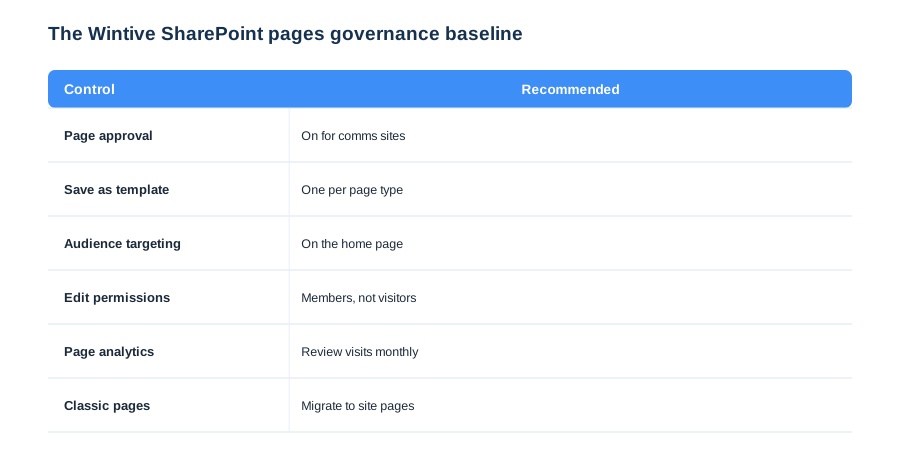
Two controls on this card prevent most intranet decay. First, page approval on comms sites keeps the published page trustworthy. Second, a small set of saved templates keeps every new page consistent instead of improvised. We tune the rest per site, but these defaults make an intranet professional from day one. Migrating any lingering classic pages is the third standing job.
The baseline is also a maintenance routine, not a one-off. Specifically, we re-run the page audit script each quarter, retire stale SharePoint pages, and confirm approval is still on where it matters. Therefore the intranet stays clean instead of slowly rotting into dead links and abandoned drafts. As a result, the site keeps earning visits, which is the only real measure that any of this worked.
🚨 Common SharePoint pages mistakes
Building on classic pages
The costliest mistake is starting new work on classic web-part or wiki pages. They are a dead end, so every hour spent there is wasted. Therefore build on modern site pages only. As a result, your content gets modern web parts, mobile rendering and a future.
Walls of text with no web parts
A page that is one giant text block ignores the whole point of the canvas. Consequently readers skim, miss the key link, and stop visiting. So break content into sections with quick links, images and live data. As a result, the page is scannable and people actually use it.
No approval on the company home page
Letting any member edit the home page with no approval invites the accidental defacement we have all seen. Therefore turn on page approval and lock editing on key pages. As a result, the front door of your intranet stays clean and on-message.
📚 More for Growing Businesses
🔍 Rebuilding your intranet and want the tenant checked first?
The M365 Instant Audit scans your tenant in under 10 minutes: license waste, plan right-sizing, MFA coverage, security posture and compliance gaps. As a result, you get a full PDF report with prioritized fixes, delivered instantly.
❓ SharePoint Pages: Frequently Asked Questions
They are the content canvas of a modern SharePoint site, built from sections and web parts with no code. The two modern types are the site page for evergreen content and the news post for announcements.
Both use the same editor, sections and web parts, but a news post surfaces in the News web part and feeds and is dated, while a site page is evergreen reference content that stays put. Use news for updates and a site page for content that should remain.
On a modern site choose New, then Page, pick a blank layout or a template, build your sections, drop in web parts, set the page details, and publish. The whole flow is no-code and takes minutes once you have a template to start from.
No. Classic web-part and wiki pages still open but are a dead end: they miss modern web parts, look dated and render poorly on mobile. Build new content on modern site pages and migrate any classic pages you still have.
SharePoint pages are for internal intranet content, built by anyone with no extra license. Power Pages builds external, data-driven websites for customers or partners and has its own license. If readers sign in with your Microsoft 365 accounts, use SharePoint pages.
Yes. PnP PowerShell creates and updates pages, sections and web parts in script, so you can roll out dozens of consistent pages instead of building each by hand. Add-PnPPage and Set-PnPPage handle creation and publishing.