

SharePoint version history quietly saves you from the worst Monday of your year: the day someone overwrites the contract, the proposal or the master spreadsheet. Every edit in a document library becomes a restorable version, so a bad change is a two-click rollback rather than a crisis. However, most teams never configure it, and many do not know how it really behaves.
This guide fixes that. Wintive runs Microsoft 365 for 60+ tenants, therefore we cover the parts the documentation glosses over: why folders behave differently from files, how major and minor versions work, what versioning costs in storage, and how to set it at scale with PowerShell. Moreover, every section answers a question people actually search, so you can act on it the same day.
🛡️ Free: M365 Audit Checklist
19-page PDF with 50 hands-on checks across Entra ID, Exchange Online, SharePoint, Teams and Intune. Run it before you tune versioning, so you start from a clean tenant. PowerShell commands included. Built from 60+ real tenant audits at Wintive.
📚 What SharePoint version history actually is
Quick answer. SharePoint version history keeps a dated copy of a file every time it is saved or edited, so you can view, compare and restore any earlier version. It is on by default for document libraries in SharePoint Online, it stores up to 500 major versions per file out of the box, and it works for files and list items, but not for folders. It is not a backup.
Think of version history as an undo button that survives closing the file, the browser and even the person who made the change. Each save writes a numbered version with a timestamp and the editor name. Therefore you can answer the three questions every overwrite triggers: what changed, when, and who did it. That audit trail is as valuable as the rollback itself.
Moreover, the history is structured data, not a vague log, so an admin can answer an audit request without opening every file. For example, when a client asks who edited a policy last quarter, the version list gives the date and the name in seconds. In practice, that single capability turns version history from a safety net into a compliance tool. As a result, the same feature that rescues a Monday also satisfies an auditor on a Friday.
Where version history lives
Versioning is a setting on each document library and list, not a tenant-wide switch. Consequently two libraries on the same site can keep different numbers of versions. New libraries in SharePoint Online ship with versioning already on, which is why most edits are already protected even in tenants nobody has tuned. For background on libraries themselves, see our SharePoint document library guide.
🗂️ How SharePoint version history works
Every time a file is saved, SharePoint stamps a new version. So the version list grows from 1.0 upward, newest at the top, each row showing the date, the editor and the file size at that point. The panel is the same whether you open it in the browser, in the desktop app, or through File Explorer once you add SharePoint to File Explorer.
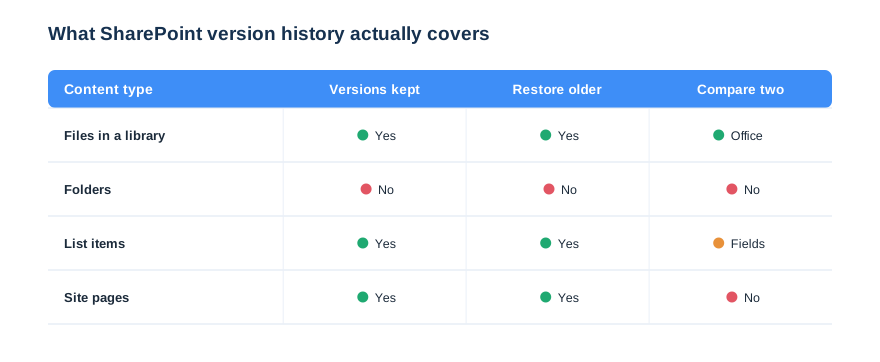
The chart above carries the single most misunderstood fact about the feature, and it is the one that fills support queues. Files keep versions; folders do not. We unpack that below, because it surprises almost everyone the first time they hit it. List items keep versions too, which is why a SharePoint list can track who changed which field and when. Site pages are versioned as well, so an edit to a published page can be rolled back like any document.
Versions are per item
Each file owns its own independent version chain. Therefore restoring one document never touches its neighbours, and a 30-version contract sits happily beside a 2-version memo in the same library. That independence is what makes a rollback safe. As a result, you fix one mistake without rewinding everyone else work.
📁 Files versus folders: the SharePoint version history gap
Here is the answer to the most-searched problem in this whole topic: folders do not have version history. When people see “version history not supported” or “version history does not exist” on a folder, nothing is broken. Folders are containers, not content, so SharePoint never versions them. Only the files inside a folder carry versions.
This trips up teams who expect a folder to remember its past contents. Specifically, if someone deletes or moves files out of a folder, the folder version history will not bring them back, because there was never any folder version to restore. Instead, you recover the individual files. Therefore the recovery path is the Recycle Bin for deleted items, and each file own SharePoint version history for content changes.
What to use instead of folder history
Replace folder thinking with metadata and views. Rather than nesting files in folders you hope to track, tag them with columns and filter with views, an approach we cover in the SharePoint document library guide. As a result, every file keeps its own SharePoint version history, and you still get the grouping a folder gave you, without the false expectation that the folder remembers anything.
Views also scale where folders do not. Specifically, a flat library with good columns handles tens of thousands of files, whereas deep folder trees slow people down and still forget their own past. Therefore the move to metadata is not just a recovery fix; it is a performance win as well. As a result, you gain faster libraries and a real per-file history at the same time.
⚖️ Major and minor versions in SharePoint version history
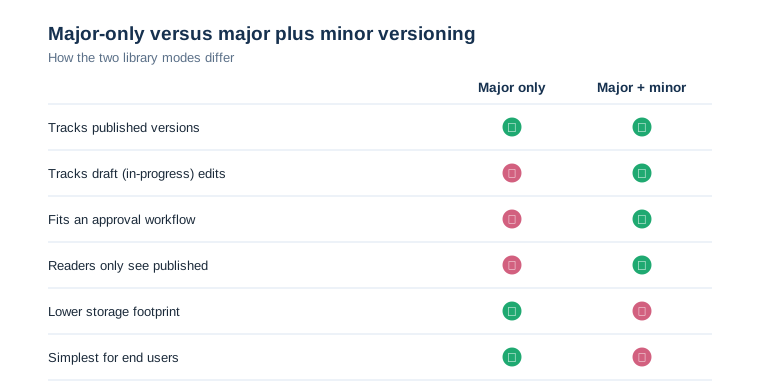
SharePoint version history has two modes, and choosing the right one prevents most confusion later. Major-only versioning numbers every save 1.0, 2.0, 3.0. Major-plus-minor versioning adds draft numbers, so work in progress is 1.1, 1.2, 1.3 and only a publish action creates 2.0. The comparison below shows when each one earns its place.
When to use major plus minor
Turn on minor versions when a library has a draft-then-publish rhythm, such as policies, contracts or public pages. Therefore readers only ever see the published 2.0 while authors iterate on 2.1 and 2.2 in private. It pairs naturally with content approval. As a result, a document stays in draft until someone with rights approves it, which is exactly what compliance teams want.
When major-only is better
For everyday collaborative libraries, major-only is simpler and lighter. Specifically, co-authored team files rarely need a draft state, and minor versions just add clutter and storage. So we leave most working libraries on major-only and reserve minor versions for libraries that genuinely publish. The rule of thumb is simple. If a document has an audience that must not see drafts, use minor versions; otherwise keep it major-only.
⚙️ How to configure SharePoint version history
Versioning settings live on each library, under Library settings, then Versioning settings. There you choose major-only or major-plus-minor, set how many versions to keep, and optionally require check-out. Microsoft documents the planning trade-offs in its versioning and check-out guide. The screen is small, but three choices on it shape everything that follows.
Set a sensible version limit
The default keeps up to 500 major versions, which is generous and, for big media files, expensive. Therefore we usually cap working libraries between 100 and 300 major versions, which covers any realistic rollback while controlling storage. Do not set it too low. Specifically, a limit of 10 on a busy contract library can silently discard the version you needed, so leave real headroom.
For example, a proposals library that sees twenty edits a day still stays inside a 300-version cap for years. Therefore the cap is not about saving every keystroke forever. Instead, it keeps enough history to recover from any realistic mistake, while you avoid paying to hoard a thousand stale copies of one large file. As a result, the storage bill tracks real risk rather than habit.
Require check-out only when you mean it
Check-out forces one editor at a time, which protects delicate files but breaks co-authoring. Consequently we leave it off for everyday libraries and switch it on only for templates or single-owner master files. The trade-off is collaboration versus control. As a result, most teams should keep check-out off and lean on SharePoint version history to untangle the rare clash.
| Setting | What it controls | Wintive default |
|---|---|---|
| Versioning | Whether any versions are kept | On |
| Major / minor | Draft tracking and publish gating | Major + minor if it publishes |
| Major version limit | How many full versions are retained | 100 to 300 |
| Minor version limit | Drafts kept under each major | 10 to 20 |
| Require check-out | One editor at a time | Off, except master files |
↩️ How to view and restore a previous version
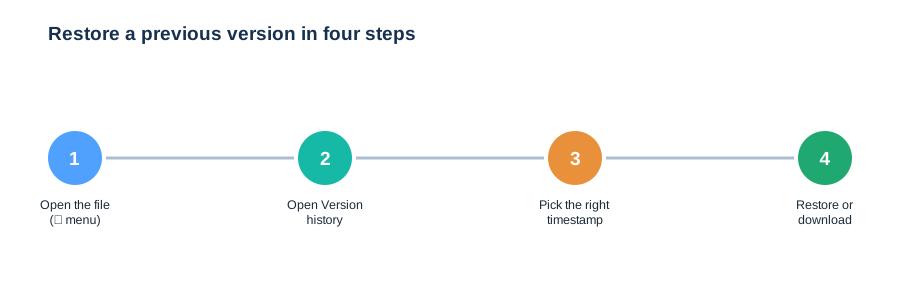
Recovering an earlier copy takes seconds once you know the path. Open the file menu, choose Version history, scan the dated list, and either restore a version in place or download it to compare side by side. The four steps below are the whole routine, and they are the same for Word, Excel, PowerPoint and PDFs.
Restore in place or download
Restoring does not delete anything; it promotes an old version to the top as a new current version. Therefore the rollback is itself reversible, which makes it safe to try. When you only need one paragraph from last week, download that version instead. As a result, you copy the part you want without rewinding the whole file.
Compare changes between versions
For Office files, version history shows what changed between saves, so you can see the exact edit rather than guessing. Specifically, Word and Excel surface the differences inline once you open an older version. That turns “who broke this” into a two-minute answer. Consequently disputes over a number or a clause get settled with evidence, not memory.
📝 SharePoint version history for Office and co-authoring
Modern Office co-authoring and version history work together rather than against each other. When several people edit a Word or Excel file at once, SharePoint still writes versions in the background, roughly every few minutes and at each meaningful save. So a live, multi-editor document keeps a clean history without anyone clicking save.
Why you see fewer, smarter versions
Co-authoring batches rapid edits into sensible versions instead of one per keystroke. Therefore the version list stays readable, showing meaningful checkpoints rather than noise. AutoSave drives this in the background. As a result, the people editing get protection automatically, even though none of them manage versions by hand.
Names attached to every change
Each version records who contributed, which matters when several people share a file. Consequently you can see that finance touched the numbers on Tuesday while legal changed a clause on Wednesday. That clarity is the quiet benefit of co-authoring on SharePoint. As a result, accountability is built in, not bolted on.
In practice, this is what turns a shared file from a liability into an asset. For example, a budget that five managers edit at once would be chaos on a network drive, yet on SharePoint every change is named, dated and reversible. Finally, because the history travels with the file, an offboarding or a handover never loses the thread of who knew what and when. Therefore the team keeps moving even when the original author has left.
💾 Version history, storage and retention
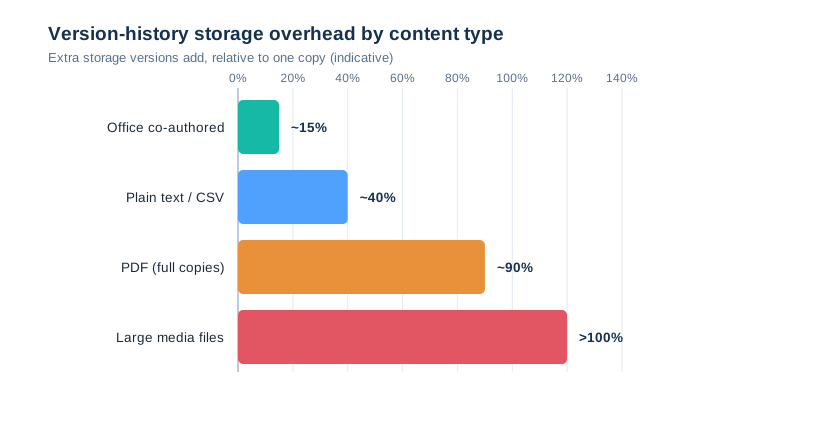
Versions are real copies, so they consume real storage, and the cost depends entirely on file type. Office co-authored files store efficient deltas, but PDFs and media store near-full copies each time. The chart shows the rough overhead, which is why a media-heavy library needs a tighter version limit than a text-heavy one.
Version history is not a backup
This is the line that saves clients real pain: SharePoint version history is not a backup. It protects against edits, not against a deleted library, a ransomware event, or a tenant-wide accident. Therefore it sits next to a backup, not in place of one. We make the same point in our SharePoint vs OneDrive comparison, because the recovery model is identical.
A version chain disappears with the file that owns it. So if a file is deleted and then purged from the Recycle Bin, its entire history goes with it. The Recycle Bin holds deleted items for 93 days across both stages, after which only a real backup can help. Consequently we pair versioning with a third-party backup on every tenant that holds anything a regulator or a court might ask for.
♻️ SharePoint version history versus the Recycle Bin
People mix up two different safety nets, so it is worth drawing the line clearly. SharePoint version history recovers a previous state of a file that still exists. The Recycle Bin, by contrast, recovers a file that was deleted. Therefore you reach for version history after a bad edit, and the Recycle Bin after a bad delete.
The two also have different clocks. Specifically, the site Recycle Bin holds deleted items for 93 days, then a second-stage admin bin holds them briefly longer, after which they are gone. Version history, on the other hand, has no calendar expiry; it is bounded by the version limit, not by time. Consequently a file you edited two years ago still has its old versions, but a file you deleted three months ago may already be unrecoverable. For the deletion side of recovery, our SharePoint vs OneDrive guide walks through the same Recycle Bin model.
💡 Wintive insight
Every tenant we onboard assumes version history is its backup. It is not. Therefore we pair it with a third-party backup and a documented retention policy, so a deleted library or a ransomware hit is recoverable rather than an awkward email to the client. In short, versioning handles edits, while backup handles disasters.
🔐 Who can see and restore SharePoint version history
Version history follows the file permissions, so it is not a separate thing to secure. In short, if someone can edit a file they can usually restore its versions, and if they can only read it they can view history but not roll it back. Therefore controlling version history is really about controlling library permissions, which we set when we create the SharePoint site.
| Permission level | View versions | Restore a version | Delete versions |
|---|---|---|---|
| Read | Yes | No | No |
| Edit / Contribute | Yes | Yes | No |
| Design / Manage | Yes | Yes | Yes |
| Site owner | Yes | Yes | Yes |
Keep restore rights sensible
Restoring is powerful because it overwrites the current version, so we keep edit rights tight on sensitive libraries. Specifically, a contracts library should grant edit only to the people who draft contracts, while everyone else reads. As a result, an accidental or careless restore cannot rewind a signed document, and the audit trail still shows every version for reference.
💻 Automating SharePoint version history with PowerShell
Tuning one library by hand is fine; tuning two hundred is not. So at scale we set SharePoint version history with PnP PowerShell, which reads and writes the same versioning settings the UI exposes. The snippets below are the exact ones we run on client tenants, lightly trimmed.
# Connect with PnP PowerShell
Connect-PnPOnline -Url "https://contoso.sharepoint.com/sites/ops" -Interactive

# Read versioning settings on a library
$lib = Get-PnPList -Identity "Documents"
$lib | Select-Object Title, EnableVersioning, EnableMinorVersions,
    MajorVersionLimit, MajorWithMinorVersionsLimit
Set version limits across libraries
Once you can read the settings, you can standardise them. Therefore we loop every document library on a site and apply one baseline, so no library is left on the wasteful default. The loop below turns versioning on and caps it at 200 major versions.
# Apply a consistent version baseline to every library
Get-PnPList | Where-Object { $_.BaseTemplate -eq 101 } | ForEach-Object {
    Set-PnPList -Identity $_.Title -EnableVersioning $true `
        -MajorVersions 200
    Write-Host "Versioning set on $($_.Title)"
}
Report and trim old versions
Versions that pile up on huge files waste storage you pay for. Consequently we report version counts per file and trim the oldest where a library has drifted. The script below lists the heaviest version histories so you fix the right files first.
# Find files carrying the most versions in a library
Get-PnPListItem -List "Documents" -PageSize 500 | ForEach-Object {
    $v = Get-PnPProperty -ClientObject $_ -Property Versions
    [pscustomobject]@{ File = $_["FileLeafRef"]; Versions = $v.Count }
} | Sort-Object Versions -Descending | Select-Object -First 20
🔧 The Wintive SharePoint version history baseline
After enough tenants, the right defaults stop being a debate. So we apply the same SharePoint version history baseline everywhere, then adjust only where a library has a real reason to differ. The card below is that baseline in one view.
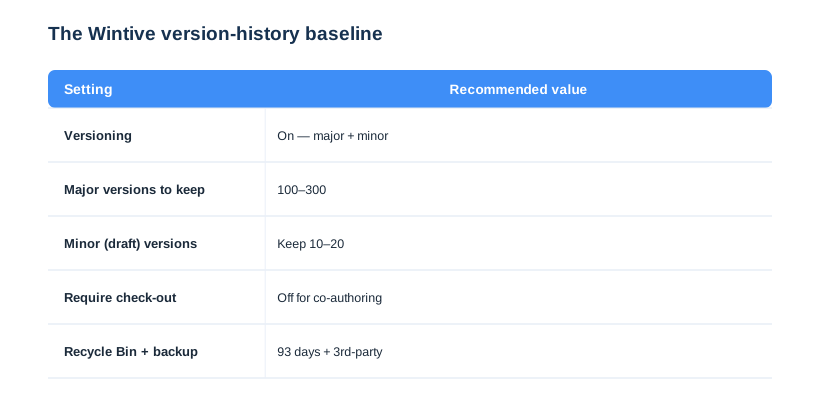
Two settings on this card do the heavy lifting. First, major-plus-minor on libraries that publish keeps drafts private until approval. Second, a 100 to 300 version cap protects rollbacks without paying to hoard a thousand copies of a large file. We tune the rest per library, but these defaults make a tenant safe on day one. The baseline also assumes a backup behind it, never instead of it.
🖥️ SharePoint version history on the desktop and synced files
Version history is not trapped in the browser. When you open a library file in the Word, Excel or PowerPoint desktop app, the same version list sits under File, then Info, then Version history. Therefore your team can restore an earlier draft without ever leaving the app they are writing in.
It reaches File Explorer too. Specifically, once you add SharePoint to File Explorer through OneDrive sync, you right-click a synced file and choose Version history to open the very same panel. As a result, even staff who think in folders and drives get the protection, because the versions live in SharePoint regardless of how the file is opened. One caution applies here. Importantly, a file kept only on a local disk and never synced has no SharePoint version history, so the rule is simple: keep work in the library, not on the desktop.
🚨 Common SharePoint version history mistakes
Expecting folders to keep history
We covered the big one, and it is worth repeating because it costs the most time. Folders never keep versions, so any process that relies on folder history is built on sand. Therefore move the logic to files, lists and metadata. As a result, the recovery you expected actually exists.
Treating version history as a backup
The second costly mistake is assuming versioning replaces a backup. It does not, because a purged file takes its whole history with it. Consequently a tenant with no third-party backup is one bad deletion away from permanent loss. So pair SharePoint version history with a real backup, every time.
Leaving every library on 500 versions
The default 500-version limit is fine for text, wasteful for media. Therefore review media-heavy libraries and cap them sensibly, which can reclaim a surprising amount of storage. The fix takes minutes with the PowerShell above. As a result, you stop paying to keep copies nobody will ever restore.
📚 More for Growing Businesses
🔍 Tuning SharePoint and want the tenant checked first?
The M365 Instant Audit scans your tenant in under 10 minutes: license waste, plan right-sizing, MFA coverage, security posture and compliance gaps. As a result, you get a full PDF report with prioritized fixes, delivered instantly.
❓ SharePoint Version History: Frequently Asked Questions
It keeps a dated, restorable copy of a file each time it is saved in a SharePoint library or list, so you can view, compare and restore any earlier version. It is on by default and keeps up to 500 major versions per file.
Because folders are containers, not content, so SharePoint never versions them. Only the files inside a folder keep versions. If you see ‘version history not supported’ on a folder, nothing is broken; open an individual file to see its history, and use the Recycle Bin to recover deleted items.
Select the file, open the file (three-dot) menu, and choose Version history. You will see a dated list of versions with the editor name. From there you can restore a version or download it to compare.
Open Version history on the file, find the dated version you want, and choose Restore. Restoring promotes that version to the top as a new current version, so nothing is lost and the rollback is itself reversible.
Major-only versioning numbers every save 1.0, 2.0, 3.0. Major-plus-minor adds draft numbers like 1.1 and 1.2, and only a publish creates the next major version, so readers see only published copies while authors iterate.
No. It protects against edits, not against a deleted library, ransomware or a tenant-wide accident, and a version chain is deleted with the file that owns it. The Recycle Bin holds deleted items for 93 days, after which only a real backup recovers them.