

If you run mail in Microsoft 365, one number drives a lot of decisions. The exchange online plan 2 mailbox size is 100 GB per user, double what the entry plan offers. That figure shapes who needs the upgrade, how you handle archiving, and what you tell a user whose inbox is filling. So it pays to know the size, the limits around it, and how to check them.
This guide is a plain reference for admins, not a sales page. Therefore you will find the exact sizes for every plan, the message and recipient limits, the auto-expanding archive, and the PowerShell to report on it all. By the end, you can answer any mailbox-size question with a number rather than a guess.
📋 Free: the M365 Audit Checklist (50 points)
See mailbox sizes, license waste, and security gaps across your whole tenant.
🎯 What is the Exchange Online Plan 2 mailbox size?
The answer is simple and worth stating plainly. A Plan 2 mailbox holds 100 GB of mail per user. That is the primary mailbox, where everyday email, calendar, and contacts live. So a single user can keep years of messages without ever brushing the ceiling.
The 100 GB sits on top of a separate archive, which we cover below. Microsoft counts the two stores independently, so the archive does not eat into the primary 100 GB. Because of that split, a heavy user gets far more total room than the headline number suggests. So the real ceiling is higher than it first looks.
For context, the entry plan stops at 50 GB, so Plan 2 doubles the room. That extra space is one of the main reasons teams step up. A busy executive or a long-serving manager can fill 50 GB in a few years, while 100 GB plus an archive lasts far longer. So the size alone often justifies the move.
In short: the exchange online plan 2 mailbox size is 100 GB per user for the primary mailbox, double the 50 GB on Plan 1. On top of that, Plan 2 adds a separate auto-expanding archive that grows to about 1.5 TB. A single message can reach 150 MB, and a mailbox can send to 10,000 recipients a day. You can check any mailbox size in seconds with the Get-EXOMailboxStatistics cmdlet.
📊 Mailbox size by plan
It helps to see every plan side by side, because the sizes step up clearly. A Kiosk seat holds 2 GB, the entry plan holds 50 GB, and Plan 2 holds 100 GB. The auto-expanding archive then adds up to 1.5 TB on the plans that include it. So the gap between the smallest and the largest is enormous.
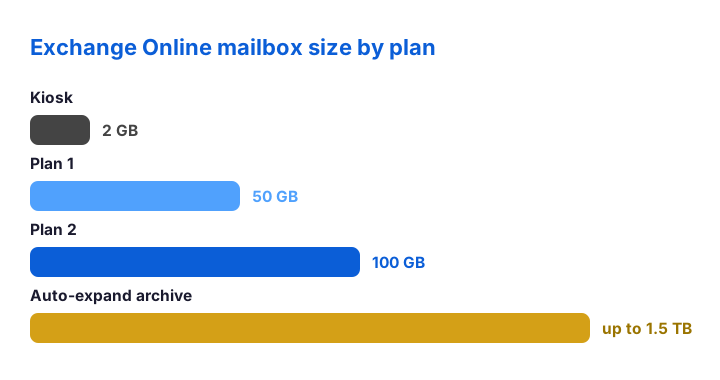
The right size depends on the user, not the whole company. Frontline staff rarely fill a small box, while leaders and shared inboxes fill a large one. So mix the plans across your team rather than buying one size for everyone. That blend keeps the bill lean while still covering the heavy mailboxes.
📨 Plan 2 mailbox limits at a glance
Size is only one limit among several, so know the others too. Beyond the 100 GB mailbox, a single message can reach 150 MB, which clears almost any attachment. A mailbox can also send to 10,000 recipients a day, with a cap on the rate per minute. These ceilings suit normal business mail with room to spare.
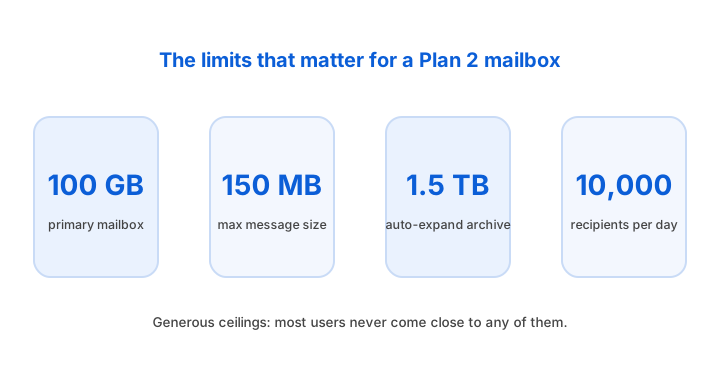
Most users never meet any of these limits. The recipient cap mainly matters for newsletters, so route bulk mail through a dedicated service instead. The message cap matters for huge files, where a shared link beats an attachment anyway. So treat the limits as guard rails, not daily walls.
🗄️ The auto-expanding archive size
The archive is where Plan 2 really pulls ahead on storage. Each user gets a separate archive mailbox, distinct from the 100 GB primary. When that archive fills, Microsoft grows it automatically, in stages, up to roughly 1.5 TB. So a mailbox that hoards years of mail never simply stops.
Auto-expansion is the key word here. The entry plan has no expanding archive, so it stays capped at its mailbox size. Plan 2, by contrast, keeps adding archive space as old mail rolls in. Because the growth is automatic, an admin rarely has to touch it. So the archive quietly removes the storage worry that pushes people off smaller plans.
One detail is worth a flag. Expansion happens in chunks once the archive crosses a threshold, so it is not instant. For a very heavy user, plan a little ahead so space arrives before it is needed. Still, for nearly every mailbox, the archive simply works in the background, year after year.
📉 What happens as a mailbox fills
A mailbox does not just stop dead at 100 GB. Instead, it passes through three quota thresholds as it fills. First a warning appears, then sending is blocked, and finally both sending and receiving stop. So users get fair notice long before mail bounces.
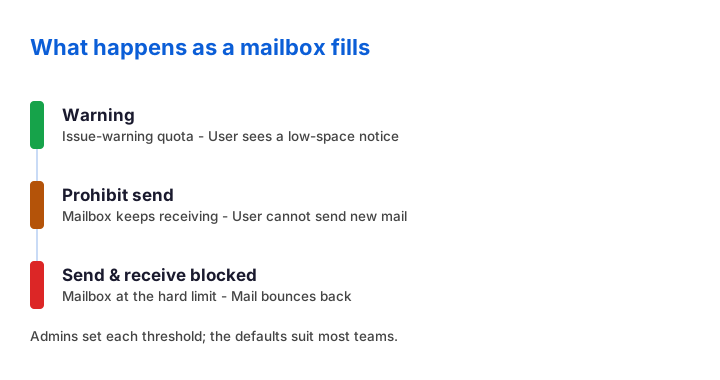
Admins control where each threshold sits. The issue-warning quota triggers the first notice, the prohibit-send quota blocks new mail, and the prohibit-send-receive quota is the hard stop. So you can tune the warnings to give users plenty of runway. The defaults work well for most teams, yet you can tighten them when storage is tight.
🔍 How to check a mailbox size
You rarely need to guess a mailbox size, because one cmdlet reports it. After you connect to Exchange Online, the statistics cmdlet returns the total item size for any user. So a quick check settles a “my mailbox is full” ticket in seconds. Run it against one user first, then scale it out.
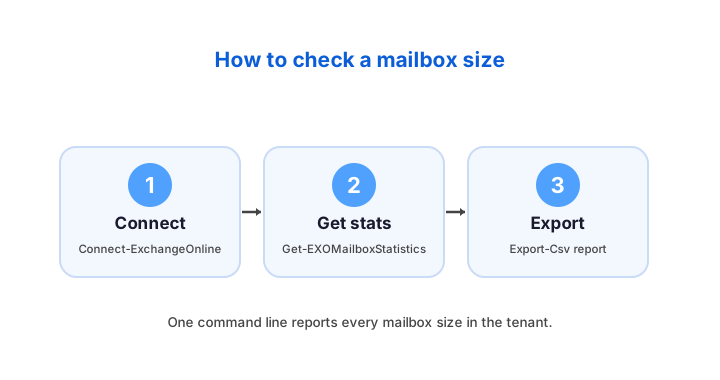
# Connect, then read one mailbox's total size and item count
Connect-ExchangeOnline -UserPrincipalName admin@contoso.com
Get-EXOMailboxStatistics -Identity sara@contoso.com |
  Select DisplayName, TotalItemSize, ItemCount
The TotalItemSize field is the number you want. It shows the mailbox size in gigabytes, so you can compare it against the 100 GB ceiling at a glance. Because the cmdlet is fast and read-only, it is safe to run any time. So keep it handy for the next storage question that lands on your desk.
📋 Report every mailbox size across the tenant
Checking one mailbox is useful, but a full report is better. With a single pipeline, you can list every mailbox and its size, then export the lot to a spreadsheet. So you spot the boxes nearing their limit before a user ever complains. A monthly run keeps the whole tenant in view.
# Export the size of every mailbox to a CSV for review
Get-EXOMailbox -ResultSize Unlimited |
  Get-EXOMailboxStatistics |
  Select DisplayName, TotalItemSize, ItemCount |
  Export-Csv .\mailbox-sizes.csv -NoTypeInformation
Across the tenants we manage, mailbox-size reports surface two surprises. One or two boxes are quietly near their limit, while many sit nearly empty on a plan that is too big. So a size report is also a licence report. You right-size the few that need more room and trim the seats that need less, which often pays for the whole review.
Sort the export by size to find your outliers fast. The largest boxes are upgrade candidates, while empty ones may sit on the wrong plan. So the same report answers two questions at once: who needs more space, and who is paying for space they never use. That double view makes the monthly run well worth it.
✉️ Message size and attachment limits
Mailbox size is not the only ceiling users hit, so cover the message limit too. A single message, including its attachments, can reach 150 MB. In practice, most mail systems on the other end cap lower, often near 25 MB or 35 MB. So a giant attachment may leave your tenant yet bounce at the recipient.
| Limit | Value | Note |
|---|---|---|
| Primary mailbox (Plan 2) | 100 GB | Double the entry plan |
| Auto-expanding archive | up to ~1.5 TB | Plan 2 only, grows automatically |
| Max message size | 150 MB | Receivers often cap lower |
| Recipients per day | 10,000 | Use a relay for bulk mail |
For large files, a link beats an attachment every time. A shared OneDrive or SharePoint link skips the message limit entirely and keeps the mailbox lean. So coach users to share big files by link rather than attaching them. That single habit cuts both bounced mail and wasted mailbox space.
🔢 Mailbox size vs the storage you can use
The 100 GB figure is the headline, yet the real picture has a few more parts. A mailbox is more than its visible folders. Behind the scenes sit deleted items you can still recover, plus the archive on the side. So the storage a user actually commands is larger than the inbox they see each day.
Three stores make up the total. The primary mailbox holds the live 100 GB, the recoverable-items area holds recently deleted mail, and the archive holds the long history. Because each one is counted on its own, no single store starves the others. So a Plan 2 user has far more room than 100 GB alone suggests.
This matters when you size a heavy user. You weigh the live box, the deletions in flight, and the archive together. So a leader who keeps everything still fits comfortably. When you report on sizes, remember that the visible mailbox is only one slice of the whole picture.
🚮 Deleted items and recoverable items
Deleted mail does not vanish at once, which shapes the size picture. When a user empties the deleted-items folder, the mail moves to a hidden recoverable-items area first. It stays there for a retention window, usually fourteen days, before it truly clears. So a deleted message still occupies a little space for a while.
That recoverable area carries its own quota, separate from the 100 GB inbox. By default it holds around 30 GB, which is generous for normal use. So routine deleting never threatens the main box. The two counters move independently, which keeps everyday clean-up simple and safe.
The window matters for recovery, not only for size. Because deleted mail lingers, a user can restore an item they removed by mistake within the retention period. So the recoverable area doubles as a safety net. Admins can extend the window when policy demands, at the cost of a little more stored mail.
📂 Folder and item count limits
Size is not the only ceiling inside a mailbox; counts matter too. A single folder can hold up to a million items before performance suffers. The mailbox carries many folders as well, though a tidy structure always runs faster. So a hoarder with one giant folder may hit a count limit long before a size one.
This shows up with automated mail most often. A mailbox that receives thousands of alerts a day can pack a folder quickly. So route high-volume system mail into subfolders or a shared box. That spread keeps any single folder well under its limit, and the mailbox stays responsive.
Good structure helps users as much as the service. A clear folder tree makes search faster and clean-up easier. So encourage a few well-named folders over one endless inbox. The mailbox stays within every limit, while the person who owns it works faster too.
⚖️ Litigation hold and mailbox size
Compliance features change the size maths, so know how they interact. When you place a mailbox on litigation hold, deleted mail is kept rather than purged. That preserved mail lands in the recoverable-items area, which can then grow well beyond its default. So a held mailbox can use far more storage than an unheld one.
Plan 2 anticipates this, which is part of its value. Under a hold, the recoverable-items quota expands to keep the retained mail. Because the plan includes the archive as well, a held user rarely runs short of room. So the size headroom and the compliance tools work hand in hand.
Keep an eye on long-running holds in your size report. A mailbox held for years quietly accumulates everything its user ever deleted. So review holds on a schedule, and release the ones a case no longer needs. That keeps storage honest and the audit trail clean.
🗂️ Inactive and archived mailbox storage
Some mailboxes outlive the people who used them, and they still count toward storage. When a user leaves but their mailbox sits on hold, it becomes an inactive mailbox. Microsoft keeps it, with its contents, for as long as the hold lasts. So a departed employee can still hold real storage in the tenant.
Inactive mailboxes do not need a licence, which is the good news. They preserve mail for compliance without an ongoing seat. So an offboarding does not have to mean losing a record. You convert the box to inactive by placing a hold, then removing the licence from the account.
Plan for these in your storage review all the same. A growing pile of inactive mailboxes is normal for a regulated firm, yet it is worth tracking. So list them alongside the live boxes when you report. That way the full storage picture stays clear, even for the accounts nobody signs into anymore.
📁 Shared mailbox size limit
Shared mailboxes follow their own size rule, which trips up many admins. A shared mailbox stays free up to 50 GB, as long as nobody signs in to it directly. Past 50 GB, it needs a licence, and a Plan 2 licence lifts it to 100 GB with an archive. So a busy team inbox can outgrow the free tier.
This catches teams whose support or sales inbox grows for years. The box works fine until it nears 50 GB, then it quietly stops taking new mail. So watch your shared mailboxes in the size report, not just the personal ones. When one approaches the limit, assign it a Plan 2 licence before it fills.
Archiving helps here as well. A licensed shared mailbox can carry an auto-expanding archive, just like a user mailbox. So an old team inbox can keep its history without choking the live box. That keeps a long-running address healthy without a constant clean-up, and a five-year-old support inbox stays fast even with a decade of tickets behind it. So the licence pays for itself in both space and speed.
🗃️ Archive mailbox size and limits
The archive deserves its own size note, because people confuse it with the primary box. The archive is a second mailbox, separate from the 100 GB primary. It starts smaller, then grows automatically as it fills. So the two stores never compete for the same space.
You enable the archive once, then let it run. After that, old mail can move into it by a retention policy or by the user dragging items across. Because the archive auto-expands on Plan 2, it rarely needs attention. So the primary box stays lean while the history lives safely alongside it.
Remember that the entry plan has no expanding archive at all. So if archiving is the reason a box keeps filling, that alone points to Plan 2. For a deeper look at the two plans, see our Exchange Online Plan 2 guide and the entry-level write-up beside it.
⬆️ What to do when a mailbox is full
When a box nears its limit, you have a clear set of moves. If the user sits on the 50 GB entry plan, a step up to Plan 2 doubles the room at once. If they already run Plan 2, the answer is usually the archive rather than a bigger box. So the right fix depends on which plan they hold today.
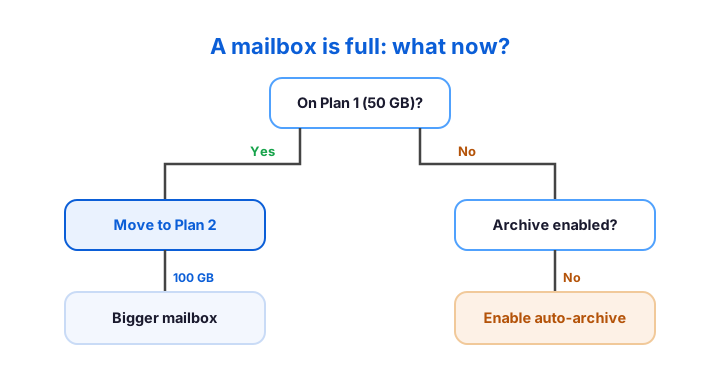
Cleanup is the third lever, and the cheapest. A user who deletes old newsletters and empties the deleted-items folder can reclaim real space fast. So before you buy anything, a quick tidy may solve it. When it does not, the archive or a plan change takes over from there.
Whichever lever you pick, tell the user what changed and why. A short note that their box now holds more room, or that old mail moved into the archive, heads off confusion. So the fix lands cleanly and the ticket closes for good. In practice, a sentence of explanation prevents a second call far more often than people expect, and it keeps trust high during a storage scare.
⚖️ Plan 1 vs Plan 2 mailbox size
The size gap between the two plans is the clearest reason to choose between them. The entry plan gives 50 GB with no expanding archive, while Plan 2 gives 100 GB plus the archive. So for storage alone, Plan 2 offers far more headroom. The compliance tools come along for the ride.
| Storage | Plan 1 | Plan 2 |
|---|---|---|
| Primary mailbox | 50 GB | 100 GB |
| Auto-expanding archive | No | Yes (to ~1.5 TB) |
| Shared mailbox (free tier) | 50 GB | 50 GB |
So pick by the heaviest mailboxes, not the average. If most staff sit well under 50 GB, the entry plan fits them, and you lift only the few who fill it. That mix keeps storage matched to need. When in doubt, run the size report first, then upgrade the boxes the data flags.
Budget should not be the only lens, though it clearly matters. The jump from 50 GB to 100 GB doubles the room, yet the archive is often the deciding feature. A user who keeps everything needs the expanding archive more than a bigger inbox. So weigh the archive alongside the raw size, because for a true pack-rat that expanding store is what really solves the problem for good.
✅ Set and tune mailbox quotas
You do not have to accept the default thresholds. With one cmdlet, you can set where the warning and the hard stop sit for a mailbox. So you give users a longer runway, or a shorter one when storage is tight. The change takes effect right away and needs no downtime.
# Set the warning and prohibit-send quotas on a mailbox
Set-Mailbox -Identity sara@contoso.com `
  -IssueWarningQuota 90GB `
  -ProhibitSendQuota 98GB `
  -ProhibitSendReceiveQuota 100GB
Read the current values before you change them, so you know the starting point. The Get-Mailbox cmdlet shows each quota for a user, and you can confirm your change the same way. Because the settings apply per mailbox, you can be generous with leaders and stricter with general boxes. So the quota becomes a tool, not a fixed wall.
Apply the same quotas to a group when you can, rather than box by box. A shared rule keeps every general mailbox consistent and simple to audit. So you set it once and let it govern many users at a stroke. Reserve the per-mailbox overrides for the few leaders who genuinely need the extra room.
💡 Common mailbox size mistakes to avoid
A few avoidable errors cause most storage tickets, so learn them now. The first is ignoring shared mailboxes until one hits 50 GB and stops. The second is buying a bigger plan for a box that only needs a clean-up. Both waste either money or a user’s morning.
Two more slips show up often. People forget that the archive must be enabled before it does anything, so old mail piles up in the primary box. Others never run a size report, so they learn about a full mailbox from an angry user. Check both early, because a five-minute report prevents most of these.
For the official figures, Microsoft lists every limit in the Exchange Online limits reference. Bookmark it, because the numbers shift as Microsoft updates the service. Pair that page with this guide, and you can size any mailbox with confidence rather than guesswork.
📚 More for IT Admins
🔍 Not sure which mailboxes are on the wrong plan?
The M365 Instant Audit scans your tenant in under 10 minutes. It checks mailbox sizing, license waste, MFA coverage, security posture, and compliance gaps. As a result, you get a full PDF report with prioritized fixes, delivered instantly.
❓ Exchange Online Plan 2 mailbox size: Frequently Asked Questions
A Plan 2 mailbox holds 100 GB for the primary mailbox, double the 50 GB on Plan 1. On top of that, Plan 2 adds a separate auto-expanding archive that grows to about 1.5 TB.
Connect to Exchange Online, then run Get-EXOMailboxStatistics for a user and read the TotalItemSize field. For the whole tenant, pipe Get-EXOMailbox into the same cmdlet and export to CSV.
A single message, including attachments, can reach 150 MB. Many receiving systems cap lower, often near 25 to 35 MB, so a shared link is safer for very large files.
A shared mailbox stays free up to 50 GB, as long as nobody signs in to it directly. Past 50 GB, it needs a licence, and a Plan 2 licence lifts it to 100 GB with an archive.
A mailbox passes three quota stages: a warning, then a block on sending, then a block on sending and receiving. Admins can set where each threshold sits.