

Exchange Online migration is the project that moves your email to the cloud, and the one most likely to cause a bad week if it is rushed. Mailboxes, calendars, contacts, the MX record and every Outlook profile have to land cleanly, or people lose mail at exactly the wrong moment. The good news is that it is a well-trodden path with clear methods.
This guide walks the whole route. Wintive runs Microsoft 365 for 60+ tenants, therefore we cover the parts that decide success: which method fits your size, the prerequisites that trip people up, the step-by-step process, and the cutover itself. Moreover, we are honest about when you need a paid tool and when the native methods are plenty, because most small businesses never need one.
🛡️ Free: M365 Audit Checklist
19-page PDF with 50 hands-on checks across Entra ID, Exchange Online, SharePoint, Teams and Intune. Run it before you migrate, so you start from a clean tenant. PowerShell commands included. Built from 60+ real tenant audits at Wintive.
📨 What Exchange Online migration is
Quick answer. Exchange Online migration is the process of moving mailboxes, calendars and contacts from an on-premises Exchange server, another mail system, or PST files into Exchange Online. The main methods are cutover, minimal hybrid, staged and full hybrid for Exchange sources, plus IMAP or a third-party tool for everything else. The right method depends mostly on mailbox count and the source system.
At heart, a migration copies mail to the cloud and then redirects mail flow to it. Therefore the work is part data move and part DNS change, and both must be timed so nobody loses messages. Consequently a good plan is mostly about sequence, not heroics. That sequencing is what separates a smooth weekend from a Monday of lost email.
It also helps to set expectations on downtime. Specifically, a well-run Exchange Online migration causes little or no outage, because mail keeps flowing on the old system until the cutover and then resumes in the cloud. Therefore users mostly notice a one-time Outlook reconnection, not lost access. As a result, the project succeeds quietly, which is exactly how a migration should feel to the people living through it.
Migration is part of a bigger move
Email is usually the first and most visible piece of a wider cloud move. Therefore an Exchange Online migration often sits inside a full Office 365 cloud migration that also covers files and Teams. Consequently we plan email alongside the rest rather than in isolation. As a result, the cutover for mail lines up with the move of the documents people open from it.
Source data also shapes the timeline more than people expect. Specifically, an old server full of huge mailboxes and dead accounts takes longer to migrate than a clean one, regardless of method. Therefore the state of what you are moving matters as much as where it is going. As a result, we always inspect the source before promising a date for any Exchange Online migration.
🗺️ The five Exchange Online migration methods
There is no single way to migrate; there are five, and picking the wrong one wastes weeks. Each method suits a different size and source, as the matrix below shows. So the first real decision in any Exchange Online migration is which of these you are running.
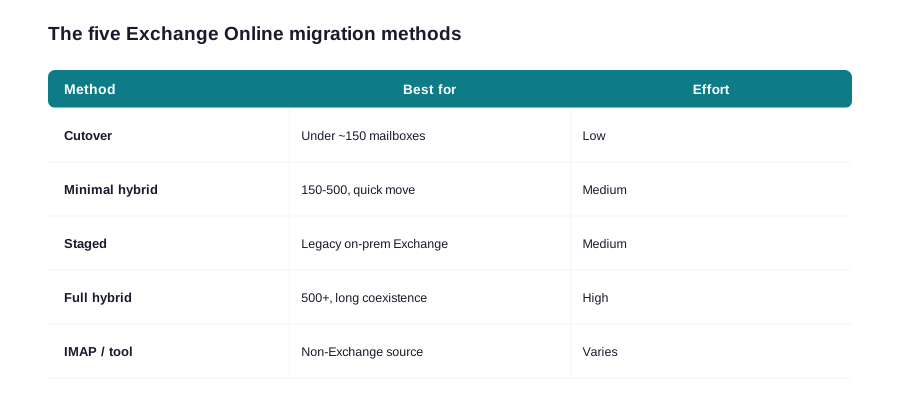
The dividing lines are mailbox count and the source system. Specifically, a small business on an old Exchange server uses cutover, a mid-sized one uses minimal hybrid, and a large or long-coexistence org uses full hybrid, while anything non-Exchange goes through IMAP or a tool. Therefore you rarely agonise over the choice once you know your numbers. As a result, the method almost picks itself from two facts about your environment.
⚖️ Cutover versus hybrid
The two methods people weigh most are cutover and hybrid, because they sit at opposite ends of effort. Cutover moves everyone at once and is simple; hybrid keeps on-premises and cloud running together and is powerful but complex. The comparison below shows where each one wins.
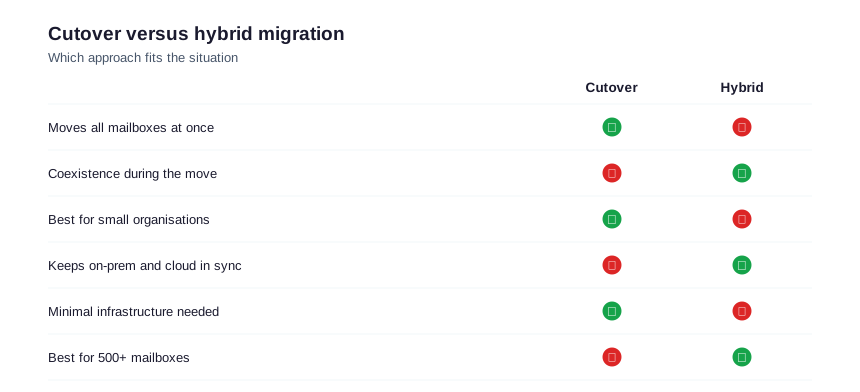
Effort is the real difference between these two. Specifically, cutover needs almost no extra infrastructure, while hybrid stands up a connector and runs two systems at once. Therefore the choice is a trade between simplicity now and control during the move. As a result, you weigh how much coexistence you genuinely need against the complexity it brings.
Why most small businesses choose cutover
For a business under roughly 150 mailboxes on a single Exchange server, cutover is almost always right. Therefore you avoid the cost and complexity of hybrid coexistence and simply move everyone over a weekend. The trade-off is the all-at-once switch. As a result, you plan the cutover carefully, but you are spared the long, fragile coexistence a hybrid demands.
There is a middle road many businesses miss. Specifically, minimal hybrid gives a brief taste of coexistence, just enough to move mailboxes in a couple of waves, without the long-term hybrid server. Therefore a 200-mailbox firm gets a calmer move than cutover with far less overhead than full hybrid. As a result, the choice is not simply cutover or full hybrid; the middle option fits a lot of real businesses.
When hybrid is worth the complexity
Hybrid earns its complexity for larger or cautious organisations. Specifically, with hundreds of mailboxes or a need to run on-premises and cloud side by side for months, hybrid gives a controlled, reversible move. Therefore the extra infrastructure pays for itself in safety. As a result, big migrations stay calm because users move in measured waves, not one risky jump.
Reversibility is the quiet advantage of hybrid worth naming. Specifically, because mailboxes can move back to on-premises during a hybrid project, a problem is recoverable rather than final. Therefore risk-averse or regulated organisations lean hybrid even when size alone would allow cutover. As a result, the method choice is about risk appetite as much as headcount.
🧭 How to choose your migration method
Choosing comes down to a few honest questions about your environment, and the table below turns them into an answer. So before any tooling or dates, you settle the method, because everything else depends on it. Get this right and the rest of the project is execution; get it wrong and you fight the method the whole way.
| If you have… | On this source | Use |
|---|---|---|
| Under 150 mailboxes | Exchange on-prem | Cutover |
| 150-500 mailboxes | Exchange on-prem | Minimal hybrid |
| 500+ or long coexistence | Exchange on-prem | Full hybrid |
| Any size | Gmail / IMAP | IMAP or a tool |
| PST files only | Local archives | Network upload / drive |
Getting the method right early saves the most money. Specifically, switching method mid-project means redoing planning, endpoints and testing, which is expensive and demoralising. Therefore we lock the method before any tooling or dates are set. As a result, the rest of the Exchange Online migration is execution against a fixed plan, not a moving target.
Source matters as much as size in an Exchange Online migration
Size is only half the question; the source decides the rest. Specifically, a Google Workspace move follows our G Suite migration guide, while loose archives follow the PST to Office 365 path. Therefore the method follows both how many mailboxes and where they live today. As a result, you match the route to your reality instead of forcing one method onto every case.
The source endpoint is the other thing to settle here. Specifically, the migration needs credentials and a reachable endpoint on the source system, whether that is an Exchange admin account or an app password for IMAP. Therefore we test connectivity before scheduling a single batch. As a result, the move starts on a proven connection rather than failing at the first mailbox.
🔑 Prerequisites: licensing, DNS and admin
Most failed migrations fail in the preparation, not the move. Therefore the prerequisites matter: every user needs an Exchange Online licence before their mailbox lands, you need admin access to both the source and the tenant, and your DNS time-to-live should be lowered ahead of the cutover. Consequently a day of preparation prevents a week of firefighting.
Lowering the DNS TTL early is the unsung hero of a clean cutover. Specifically, dropping the MX record TTL to a low value a couple of days ahead means mail flow switches to the cloud quickly when you flip it, rather than lingering on the old server for hours. Therefore you shrink the risky window. The PowerShell below confirms mailboxes are licensed and ready before you begin.
# Confirm users are licensed before migrating (Graph PowerShell)
Connect-MgGraph -Scopes "User.Read.All"
Get-MgUser -All -Property DisplayName,AssignedLicenses |
    Where-Object { $_.AssignedLicenses.Count -eq 0 } |
    Select-Object DisplayName
🚀 The Exchange Online migration process
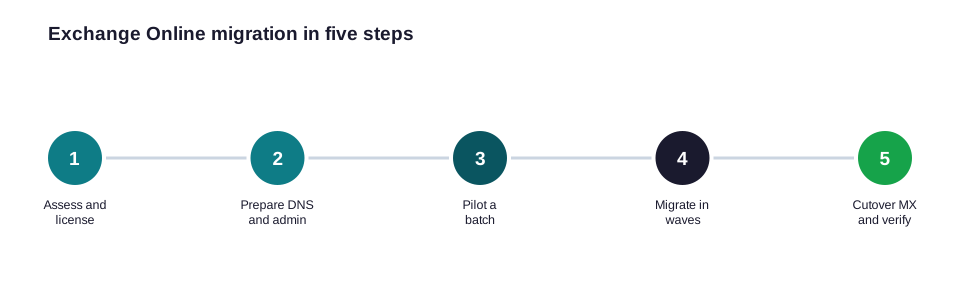
With the method chosen and the prerequisites met, the Exchange Online migration itself follows a repeatable five-step path. The steps below take you from assessment to a verified cutover, and they hold whether you run cutover or hybrid. So the shape of the project is the same; only the method underneath changes.
Licensing is the prerequisite that catches people most. Specifically, a mailbox cannot finish moving to a user with no Exchange Online licence, so an unlicensed batch silently stalls. Therefore we assign licences in advance and verify them, as the script above does. As a result, the migration runs to completion instead of leaving a confusing trail of half-moved mailboxes.
Pilot before you move everyone
Never migrate the whole company first; migrate a pilot batch. Therefore we move five to ten friendly users, confirm mail, calendar and Outlook all work, then proceed with confidence. Consequently any surprise hits ten people, not five hundred. As a result, the full migration is a scaled-up version of a thing you already proved works.
# Create a migration batch and start it (Exchange Online PowerShell)
New-MigrationBatch -Name "Pilot-Wave1" -SourceEndpoint $ep `
    -CSVData ([System.IO.File]::ReadAllBytes("C:\pilot.csv")) `
    -TargetDeliveryDomain "contoso.mail.onmicrosoft.com"
Start-MigrationBatch -Identity "Pilot-Wave1"
Batching is how a large move stays calm. Specifically, instead of one giant cutover, we split users into waves by team or location and migrate them on a schedule. Therefore the help desk handles a manageable group at a time rather than the whole company at once. As a result, each wave gets attention, and problems are caught small before the next wave moves.
⏱️ Where the migration time goes
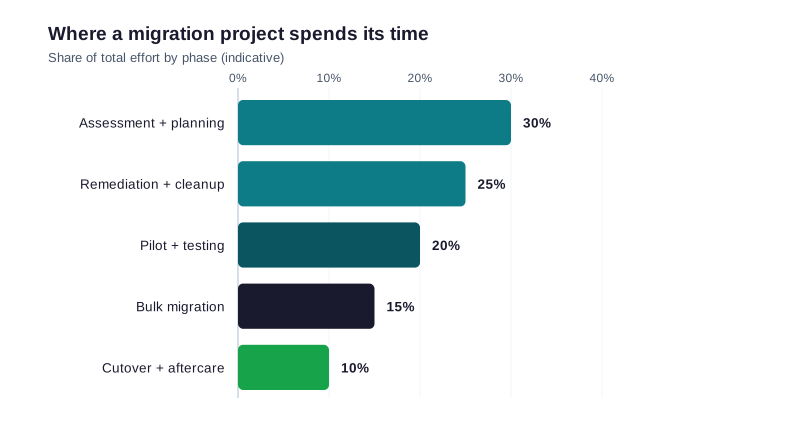
People expect the bulk data move to dominate the schedule, but it rarely does. The chart shows where the effort actually lands, and it is mostly assessment, cleanup and testing. Therefore budgeting time only for the copy itself is how projects run late.
💡 Wintive insight
Most stalled migrations we inherit were sold as a one-click tool job and skipped the assessment. Therefore they hit unlicensed users, oversized mailboxes and stale DNS mid-move. As a result, we spend the first third of any Exchange Online migration on assessment and cleanup, and the actual mailbox move then becomes the boring, predictable part, which is exactly what you want it to be.
Planning is where the hidden time hides, and it pays back. Specifically, an hour spent mapping mailboxes, sizes and forwarding rules prevents days of mid-move surprises. Therefore we treat assessment as the real first phase of any Exchange Online migration, not paperwork. As a result, the visible part of the project, the actual mailbox move, becomes the short and predictable bit.
Clean up before the Exchange Online migration
A migration is the worst time to discover junk, so we clean first. Specifically, we archive dormant mailboxes, fix oversized ones, and resolve broken forwarding before a single mailbox moves. Therefore you migrate a tidy environment, not a mess. As a result, the move is faster and the new tenant starts clean rather than inheriting years of clutter.
Knowing where the time goes also helps you staff the project. Specifically, because assessment and cleanup dominate, the early weeks need an admin who knows the estate, not just someone to click a tool. Therefore we front-load the experienced effort and let the bulk move run on a schedule. As a result, the budget matches the work, and nobody is idle while a slow copy runs in the background.
🔄 The cutover: MX and Autodiscover
The cutover is the moment mail flow moves to the cloud, and it hinges on two DNS records: the MX record and Autodiscover. When migration is complete, you point MX at Exchange Online and update Autodiscover so Outlook finds the new mailboxes. Microsoft documents the records in its mailbox migration guide, and the command below checks batch completion before you flip them.
# Check a migration batch has finished before cutover (Exchange Online)
Get-MigrationBatch | Select-Object Identity, Status, TotalCount,
    SyncedCount, FinalizedCount
Autodiscover deserves as much care as the MX record. Specifically, if Autodiscover still points at the old server, Outlook keeps trying to connect there and users see errors after cutover. Therefore we update both records together and confirm Autodiscover resolves to the cloud. As a result, Outlook reconnects on its own and the support queue stays quiet.
Flip MX only when sync is done
Timing the MX flip is everything. Therefore we confirm every batch shows complete, then change the MX record and lower-TTL Autodiscover together, so mail and Outlook switch in step. Consequently there is no window where mail arrives on a server nobody is watching. As a result, the cutover is a quiet flip, not a scramble.
One detail makes the cutover far less stressful. Specifically, because you lowered the DNS TTL days earlier, the MX change propagates in minutes rather than hours, so the window where mail could go astray is tiny. Therefore the scariest moment of the migration becomes almost anticlimactic. As a result, you watch mail arrive in the cloud quickly and move on, instead of refreshing a tool for half a day.
🧹 After the migration
The move is not done when mailboxes land; it is done when users are working cleanly. Therefore Outlook profiles re-create against the cloud, Autodiscover resolves correctly, and you confirm mail flow before decommissioning the old server. Consequently the last mile is verification, not celebration. So we treat the week after cutover as part of the project, not an afterthought.
Verification is the step teams skip when they are tired. Specifically, after cutover we send test mail in and out, check calendars and shared mailboxes, and confirm mobile devices reconnect. Therefore any gap surfaces while the old system is still available as a fallback. As a result, the migration is declared done on evidence, not on hope.
Decommission the old server safely
Once everyone is stable in the cloud, the old Exchange server can go, but not in a rush. Specifically, we keep it read-only for a short grace period, confirm nothing still depends on it, then decommission cleanly. Therefore a forgotten relay or scanner does not break the day after you pull the plug. As a result, the project ends with no loose ends rather than a surprise outage.
Shared mailboxes and resources are the classic forgotten items. Specifically, room mailboxes, shared mailboxes and distribution groups need migrating or recreating, and they are easy to overlook because nobody owns them. Therefore we inventory them up front and move them deliberately. As a result, the meeting rooms and team aliases work on day one instead of becoming a week-two scramble.
🔧 The Wintive Exchange Online migration baseline
After enough projects, the right approach stops being a debate. So we run every Exchange Online migration on the same baseline, then adapt to the environment. The card below is that baseline, and it is what keeps a move boring in the best possible way.
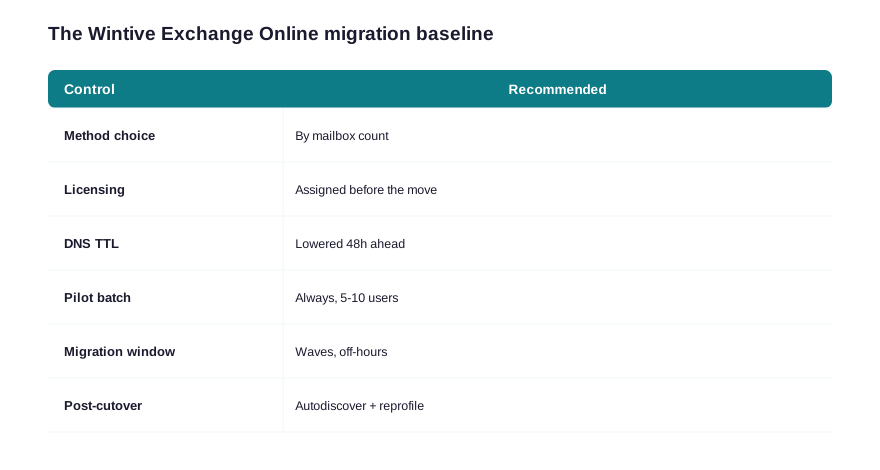
Two lines on this card prevent most pain. First, choosing the method by mailbox count removes the biggest early mistake. Second, lowering DNS TTL ahead of time turns the cutover from a long, anxious wait into a quick switch. We adapt the rest per environment, but these defaults make a migration predictable. The same discipline runs through our wider Office 365 migration checklist. Above all, the baseline keeps every Exchange Online migration boring in the best way, because a boring move is a successful one that nobody had to firefight.
The baseline is a project discipline, not a document. Specifically, we run the same assessment, pilot, wave and verification rhythm on every Exchange Online migration, then adapt the detail to the environment. Therefore each project benefits from the last one rather than starting fresh. As a result, our migrations get more predictable over time, which is exactly what a business wants from a move it only does once.
🚨 Common Exchange Online migration mistakes
Skipping assessment and cleanup
The costliest mistake is treating migration as a pure copy job. Therefore teams skip assessment, then hit unlicensed users and oversized mailboxes mid-move. As a result, a project sold as a weekend drags into weeks; assess and clean first and it does not.
Communication is the soft skill that saves migrations. Specifically, telling users what will change, when, and what to do if Outlook asks them to sign in turns confusion into a non-event. Therefore we send a short heads-up before cutover and a quick what-to-expect note after. As a result, the help desk handles a trickle of questions instead of a flood, and the project feels smooth to everyone.
Forgetting the DNS TTL
The second mistake is leaving the MX record on a long TTL. Consequently mail keeps flowing to the old server for hours after cutover. So lower the TTL a couple of days ahead. As a result, mail flow switches promptly and the risky window shrinks to minutes.
Keeping a rollback path is the discipline that lets you sleep. Specifically, until every mailbox is confirmed working in the cloud, the source system stays reachable so a problem batch can be retried or reverted. Therefore no single failure becomes a crisis. As a result, the Exchange Online migration carries a safety net right up to the moment you are certain it is no longer needed.
No pilot, no plan B
The third mistake is migrating everyone at once with no pilot. Specifically, a problem then hits the whole company instead of ten test users. Therefore always pilot, and keep the old system reachable until you are sure. As a result, a surprise is a small, recoverable event, not a company-wide outage.
Pulling it together, an Exchange Online migration is a sequencing problem more than a technical one: choose the right method, prepare licences and DNS, pilot, move in waves, then cut over and verify. Therefore the businesses that struggle are the ones that skip straight to the data copy. As a result, the discipline in this guide is what turns a risky weekend into a quiet, well-run move.
📚 More for Growing Businesses
🔍 Planning a migration and want the tenant checked first?
The M365 Instant Audit scans your tenant in under 10 minutes: license waste, plan right-sizing, MFA coverage, security posture and compliance gaps. As a result, you get a full PDF report with prioritized fixes, delivered instantly.
❓ Exchange Online Migration: Frequently Asked Questions
It is the process of moving mailboxes, calendars and contacts from an on-premises Exchange server, another mail system, or PST files into Exchange Online. The main methods are cutover, minimal hybrid, staged and full hybrid for Exchange sources, plus IMAP or a third-party tool for everything else.
There are five: cutover (move everyone at once, best under ~150 mailboxes), minimal hybrid (quick coexistence for mid-size), staged (legacy on-prem Exchange), full hybrid (500+ or long coexistence), and IMAP or a third-party tool for non-Exchange sources like Gmail.
Mostly by size. Under roughly 150 mailboxes on a single Exchange server, cutover is simplest and moves everyone over a weekend. With hundreds of mailboxes or a need to run on-premises and cloud together for months, full hybrid gives a controlled, reversible move.
Often no. Migrating from Exchange uses the native cutover, staged or hybrid methods at no extra cost, and IMAP migration is built in. A third-party tool mainly helps with non-Exchange sources, very large moves, or migrating SharePoint and Teams alongside email.
It depends on mailbox count and data size, but most of the effort is assessment, cleanup and testing rather than the data copy. A small-business cutover can complete over a weekend, while a large hybrid migration runs in waves over weeks.