

Good Microsoft 365 security monitoring is how you find out about an attack from a dashboard, not from a customer. It is the difference between catching a problem in minutes and discovering it weeks later. Yet most small businesses leave it almost entirely switched off.
Search for help and you mostly find security vendors selling a platform, with no word about the tools you already own. This guide takes the opposite line. First, it shows what Microsoft 365 can monitor natively, for free. Then it explains the few signals worth watching, how to avoid drowning in alerts, and when a paid tool is genuinely worth it.
Crucially, this is written for a small business, not a security team. So it favours a short, tuned watchlist over a wall of noise. By the end, you will have a monitoring setup you can actually keep up with, and a clear sense of where the native tools stop and a paid one might begin. That clarity is worth as much as the alerts themselves, because it stops you overspending on protection you do not yet need.
Is your Microsoft 365 actually being watched?
Wintive sets up Microsoft 365 security monitoring on the tools you already own. We switch on the audit log, build a short, tuned watchlist, and make sure the alerts reach someone. The price is a flat fee, with no long contract and no setup cost.
📅 Book a Free 30-Min Call | 💬 Chat on WhatsApp | See Our Plans →
🧭 Microsoft 365 security monitoring: the short answer
Microsoft 365 security monitoring means watching your tenant for signs of attack and being alerted in time to respond. Most of what you need is already built in: the unified audit log, alert policies, Microsoft Defender alerts, and Entra sign-in logs. The trick is to watch a short list of high-signal events, not everything. A handful of tuned alerts beats a flood you ignore. You only need a paid SIEM once you outgrow the native tools. In short, switch on what you own, watch the signals that matter, and add more only when you must.
Here is the plain version. Monitoring is detection, not protection. Your other controls try to stop attacks; monitoring tells you when one slips through.
The goal is speed. You want to know about a risky sign-in or a new forwarding rule while you can still act, not after the damage is done.
Above all, monitoring is only useful if someone reads the alerts. So the real skill is keeping the list short enough that the important ones never get lost.
🔎 What Microsoft 365 security monitoring really means
So what are we actually doing? At its core, monitoring watches the activity in your tenant and flags anything that looks like a threat. It covers sign-ins, mail, files, and admin changes.
Microsoft records this activity in the unified audit log and surfaces it through alert policies and Defender, as set out in its Microsoft Purview auditing documentation. Therefore, much of the work is enabling and tuning what is already there.
Detection matters because prevention is never perfect. A clever phish or a reused password will eventually get through. When that happens, monitoring is what turns a breach into a near miss.

Put simply, you cannot respond to what you cannot see. A tenant with no monitoring is a house with no smoke alarm. As a result, this is one of the highest-value, lowest-cost moves a small business can make.
Keep one idea in mind throughout. The aim is not to watch everything, but to notice the few things that signal a real attack. That focus is what separates useful monitoring from background noise.
🔗 How monitoring fits your other defences
Monitoring does not work alone. It is the last layer in a stack, the one that catches what the others let through. So it helps to see how it fits the rest of your security.
Your first layers try to prevent attacks: strong sign-in, blocked legacy authentication, and good email filtering. They stop most attempts before they begin. Monitoring assumes that some will get through anyway.
That assumption is exactly what makes it valuable. No prevention is perfect, and a confident team without detection is blind to its own gaps. Therefore, monitoring is the honesty layer in your defences.
It also feeds back into prevention. Every real alert teaches you which control was weak, so you close that gap next. As a result, detection and prevention improve each other over time.
Pair it with a regular review of your settings, and the loop is complete. You harden, you watch, you learn, then you harden again. So your security gets steadily tougher instead of standing still.
In short, do not think of monitoring as a separate project. It is the feedback loop that makes everything else you do actually count. As a result, the small effort it takes pays back across your whole security setup, again and again, for as long as the tenant keeps running.
🧰 The native tools for Microsoft 365 security monitoring
Before you buy anything, look at what you already own. Microsoft 365 ships with most of the monitoring a small business needs, and it is included in your plan.
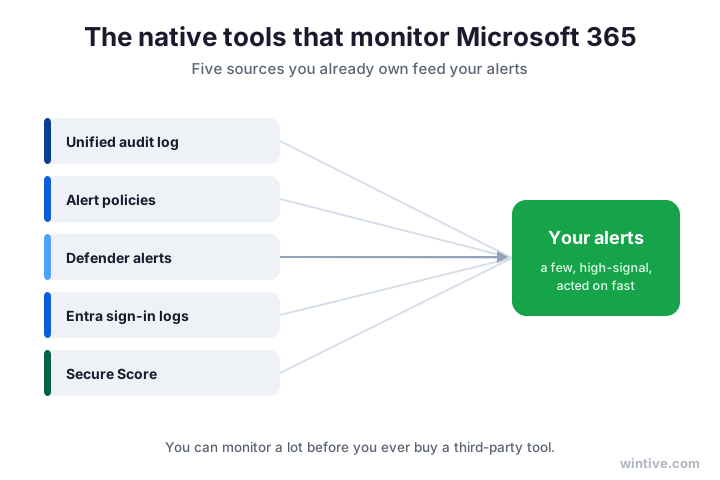
Specifically, five native sources do the heavy lifting: the unified audit log records activity, alert policies flag risky patterns, Microsoft Defender for Office 365 raises threat alerts, Entra ID sign-in logs show who logged in from where, and Secure Score gives you a baseline to track.
Together, these cover the common attacks without a third-party platform. The diagram shows how the five sources feed a short list of alerts you can act on.
Notably, the security vendors rarely mention these, because their business is selling you a layer on top. That does not make the native tools weak. For most small businesses, they are more than enough to start.
To track the baseline behind it all, read our Microsoft Secure Score guide. It pairs well with monitoring, because the score tells you how exposed you are while the alerts tell you what is happening right now.
🛎️ Switch on the unified audit log first
Start with one setting that everything else depends on. The unified audit log is the record of what happens in your tenant, and on many accounts it is not fully on.
Why does it matter so much? Because the log only records from the moment it is enabled. It cannot fill in the past, so a breach before you switch it on leaves no trail.
Turn it on today, then confirm it is capturing sign-ins, file activity, and mail events. With that in place, alerts and investigations actually have something to work with.
Many tenants ship with the log on but never verified, and a few still have it off. Either way, the only way to be sure is to run a quick search and confirm recent events appear. So make that check the very first thing you do.
Keep the history in mind too. The default retention covers most small businesses, but longer windows need a higher plan or an export. Therefore, decide how far back you may need to look before an incident forces the question.
In practice, a quick monthly look at the log keeps it healthy. You confirm it is still recording and skim for anything odd. As a result, you catch a quiet gap in the recording itself, not just in the alerts built on top of it.
👀 The signals worth watching
With the log on, decide what to watch. The mistake is to alert on everything; the skill is to pick the handful of events that reliably mean trouble.
A short watchlist covers most real attacks. Impossible-travel sign-ins, a user or admin turning off multi-factor, a new mailbox forwarding rule, a sudden mass download, a new admin account, and a legacy sign-in that skips multi-factor are the signals that matter most.
Each of these maps to a known attack step, so a single alert often catches a real intrusion early. The dashboard lays out the watchlist by severity.
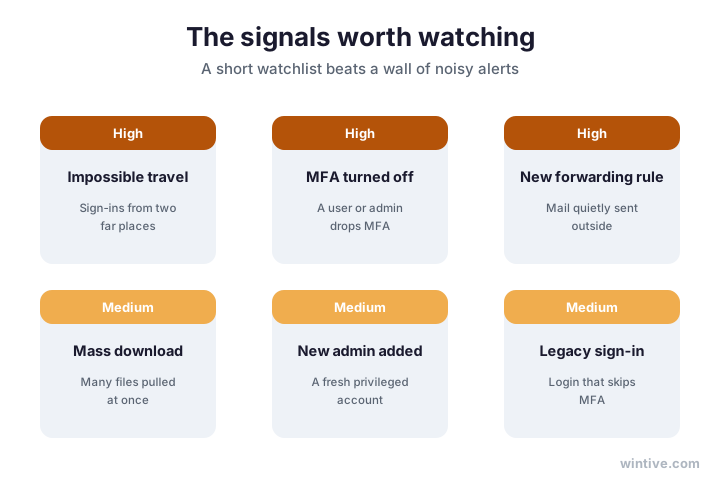
- Impossible-travel sign-ins from distant locations.
- Multi-factor authentication turned off for a user or admin.
- A new mailbox forwarding rule sending mail outside.
- A sudden mass download or upload of files.
- A new admin or privileged role assignment.
- A legacy sign-in that bypasses multi-factor.
Build alerts for these first, and leave the rest. You can always add a signal later if your business has a specific risk. As a result, you get early warning of the attacks that actually happen, without the noise.
🔇 Avoid alert fatigue: a few alerts, not thirty
Here is the trap that quietly kills most monitoring. Turn on too many alerts, and the inbox fills with noise. Then the one that matters gets lost in the crowd.
Alert fatigue is real, and it is the number-one reason monitoring fails at small businesses. An alert nobody reads is worse than no alert, because it creates a false sense of safety.
The fix is to tune ruthlessly. Start with a few high-signal alerts, watch them for a couple of weeks, and silence anything that cries wolf. The funnel shows how raw events become a short list a human can handle.
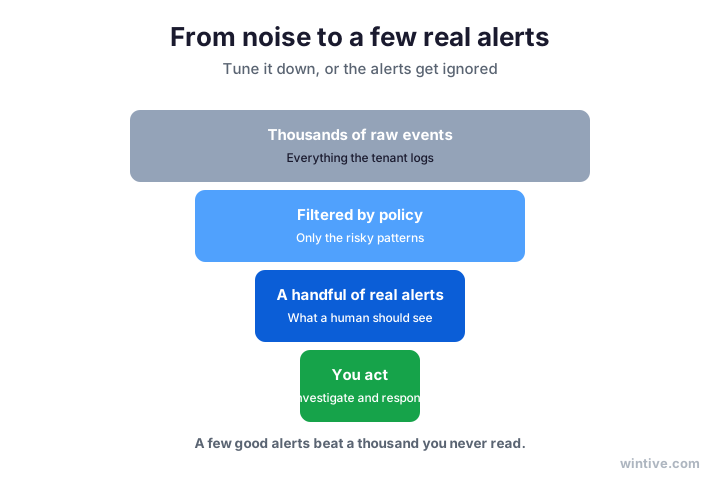
Above all, fewer, better alerts beat more, noisier ones every time. A monitoring setup you keep up with protects you; one you tune out does not. So treat a quiet, trusted inbox as the goal, not a busy one.
Wintive insight. The most common monitoring failure we find is not a missing alert. It is a tenant drowning in noisy ones, where the inbox is so full that nobody reads any of it. When a real incident finally happens, the warning was probably there, buried under fifty alerts that meant nothing. A short, tuned watchlist that someone actually reads catches more attacks than a flood that everyone has learned to ignore. Fewer alerts is not lazy monitoring; it is the only kind that works.
🆚 Native monitoring, or do you need a SIEM?
At some point, you may wonder whether to add a dedicated tool. A security information and event management system, or SIEM, collects logs from many sources and correlates them.
For most small businesses, the honest answer is not yet. The native tools cover the common attacks, and a SIEM adds cost and complexity you may not need. Vendors will tell you otherwise, because selling the SIEM is the point.
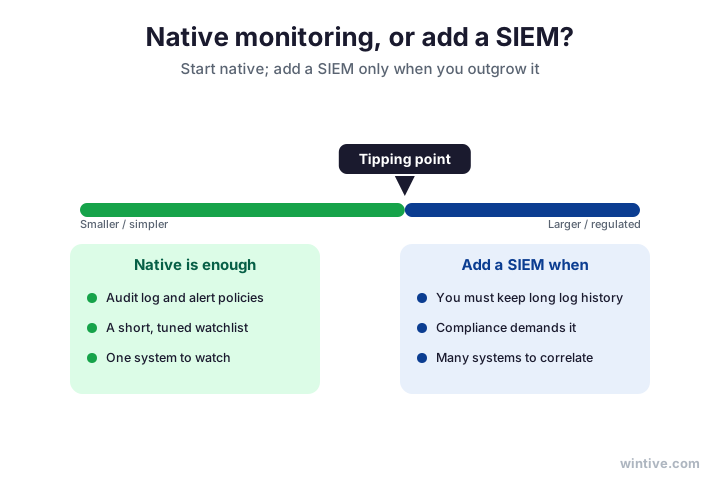
You genuinely need one once you must keep long log history, a regulation demands it, or you have many systems to correlate beyond Microsoft 365. The scale below shows where the tipping point sits.
| Native tools | A SIEM | |
|---|---|---|
| Best for | Small business, M365 only | Larger or regulated firms |
| Covers | Common M365 attacks | Many systems, long history |
| Cost | Included in your plan | An added subscription |
In practice, the choice is rarely all or nothing. Many businesses run native monitoring for years and add a SIEM only when a contract or a merger forces the question. Therefore, treat native as the default and a SIEM as a deliberate, later upgrade.
🗓️ A realistic Microsoft 365 security monitoring cadence
Monitoring is a rhythm, not a screen you stare at all day. Set a simple cadence, and it fits around the rest of your work.
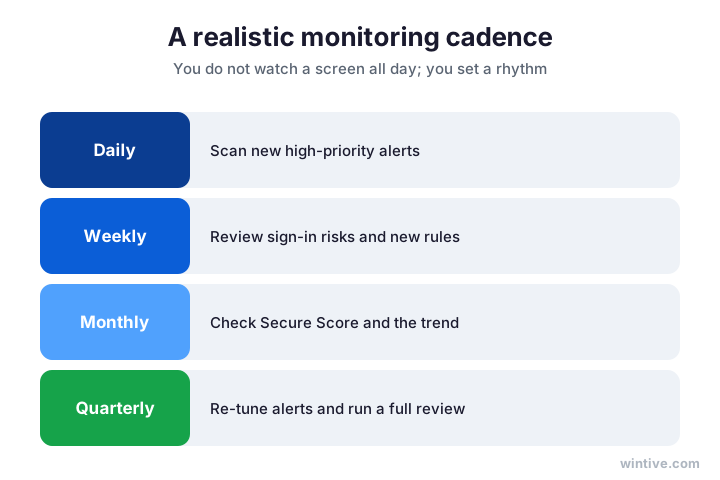
Daily, you glance at any high-priority alerts. Weekly, you review sign-in risks and any new mail rules. Monthly, you check Secure Score and its trend. Quarterly, you re-tune the alerts and run a fuller review.
Keeping to this rhythm is what makes monitoring stick. The cadence chart lays out a sensible week-to-quarter routine.
Crucially, write the cadence into a calendar so it actually happens. Monitoring that depends on someone remembering will fade within weeks. As a result, a recurring reminder is the cheapest reliability you can buy.
Tie the routine to things you already do, such as a Monday review or a month-end close. That way it rides on an existing habit. So the monitoring keeps running even in a busy month.
🚨 What to do when an alert fires
Setting up alerts is only half the job. An alert that nobody acts on is just a log entry. So decide in advance what you will do when one fires.
Keep a simple playbook for the common cases. A risky sign-in means resetting the password and revoking active sessions. For a new forwarding rule, remove it and check what was sent. When multi-factor is switched off, turn it back on and find out why.
Speed beats polish here. The first hour after an alert is when you limit the damage, so a quick, practised response matters more than a perfect one.
Write down who responds and how to reach them out of hours. A clear owner means an alert at six in the evening does not sit untouched until Monday.
Above all, treat every real alert as a chance to improve. Once you have handled one, ask whether a setting would have stopped it. That way your monitoring and your defences get stronger together.
Keep the playbook short and written down, ideally one page. In the moment, nobody reads a manual, so the steps have to be obvious. As a result, even a stand-in can handle the common alerts when the usual person is away.
🧪 Test that your monitoring actually works
Here is a step most teams skip entirely. Check that your alerts actually fire, because an alarm you have never tested is one you cannot trust.
Run a safe drill. Sign in from a different country through a VPN to trigger an impossible-travel alert, or add a harmless forwarding rule and confirm the alert lands. Then undo the test.
Confirm the alert reaches a real person, not an unwatched mailbox. Plenty of setups send alerts to an address nobody opens, which is the same as having none at all.
Pay attention to timing too. An alert that arrives a day late is little use against a fast attack, so make sure the path from event to inbox is quick.
Do this once when you set up, and again each quarter. Addresses change and rules drift, so a quiet test now saves a nasty surprise later.
Treat the first successful test as a small milestone. You now know the chain works, from the event to a real person who will act. Therefore, you can trust the quiet days instead of wondering whether anything is actually watching.
🧾 Do not monitor a tenant full of dormant accounts
One last gap, and it is pure Wintive. Monitoring a tenant that is full of orphaned and dormant accounts is like guarding a building with the back doors propped open.
Every ex-employee still licensed and every account nobody owns is a path an attacker can use quietly. Worse, activity from those accounts hides in the noise, so even good monitoring can miss it.
Clean the list before you lean on the alerts. Disable or reclaim the dormant accounts, then your monitoring has fewer blind spots and far less noise to wade through.
In short, monitoring and good housekeeping go together. A tidy tenant is far easier to watch than a cluttered one. As a result, reclaiming dead accounts makes every alert you keep more trustworthy.
Above all, count the active identities before you trust the alerts. A surprise here is common, and each unknown account is both a risk and a source of noise. As a result, a quick cleanup makes the whole monitoring setup sharper.
Notably, this is the cheapest noise reduction you can do. Every dead account you remove is one fewer source of confusing activity. Therefore, housekeeping and monitoring are two sides of the same job, not separate chores.
🪤 Common Microsoft 365 security monitoring mistakes
Before you finish, learn from the usual missteps. A few of them undo monitoring again and again.
First, many leave the audit log off, so there is nothing to alert on. Second, plenty turn on every alert and then tune out the noise. Third, some assume a tool will do the thinking for them and never tune it.
Finally, a lot of businesses set it up once and never look again. Monitoring is a habit, not a project, so a setup nobody checks slowly stops working.
The thread through all of these is the same. People treat monitoring as a switch to flip rather than a routine to keep. So build the cadence, watch a short list, and the setup keeps earning its place.
In short, none of these mistakes is hard to avoid once you know it. Switch on the log, keep the list short, tune it, and review on a rhythm. Therefore, a little discipline turns monitoring from a box you ticked into a defence you can rely on.
Above all, do not let perfect be the enemy of done. A simple setup you actually maintain beats an elaborate one you abandon. So start with the basics this week, and improve the rhythm from there.
✅ Your Microsoft 365 security monitoring plan
Condensed, here is the whole plan on one page. Work through it in order, and you have monitoring that fits a small business, without a dedicated security analyst or a single new licence.
- Switch on the unified audit log and confirm it has data.
- Use the native tools before buying any platform.
- Build a short watchlist of high-signal alerts.
- Tune ruthlessly to avoid alert fatigue.
- Reclaim dormant accounts so there is less noise.
- Add a SIEM only once you genuinely outgrow native.
- Keep a daily-to-quarterly cadence in the calendar.
Ultimately, monitoring is what keeps your security honest between full reviews. So set it up, then pair it with a full Office 365 security audit to catch the gaps a live alert never will, and to turn your monitoring from a hopeful guess into a setup you can genuinely trust.
In short, none of this needs a big budget; it needs a habit. The businesses that catch trouble early are simply the ones that switch the native tools on, keep the watchlist short, and actually read it each week.

📚 More for Growing Businesses
🔒 Get Microsoft 365 security monitoring set up right
The M365 Master Audit is a full, done-for-you Office 365 security review for a US small business. Specifically, it checks that your monitoring is on and tuned, reviews every domain behind it, ranks the fixes by real risk, and hands you the plan and the evidence. As a result, you get findings, a roadmap, and alerts you can trust.
❓ Frequently Asked Questions
It means watching your tenant for signs of attack and being alerted in time to respond. It uses native tools, the unified audit log, alert policies, Defender, and Entra sign-in logs, to flag risky activity like impossible-travel sign-ins or new forwarding rules.
Yes, and most small businesses should start that way. The native tools cover the common attacks at no extra cost. You only need a SIEM to keep long log history, to satisfy a regulation, or to correlate many systems.
Keep it short and high-signal: impossible-travel sign-ins, multi-factor turned off, new forwarding rules, mass downloads, new admin accounts, and legacy sign-ins. Add more only for a specific risk.
Yes, first thing. The log only records once enabled, so a breach before that leaves no trail. Switch it on, then confirm it captures sign-ins, file activity, and mail events.
Start with a few high-signal alerts, watch them a couple of weeks, and silence anything that fires too often. A short, trusted list someone reads beats a flood everyone ignores.
Set a simple cadence: a daily glance at alerts, a weekly review of sign-in risks and new rules, a monthly Secure Score check, a quarterly re-tune. The calendar keeps it running.
🧭 Your next step
Want monitoring set up properly, without a costly platform? First, book a short call. Then we switch on the native tools, build your watchlist, tune the alerts, and make sure they reach the right person. To start, contact Wintive. It is quick, and we do the rest.