

Strong Microsoft 365 security best practices turn a tenant full of defaults into one that can stand up to a real attack. Most of the controls are already in the Microsoft 365 you pay for. The problem is that they are off, half-configured, or never checked.
However, most guides on this topic are either a wall of enterprise jargon or a thin list of tips. This one is different. Specifically, it gives you the full picture, the order to do it in, and an honest view of where to stop. As a result, you leave with a plan you can actually run this month.
In short, think of this as a guided tour of your own tenant. You already own the locks; this guide just shows you which ones to turn. As a result, by the end you know exactly what to switch on and in what order. Above all, it stays in plain language, so you do not need a security background to act on it. So whether you do the work yourself or brief someone else, you stay in control of what changes and why.
Not sure your Microsoft 365 follows security best practices?
Wintive audits your tenant against Microsoft 365 security best practices, ranks the gaps by real risk, and closes them on the Microsoft 365 you already own. The price is a flat fee, with no long contract and no setup cost.
📅 Book a Free 30-Min Call | 💬 Chat on WhatsApp | See Our Plans →
🧭 Microsoft 365 security best practices: the short answer
Microsoft 365 security best practices cover six areas: identity, email, data and sharing, devices, licensing, and monitoring. Most of the controls already exist in your tenant, so the work is turning them on and checking them. The biggest wins are multi-factor authentication, blocking legacy sign-in, and protecting admin accounts. Then you harden data and devices, reclaim unused licences, and watch the audit log. In short, do the high-risk basics first, measure with Secure Score, and review on a schedule.
First, the plain version. Best practice is not a product or a one-time project. Instead, it is a set of settings you switch on, scope correctly, and keep an eye on.
Notably, the order matters more than the length of the list. A few high-impact changes beat a hundred minor ones. Therefore, this guide ranks the work by risk, so you start where it counts.
Crucially, you also need to know where to stop. Over-hardening breaks workflows and annoys staff. As a result, the goal is the strongest setup your business can actually live with.
Above all, this guide is built for a small business, not a security team. So it focuses on the handful of moves that remove the most risk for the least effort. Therefore, you get safer fast, without breaking how your people work.
🛡️ What Microsoft 365 security best practices really mean
So, what are we actually talking about? At heart, best practice is defence in depth. No single setting protects you, so each layer backs up the next. Microsoft sets out its own baseline in the Microsoft 365 for business security guidance.
Importantly, security is a shared responsibility. Microsoft secures the cloud platform, but your settings, your users, and your data are yours to protect. Therefore, the defaults are a starting point, not a finished job.
Above all, the layers work together. A strong password policy means little without multi-factor, and neither helps if an admin account is wide open. The diagram shows how the layers stack.
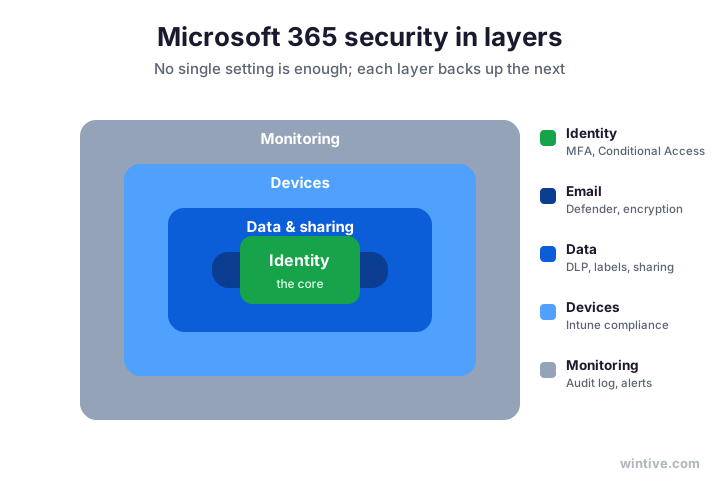
In practice, that is good news for a small business. You do not need every layer perfect on day one. As a result, you can start at the core, with identity, and build outward as you go.
Notably, this also explains why a single tool is never enough. A firewall does not stop a stolen password, and antivirus does not fix risky sharing. Therefore, the practices below cover the whole tenant, not one corner of it.
Therefore, do not buy a new tool before you have used what you own. Most small businesses already hold the controls they need in their plan. As a result, the first and cheapest move is always to switch on and configure what is already there.
🌐 The six domains to secure
Next, the shape of the work. Good practice splits into six domains, and a gap in one undoes the others.
Specifically, you cover identity, email, data and sharing, devices, licensing, and monitoring. Each has a few high-impact controls, so the list is shorter than it looks.
Crucially, identity comes first, because most attacks start with a stolen sign-in. The wheel shows all six, and the rest of this guide works through them in order.
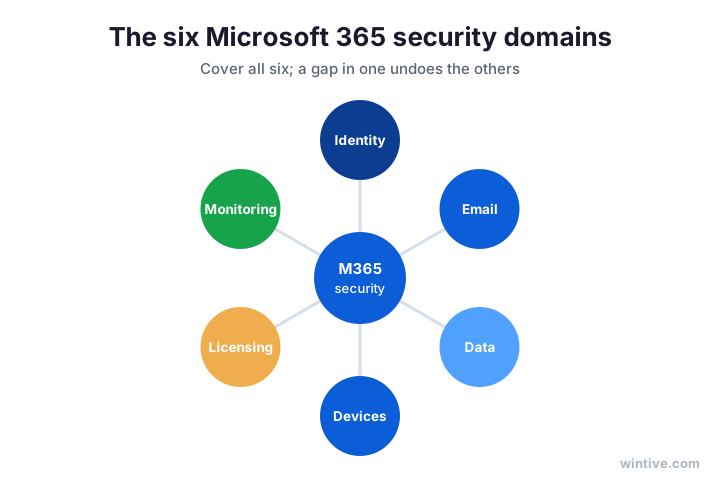
Therefore, treat the six as a set, not a menu. Skipping one, such as licensing, quietly leaves a door open. As a result, the strongest tenants are the ones that close every domain to a sensible level.
In practice, you can score each domain red, amber, or green in an afternoon. That simple read tells you where to start. As a result, the six domains become a plan, not just a list of topics.
📊 Prioritise by risk, not checklist order
Here is what most guides get wrong. They hand you a long list with no order, so you start at the top and run out of steam. Instead, sort the work by risk and effort.
Specifically, do the high-impact, low-effort moves first. Enforcing multi-factor, blocking legacy sign-in, and protecting admins remove most of the real risk in a week.
Then, move to the medium tier, such as preset Defender policies and tighter sharing. Finally, leave the fine-tuning for later. The tiers below show a sensible order.
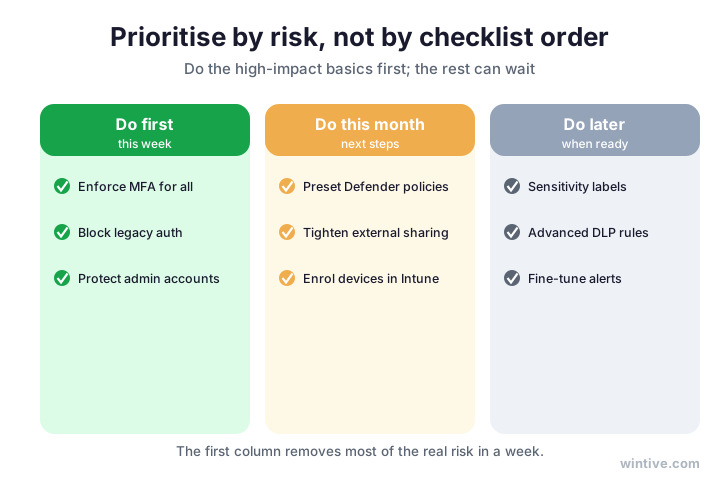
As a result, you feel safer almost immediately, which keeps the project alive. So resist the urge to polish a minor setting before the basics are done. In short, risk first, neatness later.
Importantly, this order also protects your energy. Quick, visible wins keep everyone motivated to finish. Therefore, banking the big risks early is as much about momentum as it is about security.
🔐 1. Identity and access
First, identity, the most important domain by far. Above all, enforce multi-factor authentication for every user, ideally with an app or a security key rather than text messages.
Then, block legacy authentication, which quietly skips the multi-factor prompt. Notably, this single change closes one of the most common ways in. Therefore, do it early, after a short test.
Finally, protect admin accounts. Specifically, keep them few, separate from daily accounts, and behind just-in-time access. As a result, a stolen login no longer hands over the whole tenant.
In practice, add a couple of Conditional Access rules once the basics are in. For example, require a compliant device for admins, and block sign-in from regions you never operate in. Therefore, you raise the bar without adding daily friction.
Notably, do not over-build the access rules. Three or four good policies beat twenty fiddly ones. As a result, you keep sign-in smooth for staff while the obvious risks stay closed.
📧 2. Email and collaboration
Next, email, because that is where most attacks land. Specifically, turn on the preset security policies in Microsoft Defender for Office 365, which set anti-phishing, Safe Links, and Safe Attachments in one move.
Then, review your mail rules for risky forwarding. Often, an attacker quietly forwards mail outside the company. Therefore, an honest sweep of transport and inbox rules belongs in every review.
Above all, add a warning banner for external mail and protect against impersonation. As a result, a spoofed invoice is far less likely to fool a busy member of staff.
In practice, the preset policies do most of the heavy lifting for you. They apply Microsoft’s recommended settings in one move, so you do not have to tune dozens of options. As a result, a small business gets enterprise-grade email protection in minutes.
Notably, do not forget about shared and old mailboxes. They often keep sign-in enabled long after anyone uses them. Therefore, disabling sign-in on accounts nobody logs into closes a quiet gap.
📂 3. Data and external sharing
Now, your files. SharePoint and OneDrive make sharing easy, which is exactly the risk. So, set sensible sharing defaults rather than leaving everything open.
Specifically, limit anonymous links, set them to expire, and default to named recipients. Then, add basic data loss prevention and sensitivity labels for your most sensitive information.
Importantly, the aim is to match access to need, not to lock everything down. As a result, the business keeps moving while the obvious leaks close.
Notably, a quick sharing report shows which files are open to anyone with the link. They tend to linger long after they are needed. Therefore, closing the riskiest ones is a fast, high-value win.
Above all, set a sensible default once, and most future leaks never happen. For example, make links default to named people and expire on their own. Therefore, the next careless share is safe before anyone has to think about it.
💻 4. Devices and endpoints
Next, the devices that touch your data. Specifically, enrol laptops and phones in Microsoft Intune and apply a simple compliance baseline.
Then, require a screen lock, encryption, and an up-to-date system, and switch on Microsoft Defender for Business. Notably, an unmanaged personal laptop with saved passwords is a quiet back door.
Above all, aim for coverage, not perfection. Even a light policy beats none, and you can tighten it later. As a result, you raise the floor for every user at once.
Importantly, include personal phones that read company mail. They are the common blind spot, because they rarely meet any baseline. Therefore, bring them under the same simple rules through app protection.
In short, you are not trying to lock down every device perfectly. You are making sure a lost or stolen one cannot leak your data. As a result, the ability to wipe company data remotely turns a scare into a non-event.
🧾 5. Licensing and right-sizing
Here is the practice almost every guide skips, and it is pure Wintive. Specifically, unused and over-assigned licences are a security problem, not just a billing one.
Crucially, every orphaned account and ex-employee still licensed is attack surface. Therefore, list dormant users and accounts nobody owns, then disable or reclaim them.
Notably, right-sizing also matches plans to roles. Some users hold a heavy licence they never use, while others lack a control they need. As a result, the cleanup tightens security and trims the bill at once.
Wintive insight. Across the small-business tenants we secure, the licence list is the most overlooked security control. Ex-staff, test accounts, and shared mailboxes with interactive sign-in sit there for months, each one a way in. None of the popular best-practice lists mention it, because they are written by tool vendors, not by people who clean up real tenants. A single right-sizing pass usually removes more risk than a new product, and it lowers the bill at the same time.
📈 6. Monitoring and the audit log
Next, can you see what is happening? Specifically, switch on the unified audit log, because many tenants leave it off and have no trail when something goes wrong.
Then, set a few alert policies for risky behaviour, such as impossible-travel sign-ins and mass downloads. Notably, you do not need a security team for this; a handful of well-chosen alerts covers the common cases.
Above all, monitoring is what turns a breach into a near miss. Without it, you hear about an incident from a customer. As a result, this layer is cheap insurance that pays off when it matters most.
In practice, start with three or four alerts, not thirty. Too many alerts create noise, and noise gets ignored. Therefore, pick the signals that map to a real attack and tune the rest out.
Notably, the audit log only records from the moment it is on. It does not fill in the past. As a result, switching it on today is one of the cheapest and most valuable moves in this whole guide.
🎯 Measure your Microsoft 365 security best practices with Secure Score
So, how do you know it is working? Specifically, Microsoft Secure Score reads your settings and gives your tenant a percentage with ranked actions. So it turns best practice into a number you can track.
However, treat the score as a guide, not a target. A higher number can still hide a real gap, so read it next to your own judgement. Therefore, use it to spot quick wins, then decide by risk.
Crucially, the score is the easiest way to hold the gains. Check it monthly, watch the trend, and you will catch drift early. Read our full Microsoft Secure Score guide for how to read and raise it.
In practice, the score also gives you a shared language with whoever does the fixes. You point at the ranked actions instead of describing settings. As a result, the work gets done faster and with less back and forth.
Crucially, do not chase a perfect score. Some actions will never fit your business, so mark them as risk-accepted with a note. Therefore, the number you keep is one you can defend, not one that just looks tidy.
🗺️ A phased plan: foundation, harden, monitor
Now, put it in order. The work falls into three phases, and doing them in sequence keeps the project calm.
First, build the foundation: multi-factor, admin protection, and the audit log. Then, harden: Defender policies, sharing, and devices. Finally, monitor: Secure Score, alerts, and a regular review.
Importantly, each phase builds on the last, so nothing is wasted. The roadmap shows the three phases at a glance.
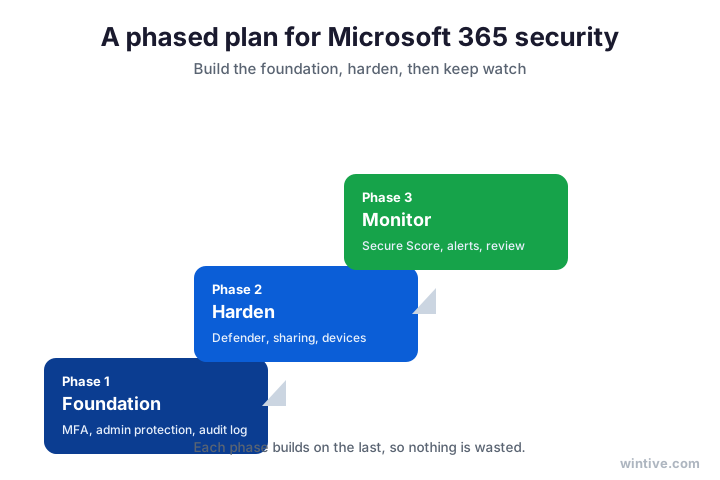
Therefore, do not try to run all three phases at once. A small business rarely has the hours, and rushing breaks things. As a result, one phase at a time gets you there faster than a big-bang attempt.
In short, the phases turn a daunting project into three manageable steps. Each one ends with a clear win you can see. Therefore, even a busy owner can keep the work moving without it taking over the month.
🗓️ Your Microsoft 365 security best practices in 30 days
Finally, here is how to begin without boiling the ocean. In a single month, you can move from defaults to a genuinely safer tenant.
Specifically, give each week one focus, so the work stays manageable. The table lays out a realistic month, and the timeline shows the same plan visually.
Notably, the goal of the first month is momentum, not perfection. You will not be flawless in thirty days, and that is fine. Therefore, aim for the high-risk basics, then keep going.
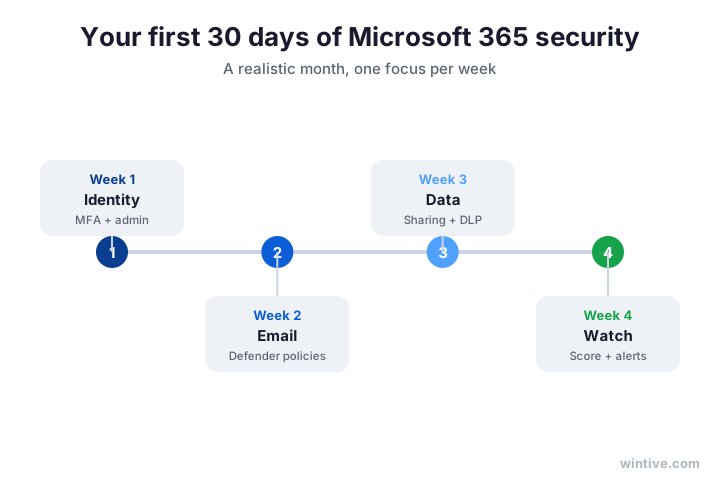
| Week | Focus | Outcome |
|---|---|---|
| Week 1 | Identity: MFA and admin accounts | The biggest risks closed |
| Week 2 | Email: preset Defender policies | Phishing protection on |
| Week 3 | Data and devices: sharing and Intune | Files and laptops covered |
| Week 4 | Monitor: Secure Score and alerts | A baseline you can track |
📋 The Microsoft 365 security best practices checklist
Condensed, here is the checklist to keep on hand. Work through it in order, and tick each item honestly.
- Enforce multi-factor authentication for every user.
- Block legacy authentication after a short test.
- Protect admin accounts and use just-in-time access.
- Turn on the preset Defender for Office 365 policies.
- Set sensible external sharing defaults with expiry.
- Enrol devices and apply an Intune compliance baseline.
- Reclaim unused and orphaned licences.
- Switch on the unified audit log and a few alerts.
- Check your Secure Score and review every quarter.

Therefore, print the list and tick it off honestly. An attacker will check the same items, so flattering yourself helps no one. As a result, an honest first pass shows you exactly how far you have to go.
Notably, none of these items needs new software. Each one is a setting in the Microsoft 365 you already pay for. Therefore, the only real cost is the hour it takes to work through them.
🪤 Common Microsoft 365 security best practices mistakes
Before you start, learn from others. A few mistakes trip up small businesses again and again.
First, many over-harden and break a workflow, then roll the whole thing back. Therefore, change things in small, tested steps. Second, plenty set it and forget it, even though settings drift and staff change.
Third, almost everyone ignores licensing, leaving ex-staff accounts live for months. Finally, some treat a tool as the whole plan. As a result, the practices stay shallow and the real gaps stay open.

In short, the pattern behind every mistake is the same. People treat security as a one-off instead of a habit. Therefore, build a quarterly review into how you run the business, and the gains hold.
Notably, write down what you changed and why as you go. A short record turns next quarter into a quick check rather than a fresh start. As a result, your security improves a little every review instead of resetting each time.
✅ Where to stop, and your next move
Lastly, know where to stop. Specifically, you do not need a perfect, locked-down tenant. You need the high-risk gaps closed and the rest documented.
Importantly, accept and write down the risks that do not fit your business. Then a reviewer sees judgement, not a gap you missed. As a result, your security is both strong and defensible.
Ultimately, best practice is a habit, not a finish line. So run the checklist, measure with Secure Score, and review each quarter. Then a full Office 365 security audit confirms the work and finds what you missed.
Therefore, treat this guide as a living checklist, not a one-time read. Your tenant, your staff, and the threats all change over time. As a result, the businesses that stay safe are the ones that revisit it on a schedule.
In short, good security is mostly good habits. The settings matter, but the routine of checking them matters more. So pick a quarter, put the review in the calendar, and the rest takes care of itself.
Above all, the businesses that stay safe are rarely the ones with the most settings; they are the ones that keep checking the few that matter, quarter after quarter, long after the first push is done.
📚 More for Growing Businesses
🔒 Put your Microsoft 365 security best practices to the test
The M365 Master Audit is a full, done-for-you Office 365 security audit for a US small business. Specifically, it checks every best practice in this guide, ranks the fixes by real risk, and hands you the plan and the evidence. As a result, you get findings, a roadmap, and proof your tenant is secure.
❓ Frequently Asked Questions
Start with identity: enforce multi-factor authentication for everyone, block legacy sign-in, and protect admin accounts. Those three close most of the real risk in a week. Then harden email, data, and devices, reclaim licences, and add monitoring.
Yes. Work through identity, email, data and sharing, devices, licensing, and monitoring in that order. This guide includes a condensed checklist you can print and tick off, plus a first-30-days plan.
A small business should focus on the high-impact basics, not enterprise tooling. Most controls already exist in your plan, so the work is configuration, not new software. Aim for the setup your team can live with.
Use Microsoft Secure Score. It reads your settings and gives a percentage with ranked actions, so you track progress. Treat the number as a guide, and fix by real risk first.
At least once a quarter, and after any big change such as a migration, a new app, or staff turnover. A regular review keeps your best practices from going stale.
They should, though most skip it. Unused and orphaned licences are attack surface as well as wasted money. Reclaiming ex-staff accounts and right-sizing plans tightens security and cuts the bill.
🧭 Your next step
Want to put these Microsoft 365 security best practices into action? First, book a short call. Then we audit your tenant, rank the gaps, and hand you a clear plan. To start, contact Wintive. It is quick, and we do the rest.